
hohem X2
hohem iSteady X2 3-Axis Gimbal Stabilizer User Manual
Model: X2
1. Introduction
Thank you for choosing the hohem iSteady X2 3-Axis Gimbal Stabilizer. This manual provides essential information for the safe and effective operation of your device. Please read it thoroughly before use and retain it for future reference.
Package Contents
- hohem iSteady X2 Gimbal Stabilizer
- Wireless Remote Control
- Mini Tripod
- USB-C Charging Cable
- Storage Pouch
- User Manual (this document)
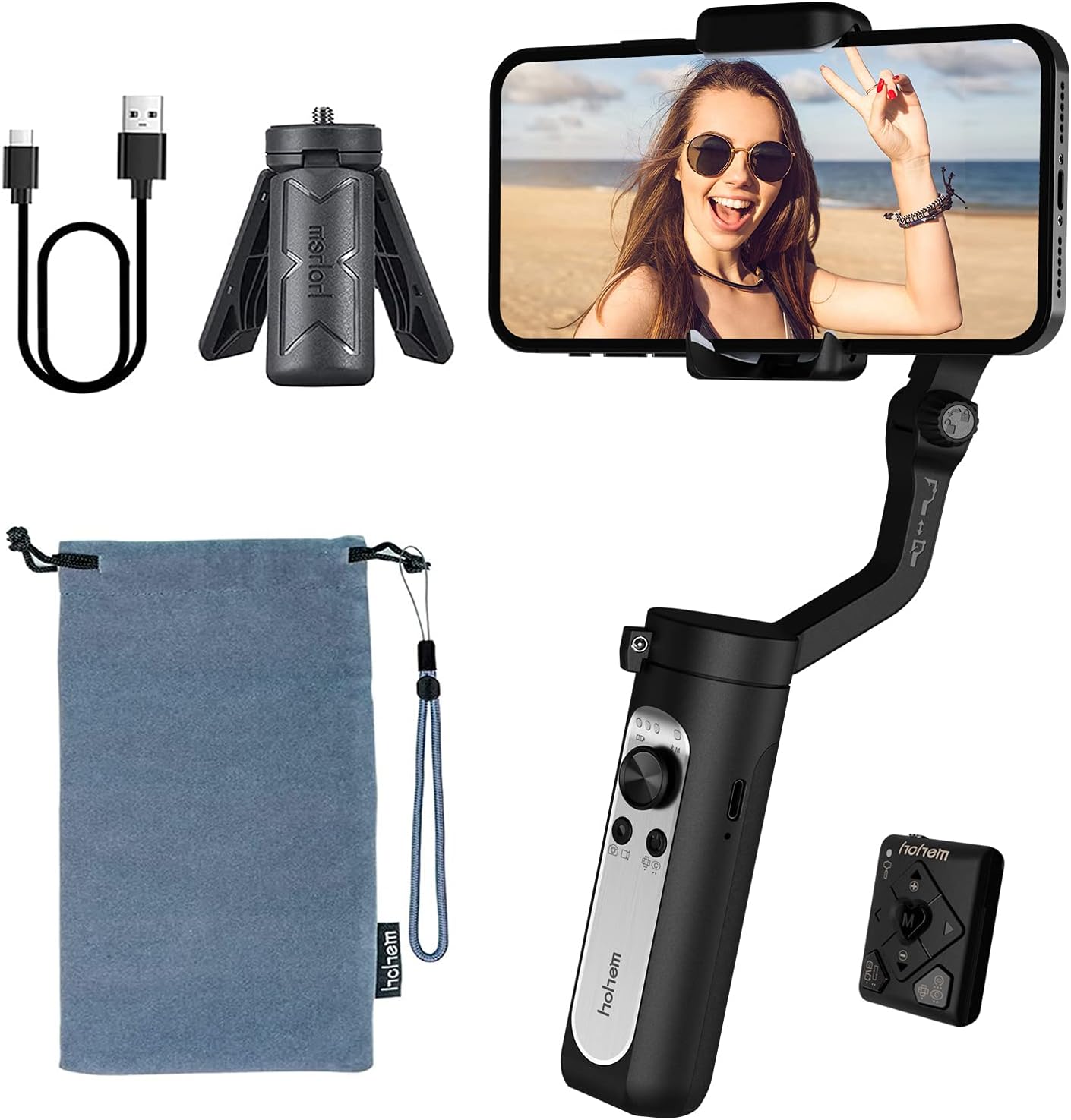
The image above displays the hohem iSteady X2 gimbal stabilizer along with its standard accessories. These include the main gimbal unit, a compact wireless remote control, a mini tripod for stable placement, a USB-C cable for charging, and a soft storage pouch for portability.
2. Safety Information
To ensure safe operation and prevent damage to the device or injury to yourself or others, please observe the following safety precautions:
- Do not disassemble, repair, or modify the gimbal.
- Keep the gimbal away from water and other liquids.
- Avoid dropping or subjecting the gimbal to strong impacts.
- Do not expose the gimbal to extreme temperatures or direct sunlight for prolonged periods.
- Ensure your smartphone is securely mounted before powering on the gimbal.
- Keep fingers clear of moving parts during operation.
- Use only the provided charging cable and a compatible power adapter.
3. Product Overview
The hohem iSteady X2 is a compact and lightweight 3-axis gimbal stabilizer designed for smartphones, offering enhanced stability and creative shooting modes. It features a foldable design for easy portability and comes with a wireless remote control.

This image illustrates the primary features of the hohem iSteady X2, including its ultralight design (259g), 3-axis stabilization for smooth footage, wireless remote control capability, advanced face tracking, various Moment Modes for creative shots, emergency power bank function for charging your phone, and a quick roll switch for easy orientation changes.
Components and Controls
- Phone Clamp: Securely holds your smartphone.
- Roll Axis Motor: Controls the roll movement for horizontal stability.
- Pan Axis Motor: Controls the pan movement for horizontal rotation.
- Tilt Axis Motor: Controls the tilt movement for vertical stability.
- Joystick: Controls pan and tilt movements manually.
- Mode Button (M): Switches between different working modes.
- Power Button: Powers the gimbal on/off.
- Shutter Button: Triggers photo/video recording via Bluetooth.
- Zoom Slider: Controls digital zoom in the Hohem Pro app.
- USB-C Port: For charging the gimbal and emergency phone charging.
- 1/4-inch Screw Hole: For mounting the tripod or other accessories.

This image highlights some of the creative shooting modes accessible through the Hohem Pro app, including Inception Mode for rotating shots, Dolly Zoom for dramatic effects, Timelapse for accelerated video, and Panoramic for wide-angle captures. These modes enhance the versatility of the gimbal for various content creation needs.
4. Setup
4.1 Unfolding the Gimbal
- Gently unfold the gimbal arm until it locks into place.
- Extend the phone clamp.

The image above demonstrates the compact, folded state of the hohem iSteady X2, showing how easily it fits into a pocket. This highlights its lightweight design, weighing only 0.57 lbs, making it highly portable for on-the-go use.
4.2 Mounting and Balancing Your Smartphone
Proper balancing is crucial for optimal performance and battery life.
- Place your smartphone firmly into the phone clamp. Ensure the phone is centered and snug.
- Adjust the phone's position within the clamp until it remains level when the gimbal is powered off. If the phone tilts to one side, adjust its position slightly until it stays horizontal.

This image visually represents the 3-axis stabilization capability of the hohem iSteady X2. It shows a smartphone mounted on the gimbal, with arrows indicating the three axes of movement (pan, tilt, and roll) that work together using the 4.0 anti-shake algorithm system to ensure smooth and stable video footage, even during dynamic movements.
4.3 App Installation (Hohem Pro)
For full functionality and advanced features, download the "Hohem Pro" app from your smartphone's app store (iOS App Store or Google Play Store).
- Search for "Hohem Pro".
- Install the app and grant necessary permissions.
5. Operating Instructions
5.1 Powering On/Off
- Power On: Press and hold the Power Button for 3 seconds.
- Power Off: Press and hold the Power Button for 3 seconds.
5.2 Bluetooth Connection
- Ensure the gimbal is powered on.
- Enable Bluetooth on your smartphone.
- Open the Hohem Pro app. The app will automatically search for and connect to the gimbal.
- If prompted, confirm the pairing.
5.3 Gimbal Modes
Press the Mode Button (M) to cycle through the following modes:
- Pan & Tilt Follow (PF): The pan and tilt axes follow your movements, while the roll axis remains locked.
- Pan Follow (PF): Only the pan axis follows your movements.
- All Lock (AL): All three axes are locked, keeping the camera pointing in a fixed direction.
- POV (Point of View): All three axes follow your movements, providing a first-person perspective.
- Inception Mode: Rotates the phone 360 degrees along the roll axis.
5.4 Wireless Remote Control
The iSteady X2 comes with a dedicated wireless remote control for convenient operation.

This image highlights the convenience of the wireless remote control. It shows the gimbal set up with a smartphone, and a hand holding the remote, enabling users to capture photos or videos from a distance, perfect for group shots or when you need to be in the frame yourself.
- Power Button: Power on/off the remote.
- Shutter Button: Take photos or start/stop video recording.
- Joystick: Control gimbal movement (pan/tilt).
- Mode Button: Switch gimbal modes.
- Zoom In/Out: Control digital zoom.
5.5 Emergency Power Bank Function
The iSteady X2 features a built-in 2800mAh battery that can also serve as an emergency power bank for your smartphone via the USB-C port.

This image demonstrates the hohem iSteady X2's capability to act as an emergency power bank. It shows a smartphone connected to the gimbal via a USB-C cable, indicating that the gimbal's internal 2800mAh battery can provide power to charge your phone when needed, extending your shooting time.
5.6 Official Product Video
The embedded video showcases the hohem iSteady X2, emphasizing its lightweight design and various functionalities. It demonstrates the gimbal's ease of use, portability, and some of its advanced features in action, providing a visual guide to its capabilities.
6. Maintenance
- Cleaning: Use a soft, dry cloth to clean the gimbal. Do not use liquid cleaners or solvents.
- Storage: Store the gimbal in its provided storage pouch in a cool, dry place away from direct sunlight.
- Battery Care: For long-term storage, charge the battery to approximately 50-60% every three months to prevent over-discharge.
7. Troubleshooting
| Problem | Possible Cause | Solution |
|---|---|---|
| Gimbal not powering on. | Low battery. | Charge the gimbal fully. |
| Gimbal unstable or vibrating. | Smartphone not balanced correctly. | Re-balance the smartphone in the clamp. |
| Bluetooth connection issues. | Bluetooth off on phone, app not open, interference. | Ensure Bluetooth is on, open Hohem Pro app, restart gimbal and phone. |
| Remote control not working. | Remote battery low, not paired. | Ensure remote is charged/has fresh batteries, re-pair with gimbal. |
8. Specifications
| Feature | Detail |
|---|---|
| Model | X2 |
| Product Dimensions | 7.05 x 3.11 x 1.54 inches (folded) |
| Item Weight | 9.1 ounces (approx. 259g) |
| Maximum Weight Recommendation | 280 Grams (0.62 lbs) |
| Battery Type | Lithium Ion |
| Battery Capacity | 2800mAh (approx. 10 hours battery life) |
| Charging Port | USB-C (supports two-way charging) |
| Stabilization | 3-Axis (Pan, Tilt, Roll) with 4.0 anti-shake algorithm |
| Compatible Devices | iPhone 12/12mini/12pro/12pro max/11/11 pro max/Xs max/xs/x, Samsung Galaxy s10e/s10 plus/Note10, Huawei P40/P40+/P30/mate 30, Google Pixel 4/4XL |
| UPC | 673400922373 |
9. Warranty and Support
hohem products are designed and manufactured to the highest quality standards. For warranty information and technical support, please refer to the official hohem website or contact their customer service directly.
- Official Website: www.hohem.com
- Customer Service: Refer to the contact information provided on the product packaging or official website.
- User Manual (PDF): A downloadable PDF version of the user manual may be available at this link.
Please retain your proof of purchase for warranty claims.
Related documentsX2


Ask a question about this manual
Ask about setup, troubleshooting, compatibility, parts, safety, or missing instructions. Manuals+ will review the question and use this page’s manual context to help answer it.