
Ozuly NS-RC4NA-18
Universal Insignia TV Remote Control User Manual
Model: NS-RC4NA-18 | Brand: Ozuly
Introduction
This manual provides comprehensive instructions for the Ozuly Universal Replacement Remote Control, model NS-RC4NA-18, designed for Insignia LED LCD HDTVs. This remote offers direct functionality without the need for complex setup or programming, serving as a reliable replacement for your original Insignia TV remote.

Figure 1: Front view of the Ozuly Universal Insignia TV Remote Control. The remote is black with clearly labeled buttons for power, input, numbers, navigation, volume, channel, and media playback.
Setup
The Ozuly Universal Replacement Remote Control is designed for immediate use with compatible Insignia TVs. No programming or pairing is required.
Battery Installation
- Locate the battery compartment on the back of the remote control.
- Slide the battery compartment cover downwards to open it.
- Insert two (2) AAA batteries (not included) into the compartment, ensuring the positive (+) and negative (-) terminals align correctly with the indicators inside the compartment.
- Slide the battery compartment cover back into place until it clicks securely.
Once batteries are installed, the remote control is ready for operation.

Figure 2: Rear view of the remote control, illustrating the battery compartment and its cover. The compartment requires two AAA batteries for operation.
Operating Instructions
This remote control provides full functionality for your Insignia TV, mirroring the original remote's capabilities.
Key Functions:
- Power Button (⏻): Turns the TV on or off.
- Input Button: Cycles through available input sources (HDMI, AV, etc.).
- Number Buttons (0-9): Directly select TV channels.
- Menu Button: Accesses the TV's main menu.
- Navigation Buttons (Up, Down, Left, Right, Enter): Navigate through menus and confirm selections.
- Volume Up/Down (+/-): Adjusts the TV volume.
- Mute Button: Mutes or unmutes the TV audio.
- Channel Up/Down (CH +/-): Changes TV channels.
- Exit Button: Exits current menu or function.
- Info* Button: Displays program information.
- ACC Button: Accesses accessibility features.
- CC Button: Toggles Closed Captions.
- Media Playback Controls (Play, Pause, Stop, Rewind, Fast Forward, Skip): Controls media playback if supported by the TV.
- Sleep, Aspect, Game, Picture, Audio: Dedicated buttons for quick access to specific TV settings.
The remote is designed for a fast response time, typically under 0.2 seconds, and offers precise control up to a range of 15 meters.

Figure 3: A user holding the remote control, demonstrating its comfortable fit and ease of use while operating a television.
Maintenance
Proper maintenance ensures the longevity and optimal performance of your remote control.
Battery Replacement
Replace batteries when the remote's response becomes sluggish or it stops functioning. Always replace both batteries simultaneously with new AAA batteries. Do not mix old and new batteries, or different types of batteries.
Cleaning
To clean the remote, gently wipe its surface with a soft, dry cloth. For stubborn dirt, slightly dampen the cloth with water or a mild, non-abrasive cleaner. Avoid using harsh chemicals or abrasive materials, as these can damage the remote's finish or internal components.
Storage
Store the remote in a cool, dry place away from direct sunlight and extreme temperatures. If the remote will not be used for an extended period, it is recommended to remove the batteries to prevent leakage.
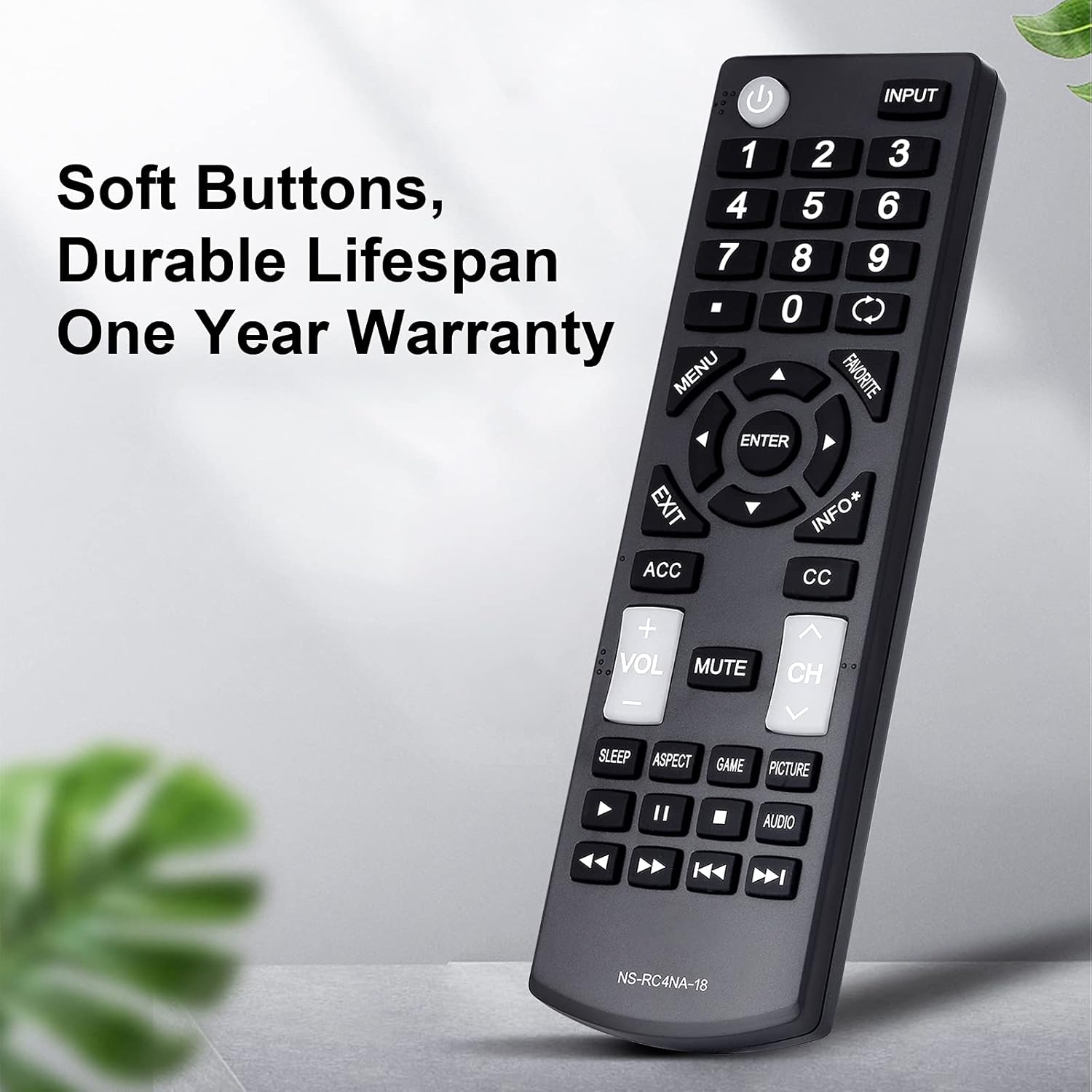
Figure 4: A detailed view of the remote control, emphasizing its soft, durable buttons and robust ABS plastic construction, designed for long-term use.
Troubleshooting
If you encounter issues with your remote control, please refer to the following common problems and solutions:
| Problem | Possible Cause | Solution |
|---|---|---|
| Remote not responding. | Dead or incorrectly inserted batteries. | Replace batteries with new AAA batteries, ensuring correct polarity. |
| Remote works intermittently. | Low battery power; obstruction between remote and TV; remote sensor on TV is blocked. | Replace batteries. Ensure a clear line of sight between the remote and the TV's infrared sensor. Remove any objects blocking the TV's sensor. |
| Certain buttons do not work. | Button stuck or damaged; TV model incompatibility for specific advanced functions. | Gently press the button multiple times to dislodge any debris. Verify your TV model is listed as compatible for all functions. |
| Remote does not control TV. | TV is not an Insignia brand or is an incompatible Insignia model. | Confirm your TV is an Insignia brand and its model number is listed in the compatible models section of this manual or product description. This remote is specifically designed for Insignia TVs. |
If troubleshooting steps do not resolve the issue, please contact customer support for assistance.
Specifications
- Model Number: NS-RC4NA-18
- Brand: Ozuly
- Compatible Devices: Insignia Televisions (LED LCD HDTVs)
- Max Number of Supported Devices: 1
- Color: Black
- Product Dimensions: 6 x 2 x 1 inches (approximately)
- Item Weight: 2.39 ounces (approximately)
- Special Feature: Universal replacement, no programming required
- Power Source: 2 x AAA Batteries (not included)
- Response Time: Less than 0.2 seconds
- Operating Range: Up to 15 meters
- Material: Durable ABS Plastic
- Date First Available: January 1, 2021

Figure 5: An illustration highlighting the upgraded internal chip of the remote control, contributing to its longer lifespan and improved performance.
Warranty and Support
Warranty Information
This product comes with a One Year Warranty from the date of purchase, covering manufacturing defects and material flaws under normal use. Please retain your proof of purchase for warranty claims.
Customer Support
For any questions, concerns, or assistance with your Ozuly Universal Replacement Remote Control, please do not hesitate to contact our customer service team. We are committed to providing timely and high-quality service to ensure your satisfaction.
Please refer to the contact information provided with your purchase or on the product packaging for the most direct support channels.
Ask a question about this manual
Ask about setup, troubleshooting, compatibility, parts, safety, or missing instructions. Manuals+ will review the question and use this page’s manual context to help answer it.