
Introduction
This manual provides comprehensive instructions for the setup, operation, maintenance, and troubleshooting of your ONN 22-inch FHD Monitor. Please read this manual thoroughly before using the product to ensure proper functionality and to prevent damage.

Figure 1: Front view of the ONN 22-inch FHD Monitor.
Package Contents
Please verify that all components are present in the package:
- ONN 22-inch FHD Monitor
- Monitor Stand (Base and Neck)
- Power Adapter
- HDMI Cable
- Screws for stand assembly
Setup
1. Assembling the Stand
- Carefully place the monitor face down on a soft, clean surface to prevent scratches.
- Attach the stand neck to the back of the monitor, aligning the mounting holes.
- Secure the neck with the provided screws.
- Attach the stand base to the bottom of the neck, securing it with the appropriate screw.

Figure 2: Side view of the monitor showing the stand assembly.
2. Connecting Cables
Locate the input ports on the back of the monitor:
- HDMI IN: Connect the HDMI cable from your computer's HDMI output to this port.
- VGA IN: Connect a VGA cable from your computer's VGA output to this port (if using VGA).
- DC 12V: Connect the power adapter to this port, then plug the power adapter into a wall outlet.
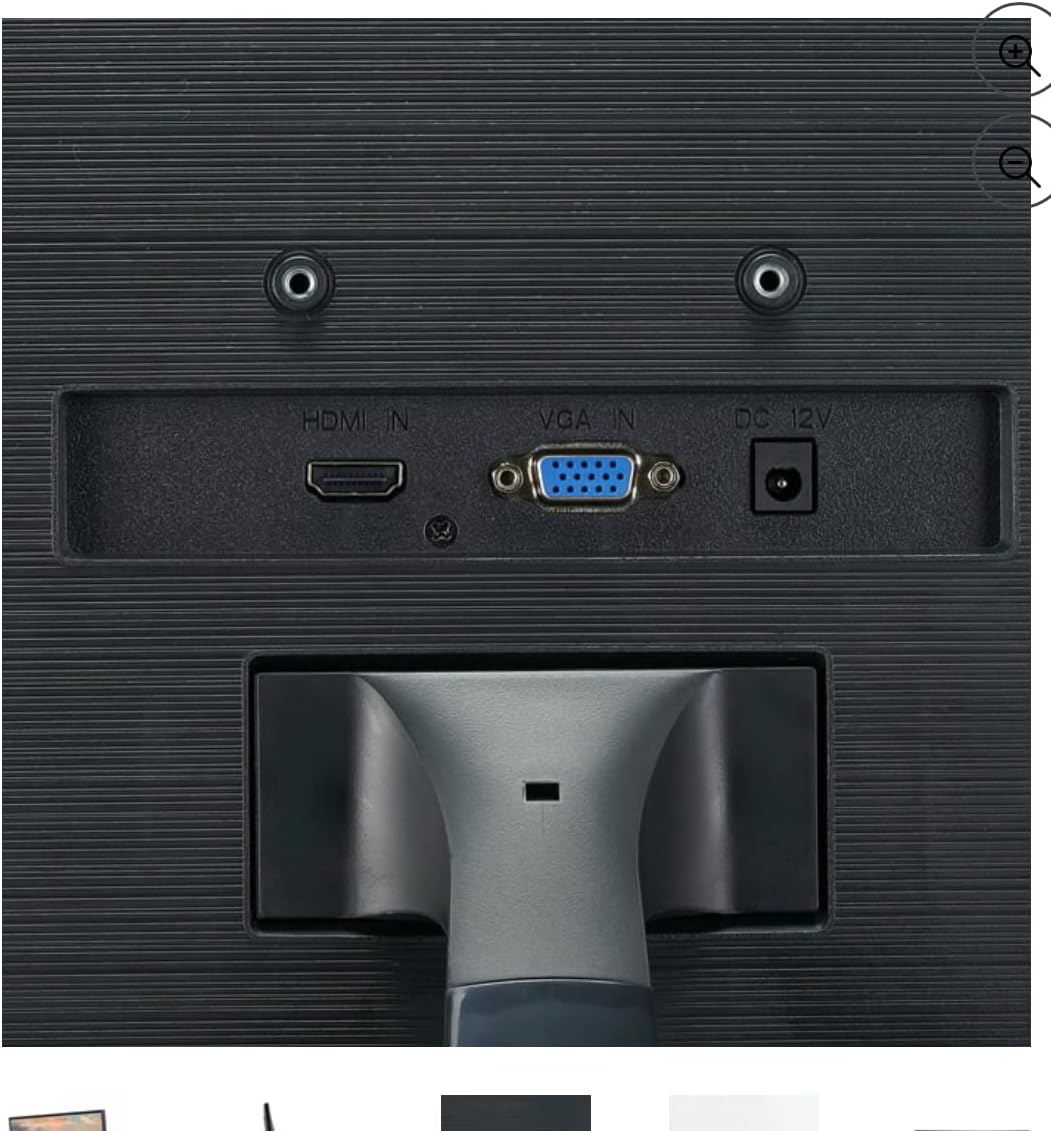
Figure 3: Rear view of the monitor displaying HDMI, VGA, and DC 12V input ports.
Operating
Powering On/Off
Press the power button, usually located on the bottom right or back of the monitor, to turn the monitor on or off. The power indicator light will illuminate when the monitor is on.
Input Selection
If you have multiple devices connected (e.g., one via HDMI and one via VGA), you may need to manually select the input source. Use the monitor's control buttons (often located on the bottom or back) to navigate to the input selection menu and choose the desired source (HDMI or VGA).
On-Screen Display (OSD) Menu
The OSD menu allows you to adjust various display settings. Use the control buttons to:
- Access the OSD menu.
- Navigate through menu options (e.g., Brightness, Contrast, Color Settings).
- Adjust values for selected settings.
- Exit the OSD menu.
Refer to the on-screen prompts for specific button functions within the OSD.
Maintenance
Cleaning the Monitor
To clean the monitor screen:
- Turn off the monitor and unplug the power cord.
- Gently wipe the screen with a soft, lint-free cloth. For stubborn marks, dampen the cloth slightly with water or a non-ammonia, non-alcohol based screen cleaner.
- Avoid spraying liquid directly onto the screen.
To clean the monitor casing, use a soft, dry cloth. Do not use abrasive cleaners or solvents.
Storage
When storing the monitor for extended periods, ensure it is powered off and disconnected from all cables. Store it in a cool, dry place, ideally in its original packaging, to protect it from dust and physical damage.
Troubleshooting
If you encounter issues with your monitor, refer to the following common problems and solutions:
| Problem | Possible Cause | Solution |
|---|---|---|
| No Power | Power cable not connected; Power outlet not working | Ensure power cable is securely connected to monitor and outlet. Test outlet with another device. |
| No Signal / Blank Screen | Video cable not connected; Incorrect input source selected; Computer not outputting signal | Check HDMI/VGA cable connections. Select correct input source on monitor. Ensure computer is on and configured to output to the monitor. |
| Flickering or Distorted Image | Loose video cable; Incorrect resolution/refresh rate; Interference | Reseat video cable. Adjust display resolution/refresh rate on your computer. Move monitor away from other electronic devices. |
| Buttons Not Responding | Temporary software glitch | Unplug the monitor's power cable for 30 seconds, then plug it back in and try again. |
Specifications
| Feature | Specification |
|---|---|
| Screen Size | 22 Inches |
| Resolution | 1920 x 1080 (FHD 1080p) |
| Aspect Ratio | 16:9 |
| Voltage | 12 Volts |
| Screen Surface Description | Glossy |
| Item Weight | 7.24 pounds |
| Package Dimensions | 22.1 x 14.6 x 4.6 inches |
| Model Number | 3e5cffd5-8673-44c0-a26a-2e284edf565a |
| Date First Available | June 4, 2021 |
Warranty and Support
For warranty information and technical support, please refer to the documentation included with your purchase or visit the official ONN product support website. Keep your purchase receipt for warranty claims.