
1. Introduction
Thank you for choosing the REXING PRD615 Smart Home Projector. This device is designed to transform your living space into an immersive entertainment hub, offering high-definition visuals, robust audio, and smart connectivity features. This manual provides essential information for setting up, operating, and maintaining your projector to ensure optimal performance and longevity.

Image: The REXING PRD615 Smart Home Projector, a sleek, rectangular device with a lens on the front and ventilation grilles on the sides.
2. Safety Information
- Power Supply: Use only the provided power adapter. Ensure the voltage matches the projector's requirements.
- Ventilation: Do not block ventilation openings. Ensure adequate airflow around the projector to prevent overheating.
- Liquid Exposure: Keep the projector away from water or other liquids. Do not operate in damp environments.
- Cleaning: Disconnect power before cleaning. Use a soft, dry cloth. Avoid abrasive cleaners.
- Lens Care: Do not touch the projector lens directly. Use a lens cleaning cloth if necessary.
- Eye Safety: Do not look directly into the projector lens when the lamp is on, as the bright light can cause eye strain or damage.
- Disassembly: Do not attempt to disassemble or repair the projector yourself. Refer all servicing to qualified personnel.
3. Package Contents
Please check the box for the following items:
- REXING PRD615 Smart Home Projector
- Power Adapter
- Remote Control
- User Manual
- HDMI Cable (may vary by package)
4. Product Overview and Features
The REXING PRD615 is equipped with advanced features for a superior home entertainment experience:
- Theatre Experience: Projects stunning ultra-bright 750 ANSI DLP HD video (1280x800 resolution) with a throw ratio of 1.2:1, supporting projection sizes from 40 to 150 inches.
- Incredible Audio: Features dual built-in 3W stereo speakers for clear, lag-free audio. Supports external audio via 3.5mm headphone jack or Bluetooth.
- Autofocus: Automatically calculates the distance to the projection surface for crystal-clear imaging without manual adjustment.
- 3D Functionality: Supports 3D movies and games for an immersive viewing experience (3D glasses not included).
- Multimedia Connectivity: Access thousands of apps via the Google Play Store (Android TV 9.0). Connect devices via HDMI, USB, SD card, or wirelessly via Wi-Fi and Miracast.

Image: The REXING PRD615 projector displaying its smart interface with icons for Airplay, Miracast, HDMI, App Store, YouTube, Netflix, and other apps, along with various multimedia ports on the rear.
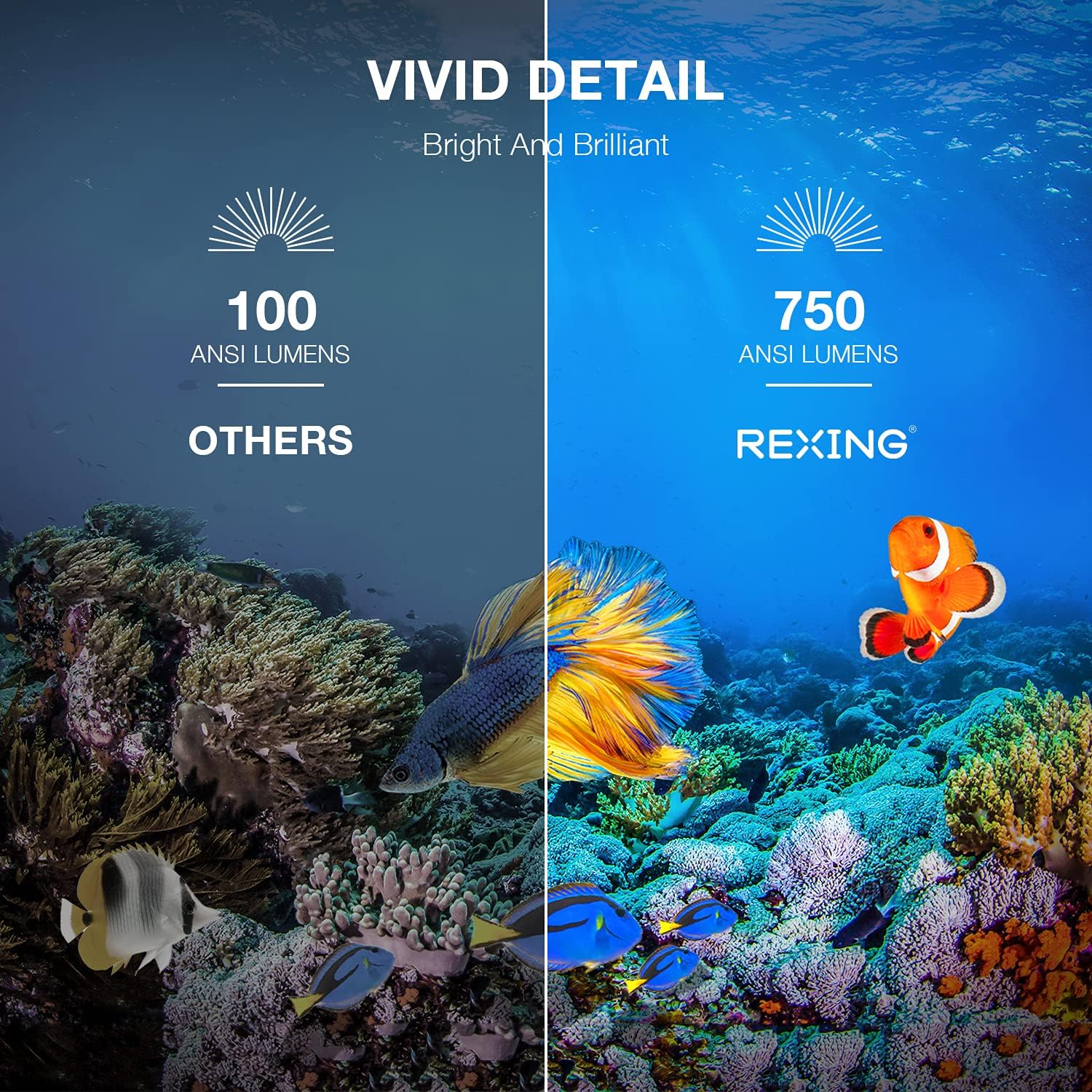
Image: A visual comparison showing the vivid detail of 750 ANSI Lumens (REXING) versus 100 ANSI Lumens (Others) in an underwater scene with colorful fish.

Image: A split screen comparison of a cityscape, demonstrating the clarity of 1080P resolution (REXING) compared to 720P (Other Projectors).
5. Setup
5.1 Placement
Position the projector on a stable, flat surface. For optimal viewing, ensure the projection surface (wall or screen) is clean and smooth. The projector can create an image size from 40 to 150 inches diagonally, depending on the distance from the screen.
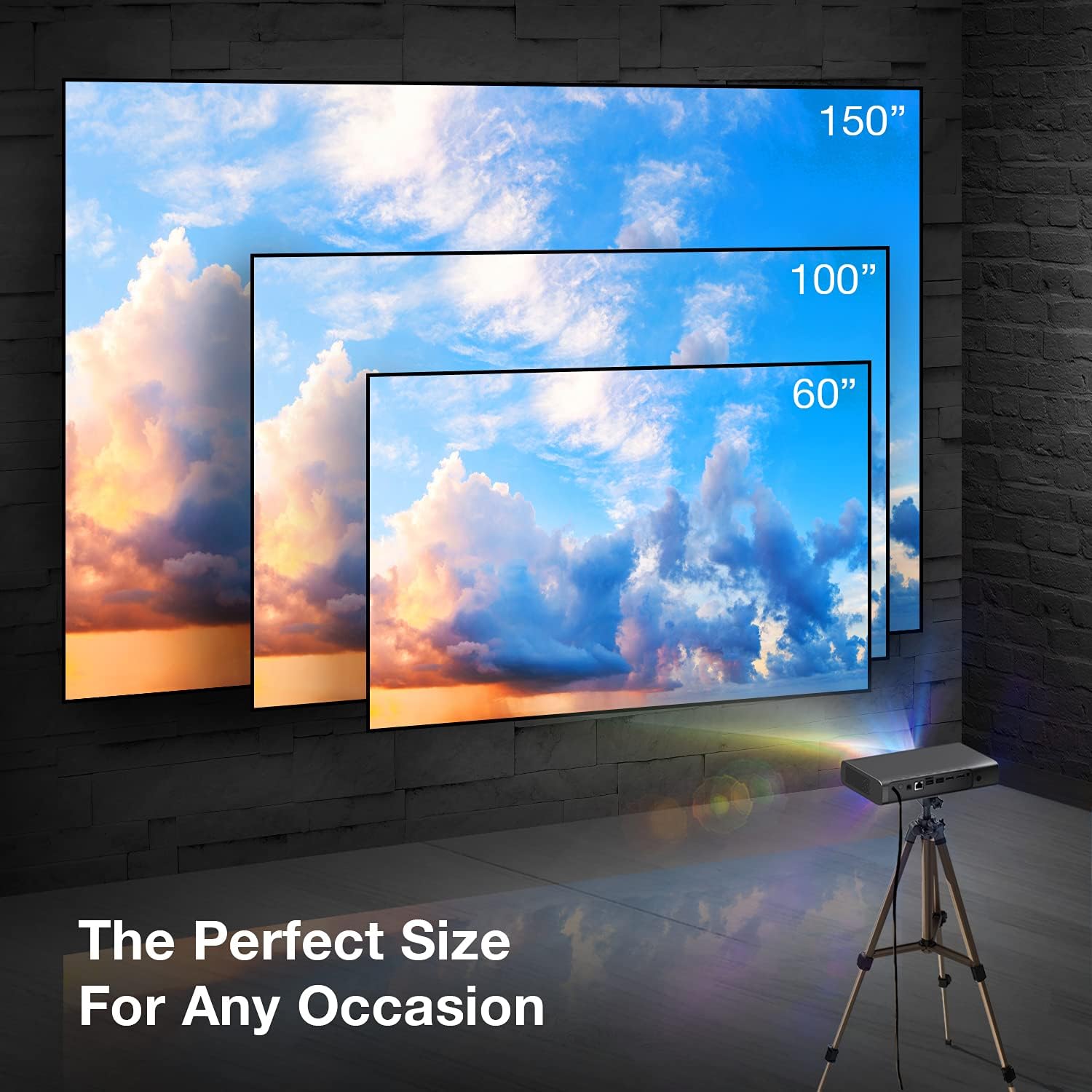
Image: A visual representation showing different projection sizes (60", 100", 150") achievable with the REXING PRD615 projector, illustrating its versatility for various room sizes.
5.2 Power Connection
- Connect the power adapter to the DC IN port on the projector.
- Plug the power adapter into a wall outlet.
- Press the power button on the projector or remote control to turn on the device.
5.3 Initial Configuration (Autofocus & Auto Keystone)
Upon startup, the PRD615 will automatically adjust the focus and keystone correction. This feature ensures a clear, rectangular image even if the projector is not perfectly aligned with the screen.

Image: An aerial view showing the REXING PRD615 projector on a table, projecting an image onto a wall, with an overlay illustrating the automatic focus and keystone correction capabilities.
5.4 Network Connection
To access smart features and online content, connect the projector to your Wi-Fi network:
- Navigate to the 'Settings' menu on the projector's interface.
- Select 'Network' or 'Wi-Fi'.
- Choose your desired Wi-Fi network from the list and enter the password if prompted.
6. Operating Instructions
6.1 Connecting External Devices
- HDMI: Connect Blu-ray players, gaming consoles, laptops, or other HDMI-enabled devices to the HDMI 1 or HDMI 2 ports.
- USB: Insert USB flash drives into the USB 2.0 ports to play media files directly.
- Bluetooth: Pair Bluetooth speakers or headphones for enhanced audio.
- TF Card: Insert a TF (microSD) card into the designated slot to access media.
6.2 Using Smart Features (Android TV, Apps, Miracast)
The REXING PRD615 runs on Android TV 9.0, providing access to a wide range of applications:
- App Store/Google Play: Download and install your favorite streaming apps like Netflix, YouTube, Chrome, and more.
- Miracast: Wirelessly mirror content from compatible smartphones, tablets, or computers to the projector screen.
- 3D Playback: For 3D content, ensure your media is in a compatible 3D format and use active shutter 3D glasses (sold separately).

Image: Two individuals playing a racing video game projected onto a large screen by the REXING PRD615, demonstrating the ability to cast content from a phone to the projector.
7. Maintenance
- Cleaning the Lens: Use a professional lens cleaning cloth or air blower to gently remove dust. Do not use liquid cleaners directly on the lens.
- Cleaning the Casing: Wipe the projector's exterior with a soft, dry cloth. For stubborn marks, a slightly damp cloth can be used, followed by a dry one.
- Storage: When not in use for extended periods, store the projector in a cool, dry place, protected from dust and extreme temperatures.
8. Troubleshooting
| Problem | Possible Cause | Solution |
|---|---|---|
| No image projected | Power off; input source incorrect; cable loose | Check power connection; select correct input source; ensure cables are securely connected. |
| Image blurry | Out of focus; projector too close/far | Allow autofocus to adjust; reposition projector within recommended throw distance. |
| No sound | Volume too low; audio output incorrect; external device muted | Increase projector volume; check audio settings; unmute external device. |
| Remote not working | Batteries low/dead; obstruction; not pointed at IR receiver | Replace batteries; remove obstructions; point remote directly at the projector's IR receiver. |
| Wi-Fi connection issues | Incorrect password; router too far; network interference | Verify password; move projector closer to router; restart router. |
9. Specifications
| Feature | Detail |
|---|---|
| Brand | REXING |
| Model | PRD615 |
| Display Technology | DLP |
| Brightness | 750 ANSI Lumens |
| Native Resolution | 1280 x 800 (HD) |
| Max Display Resolution | 1280 x 800 |
| Projection Size | 40-150 inches |
| Throw Ratio | 1.2:1 |
| Speaker Type | Dual 3W Stereo, Built-In |
| Connectivity Technology | Bluetooth, USB, HDMI, Wi-Fi |
| Special Features | Wireless, Portable, Built-In Wi-Fi, Autofocus, Auto Keystone Correction |
| Operating System | Android TV 9.0 |
| Item Weight | 4.8 pounds |
| Package Dimensions | 11.2 x 8 x 4.6 inches |
| Date First Available | June 4, 2021 |
10. Warranty and Support
REXING stands behind its products. The PRD615 Smart Home Projector comes with an 18-Month Warranty from the date of purchase. This warranty covers manufacturing defects and ensures your product functions as intended.
For any questions, technical assistance, or warranty claims, please contact our US-Based Customer Support team. Our dedicated team is ready to assist you.
- Email: Refer to your product packaging or the official REXING website for contact email.
- Phone: Refer to your product packaging or the official REXING website for customer support phone number.

Image: A customer support representative with a headset, indicating the availability of US-based customer support for the REXING PRD615 projector.

