1. Introduction
This manual provides detailed instructions for the setup, operation, and maintenance of your Acer Nitro XZ272U Pbmiiphx 27-inch Curved WQHD Gaming Monitor. Please read this manual thoroughly before using the product to ensure proper functionality and to prevent damage.
The Acer Nitro XZ272U Pbmiiphx is a 27-inch 1500R curved gaming monitor featuring WQHD (2560 x 1440) resolution, AMD FreeSync technology, up to 165Hz refresh rate, and HDR 400 support for an immersive visual experience.
2. Package Contents
Verify that all items listed below are present in your product package:
- 1 x XZ272U P Widescreen LCD Monitor
- 1 x HDMI Cable
- 1 x Power Cord
3. Setup Instructions
3.1 Monitor Assembly
Carefully remove the monitor and its components from the packaging. Attach the stand base to the stand neck, then secure the assembled stand to the back of the monitor. Ensure all connections are firm.
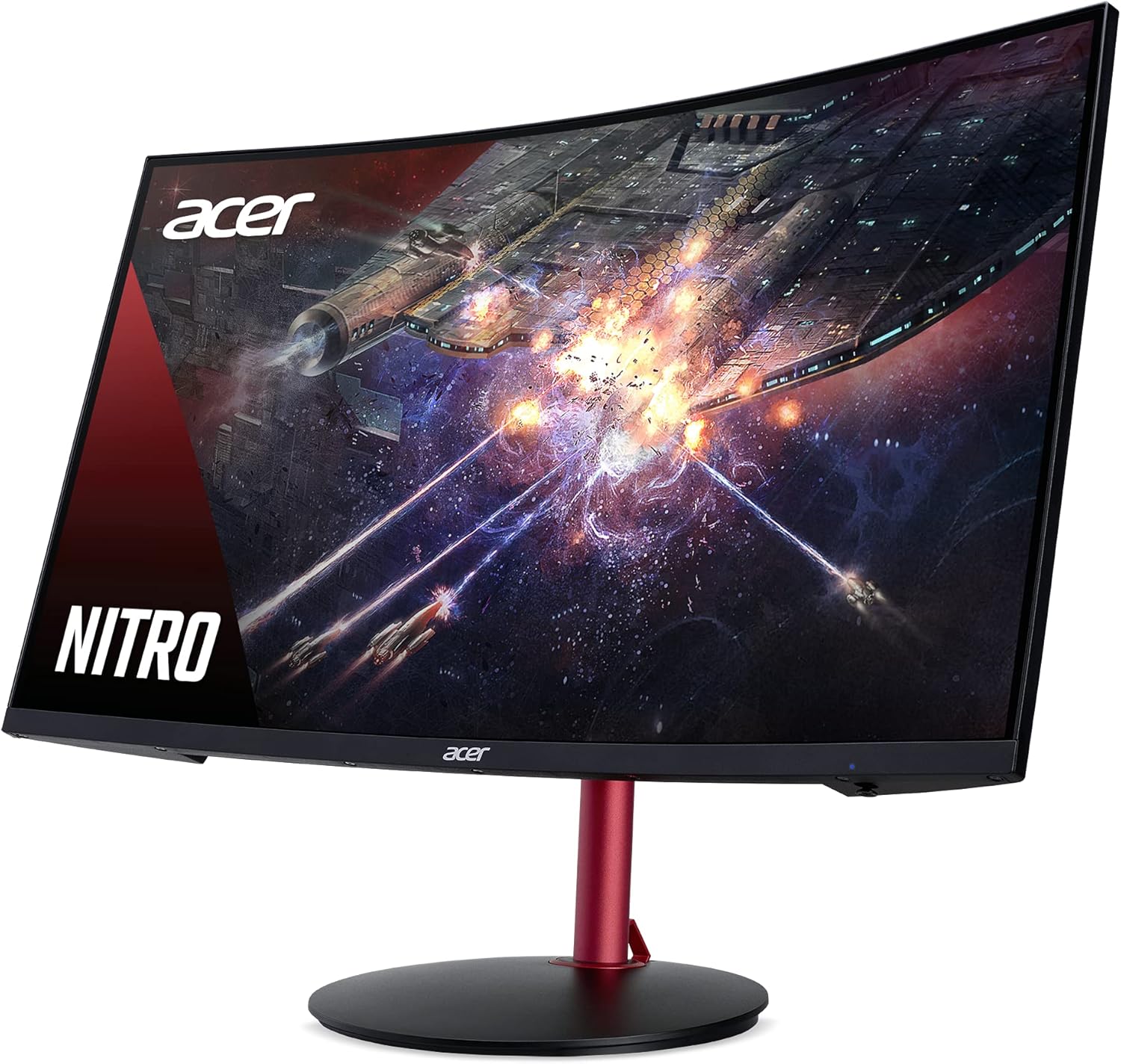
Image: The Acer Nitro XZ272U Pbmiiphx monitor with its stand fully assembled, viewed from the front-right angle.
3.2 Connecting Cables
Connect the power cord to the monitor's power input and then to a power outlet. Use either the included DisplayPort cable or HDMI cable to connect your computer's graphics card to the corresponding input port on the monitor.

Image: Rear view of the Acer Nitro XZ272U Pbmiiphx monitor, highlighting the various input ports for DisplayPort and HDMI connections.
3.3 Initial Power On
Press the power button located on the monitor. The monitor should power on and display an image from your connected device. If no image appears, ensure all cables are securely connected and the input source is correctly selected.
4. Features Overview
- 27" WQHD (2560 x 1440) 1500R Curved Display: Experience immersive visuals with a wide viewing angle of 170 degrees.
- AMD FreeSync Technology: Synchronizes the monitor's refresh rate with your graphics card's frame rate to eliminate screen tearing and stuttering.
- Up to 165Hz Refresh Rate & 4ms (G to G) Response Time: Provides smooth motion and reduced ghosting for fast-paced gaming.
- HDR 400 Support & 95% sRGB Color Gamut: Delivers high brightness and contrast with accurate color reproduction.
- Zero-Frame Design: Minimizes bezels for a more expansive viewing area.
- Integrated Speakers: Two 3-watt speakers provide audio output.
- Ergonomic Adjustments: Tilt (-5° to 25°), Height Adjustment (4.72"), and Swivel (360°) for comfortable viewing.
- Connectivity: Includes 1 x DisplayPort and 2 x HDMI 2.0 ports.

Image: A top-down diagram illustrating the 1500R curvature of the monitor, emphasizing its curved 16:9 aspect ratio.

Image: A split image demonstrating the visual difference with AMD FreeSync enabled (left, smooth image) versus disabled (right, screen tearing visible).

Image: A gaming scene with a crosshair, illustrating the benefit of a 165Hz refresh rate for smooth and responsive gameplay.

Image: A split image comparing a scene with DisplayHDR 400 enabled (left, vibrant colors and contrast) versus disabled (right, duller colors and less contrast).
5. Operating Instructions
5.1 Power On/Off
Press the power button to turn the monitor on or off. The power indicator light will show the monitor's status.
5.2 On-Screen Display (OSD) Menu
The OSD menu allows you to adjust various monitor settings. Typically, buttons located on the back or bottom of the monitor are used to navigate and select options within the OSD.
- Menu Button: Press to open the OSD menu.
- Navigation Buttons: Use directional buttons (up/down/left/right) to move through menu options.
- Select/Enter Button: Confirm a selection or enter a sub-menu.
- Exit Button: Exit the current menu or OSD.
5.3 Input Selection
To switch between connected devices (e.g., PC via DisplayPort, console via HDMI), access the OSD menu and navigate to the 'Input' or 'Source' section. Select the desired input.
5.4 Adjusting Display Settings
Within the OSD, you can customize settings such as:
- Brightness/Contrast: Adjust the overall luminance and difference between light and dark areas.
- Color Settings: Modify color temperature, gamma, and individual RGB levels.
- Picture Modes: Select predefined modes optimized for gaming, movies, or standard use.
- Audio: Adjust speaker volume or mute audio.
6. Specifications
| Feature | Specification |
|---|---|
| Screen Size | 27 Inches |
| Panel Type | VA |
| Curvature | 1500R |
| Resolution | WQHD (2560 x 1440) |
| Max Refresh Rate | 165Hz |
| Response Time | 4ms (G to G) |
| Brightness | 400 nits (HDR 400) |
| Color Gamut | 95% sRGB |
| Viewing Angle | 170 degrees |
| Connectivity | 1 x DisplayPort, 2 x HDMI 2.0 |
| Speakers | 2 x 3 Watts |
| Ergonomics | Tilt (-5° to 25°), Height (4.72"), Swivel (360°) |
| Item Weight | 16.07 pounds |
| Product Dimensions | 3 x 24.1 x 14.2 inches |
7. Troubleshooting
If you encounter issues with your monitor, refer to the following common troubleshooting steps:
- No Power:
- Ensure the power cord is securely connected to both the monitor and a working power outlet.
- Check if the power indicator light on the monitor is on.
- No Signal:
- Verify that the video cable (DisplayPort or HDMI) is firmly connected to both the monitor and your computer's graphics card.
- Ensure the correct input source is selected in the monitor's OSD menu.
- Test with a different video cable or input port if available.
- Display Issues (Flickering, Distorted Image):
- Check your computer's display settings to ensure the resolution and refresh rate are compatible with the monitor's specifications.
- Update your graphics card drivers.
- Perform a factory reset via the OSD menu.
- No Audio from Speakers:
- Ensure the monitor's volume is not muted or set too low in the OSD menu.
- Check your computer's audio output settings to ensure the monitor is selected as the playback device.
- Verify that the HDMI or DisplayPort cable is capable of transmitting audio.
8. Maintenance
To ensure the longevity and optimal performance of your monitor, follow these maintenance guidelines:
- Cleaning the Screen: Gently wipe the screen with a soft, lint-free cloth. For stubborn marks, use a monitor-specific cleaning solution applied to the cloth, not directly to the screen.
- Cleaning the Casing: Use a soft, dry cloth to clean the monitor casing. Avoid abrasive cleaners or solvents.
- Ventilation: Ensure the monitor's ventilation openings are not blocked to prevent overheating.
- Power Off When Not in Use: Turn off the monitor when not in use for extended periods to save energy and prolong its lifespan.
9. Warranty and Support
For warranty information and technical support, please refer to the warranty card included with your product or visit the official Acer support website. Keep your purchase receipt as proof of purchase for warranty claims.
Online resources and FAQs may also be available on the Acer support portal to assist with common issues and product inquiries.


