
1. Introduction and Overview
This manual provides essential information for setting up, operating, and maintaining your Fusion5 S15 15.6" Full HD Windows 10 Professional Laptop. Please read this guide thoroughly to ensure optimal performance and longevity of your device.
The Fusion5 S15 is designed for portability and efficiency, featuring a lightweight chassis, a vibrant 15.6-inch Full HD IPS display, and a dedicated numeric keypad for enhanced productivity. It comes pre-installed with Windows 10 Professional and offers expandable storage options.

Figure 1: Fusion5 S15 Laptop with Windows 10 desktop.
2. Product Features
- Slim and Lightweight Design: Engineered for portability, making it easy to carry.
- 15.6-inch Full HD IPS Display: Provides accurate colors and clear images from various viewing angles with a resolution of 1920 x 1080 pixels.
- Dedicated Numeric Keypad: Facilitates faster data entry and calculations.
- Expandable Storage: Features a 2.5" HDD Bay supporting up to 1TB and a Micro SD Slot for an additional 256GB.
- Operating System: Pre-installed with Windows 10 Professional for enhanced features and security.
- Connectivity: Includes Dual-Band WiFi (802.11ac) for reliable wireless connections, USB ports, and a Mini HDMI port.

Figure 2: Dedicated Numeric Keypad for efficient data entry.
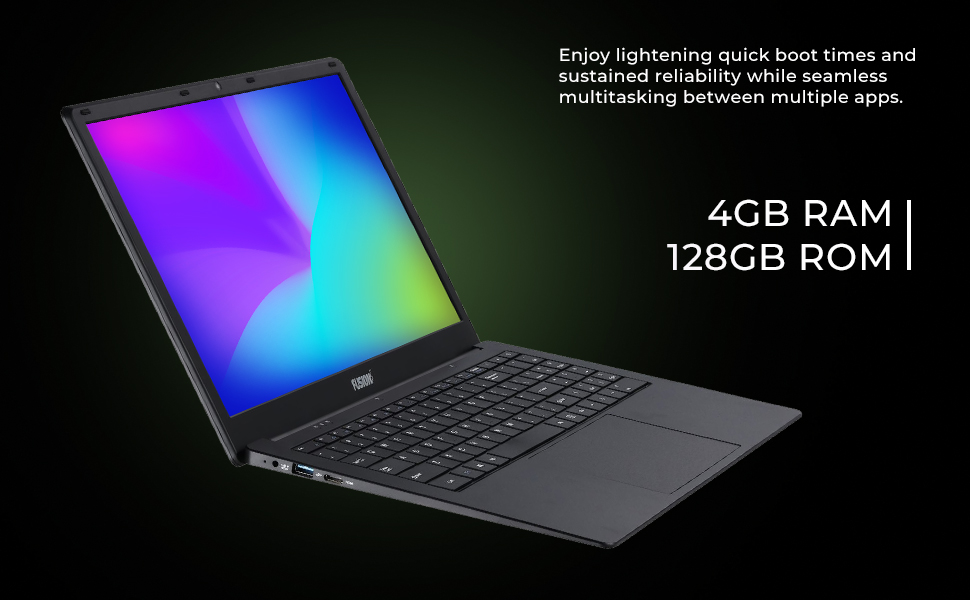
Figure 3: Side view illustrating connectivity ports.
Video 1: Overview of the Fusion5 S15 15.6" Full HD Windows Professional Laptop, highlighting its features and design.
3. Setup Guide
3.1 Unboxing and Initial Charge
- Carefully remove the laptop and all accessories from the packaging.
- Connect the power adapter to the laptop's charging port and plug it into a power outlet. Allow the laptop to charge fully before first use.
3.2 Powering On and Windows Setup
- Press the power button located on the keyboard deck to turn on the laptop.
- Follow the on-screen instructions to complete the Windows 10 Professional setup. This includes selecting your region, language, creating a user account, and connecting to a Wi-Fi network.
3.3 Connecting to Wi-Fi
- During Windows setup, you will be prompted to connect to a network. Select your desired Wi-Fi network from the list.
- Enter the Wi-Fi password if required and click 'Connect'.
- If setting up later, click the Wi-Fi icon in the taskbar, select your network, and connect.
4. Operating Instructions
4.1 Using the Keyboard and Touchpad
- The full-size keyboard includes a dedicated numeric keypad for convenient data entry.
- The touchpad supports multi-touch gestures for navigation. Refer to Windows settings for customizing touchpad gestures.
4.2 Connecting External Devices
- USB Ports: Connect USB flash drives, external hard drives, mice, or other USB peripherals.
- Mini HDMI Port: Use a Mini HDMI to HDMI cable to connect to an external monitor or TV for extended display.
- RJ45 Port: Connect an Ethernet cable for a wired network connection.
- Audio Jack: Connect headphones or external speakers.

Figure 4: Side view highlighting the RJ45 port.
5. Maintenance
5.1 Cleaning Your Laptop
- Use a soft, lint-free cloth to clean the screen and exterior. Avoid harsh chemicals.
- Use compressed air to clear dust from keyboard keys and ventilation openings.
5.2 Battery Care
- For optimal battery life, avoid fully discharging the battery frequently.
- Store the laptop in a cool, dry place when not in use for extended periods.
5.3 Software Updates
- Regularly check for and install Windows updates to ensure system stability and security.
- Keep your device drivers updated for best performance.
5.4 Storage Management
- Utilize the 2.5" HDD Bay to expand storage up to 1TB for large files and applications.
- Insert a Micro SD card into the dedicated slot for additional storage up to 256GB.
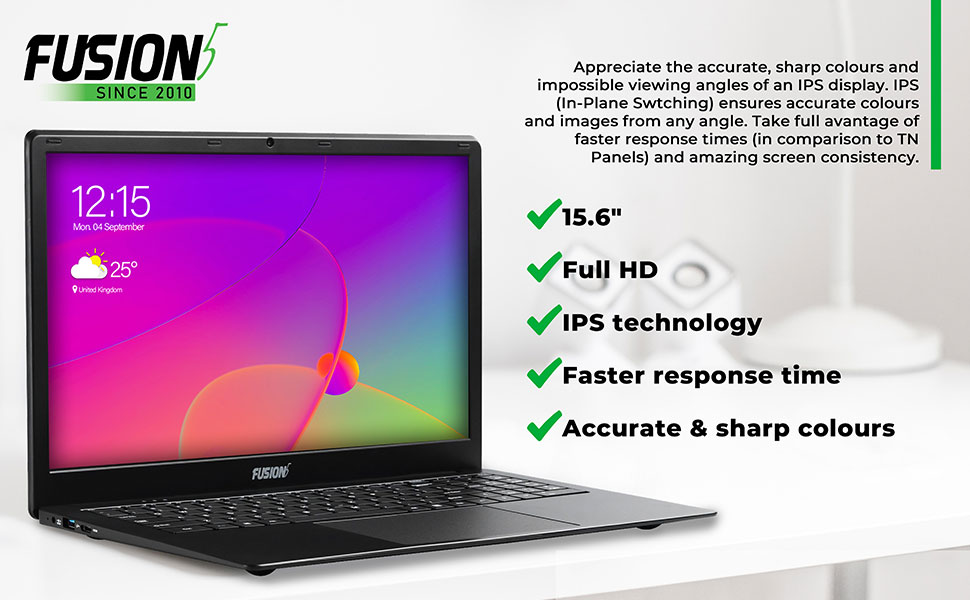
Figure 5: Keyboard and touchpad for user interaction.
6. Troubleshooting
6.1 Power Issues
- Laptop not turning on: Ensure the power adapter is securely connected and the battery is charged. Try holding the power button for 10-15 seconds for a hard reset.
- Battery not charging: Check the power adapter and cable for damage. Try a different power outlet.
6.2 Display Problems
- Blank screen: Connect to an external monitor via Mini HDMI to check if the issue is with the laptop's display or graphics driver.
- Flickering screen: Update your graphics drivers. If the issue persists, contact support.
6.3 Connectivity Issues
- Wi-Fi not connecting: Ensure Wi-Fi is enabled. Restart your router and laptop. Check network settings in Windows.
- USB devices not recognized: Try a different USB port. Ensure drivers for the device are installed.
For further assistance, please refer to the Fusion5 support website or contact their customer service.
7. Specifications
| Feature | Specification |
|---|---|
| Screen Size | 15.6 Inches |
| Screen Resolution | 1920 x 1080 pixels (Full HD) |
| Processor | 1.1 GHz Intel Celeron N3350 |
| RAM | 4 GB DDR3 |
| Hard Drive | 128 GB SSD |
| Graphics Coprocessor | Intel HD Graphics 500 (Integrated) |
| Wireless Type | 802.11ac (Dual-Band WiFi) |
| Operating System | Windows 10 Pro |
| Item Weight | 4.38 pounds |
| Color | Black |
| Expandable Storage | 2.5" HDD Bay (up to 1TB), Micro SD Slot (up to 256GB) |
8. Warranty and Support
Fusion5 offers a 12-month US warranty for this product. This warranty covers manufacturing defects and ensures confidence in the product's quality.
For warranty claims, technical support, or any inquiries regarding your Fusion5 S15 laptop, please visit the official Fusion5 website or contact their dedicated US Service Centre. Keep your proof of purchase for warranty validation.