
1. Introduction
This manual provides detailed instructions for the installation, operation, and maintenance of your CP PLUS CP-V21 2MP Full HD Outdoor Wireless Security Camera. Please read this manual thoroughly before using the product to ensure proper functionality and safety.
The CP-V21 is an outdoor bullet-style security camera designed for reliable surveillance with 2MP Full HD resolution, Wi-Fi connectivity, and infrared night vision capabilities.
2. Product Overview and Components
The CP-V21 camera system includes the main camera unit and essential accessories for installation.
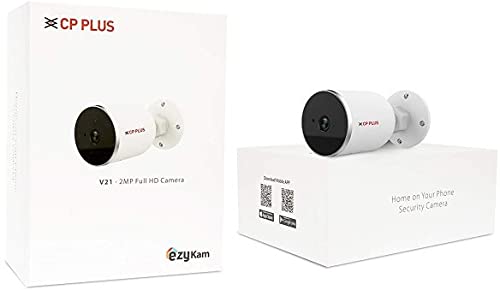
Figure 2.1: Product Packaging. This image displays the retail packaging for the CP PLUS CP-V21 camera, indicating the model number and "ezyKam" branding.
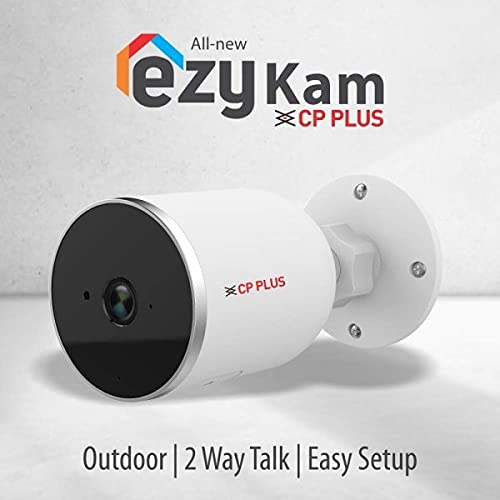
Figure 2.2: CP PLUS CP-V21 Camera Unit. A close-up view of the white bullet-style outdoor camera, showing the lens, IR illuminators, and mounting base.
2.1 Key Features
- Resolution: 2 Megapixel Full HD video output.
- Infrared (IR) Night Vision: Up to 15 meters IR distance for clear monitoring in low-light conditions.
- Connectivity: Supports Wi-Fi for wireless connection and Ethernet for wired connection.
- Video Compression: H.264 High Profile for efficient storage and streaming.
- Lens: Fixed 3.6mm lens.
- Outdoor Rating: IP66 weather-resistant for outdoor installation.
- Two-Way Talk: Enables communication through the camera.
- Motion Detection: Alerts upon detecting movement in the monitored area.
- Compatibility: Compatible with HDCVI DVRs.
2.2 Included Components
- CP PLUS CP-V21 Camera Unit
- Mounting Screws
- User Manual (this document)
3. Installation and Setup
3.1 Mounting the Camera
The CP-V21 camera is designed for wall-mounted, embedded installation. Choose a suitable outdoor location that provides the desired viewing angle and is within range of your Wi-Fi network or Ethernet connection point.
- Select Location: Identify a stable surface for mounting, such as a wall or eave.
- Mark Drill Holes: Use the camera's mounting base as a template to mark the positions for drilling.
- Drill Holes: Drill pilot holes at the marked positions.
- Secure Base: Attach the camera's mounting base to the surface using the provided screws.
- Adjust Angle: Once secured, adjust the camera's angle to cover the desired surveillance area.
3.2 Powering On and Network Connection
The camera is powered by a battery (power source from specifications, typically DC adapter). Ensure the camera is connected to a power source before proceeding.
3.2.1 Wi-Fi Connection
- Download App: Download the "ezyKam" application from your smartphone's app store (iOS or Android).
- Create Account: Open the app and follow the on-screen instructions to create a new user account or log in.
- Add Device: Select "Add Device" or a similar option within the app.
- Scan QR Code: Scan the QR code located on the camera or its packaging.
- Connect to Wi-Fi: Follow the app's prompts to connect the camera to your local Wi-Fi network. Ensure your Wi-Fi network is 2.4GHz, as 5GHz networks may not be supported.
- Configuration: Complete the remaining setup steps as guided by the application.
3.2.2 Ethernet Connection (Optional)
For a stable wired connection, connect an Ethernet cable from your router or network switch to the camera's Ethernet port. The camera will automatically attempt to obtain an IP address via DHCP.
4. Operating the Camera
Once the camera is set up and connected to the network, you can access and control it using the ezyKam mobile application.
4.1 Live View and Recording
Open the ezyKam app and select your CP-V21 camera from the device list to view the live feed. You can initiate manual recordings or capture screenshots directly from the app interface.
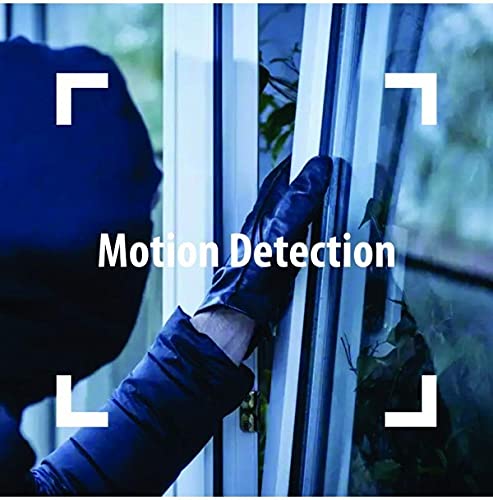
Figure 4.1: View and Talk Functionality. This image illustrates the "View n Talk" feature, showing a smartphone displaying the camera's live feed and enabling two-way audio communication.
4.2 Two-Way Talk
The camera supports two-way audio communication. Tap the microphone icon in the app to speak through the camera's speaker, and listen to audio from the camera's built-in microphone.
4.3 Motion Detection
The CP-V21 features motion detection capabilities. When motion is detected, the camera can trigger alerts to your smartphone and initiate recording. You can configure motion detection sensitivity and alert settings within the ezyKam app.
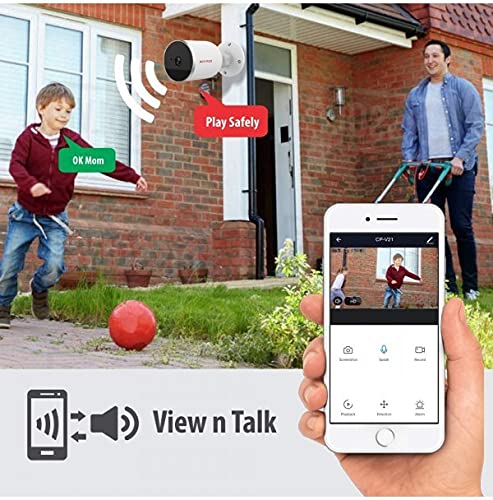
Figure 4.2: Motion Detection. This image highlights the motion detection feature, showing a person attempting to open a window, which would trigger an alert from the camera.
4.4 Night Vision
The camera automatically switches to infrared night vision mode in low-light conditions, providing clear black-and-white video up to 15 meters. Ensure no obstructions are blocking the IR illuminators for optimal night vision performance.
5. Maintenance
Regular maintenance ensures the longevity and optimal performance of your CP-V21 camera.
- Lens Cleaning: Periodically clean the camera lens with a soft, dry cloth to remove dust or smudges that may affect image clarity. Avoid abrasive cleaners.
- Housing Cleaning: Wipe the camera's exterior housing with a damp cloth to remove dirt and debris.
- Firmware Updates: Check the ezyKam app regularly for available firmware updates. Keeping the firmware updated ensures the camera has the latest features and security patches.
- Connection Check: Periodically verify that the power and network connections are secure and free from damage.
6. Troubleshooting
If you encounter issues with your CP-V21 camera, refer to the following troubleshooting guide:
| Problem | Possible Cause | Solution |
|---|---|---|
| Camera not connecting to Wi-Fi | Incorrect Wi-Fi password; camera too far from router; 5GHz Wi-Fi network selected; network interference. |
|
| No video feed in app | Camera is offline; network issue; app malfunction. |
|
| Poor night vision quality | Obstruction blocking IR illuminators; dirty lens; insufficient ambient light for IR to activate properly. |
|
| Motion detection not working | Sensitivity settings too low; detection zone not configured; app notifications disabled. |
|
7. Specifications
| Feature | Detail |
|---|---|
| Model Name | CP-V21 |
| Brand | CP PLUS |
| Resolution | 2 MP Full HD |
| IR Distance | 15 Meters |
| Lens | 3.6mm |
| Video Compression | H.264 High Profile |
| Connectivity Technology | Wireless (Wi-Fi), Ethernet |
| Indoor/Outdoor Usage | Outdoor (IP66 Rated) |
| Power Source | Battery Powered (as per specifications, typically DC adapter) |
| Compatible Devices | Laptop, HDCVI DVRs |
| Controller Type | Android (via ezyKam app) |
| Product Dimensions (LxWxH) | 7.7 x 7.7 x 10.4 Centimeters |
| Item Weight | 500 g |
8. Warranty Information
The CP PLUS CP-V21 camera comes with a 1 Year Warranty from the date of purchase. This warranty covers manufacturing defects and malfunctions under normal use. Please retain your proof of purchase for warranty claims. For detailed terms and conditions, refer to the warranty card included with your product or visit the official CP PLUS website.
9. Customer Support
For further assistance, technical support, or warranty inquiries, please contact CP PLUS customer service. You can find contact information on the official CP PLUS website or through the ezyKam application.
Manufacturer: CP PLUS
Visit the CP PLUS Store on Amazon for more products and information.


