
1. Introduction
The ZHIYUN Weebill 2 is a professional 3-axis gimbal stabilizer designed for DSLR and mirrorless cameras. It features advanced stabilization technology, an ergonomic design, and an intuitive touchscreen interface to enhance your videography experience. This manual provides essential information for setting up, operating, and maintaining your Weebill 2 gimbal.
2. What's in the Box
The ZHIYUN Weebill 2 package includes the following components:
- ZHIYUN Weebill 2 Gimbal Stabilizer
- Tripod
- Quick Release Plate
- Lens Support
- Backing Base
- USB Type-C Cable
- Camera Control Cables (various types for different cameras)
- 1/4" Screws
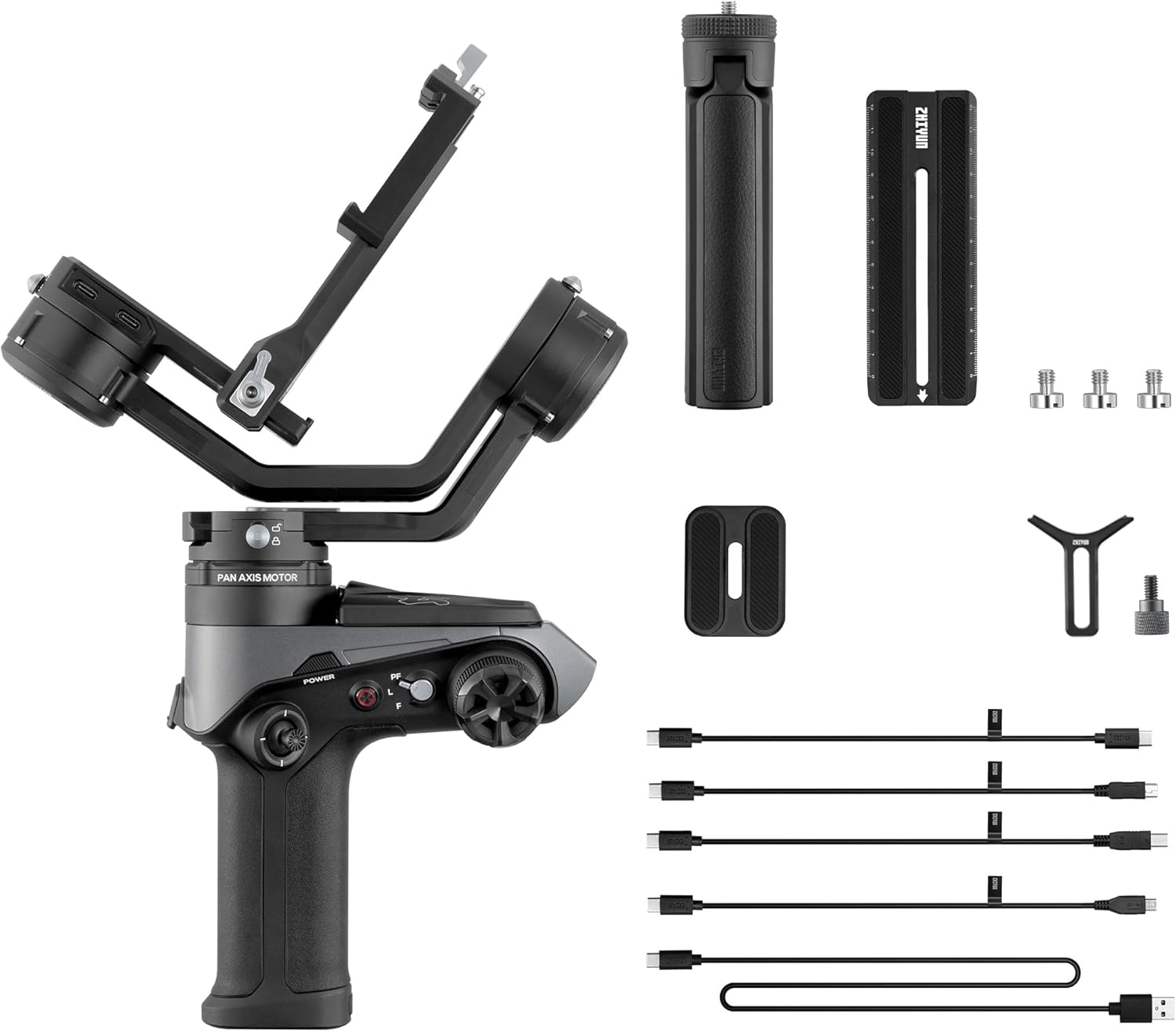
Image: All components included in the ZHIYUN Weebill 2 package, laid out on a white surface. This includes the main gimbal unit, a mini tripod, quick release plates, various cables, and small accessories.
3. Setup
3.1. Charging the Gimbal
The Weebill 2 features a built-in Lithium Polymer battery. To charge, connect the provided USB Type-C cable to the gimbal's charging port and a USB charger. The indicator lights will show the charging status. Charging is complete when all four indicator lights are solid.
3.2. Mounting the Camera
Before mounting, ensure the gimbal is unfolded and all three axes are locked. Attach the quick release plate to your camera's 1/4" threaded hole, ensuring the screw hole side faces forward. If your lens is long or heavy, install the backing base and lens support for added stability.

Image: A ZHIYUN Weebill 2 gimbal with a mirrorless camera and lens securely mounted on its quick release plate, standing on its mini tripod. This illustrates the gimbal ready for balancing.
Connect the camera control cable from the gimbal to your camera's corresponding port. This enables camera control via the gimbal.
3.3. Balancing the Gimbal
Proper balancing is crucial for optimal performance and battery life. The balancing process should be done from top to bottom (tilt, roll, then pan axis).
- Tilt Axis Balance: Unlock the tilt axis. Adjust the camera's position on the quick release plate until it remains still when tilted forward or backward. Lock the tilt axis.
- Roll Axis Balance: Unlock the roll axis. Adjust the roll axis arm left or right until the camera remains still at any angle. Lock the roll axis.
- Pan Axis Balance: Unlock the pan axis. Tilt the gimbal forward about 45 degrees. Adjust the pan axis arm until the camera remains still. Lock the pan axis.
After balancing, perform an auto-calibration via the touchscreen menu to optimize motor strength for your camera setup.
Video: ZHIYUN Camera Stabilizer General Instructional Video. This video demonstrates the step-by-step process of balancing the gimbal, including tilt, roll, and pan axis adjustments, to ensure smooth and stable footage.
4. Operating
4.1. Controls and Buttons
The Weebill 2 features an intuitive control layout:
- Power Button: Press and hold to power on/off. Single press to turn the screen on/off. Double press for sleep/wake mode.
- Trigger Button: Single press to enable/disable SmartFollow (requires TransMount Video Transmission Transmitter AI). Double press to reposition. Triple press for Selfie Mode. Press and hold to enter POV mode.
- Control Wheel: Connect the camera control cable or focus/zoom control motor to use. Customizable via the touchscreen for roll axis control, aperture, ISO, electronic focus, or focus motor adjustment.
- Mode Switch: Toggle between Pan Follow Mode (PF), Lock Mode (L), and Follow Mode (F).
- Photo/Video Button: Connect the camera control cable to use. Half press for auto camera focus (for some cameras). Single press to start/stop shooting video. Press and hold to take a photo.
- Joystick: In PF, L, and F modes, rotate the joystick to control the stabilizer's movement in different directions. In Vortex mode, the joystick controls the pan axis to rotate.
Video: Button Introduction of Weebill 2. This video provides a detailed overview of each button and control on the ZHIYUN Weebill 2 gimbal, explaining their functions and how to use them effectively.
4.2. Full-Color Flip-out Touchscreen
The integrated 2.88" LCD touchscreen allows you to tap to adjust parameters and other settings at any time. It provides access to:
- Mode Settings: Select desired shooting modes (Pan Follow, Lock, Follow, POV, Portrait, Go, Vortex).
- Balance Check: Verify the balance status of each axis (horizontal, vertical, pan, roll).
- Advanced Features: Access Timelapse and Motionlapse settings.
- Parameter Settings: Adjust motor torque, smoothness, follow speeds, joystick responsiveness, and deadband settings.
- Auto Calibration: Initiate automatic calibration for optimal motor strength.
- Parameter Reset: Restore gimbal parameters to factory settings.
- Control Wheel Customization: Assign functions to the control wheel.
- Language Settings: Change the device language.
- Device Information: View device name, model, serial number, and firmware version.
- More Settings: Enable/disable video transmission charging.

Image: A close-up view of the ZHIYUN Weebill 2's 2.88-inch full-color flip-out touchscreen, displaying its intuitive menu interface with various settings and options.
Video: Menu introduction of Weebill 2. This video guides users through the various menus and settings available on the Weebill 2's touchscreen, explaining how to navigate and customize gimbal functions.
5. Features
- New Infineon Chip: Built-in powerful Infineon chip with dynamic stabilization provides a smoother follow and quicker response for the stabilizer.
- Effort-saving Sling Grip: With the classic structure and sling grip design in WEEBILL series, an effort-saving sling mode is within reach with no extensions added and structure altering. Easy to switch portrait modes and works great when shooting low angles.
- 2.88" Full-Color Flip-out Touch Screen: Integrated 2.88" LCD touch screen allows you to tap to adjust parameters and other settings at any time.
- Focus Control Wheel: The focus control wheel can be easily customized for roll axis control, aperture, ISO, electronic focus or focus motor adjustment via the touch screen.
- Wider Compatibility: Compatible with DSLR and mirrorless cameras, including Sony A9, A9 II, A7R IV, A7R III, A7M III, A7S III, A7C, A6600, A6500, A6400, A7S; Nikon Z6, Z7, Z50, D780, D850; Canon EOS R, R6, R5, RP, 6D Mark II, 5D Mark III, 5D Mark IV, 6D, 77D, 800D, 80D, 5DS R, M6 Mark II, 90D, 200D Mark II; Panasonic GH5, GH5S, G9, S1, S1H, GH4; Fujifilm X-H1, X-T2, X-T3, X-T4, X-T30, X-E3; BMPCC 6K, Sigma FP, Olympus E-M1 II, Z CAM E2.

Image: A ZHIYUN Weebill 2 gimbal with a Canon camera mounted, surrounded by various other compatible cameras from brands like Lumix, Sony, Nikon, and Fujifilm, illustrating its wide compatibility.
6. Maintenance
To ensure the longevity and optimal performance of your ZHIYUN Weebill 2, follow these maintenance guidelines:
- Keep the gimbal clean by wiping it with a soft, dry cloth after each use.
- Avoid exposing the gimbal to extreme temperatures, moisture, or dust.
- Store the gimbal in its original packaging or a protective case when not in use.
- Regularly check all screws and connections to ensure they are secure.
7. Troubleshooting
If you encounter issues with your Weebill 2, consider the following:
- Gimbal Vibration/Unstable Footage: Ensure the gimbal is perfectly balanced for your camera setup. Perform an auto-calibration via the touchscreen menu. Check that all axis locks are disengaged during operation.
- Battery Not Charging/Short Battery Life: Ensure the USB Type-C cable is securely connected to both the gimbal and a working power source. Verify the power source provides sufficient output. If battery life is consistently short, ensure the gimbal is properly balanced, as unbalanced setups can strain motors and drain power faster.
- Controls Unresponsive/Software Issues: Try resetting the gimbal parameters to factory settings via the touchscreen menu. Ensure the gimbal's firmware is up to date by checking the ZHIYUN official website.
8. Specifications
- Product Dimensions: 2.44 x 8.86 x 12.56 inches (6.2 x 22.5 x 31.9 cm)
- Item Weight: 3.15 pounds (1430 Grams)
- Batteries: 1 Lithium Polymer batteries required (included)
- Item Model Number: A-CR120-UK
- Compatible Devices: Camera (DSLR and Mirrorless)
9. Warranty and Support
For warranty information, technical support, or service inquiries, please refer to the documentation included with your product or visit the official ZHIYUN website. Keep your proof of purchase for warranty claims.


