
1. Introduction
This manual provides essential information for the safe and efficient operation of your RCA 42-inch Roku TV, model RTR4261-CA. Please read these instructions thoroughly before using your television and retain them for future reference. Your RCA Roku TV offers a Full HD 1080p viewing experience with integrated smart TV features, providing access to a wide range of streaming content.
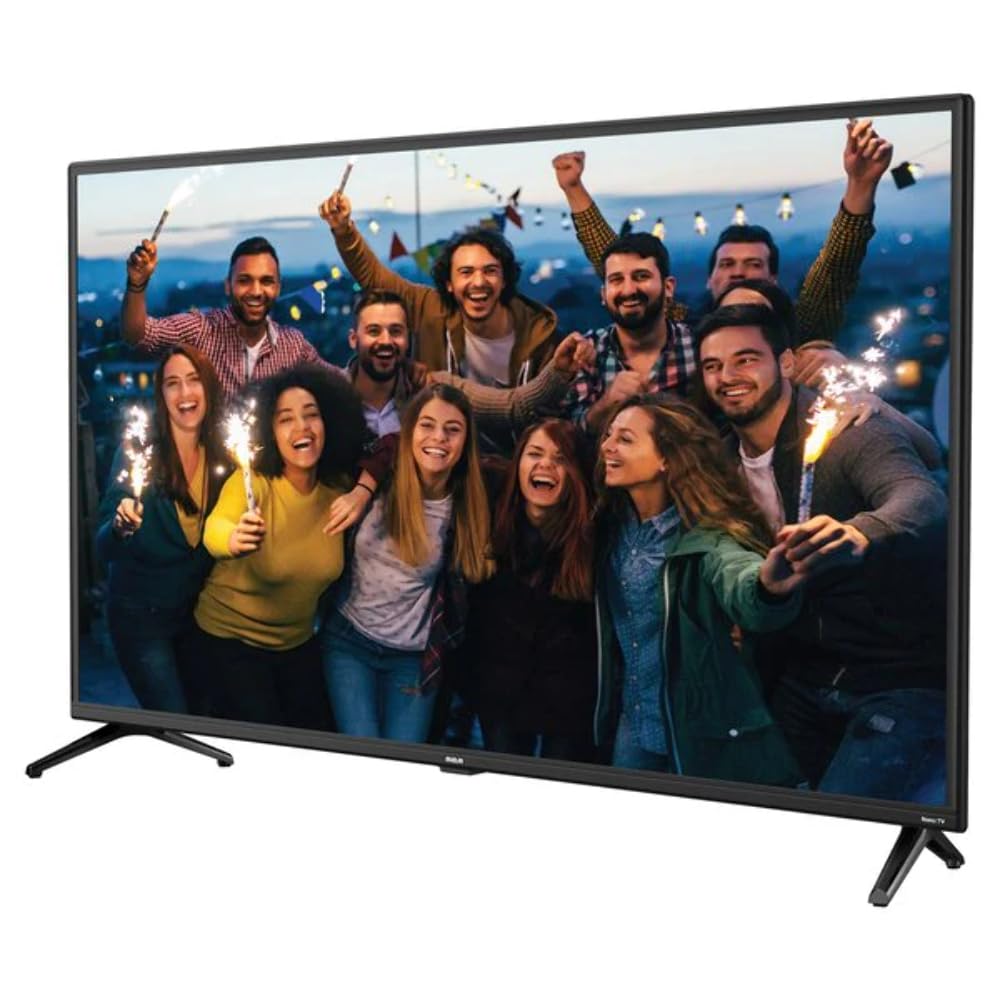
Figure 1.1: Front view of the RCA 42-inch Roku TV. This image displays the television's screen and bezel, illustrating its design.
2. Safety Information
To ensure safe operation and prevent damage, observe the following safety precautions:
- Power Source: Connect the TV only to the specified power supply.
- Ventilation: Ensure adequate ventilation around the TV. Do not block ventilation openings.
- Water and Moisture: Do not expose the TV to rain or moisture. Do not place objects filled with liquids on the TV.
- Heat Sources: Keep the TV away from radiators, heat registers, stoves, or other heat-producing appliances.
- Cleaning: Unplug the TV before cleaning. Use a soft, dry cloth. Do not use liquid cleaners or aerosol cleaners.
- Mounting: Follow instructions for wall mounting or stand installation carefully. Ensure the TV is securely placed to prevent falling.
- Lightning: Unplug the TV during lightning storms or when unused for long periods.
- Servicing: Do not attempt to service this product yourself. Refer all servicing to qualified service personnel.
3. Package Contents
Verify that all items listed below are included in your package:
- RCA 42-inch Roku TV (Model RTR4261-CA)
- Power Cable
- Remote Control
- TV Stand (with screws)
- Quick Start Guide (not included in this digital manual)
4. Setup
4.1 Physical Setup
Before powering on your TV, ensure it is placed on a stable surface or securely mounted. If using the included stand:
- Carefully place the TV screen-down on a soft, clean surface to prevent scratches.
- Attach the stand components to the bottom of the TV using the provided screws. Refer to the diagram in the Quick Start Guide for specific screw locations.
- Once the stand is securely attached, carefully lift the TV to its upright position on a flat, stable surface.
Connect the power cable to the TV's power input and then to a wall outlet.
4.2 Initial Power On and Roku Guided Setup
Upon first power-on, your RCA Roku TV will guide you through the initial setup process:
- Language Selection: Choose your preferred language.
- Network Connection:
- Wi-Fi: Select your wireless network from the list and enter the password.
- Ethernet: If connecting via an Ethernet cable, plug it into the TV's LAN port. The TV should automatically detect the connection.
- Roku Account Setup: You will be prompted to create or link a Roku account. This is essential for accessing streaming channels and smart features. Follow the on-screen instructions to complete this step, typically involving a web browser on a computer or smartphone.
- Channel Scan (Optional): If you are connecting an antenna for over-the-air broadcasts, the TV will guide you through a channel scan.
Ensure your internet connection is stable during the setup process for optimal performance.
5. Operating Your TV
5.1 Basic Functions
- Power On/Off: Press the Power button on the remote control.
- Input Selection: Use the Input button on the remote to cycle through HDMI inputs, Antenna TV, or other connected devices.
- Volume Control: Use the Volume Up and Volume Down buttons.
- Mute: Press the Mute button to silence the audio.
5.2 Smart TV Features (Roku OS)
Your RCA Roku TV provides access to thousands of streaming channels and smart features:
- Home Screen: The Roku Home Screen displays all your installed streaming channels and input sources. Navigate using the directional pad on the remote.
- Streaming Channels: Access popular services like Hulu, Netflix, and YouTube directly from the Home Screen. You can add more channels from the Roku Channel Store.
- Roku TV Mobile App: Download the free Roku TV mobile app for iOS or Android devices. This app allows you to control your TV, search for content, and use the "Private Listening" feature to redirect TV audio to your headphones.
- Picture Perfect Processor: The integrated processor optimizes image quality for a dynamic viewing experience.
5.3 Remote Control
The included remote control is designed for intuitive navigation of the Roku interface. It typically includes:
- Directional Pad: For navigating menus and selecting items.
- OK/Select Button: Confirms selections.
- Home Button: Returns to the Roku Home Screen.
- Back Button: Returns to the previous screen.
- Volume Up/Down: Adjusts audio level.
- Mute Button: Silences audio.
- Instant Replay: Jumps back a few seconds in video playback.
- Star Button (*): Accesses options for the selected item.
- Play/Pause, Fast Forward, Rewind: Media playback controls.
- Dedicated Channel Buttons: Quick access to popular streaming services.
6. Maintenance
Proper maintenance ensures the longevity of your television:
- Screen Cleaning: Gently wipe the screen with a soft, lint-free cloth. For stubborn marks, slightly dampen the cloth with water or a specialized screen cleaner (never spray directly onto the screen).
- Cabinet Cleaning: Wipe the TV cabinet with a soft, dry cloth. Avoid using abrasive cleaners or solvents.
- Ventilation: Keep the ventilation openings on the back and sides of the TV clear of dust and obstructions.
- Power Cord: Regularly inspect the power cord for any damage. If damaged, discontinue use and contact customer support.
7. Troubleshooting
If you encounter issues with your TV, refer to the following common solutions:
No Power
- Ensure the power cord is securely plugged into both the TV and a working wall outlet.
- Check if the outlet is receiving power by plugging in another device.
- Try a different power outlet.
No Picture, But Sound is Present
- Verify the correct input source is selected (e.g., HDMI 1, Antenna TV).
- Check all cable connections to external devices (e.g., cable box, Blu-ray player).
- Adjust brightness and contrast settings in the TV menu.
No Sound, But Picture is Present
- Ensure the TV is not muted and the volume is turned up.
- Check audio cables if external speakers are used.
- If using HDMI, ensure the audio output settings on the connected device are correct.
Network Connection Issues
- Restart your router and modem.
- Go to the TV's network settings and re-scan for Wi-Fi networks or check the Ethernet connection.
- Ensure the Wi-Fi password is entered correctly.
- Move the TV closer to the router or use an Ethernet cable for a more stable connection.
Remote Control Not Working
- Replace the batteries in the remote control.
- Ensure there are no obstructions between the remote and the TV's IR sensor.
- Point the remote directly at the TV.
8. Specifications
| Model Number | RTR4261-CA |
| Screen Size | 42 Inches |
| Resolution | 1080p Full HD |
| Display Technology | LCD, LED Backlight |
| Refresh Rate | 60 Hz |
| Operating System | Roku OS |
| Connectivity | Wi-Fi, Ethernet, 3 x HDMI, RCA Audio Input |
| Special Features | Smart TV, HDR10 Support, Roku TV Mobile App, Private Listening |
| Included Components | Power Cable, Remote Control, Stand |
| Product Dimensions (W x H x D) | 95.61 x 59 x 18.29 cm (with stand) |
| Item Weight | 6.2 kg |
| Color | Black |
9. Warranty and Support
Your RCA 42-inch Roku TV (Model RTR4261-CA) is covered by a 1 Year Manufacturer Warranty from the date of purchase.
For technical support, warranty claims, or service inquiries, please contact RCA customer support. Manufacturer contact information: Plainfield, IN 46168, US.
Please have your model number (RTR4261-CA) and proof of purchase available when contacting support.


