
Introduction
Welcome to the Wacom One Digital Drawing Tablet user manual. This guide provides essential information for setting up, operating, and maintaining your Wacom One tablet, ensuring you get the most out of your creative tool. The Wacom One is designed to offer a natural pen-on-screen experience for drawing, editing, and annotating across various platforms.
1. Setup
1.1 Package Contents
Before you begin, ensure all components are present:
- Wacom One Digital Drawing Tablet
- Wacom One Pen
- Connection Cables (HDMI, USB Type-C)
- Power Adapter
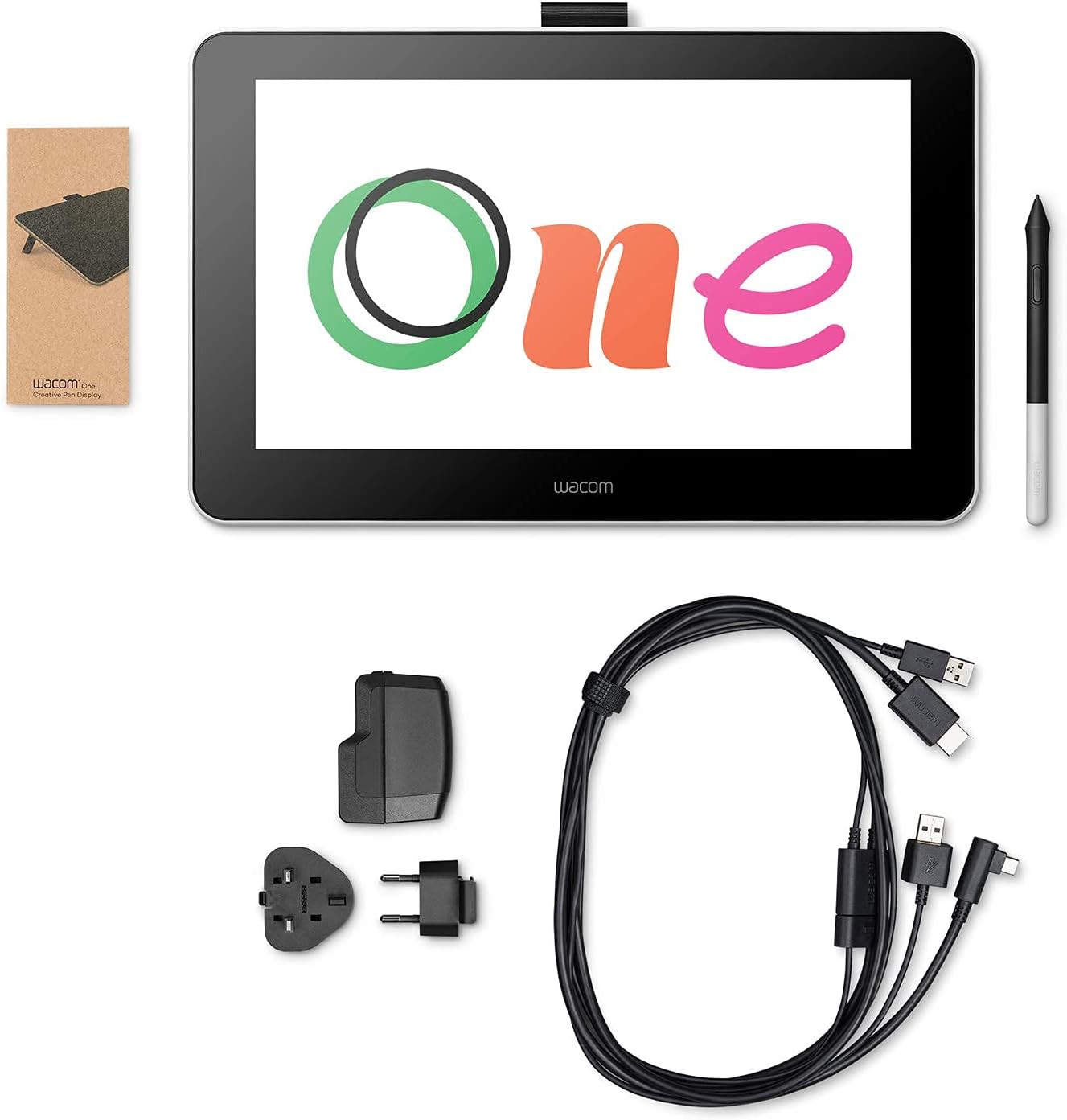
Image: The Wacom One tablet, pen, and various connection cables and power adapter are neatly arranged on a flat surface, indicating all items included in the package.
1.2 Connecting Your Tablet
The Wacom One is compatible with Windows, macOS, and Android devices. Follow these steps to connect your tablet:
- Connect the HDMI cable from your Wacom One to your computer's HDMI port.
- Connect the USB Type-C cable from your Wacom One to your computer's USB port.
- Plug the power adapter into the Wacom One and then into a power outlet.
- Ensure the USB-C cable is correctly oriented, pointing to the left when looking at the tablet from the front, to avoid "no display" errors.

Image: A person is shown connecting the Wacom One tablet to a laptop, demonstrating the cable connections required for operation.
1.3 Driver Installation
For optimal performance, download and install the latest drivers from the official Wacom website. The tablet also comes with a bonus software pack; register your device to access these creative applications.

Image: A graphic displaying various creative software logos (Clip Studio Paint, Bamboo Paper, Adobe Photoshop, Adobe Lightroom, Adobe Fresco) and EdTech software, indicating the bonus software available upon registration.
1.4 Video Guide: Unboxing and Setup
Video: An unboxing video of the Wacom One tablet, demonstrating the contents of the box and initial setup steps. This video is provided by Nerd News Social.
2. Operating Your Wacom One
2.1 The Wacom One Pen
The Wacom One Pen is battery-free and offers 4096 levels of pressure sensitivity, providing a natural and precise drawing experience. Use the pen to navigate your operating system, select tools in creative applications, and draw directly on the tablet's screen.
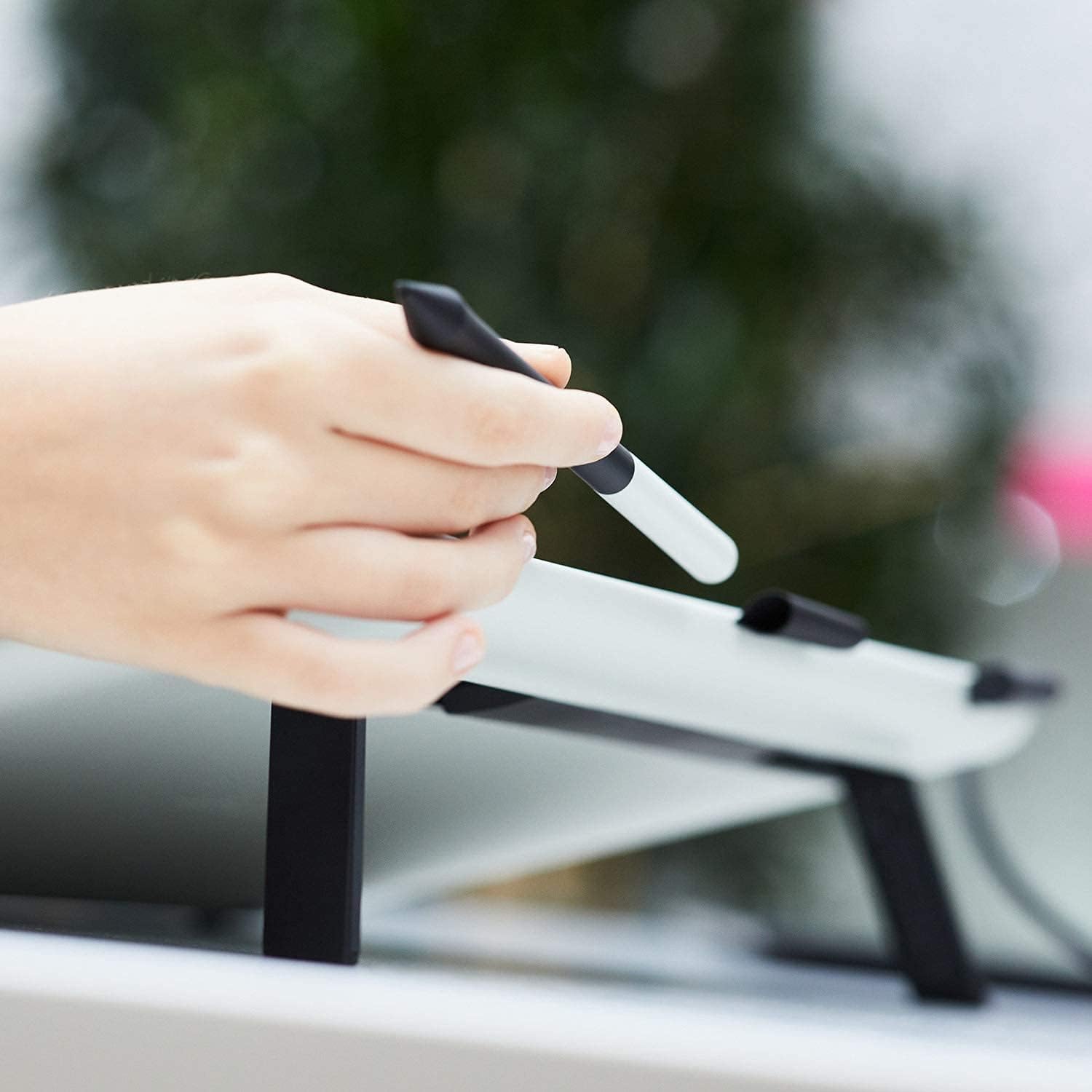
Image: A close-up shot of the Wacom One pen resting on the tablet's screen, highlighting its design and interaction with the display.
2.2 Display Features
The 13.3-inch display features a native resolution of 1920x1080, offering a clear and vibrant workspace. The matte finish on the screen reduces glare and provides a tactile feel similar to drawing on paper.

Image: A user's hand is shown drawing on the Wacom One tablet, which displays a colorful digital artwork. The image emphasizes the HD display and the use of the pressure-sensitive pen.
2.3 Built-in Kickstands
The tablet includes built-in kickstands on the back, allowing you to adjust the angle for comfortable drawing or viewing positions.
2.4 Cross-Platform Use
The Wacom One is designed for versatility, supporting various operating systems and devices, including desktops, laptops, tablets, and smartphones. This allows for flexible creative workflows.

Image: The Wacom One tablet is shown connected to a smartphone via a USB hub, with icons representing compatibility with Mac, Windows, and Android operating systems.

Image: A person is actively drawing on the Wacom One tablet, which is connected to a smartphone, showcasing its mobile compatibility for creative tasks.
2.5 Video Guide: Features and Usage
Video: A user demonstrates the features and benefits of the Wacom One tablet, including its pen accuracy and versatility for digital art. This video is provided by Danielle and James.
3. Maintenance
3.1 Cleaning the Screen
To clean the screen, use a soft, lint-free cloth. For stubborn smudges, lightly dampen the cloth with water or a screen-safe cleaner. Avoid harsh chemicals or abrasive materials.
3.2 Pen Nib Replacement
The Wacom One Pen nibs may wear down over time. Replacement nibs are typically stored within the tablet's design or can be purchased separately. Use the included nib removal tool to carefully replace worn nibs.
4. Troubleshooting
4.1 No Display on Tablet
If your Wacom One tablet shows a "no display" message after connecting, ensure the USB-C cable is inserted correctly. Some users have reported that the cable needs to be oriented with the flat side pointing to the left when looking at the tablet from the front.
4.2 Pen Not Responding
If the pen is not responding, check the following:
- Ensure the tablet is properly connected to your computer and powered on.
- Verify that the Wacom drivers are correctly installed and up to date.
- Restart your computer and the tablet.
- Check if the pen nib is securely in place and not overly worn.
4.3 Software Issues
If you experience issues with specific drawing applications, ensure the application is up to date and compatible with your operating system and Wacom drivers. Adjusting pen pressure settings within the Wacom Tablet Properties can also resolve some issues.
5. Specifications
| Feature | Detail |
|---|---|
| Brand | Wacom |
| Model | DTC133W0A |
| Screen Size | 13.3 Inches |
| Native Resolution | 1920x1080 |
| Pressure Sensitivity | 4096 Levels |
| Connectivity | HDMI, USB Type C |
| Operating System Compatibility | Windows, macOS |
| Special Feature | Portable |
| Item Weight | 2.2 Pounds |
| Active Surface Area | 11.6 x 6.5" |
| Item Dimensions L x W | 14.1"L x 8.9"W |
| Built-In Media | Wacom One Pen, Bonus Pack |
6. Warranty
The Wacom One Digital Drawing Tablet comes with a 90-day limited warranty. Please retain your proof of purchase for any warranty claims. For detailed terms and conditions, refer to the official Wacom website or contact customer support.
7. Support
For further assistance, technical support, or to purchase accessories, please visit the official Wacom support website or contact their customer service. You can find contact information and FAQs at www.wacom.com/support.


