
T-DAGGER T-TGK310-BL
T-DAGGER T-TGK310-BL Mechanical Gaming Keyboard User Manual
Model: T-TGK310-BL
Introduction
This manual provides detailed instructions for the setup, operation, maintenance, and troubleshooting of your T-DAGGER T-TGK310-BL Mechanical Gaming Keyboard. Please read this manual thoroughly before using the product to ensure optimal performance and longevity.
Product Overview
The T-DAGGER T-TGK310-BL is a full-sized mechanical gaming keyboard designed for PC and laptop compatibility. It features a durable construction, responsive mechanical switches, and customizable backlighting, providing an enhanced typing and gaming experience.
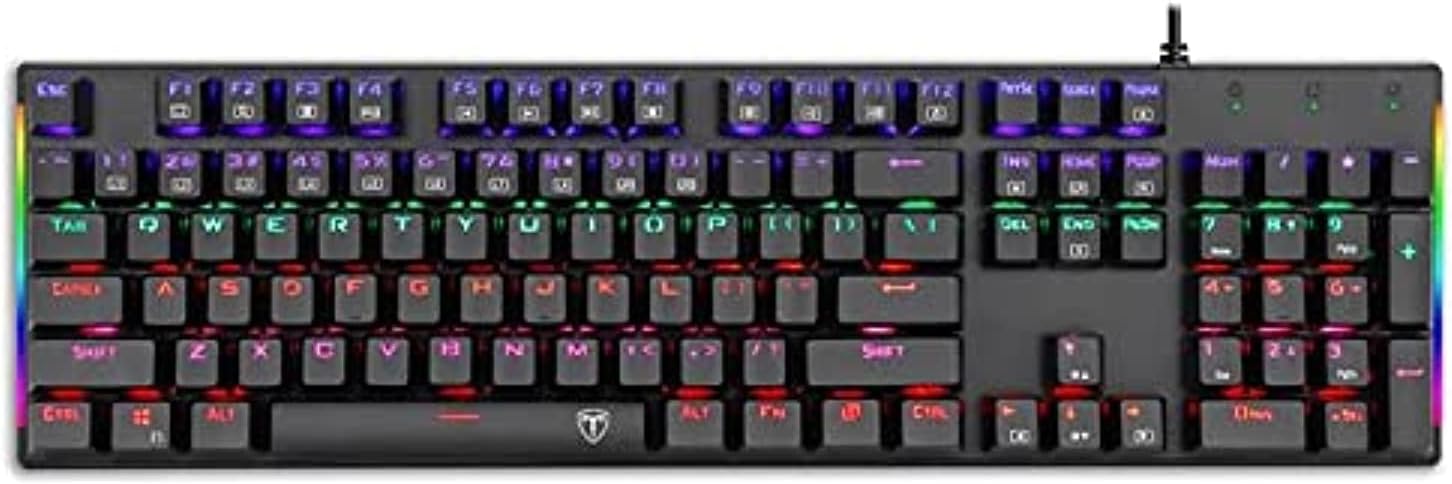
Figure 1: Top view of the T-DAGGER T-TGK310-BL Mechanical Gaming Keyboard, showcasing its full layout and vibrant RGB backlighting.
Setup
Connecting the Keyboard
- Locate an available USB port on your PC or laptop.
- Insert the USB connector of the T-TGK310-BL keyboard into the USB port.
- The operating system will automatically detect and install the necessary drivers. This process may take a few moments.
- Once installation is complete, the keyboard's backlighting will illuminate, indicating it is ready for use.
Operating Instructions
Basic Usage
The T-TGK310-BL functions as a standard 104-key English layout keyboard. All keys are pre-programmed for their standard functions.
Backlighting Control
The keyboard features dynamic RGB backlighting. Use the following key combinations to adjust lighting effects:
- FN + INS: Cycle through various preset lighting modes.
- FN + HOME: Adjust lighting brightness (usually 5 levels).
- FN + PGUP/PGDN: Change lighting speed or direction for certain effects.
- FN + DEL: Change lighting color for static modes or specific effects.

Figure 2: Side profile of the keyboard, illustrating the ergonomic keycap design and the visible RGB underglow.
Gaming Features
This mechanical keyboard is optimized for gaming with features such as N-key rollover and anti-ghosting, ensuring every keystroke is registered accurately during intense gaming sessions.
- FN + WIN: Locks the Windows key to prevent accidental presses during gaming. Press again to unlock.
- FN + F1-F12: Multimedia and shortcut functions (e.g., volume control, media playback, calculator, browser). Refer to the keycap legends for specific functions.

Figure 3: Angled view of the keyboard, providing a clear perspective of the full key layout and the illuminated keys.
Maintenance
Cleaning the Keyboard
- Disconnect the keyboard from your computer before cleaning.
- Use a can of compressed air to remove dust and debris from between the keycaps.
- Wipe the keycaps and keyboard surface with a soft, slightly damp, lint-free cloth. Avoid excessive moisture.
- Do not use harsh chemicals, abrasive cleaners, or solvents, as these may damage the keyboard's finish or keycap legends.
Keycap Removal (Advanced)
For deeper cleaning or switch replacement (if applicable), keycaps can be carefully removed using a keycap puller. Grasp the keycap firmly and pull straight up. When reattaching, align the keycap with the switch stem and press down gently until it clicks into place.
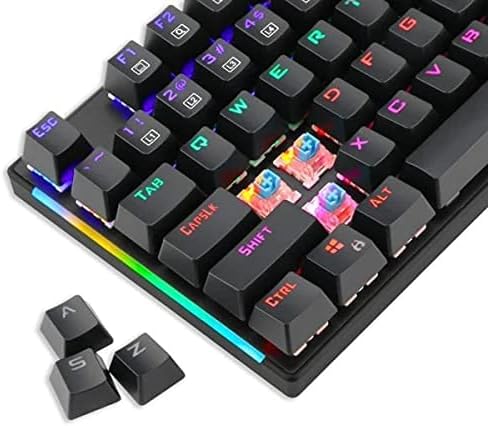
Figure 4: Close-up view of the mechanical switches with a few keycaps removed, demonstrating the internal structure and individual switch illumination.
Troubleshooting
| Problem | Possible Cause | Solution |
|---|---|---|
| Keyboard not responding | Loose USB connection, faulty USB port, driver issue. | Ensure USB cable is securely connected. Try a different USB port. Restart your computer. Check Device Manager for driver issues. |
| Backlighting not working | Lighting mode off, brightness set to minimum. | Press FN + INS to cycle through lighting modes. Press FN + HOME to increase brightness. |
| Certain keys not working | Debris under keycap, faulty switch. | Clean under the keycap with compressed air. If problem persists, contact customer support. |
Specifications
- Model Number: T-TGK310-BL
- Brand: T-DAGGER
- Connectivity: USB
- Compatibility: PC, Laptop
- Color: Black
- Keyboard Language: English
- Keyboard Description: Mechanical
- Recommended Uses: Gaming
- Special Features: Double-shot keycaps, Gaming Mechanical switches
- Number of Keys: 104
- Style: Modern
- Materials: Multi-materials
- Product Dimensions: 44.9 x 16.4 x 4.1 cm
- Item Weight: 880 grams
Warranty and Support
This T-DAGGER product comes with a standard manufacturer's warranty. For specific warranty terms and conditions, please refer to the warranty card included with your product or visit the official T-DAGGER website.
For technical support, troubleshooting assistance, or warranty claims, please contact T-DAGGER customer service through their official channels. Keep your purchase receipt as proof of purchase.
Related documentsT-TGK310-BL


Ask a question about this manual
Ask about setup, troubleshooting, compatibility, parts, safety, or missing instructions. Manuals+ will review the question and use this page’s manual context to help answer it.