
Redzeo BH510A
Redzeo MDots Wireless Earbuds Instruction Manual
Model: BH510A
Introduction
Thank you for choosing Redzeo MDots Wireless Earbuds. This manual provides detailed instructions on how to set up, operate, maintain, and troubleshoot your new earbuds. Please read this manual carefully before use to ensure optimal performance and longevity of your device.
Package Contents
- Redzeo MDots Wireless Earbuds (Left and Right)
- Wireless Charging Case
- USB Charging Cable
- Multiple Sizes of Eartips (S/M/L)
- Multiple Sizes of Earwings (S/M/L)
- User Manual
Setup
1. Initial Charging
Before first use, fully charge the charging case and earbuds.
- Place the earbuds into the charging case. Ensure they are correctly seated in their respective slots.
- Connect the USB charging cable to the charging port on the case and the other end to a USB power source (e.g., computer, wall adapter).
- The indicator light on the charging case will show charging status. A full charge for the case takes approximately 2.0 hours. The earbuds provide 4.0 hours of playback per charge, and the case provides up to 4 full charges, totaling 20 hours of enjoyment.

Image: The Redzeo MDots earbuds and charging case, illustrating the 20 hours total playtime with the case, 4.0 hours playback per earbud charge, and 2.0 hours to fully charge the case.
2. Pairing with Your Device
The earbuds automatically enter pairing mode when taken out of the charging case.
- Open the charging case and remove both earbuds. They will automatically power on and attempt to connect to each other.
- On your Bluetooth-enabled device (smartphone, tablet, etc.), go to the Bluetooth settings.
- Search for new devices and select "Redzeo MDots" from the list.
- Once connected, you will hear a confirmation tone, and the earbuds will be ready for use.

Image: The Redzeo MDots wireless earbuds resting inside their open charging case, ready for pairing or charging.
3. Fitting the Earbuds
For optimal sound quality and comfort, choose the correct size of eartips and earwings.
- Experiment with the different sizes of eartips (S/M/L) to find the best seal for your ear canal. A good seal is crucial for bass response and noise isolation.
- Select the appropriate earwings (S/M/L) that fit snugly into your ear's concha, providing stability during movement.
- Gently insert the earbuds into your ears and twist slightly until they feel secure and comfortable.
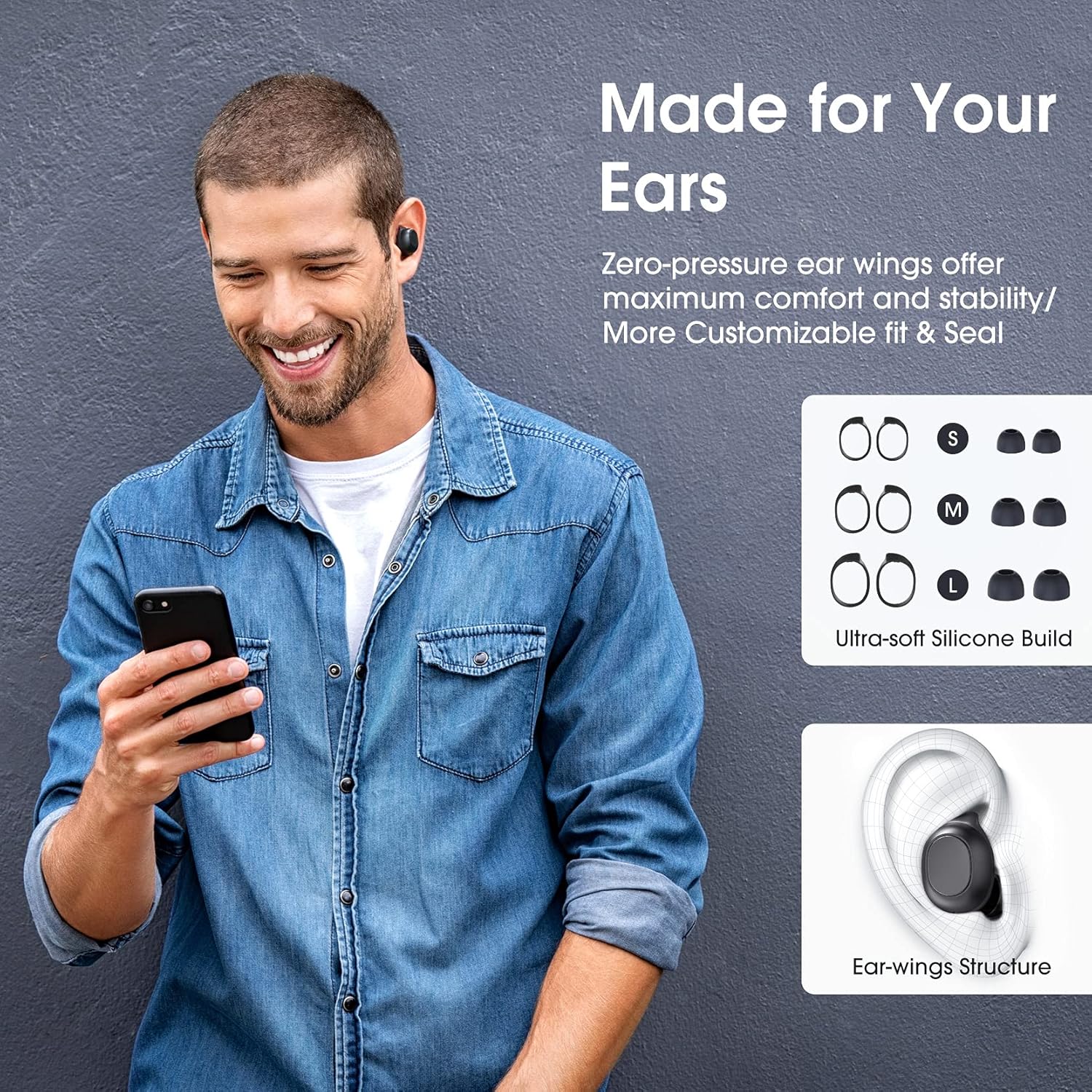
Image: A man wearing the Redzeo MDots earbuds, demonstrating their comfortable fit. The image also shows diagrams of various earwing sizes (S, M, L) and an illustration of how the earwing structure fits into the ear for maximum comfort and stability.
Operating Instructions
Button Controls
The Redzeo MDots earbuds feature two easy-to-press buttons on each earbud for comprehensive control.
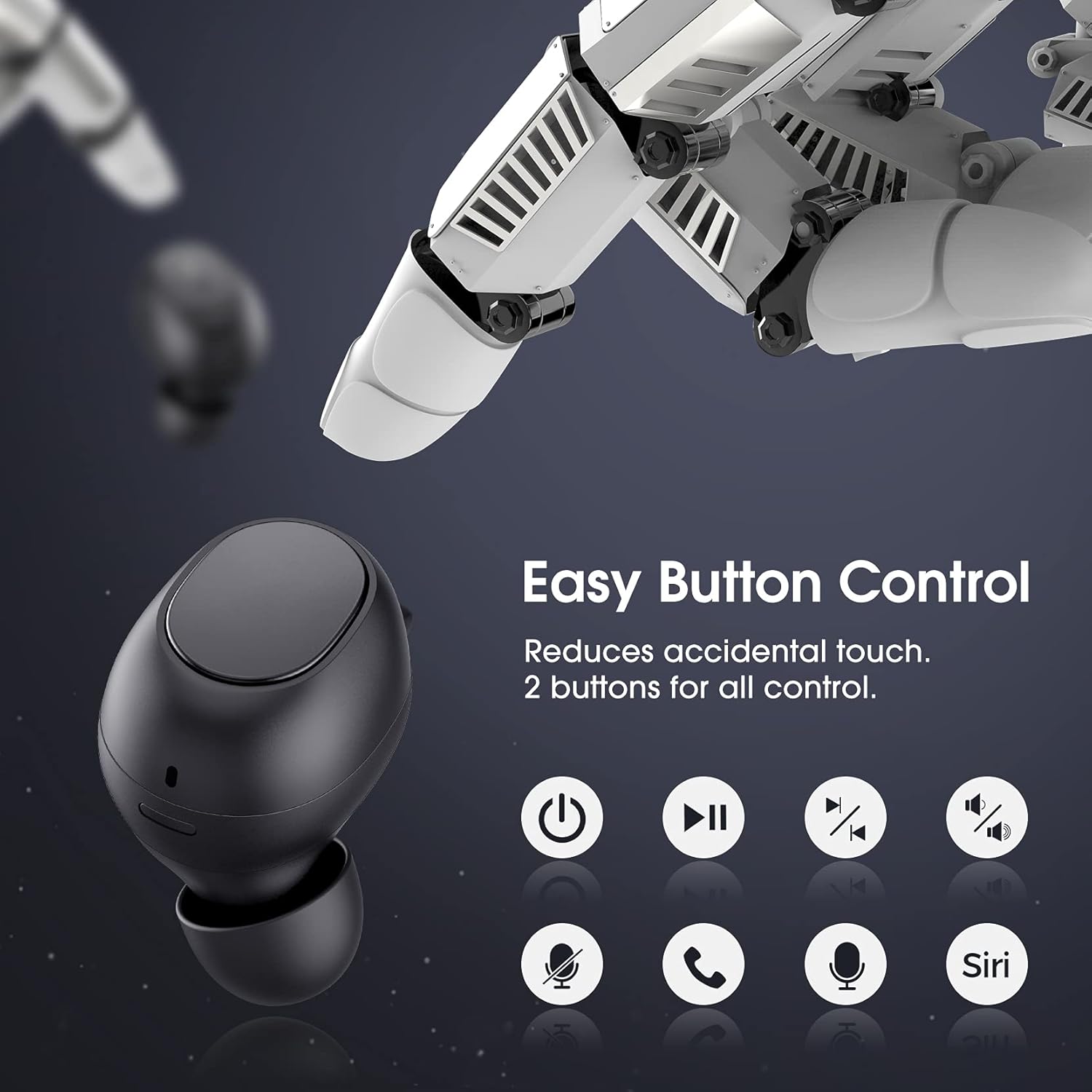
Image: A visual representation of the easy button controls on the Redzeo MDots earbuds, with icons indicating functions such as power on/off, play/pause, skip track, volume control, microphone mute, call answer/end, and voice assistant activation (Siri/Google Assistant).
| Function | Action |
|---|---|
| Power On | Remove from charging case |
| Power Off | Place back into charging case |
| Play/Pause | Single press on either earbud |
| Next Track | Double press on the Right earbud |
| Previous Track | Double press on the Left earbud |
| Volume Up | Press and hold Right earbud |
| Volume Down | Press and hold Left earbud |
| Answer/End Call | Single press on either earbud |
| Reject Call | Press and hold on either earbud |
| Activate Voice Assistant (Siri/Google Assistant) | Triple press on either earbud |
Mono Mode and Twin Stereo Mode
The Redzeo MDots earbuds offer flexible listening options:
- Mono Mode: Each earbud can be used independently. This allows you to leave one ear free to hear your surroundings while still enjoying audio. Simply take one earbud out of the case to use it in mono mode.
- Twin Stereo Mode: Use both earbuds simultaneously for an immersive true wireless stereo sound experience. This mode is ideal for enjoying music or blocking out surrounding noise.

Image: A visual guide demonstrating the different listening modes: Right Mono Mode (using only the right earbud), Left Mono Mode (using only the left earbud to hear ambient sound), and Twin Stereo Mode (using both earbuds for immersive sound).
Sound Quality
The MDots wireless earbuds deliver well-balanced sound with stereo bass. For the best audio experience, ensure you have selected the optimal eartips for a proper seal, which enhances bass and overall sound clarity.

Image: An exploded diagram illustrating the internal components of the Redzeo MDots earbud, highlighting the driver and acoustic structure responsible for delivering magical immersive sound with rich, high-quality audio.
Maintenance
Cleaning
Regular cleaning helps maintain sound quality and hygiene.
- Use a soft, dry, lint-free cloth to wipe the earbuds and charging case.
- For eartips, remove them from the earbuds and clean with a mild soap solution if necessary, then rinse thoroughly and dry completely before reattaching.
- Gently remove any earwax or debris from the earbud mesh using a small, soft brush or cotton swab.
Storage
Always store the earbuds in their charging case when not in use to protect them and keep them charged.
Water Resistance (IPX6)
The Redzeo MDots earbuds feature an IPX6 waterproof nano-coating design, making them resistant to sweat, water splashes, and rain. They are suitable for strenuous exercise and all-weather conditions.

Image: The Redzeo MDots earbuds resting on a wet surface, visually representing their IPX6 waterproof capability, which provides water protection for daily use and resistance to sweat, water, and rain, making them ideal for running, yoga, and gym activities.
Important Note: Do not use the earbuds for swimming or immerse them in heavy rain. The IPX6 rating protects against strong jets of water, but not continuous submersion.
Troubleshooting
Common Issues and Solutions
- Earbuds not pairing with device:
- Ensure Bluetooth is enabled on your device.
- Make sure the earbuds are charged.
- Place earbuds back in the case, close it, wait a few seconds, then open and remove them to re-enter pairing mode.
- Forget/delete "Redzeo MDots" from your device's Bluetooth list and try pairing again.
- Only one earbud working:
- Ensure both earbuds are charged.
- Place both earbuds back into the charging case, close the lid, and then open it again. This should force them to re-sync.
- If the issue persists, try resetting the earbuds (refer to manufacturer's website or contact support for specific reset instructions if not detailed here).
- No sound or low volume:
- Check the volume level on both your device and the earbuds.
- Ensure the earbuds are properly connected to your device.
- Clean any debris from the earbud mesh that might be obstructing sound.
- Try different eartip sizes to ensure a proper seal in your ear.
- Charging case not charging:
- Ensure the charging cable is securely connected to both the case and the power source.
- Try a different USB cable or power adapter.
- Check the charging port for any debris.
Specifications
| Feature | Detail |
|---|---|
| Model Number | BH510A |
| Brand | Redzeo |
| Connectivity Technology | Wireless (Bluetooth 5.0) |
| Ear Placement | In Ear |
| Form Factor | In Ear |
| Headphone Jack | USB |
| Colour | Light Black |
| Material | Plastic |
| Product Dimensions | 6.35 x 2.49 x 1.98 cm |
| Item Weight | 91 g |
| Water Resistance Rating | IPX6 |
| Playback Time (Earbuds) | Up to 4 hours |
| Total Playback Time (with Charging Case) | Up to 20 hours |
| Charging Time (Case) | Approx. 2 hours |
| Included Components | Wireless Charging Case |
| Date First Available | 31 May 2021 |
Warranty and Support
Redzeo products are designed and manufactured to the highest quality standards. For information regarding warranty coverage, technical support, or customer service, please refer to the warranty card included in your product packaging or visit the official Redzeo website. Please retain your proof of purchase for any warranty claims.
For further assistance, you may contact Redzeo customer support through the contact information provided on their official website.
Related documentsBH510A


Ask a question about this manual
Ask about setup, troubleshooting, compatibility, parts, safety, or missing instructions. Manuals+ will review the question and use this page’s manual context to help answer it.