
1. Introduction
The EPOS ADAPT 260 is an on-ear, double-sided Bluetooth headset designed for dynamic work environments. It features a USB dongle for enhanced connectivity and is optimized for Unified Communications (UC) platforms, including being Microsoft Teams certified. This manual provides essential information for the proper use and care of your headset.

Image 1.1: The EPOS ADAPT 260 wireless headset. This image displays the black, on-ear headset with its adjustable headband and microphone boom arm extended.
2. Package Contents
Verify that all items are present in your package:
- EPOS ADAPT 260 Headset
- BTD 800 USB Dongle
- USB-C to USB-A Charging Cable
- Carry Pouch
- Quick Guide
- Safety Guide
- Compliance Sheet

Image 2.1: Contents of the EPOS ADAPT 260 package. This image shows the headset, USB dongle, USB charging cable, carry pouch, and various documentation laid out on a surface.
3. Product Overview
The ADAPT 260 headset is designed for comfort and functionality, featuring intuitive controls and a flexible microphone. Key features include:
- Flexible Microphone: A noise-cancelling microphone filters out ambient noise for optimal call clarity.
- EPOS Voice™ Technology: Provides a natural listening experience.
- Dedicated Microsoft Teams Button: Allows direct access to Teams meetings.
- Portable Design: Lightweight and foldable for easy transport.
- Long Battery Life: Up to 27 hours of battery life for extended use.
- ActiveGard® Technology: Protects against acoustic shock during calls.
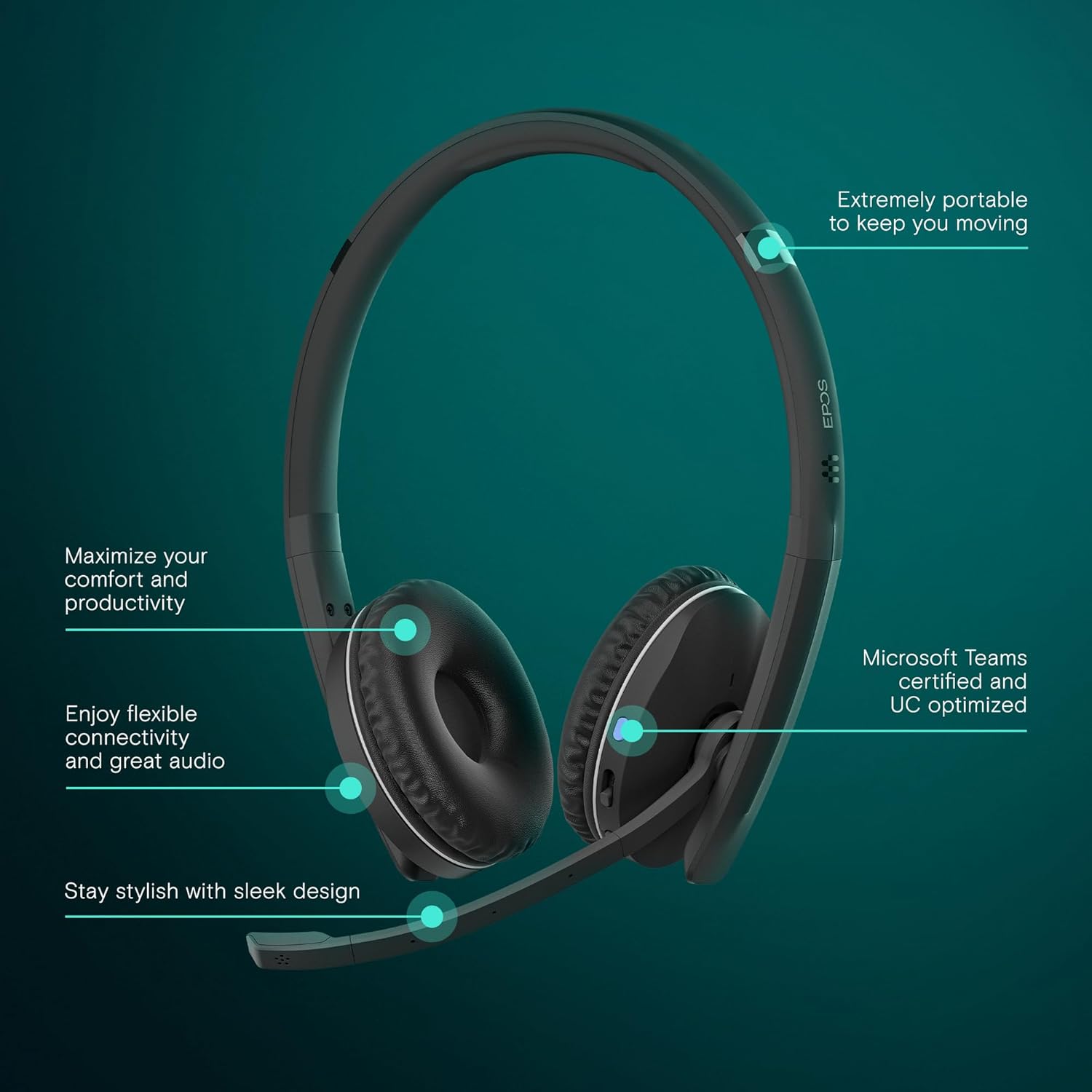
Image 3.1: Overview of EPOS ADAPT 260 features. This image highlights the headset's portability, comfort, flexible connectivity, audio quality, and Microsoft Teams certification.

Image 3.2: Detailed view of EPOS ADAPT 260 microphone features. This image shows the side of the headset with callouts for optimal call clarity, EPOS Voice™ technology, and the dedicated Microsoft Teams button.
4. Setup
4.1 Charging the Headset
- Connect the USB-C end of the charging cable to the headset's charging port.
- Connect the USB-A end of the cable to a powered USB port on your computer or a USB wall charger.
- The LED indicator on the headset will show charging status. A full charge typically takes approximately 2 hours.
4.2 Connecting to Devices
The ADAPT 260 offers flexible connectivity options:
4.2.1 Via USB Dongle (Recommended for PC/Mac)
- Plug the BTD 800 USB dongle into a USB port on your computer.
- Power on your headset.
- The dongle and headset will automatically pair. The LED on both devices will indicate a successful connection (e.g., solid blue).
- Ensure the EPOS ADAPT 260 is selected as the audio input and output device in your computer's sound settings and communication applications.
4.2.2 Via Bluetooth Directly (for Mobile Devices)
- Power on your headset.
- Enter pairing mode: Press and hold the Bluetooth button on the headset until the LED flashes blue and red.
- On your mobile device, go to Bluetooth settings and select "EPOS ADAPT 260" from the list of available devices.
- Once connected, the headset LED will turn solid blue.
5. Operating Instructions
5.1 Power On/Off
- Power On: Slide the power switch to the 'On' position. The LED will briefly illuminate.
- Power Off: Slide the power switch to the 'Off' position. The LED will turn off.
5.2 Wearing the Headset
- Adjust the headband to fit comfortably over your head.
- Position the ear cups over your ears.
- Rotate the microphone boom arm down and position it approximately two fingers' width from the corner of your mouth for optimal voice pickup.

Image 5.1: A person wearing the EPOS ADAPT 260 headset while working at a computer. The headset is correctly positioned with the microphone boom arm near the mouth.
5.3 Call Management
- Answer/End Call: Press the Call button once.
- Reject Call: Press and hold the Call button for 2 seconds.
5.4 Volume Control
- Increase Volume: Press the Volume Up button.
- Decrease Volume: Press the Volume Down button.
5.5 Mute/Unmute Microphone
- Mute: Press the Mute button on the microphone boom arm. The LED on the microphone will turn red.
- Unmute: Press the Mute button again. The LED will turn off.
5.6 Microsoft Teams Button
If connected to a Microsoft Teams certified device, press the dedicated Teams button to:
- Join a meeting.
- Bring the Teams application to the foreground.
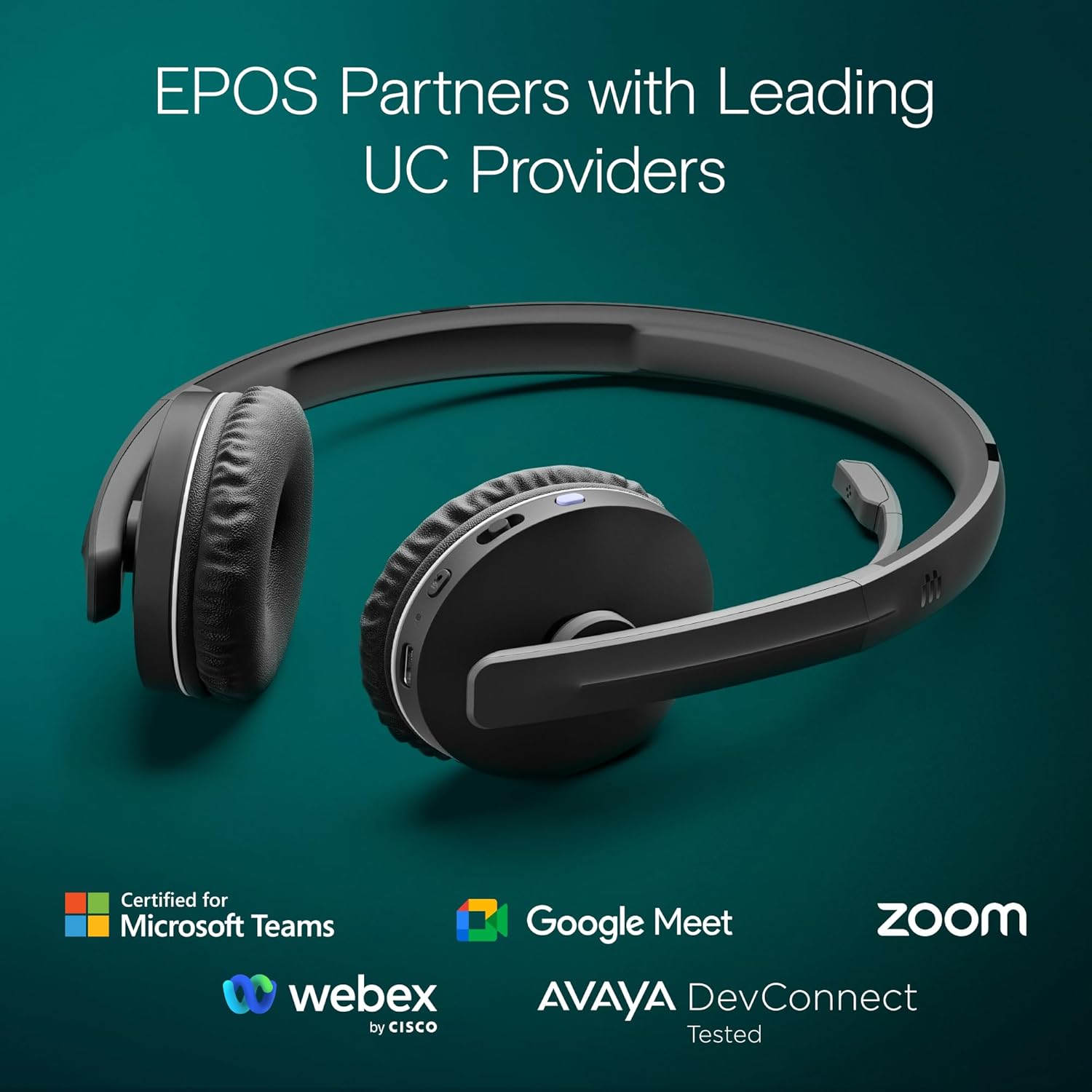
Image 5.2: The EPOS ADAPT 260 headset displayed with logos of various Unified Communications providers it is certified or compatible with, including Microsoft Teams, Google Meet, Zoom, Webex, and Avaya.
6. Maintenance
6.1 Cleaning
- Wipe the headset surfaces with a soft, dry, lint-free cloth.
- Do not use liquid cleaners or aerosols directly on the headset.
- Avoid getting moisture into any openings.
6.2 Storage
- When not in use, store the headset in the provided carry pouch to protect it from dust and scratches.
- Store in a cool, dry place, away from extreme temperatures.
6.3 Battery Care
- To prolong battery life, avoid fully discharging the battery frequently.
- Charge the headset regularly, even if not in constant use.

Image 6.1: A person wearing the EPOS ADAPT 260 headset, illustrating its use in a flexible work setting and highlighting its long battery life of up to 27 hours.
7. Troubleshooting
If you encounter issues with your EPOS ADAPT 260 headset, try the following solutions:
- No Sound/Poor Audio Quality:
- Ensure the headset is powered on and fully charged.
- Verify the headset is correctly paired and connected to your device (dongle or Bluetooth).
- Check your device's sound settings to ensure the EPOS ADAPT 260 is selected as the default playback and recording device.
- Adjust the volume on both the headset and your connected device.
- If using the dongle, try plugging it into a different USB port.
- Microphone Not Working:
- Ensure the microphone is not muted (check the mute LED).
- Verify the microphone boom arm is positioned correctly.
- Check your device's sound settings to ensure the EPOS ADAPT 260 is selected as the default recording device.
- Connection Issues:
- Restart both the headset and your connected device.
- If using Bluetooth, try unpairing and re-pairing the headset.
- Ensure the headset is within the operating range of your device.
- Headset Not Charging:
- Ensure the charging cable is securely connected to both the headset and the power source.
- Try a different USB port or wall adapter.
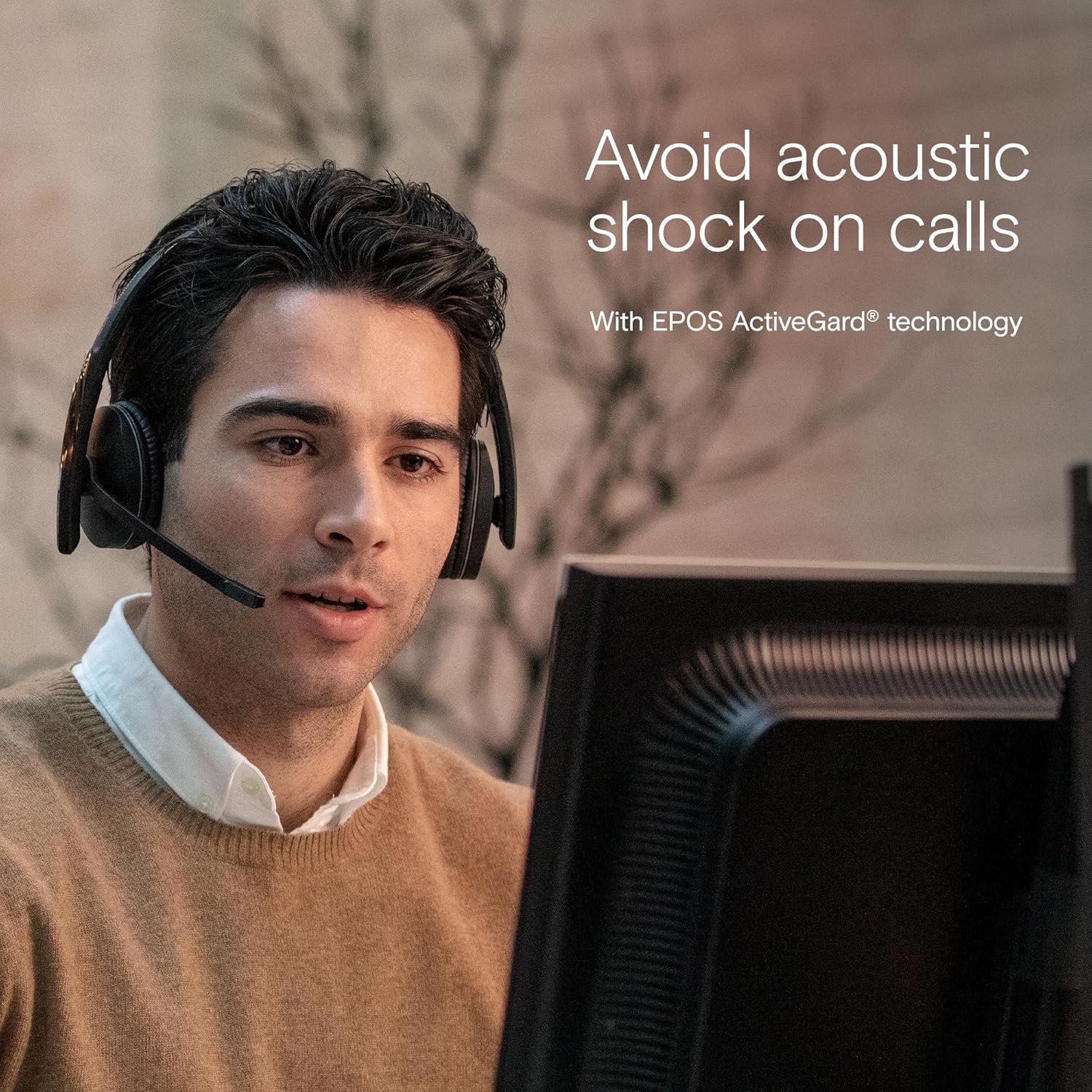
Image 7.1: A person using the EPOS ADAPT 260 headset during a call, illustrating the benefit of ActiveGard® technology in preventing acoustic shock.
8. Specifications
| Feature | Detail |
|---|---|
| Model Name | ADAPT 260 |
| Model Number | 1000882 |
| Connectivity Technology | Wireless (Bluetooth) |
| Wireless Communication Technology | Bluetooth |
| Form Factor | On Ear |
| Noise Control | Passive Noise Cancellation |
| Microphone | Included, Noise-cancelling |
| Frequency Range | 20 Hz - 20,000 Hz |
| Item Weight | 120.7 Grams |
| Product Dimensions | 16 x 19.5 x 6.8 cm |
| Material | Leather (ear cushions) |
| Battery Type | Lithium Ion |
| Battery Life | Up to 27 hours |
9. Warranty and Support
The EPOS ADAPT 260 headset comes with a manufacturer's warranty. Please refer to the warranty card included in your package or visit the official EPOS website for detailed warranty terms and conditions specific to your region.
For technical support, troubleshooting assistance beyond this manual, or to inquire about replacement parts, please visit the EPOS support website or contact their customer service department. Contact information can typically be found on the EPOS official website.


