
1. Introduction
Thank you for choosing the Dacom K6H Pro Bluetooth 5.0 Earphones. This manual provides detailed instructions on how to set up, operate, and maintain your earphones to ensure optimal performance and longevity. Please read this manual thoroughly before using the product.
2. Package Contents
- Dacom K6H Pro Wireless Earbuds (Left and Right)
- Charging Case
- User Manual
3. Product Overview
Familiarize yourself with the components of your Dacom K6H Pro earphones and charging case.
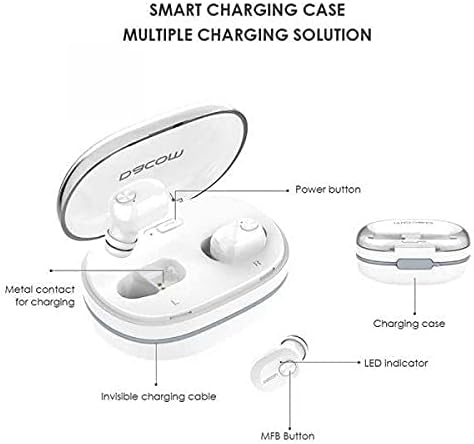
Image 3.1: Diagram illustrating the Dacom K6H Pro earphones and charging case components. The image highlights the power button, metal contacts for charging, invisible charging cable, LED indicator, and Multi-Function Button (MFB) on the earbud.
Key Components:
- Charging Case: Stores and charges the earbuds. Features a power button and metal contacts for earbud charging.
- Invisible Charging Cable: Integrated USB charging cable for convenient power replenishment.
- Earbuds (Left & Right): Each earbud has an LED indicator and a Multi-Function Button (MFB) for control.

Image 3.2: The Dacom K6H Pro wireless earphones, showing both the charging case with one earbud inserted and the other earbud removed, ready for use. The case is open, revealing the earbud compartments.
4. Charging
Ensure your Dacom K6H Pro earphones and charging case are fully charged before first use.
4.1 Charging the Earbuds
- Place the earbuds into their respective slots in the charging case.
- Close the charging case lid. The earbuds will begin charging automatically.
- The LED indicator on the earbuds will show charging status (refer to LED indicator section for details).
4.2 Charging the Case
The charging case features a hidden, integrated USB charging cable for convenience.
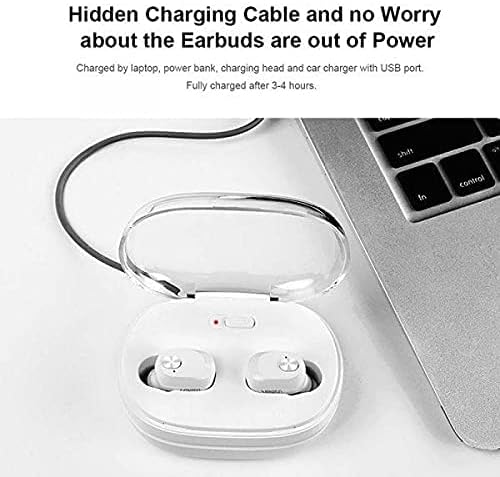
Image 4.1: The Dacom K6H Pro charging case connected to a laptop via its integrated USB charging cable. The earbuds are inside the case, and a red LED indicator on the case is visible, signifying charging in progress.
- Locate the integrated USB charging cable on the charging case.
- Connect the USB cable to a power source such as a laptop, power bank, charging head, or car charger with a USB port.
- The charging case LED indicator will illuminate to show charging status.
- A full charge typically takes approximately 3-4 hours.
5. Setup & Pairing
Follow these steps to pair your Dacom K6H Pro earphones with your device.
5.1 Initial Pairing
- Ensure the earbuds are charged.
- Open the charging case. The earbuds will automatically power on and enter pairing mode.
- On your smartphone (iPhone or Android) or other Bluetooth-enabled device, go to the Bluetooth settings.
- Search for available devices and select "Dacom K6H Pro" from the list.
- Once connected, a voice prompt will confirm successful pairing.
5.2 Reconnecting
After initial pairing, the earbuds will automatically reconnect to the last paired device when removed from the charging case and the device's Bluetooth is active.
6. Operating Controls
The Dacom K6H Pro earphones feature touch controls via the Multi-Function Button (MFB) on each earbud.
- Play/Pause: Single tap on either MFB.
- Next Track: Double tap the MFB on the right earbud.
- Previous Track: Double tap the MFB on the left earbud.
- Answer/End Call: Single tap on either MFB during an incoming call.
- Reject Call: Press and hold either MFB for 2 seconds during an incoming call.
- Activate Voice Assistant: Triple tap on either MFB.
- Volume Control: Volume is typically controlled via the connected device.
7. Maintenance
Proper maintenance ensures the longevity and performance of your earphones.
- Cleaning: Regularly clean the earbuds and charging case with a soft, dry, lint-free cloth. Do not use harsh chemicals or abrasive materials.
- Storage: When not in use, store the earphones in their charging case to protect them from dust and damage.
- Avoid Water: The earphones are not waterproof. Avoid exposure to water, moisture, or extreme temperatures.
- Charging Contacts: Ensure the metal charging contacts on both the earbuds and the case are clean and free of debris for effective charging.
8. Troubleshooting
If you encounter issues with your Dacom K6H Pro earphones, refer to the following common solutions.
- Earbuds not pairing:
- Ensure both earbuds are charged.
- Turn off Bluetooth on your device, then turn it back on.
- Forget/delete "Dacom K6H Pro" from your device's Bluetooth list and attempt to pair again.
- Place earbuds back in the case, close the lid, wait a few seconds, then open to re-enter pairing mode.
- Only one earbud working:
- Ensure both earbuds are charged.
- Try resetting the earbuds (refer to manufacturer's specific reset instructions if available, otherwise try placing both in case, closing, and reopening).
- Clean the charging contacts on both earbuds and the case.
- Earbuds not charging:
- Ensure the charging case itself is charged.
- Verify the earbuds are correctly seated in the charging case.
- Clean the charging contacts on both earbuds and the case.
- Try a different USB power source for the charging case.
- Poor sound quality:
- Ensure the earbuds are properly seated in your ears.
- Check the audio source and volume levels on your connected device.
- Move closer to your connected device to avoid interference.
9. Specifications
| Brand | Dacom |
| Model Number | K6H Pro |
| Connectivity | Wireless, Bluetooth 5.0 |
| Earphone Type | In-Ear |
| Microphone | Included |
| Noise Control | Active Noise Cancellation |
| Control Type | Media Control, Touch |
| Cable Feature | Without Cable (integrated USB for case) |
| Compatible Devices | Multi (iPhone & Android) |
| Color | White |
| Package Dimensions | 17.2 x 10.2 x 3.8 cm |
| Item Weight | 120 g |
10. Warranty and Support
Dacom products are designed for reliability and performance. For warranty information, please refer to the warranty card included in your product packaging or visit the official Dacom website. For technical support or further assistance, please contact Dacom customer service through the channels provided on their official website.
