
1. Introduction
The cellularline Core Pro Bluetooth Earphones are designed to provide a high-quality audio experience with advanced features for communication and entertainment. These earphones incorporate Environmental Noise Cancelling (ENC) technology with four built-in microphones for clear calls, multipoint connectivity for simultaneous device pairing, and an LED display for battery status monitoring. This manual provides instructions for setup, operation, and maintenance of your Core Pro earphones.

Image 1.1: cellularline Core Pro Earphones in their charging case, displaying battery levels.
2. Package Contents
Please verify that all items are present in the package:
- cellularline Core Pro Bluetooth Earphones (Left and Right)
- Wireless Charging Case
- USB Charging Cable
- User Manual
3. Setup
3.1 Initial Charging
- Before first use, place both earphones into the charging case.
- Connect the charging case to a USB power source using the provided USB cable.
- The LED display on the charging case will indicate the charging status. Allow the earphones and case to fully charge.
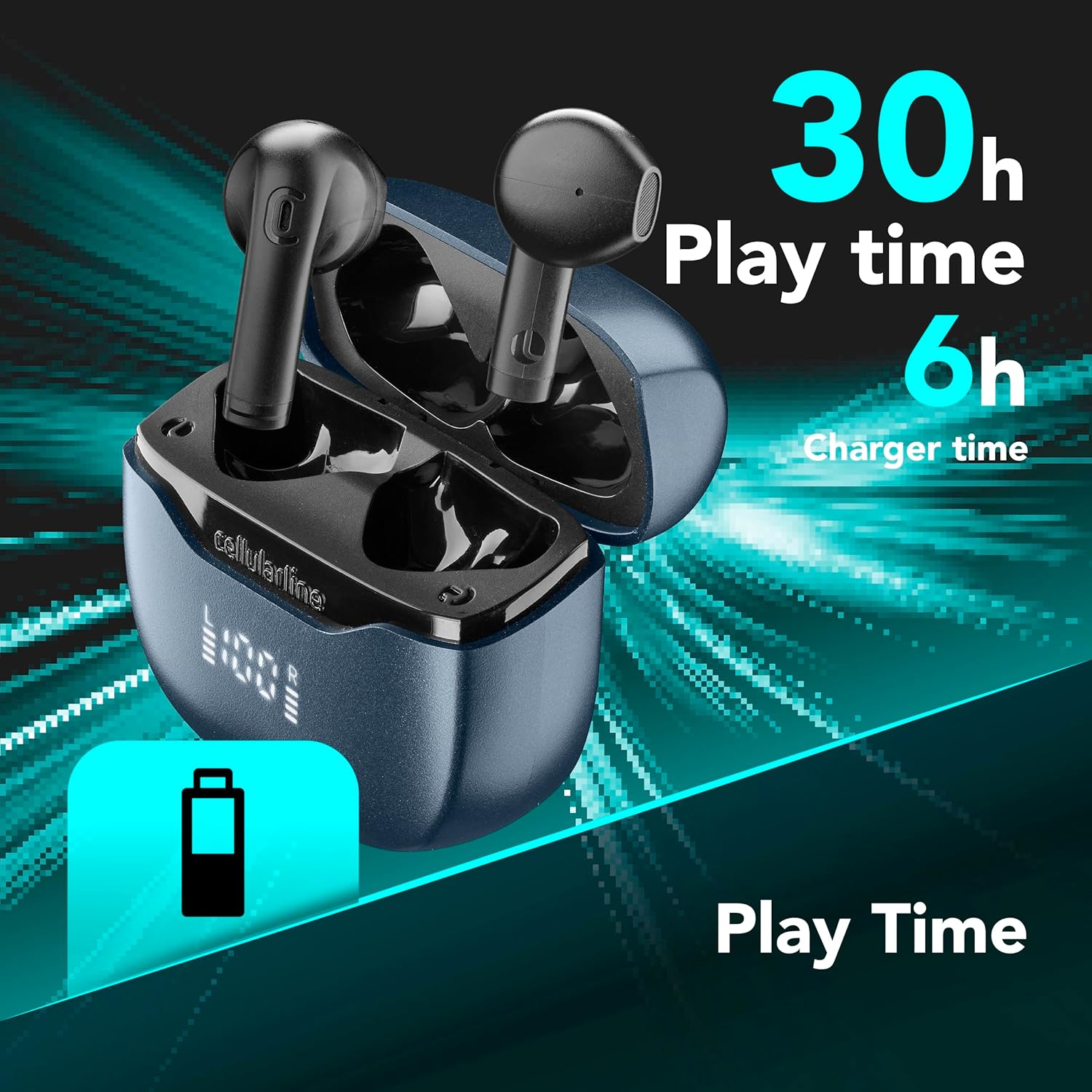
Image 3.1: Earphones and case indicating total play time and charging capacity.
3.2 Auto Pairing
- Ensure the earphones are charged.
- Open the charging case. The earphones will automatically power on and enter pairing mode.
- On your device (smartphone, tablet, etc.), enable Bluetooth and search for available devices.
- Select "cellularline Core Pro" from the list of detected devices to connect.
- Once connected, a confirmation sound or message may be heard.
4. Operating Instructions
4.1 Power On/Off
- Power On: Open the charging case, or press and hold the touch control area on both earphones for 3 seconds.
- Power Off: Place the earphones back into the charging case and close the lid, or press and hold the touch control area on both earphones for 5 seconds.
4.2 Touch Controls
The Core Pro earphones feature intuitive touch controls on each earbud. Refer to the following table for common functions:

Image 4.1: Visual representation of touch control functions on an earbud.
| Action | Function |
|---|---|
| Single Tap (Left/Right) | Play/Pause Music, Answer/End Call |
| Double Tap (Right) | Next Track |
| Double Tap (Left) | Previous Track |
| Triple Tap (Right) | Volume Up |
| Triple Tap (Left) | Volume Down |
| Press and Hold (2s) | Activate Voice Assistant (Siri, Google Assistant) |
| Press and Hold (2s during call) | Reject Incoming Call |
4.3 Charging the Earphones and Case
- Earphones: Place the earphones into the charging case. They will automatically begin charging. The LED display on the case shows the individual earbud battery levels (L and R).
- Charging Case: Connect the USB charging cable to the case's charging port and a power source. The central percentage on the LED display indicates the case's battery level.
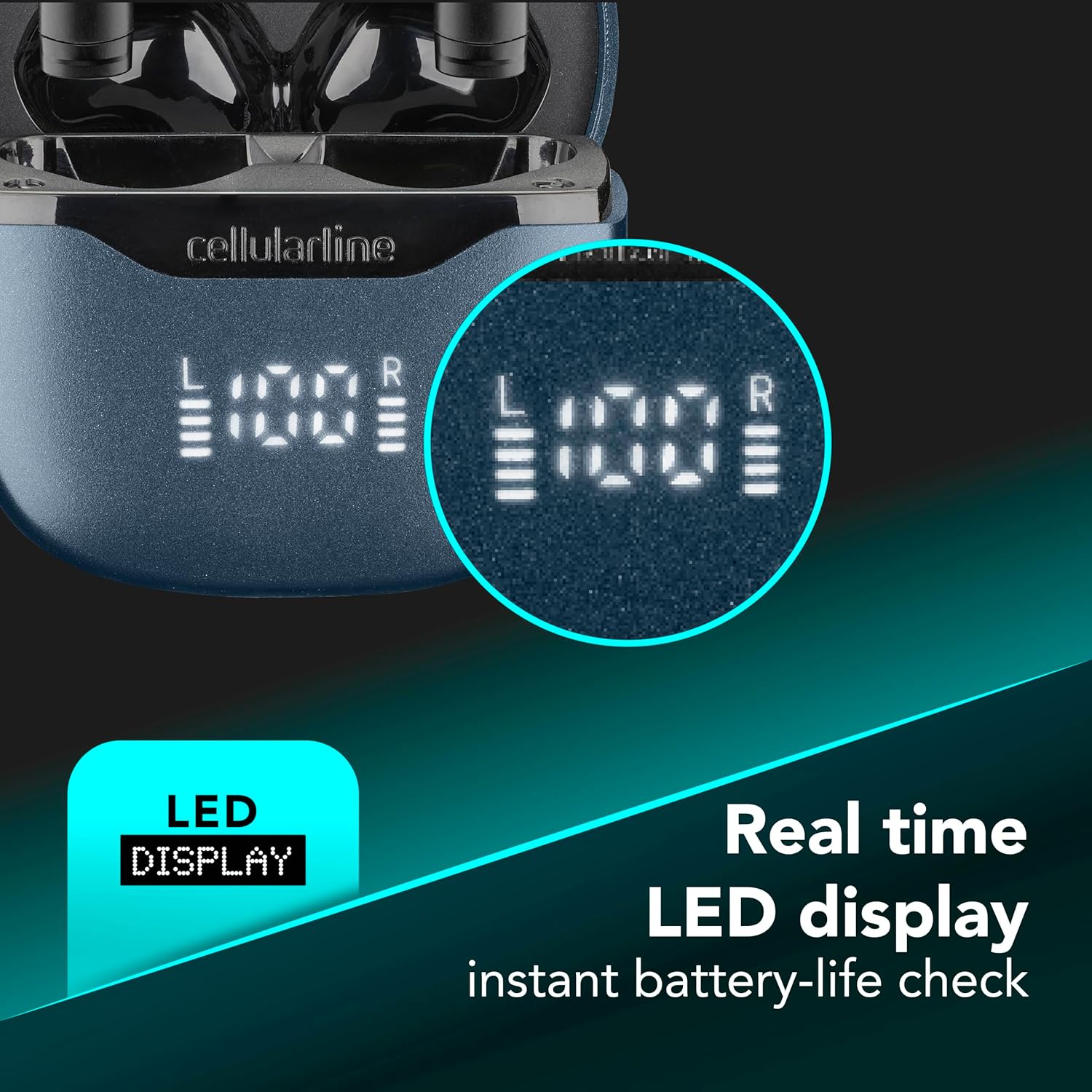
Image 4.2: Real-time LED display for instant battery life check of the case and individual earbuds.
4.4 Multipoint Connection
The Core Pro earphones support multipoint technology, allowing connection to two Bluetooth devices simultaneously.
- Pair the earphones with the first device as described in Section 3.2.
- Disable Bluetooth on the first device temporarily. The earphones will re-enter pairing mode.
- Pair the earphones with the second device.
- Re-enable Bluetooth on the first device. The earphones should automatically connect to both devices.
- Audio will switch between devices based on active playback or incoming calls.

Image 4.3: Earphones connected to multiple devices simultaneously.
5. Maintenance
- Cleaning: Use a soft, dry, lint-free cloth to clean the earphones and charging case. Do not use abrasive cleaners or solvents.
- Storage: When not in use, store the earphones in their charging case to protect them and ensure they remain charged.
- Water Exposure: Avoid exposing the earphones or charging case to water or excessive moisture.
- Temperature: Do not expose the device to extreme temperatures.
6. Troubleshooting
| Problem | Possible Solution |
|---|---|
| Earphones do not power on. | Ensure earphones and charging case are fully charged. |
| Cannot pair with device. | Make sure Bluetooth is enabled on your device. Place earphones back in case, close, then reopen to re-enter pairing mode. Forget previous pairings on your device and try again. |
| No sound from earphones. | Check device volume. Ensure earphones are properly connected. Try re-pairing. |
| Poor call quality / Excessive background noise. | Ensure earphones are properly seated in your ears. Move to a quieter environment if possible. The ENC technology works to reduce environmental noise, but extreme noise may still affect clarity. |
| Charging case LED display is off. | Connect the charging case to a power source. If still off, the case battery may be completely depleted or there may be a charging cable issue. |
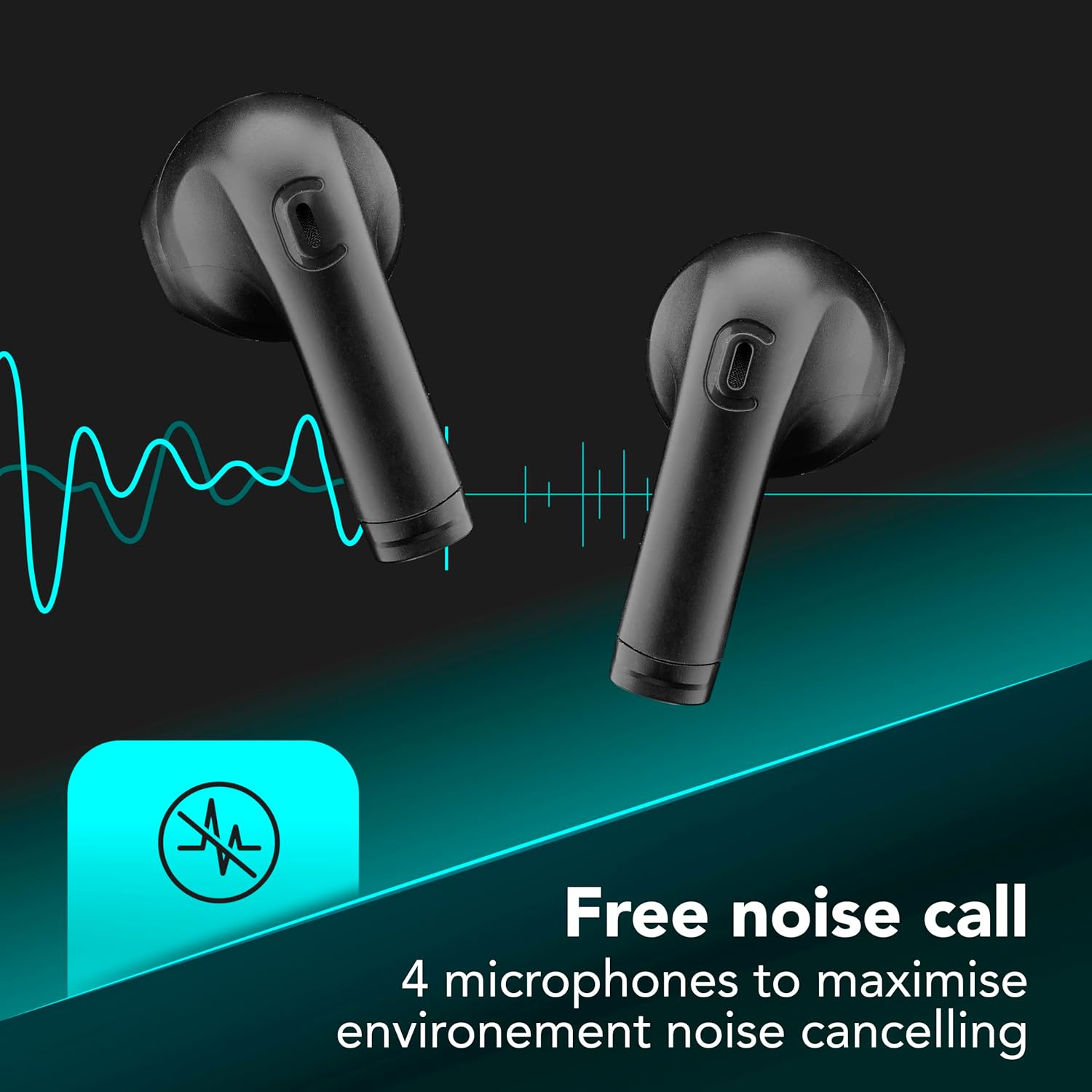
Image 6.1: Illustration of Environmental Noise Cancelling (ENC) technology for clear calls.
7. Specifications
| Feature | Detail |
|---|---|
| Model | BTCOREPROTWSK |
| Brand | cellularline |
| Connectivity | Bluetooth |
| Noise Control | Environmental Noise Cancellation (ENC) |
| Microphones | 4 (2 per earbud) |
| Control Method | Touch |
| Battery Life (Total) | Up to 30 Hours (with charging case) |
| Special Features | Multipoint Pairing, LED Display, Auto Pairing |
| Material | Plastic |
| Item Weight | 0.1 Kilograms |
8. Warranty and Support
For warranty information and customer support, please refer to the warranty card included in your product packaging or visit the official cellularline website. Keep your proof of purchase for warranty claims.
Official Website: www.cellularline.com


