
1. Introduction
This manual provides detailed instructions for the SONRU Bluetooth 5.0 Audio Receiver, Model 682601503816. Please read this manual carefully before using the device to ensure proper operation and to maximize its performance. This receiver allows you to wirelessly stream audio from your Bluetooth-enabled devices to non-Bluetooth audio systems, such as car stereos, home stereos, headphones, and speakers.
2. Product Overview
2.1 Key Features
- Bluetooth 5.0 Technology: Provides stable and continuous audio transmission over long distances.
- Dual AUX Output Ports: Connects to two different audio devices simultaneously using 3.5mm AUX or RCA cables.
- Noise Cancellation: Built-in AEC echo cancellation and ANC noise cancellation circuits for clear sound quality.
- Three Built-in Microphones: Enhances sound pickup for hands-free calls.
- Multi-Function Button (MFB): Controls call answering, redialing, hanging up, and rejecting.
- Hands-Free Calling & Navigation: Supports hands-free calls and voice notification broadcasting from navigation apps.
- Automatic Connection Memory: Automatically reconnects to previously paired devices.
- Dual Device Connection: Pair with two phones simultaneously for music and calls.
- Extended Battery Life: Up to 15 hours of working time for calls or music, with a 2.5-hour full charge time. Can be used while charging.
2.2 Package Contents
Please check the package for the following items:
- SONRU Bluetooth 5.0 Audio Receiver
- 3.5mm AUX Audio Cable (2 PCS)
- RCA Audio Cable (50cm)
- USB Charging Cable
- User Manual
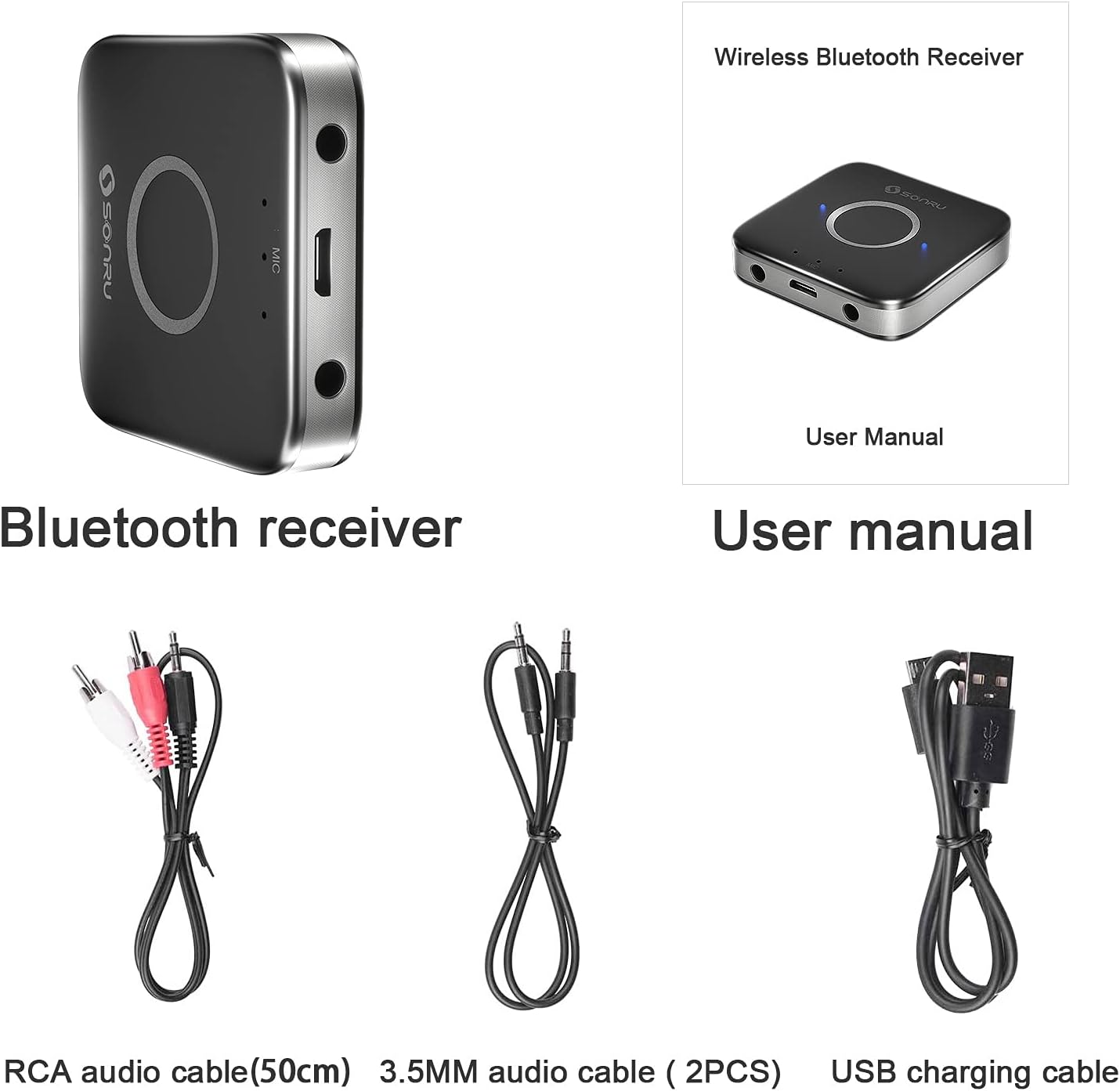
Image: The SONRU Bluetooth receiver, user manual, RCA audio cable, two 3.5mm audio cables, and a USB charging cable are shown as included items.
2.3 Device Layout

Image: A diagram illustrating the various ports and buttons on the SONRU Bluetooth receiver. Key components include the 3.5mm AUX output ports, Micro USB charging port, LED indicators, and the Multi-Function Button (MFB).
- 3.5mm AUX Output Port 1
- Micro USB Charging Port
- LED Indicator Lights
- Multi-Function Button (MFB)
- 3.5mm AUX Output Port 2
- Microphones (3 built-in, located near LED indicators)
3. Setup Instructions
3.1 Charging the Device
Before first use, fully charge the SONRU Bluetooth receiver. Connect the supplied USB charging cable to the Micro USB port on the receiver and the other end to a USB power source (e.g., wall adapter, computer USB port). The LED indicator will show charging status and turn off when fully charged.

Image: An illustration showing the charging time of 1.5 hours for 15 hours of playtime on the SONRU Bluetooth receiver.
3.2 Connecting to an Audio System
The receiver can connect to your audio system via 3.5mm AUX or RCA cables.
- For 3.5mm AUX: Connect one end of the 3.5mm audio cable to one of the AUX output ports on the receiver and the other end to the 3.5mm AUX input port on your car stereo, home stereo, or speaker.
- For RCA: Connect the RCA audio cable to one of the AUX output ports on the receiver (using a 3.5mm to RCA adapter if necessary, or directly if the cable is 3.5mm to RCA) and the RCA input ports on your audio system.

Image: A visual guide demonstrating how to connect the SONRU Bluetooth receiver to a non-Bluetooth device using either a 3.5mm AUX cable or an RCA cable. A smartphone is shown wirelessly connected to the receiver.
3.3 Pairing with a Bluetooth Device
- Power On: Press and hold the MFB button on the receiver until the LED indicator flashes blue and red alternately, indicating it is in pairing mode.
- Enable Bluetooth: On your smartphone or other Bluetooth device, go to the Bluetooth settings and enable Bluetooth.
- Select Device: Look for "SR-B7" (or similar, refer to product packaging for exact pairing name) in the list of available devices and select it to pair.
- Confirmation: Once paired, the LED indicator on the receiver will flash blue slowly, and your device will confirm the connection.
Image: A visual representation of the Bluetooth pairing process, showing a smartphone's Bluetooth settings screen with the receiver listed as an available device, and the receiver connected to an audio source.
Automatic Reconnection: After successful pairing, the receiver will automatically connect to your phone when Bluetooth is enabled and the receiver is powered on.
Dual Device Pairing: The receiver supports pairing with two Bluetooth devices simultaneously. After pairing the first device, put the receiver back into pairing mode and pair the second device. Both devices can then stream audio or handle calls, with the last active device taking priority.
4. Operating Instructions
4.1 Power On/Off
- Power On: Press and hold the MFB button for approximately 3 seconds until the LED indicator lights up.
- Power Off: Press and hold the MFB button for approximately 3 seconds until the LED indicator turns off.
4.2 Music Playback
Once connected to your Bluetooth device, you can stream music to your audio system. Control music playback (play, pause, skip tracks) directly from your paired device.
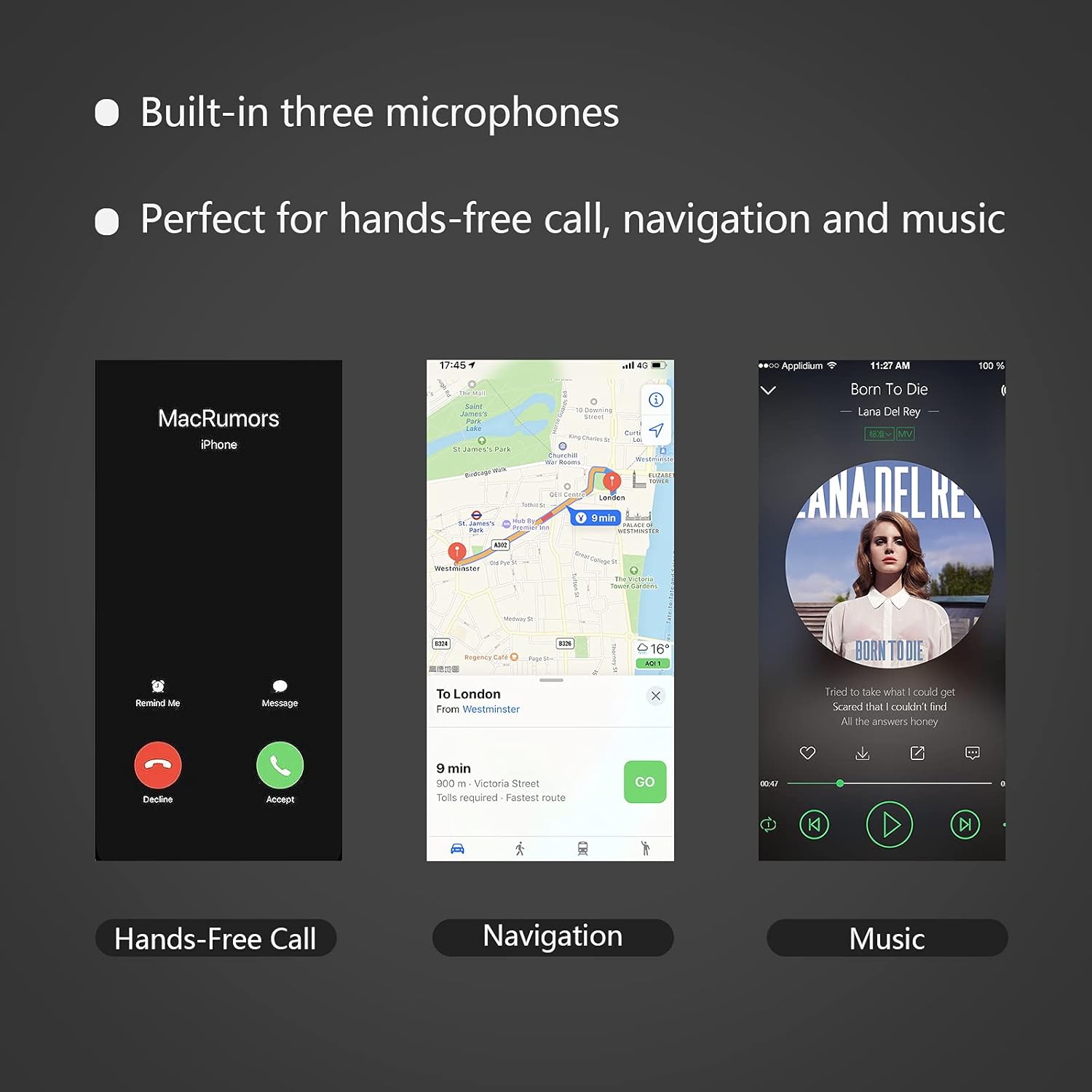
Image: A smartphone displaying a music playback interface, indicating the receiver's capability for music streaming.
4.3 Hands-Free Calling
The MFB button allows for convenient call management:
- Answer Call: Press the MFB button once when an incoming call rings.
- End Call: Press the MFB button once during a call.
- Reject Call: Press and hold the MFB button for approximately 2 seconds when an incoming call rings.
- Redial Last Number: Double-press the MFB button when not on a call.
Image: A smartphone displaying an incoming call screen, demonstrating the hands-free calling feature of the receiver.
4.4 Navigation Voice Broadcast
When connected, the receiver can broadcast voice notifications from your navigation application through your connected audio system, ensuring safe driving without needing to look at your phone.
Image: A smartphone displaying a navigation app, illustrating the receiver's ability to broadcast navigation voice prompts.
5. Maintenance
- Keep the device dry. Moisture can damage electronic circuits.
- Do not expose the device to extreme temperatures. High temperatures can shorten the life of electronic devices and warp plastic parts.
- Do not attempt to open or disassemble the device. This will void the warranty and may cause damage.
- Clean the device with a soft, dry cloth. Avoid using harsh chemicals or abrasive cleaners.
6. Troubleshooting
| Problem | Possible Cause | Solution |
|---|---|---|
| Device does not power on. | Low battery. | Charge the device using the provided USB cable. |
| Cannot pair with Bluetooth device. | Receiver not in pairing mode. Bluetooth on phone is off. Device too far from receiver. | Ensure receiver is flashing blue/red. Turn on Bluetooth on your phone. Move phone closer to receiver (within 10 meters). |
| No sound after connecting. | Incorrect cable connection. Audio system input not selected. Volume too low. | Check 3.5mm AUX or RCA cable connections. Ensure your audio system is set to the correct AUX/RCA input. Increase volume on both the receiver and your audio system. |
| Sound quality is poor or intermittent. | Interference. Device too far. Low battery. | Move closer to the receiver. Avoid obstacles between devices. Charge the receiver. |
| Hands-free call quality is poor. | Microphone obstructed. Background noise. | Ensure microphones are not covered. Reduce background noise if possible. |
7. Specifications
- Model Number: 682601503816
- Bluetooth Version: 5.0
- Connectivity Technology: Auxiliary
- Connector Type: 3.5mm Jack, RCA
- Audio Output Mode: Stereo
- Special Features: Built-In Microphone, Hands-Free Calling, Noise Cancelling
- Compatible Devices: Speakers, Home Stereos, Car Audio Systems, Headphones
- Batteries: 1 Lithium Ion battery (included)
- Working Time: Up to 15 hours (audio/calling)
- Charging Time: Approximately 2.5 hours
- Item Weight: 3.52 ounces
- Package Dimensions: 6.93 x 3.43 x 0.75 inches
- Color: Black+Gray
- Manufacturer: SONRU
- Date First Available: May 28, 2021
8. Warranty and Support
For warranty information and customer support, please refer to the documentation included with your product or visit the official SONRU website. Keep your purchase receipt for warranty claims.
For further assistance, you may contact SONRU customer service through their official channels.