
1. Introduction
This manual provides comprehensive instructions for the installation, operation, and maintenance of your EVGA GeForce RTX 3080 Ti FTW3 ULTRA GAMING graphics card. This high-performance graphics card is designed to deliver exceptional visual fidelity and processing power for demanding applications and gaming.
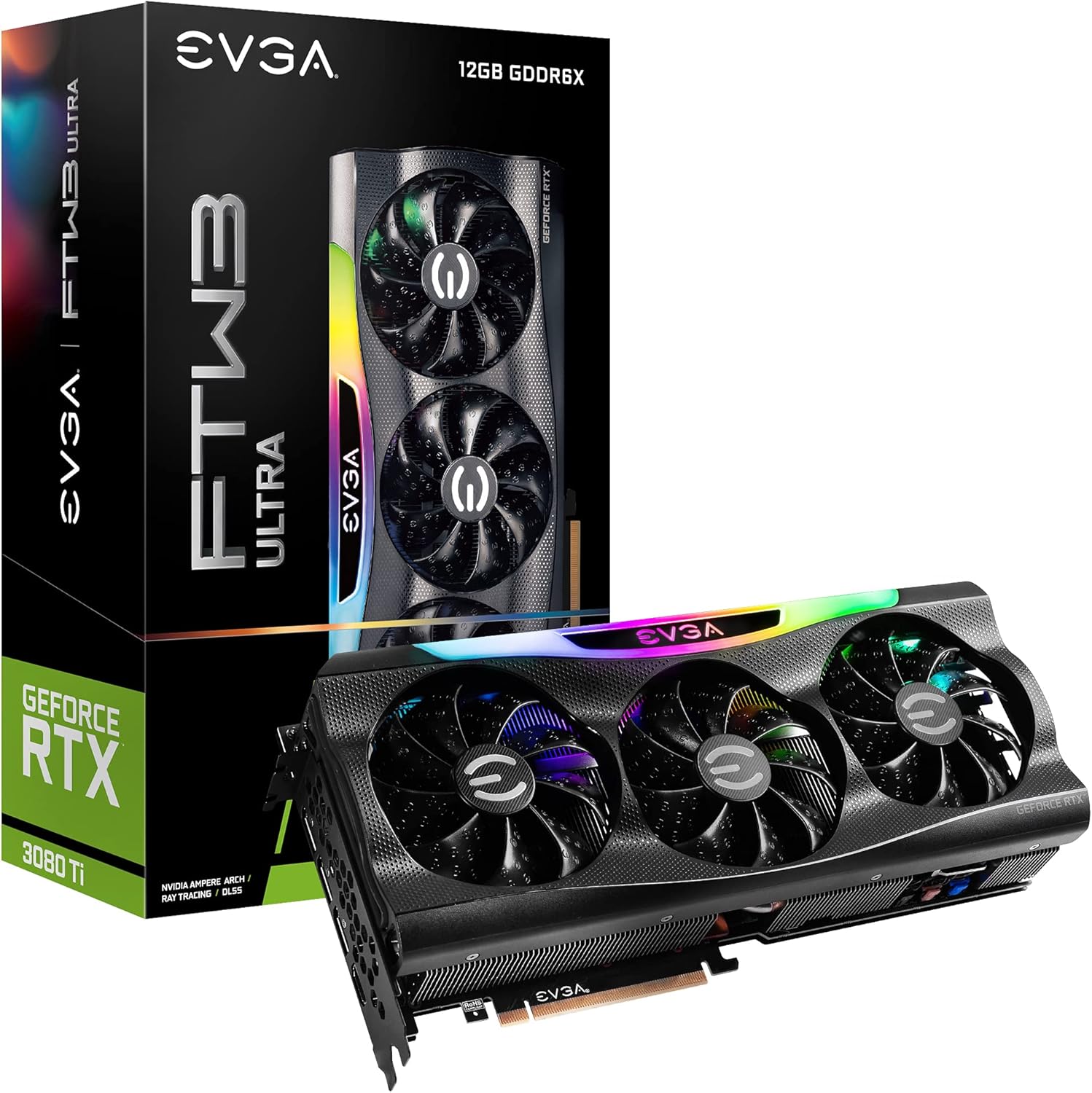
Figure 1.1: EVGA GeForce RTX 3080 Ti FTW3 ULTRA GAMING Graphics Card and Packaging.
2. Key Features
The EVGA GeForce RTX 3080 Ti FTW3 ULTRA GAMING graphics card incorporates advanced technologies to enhance performance and user experience. Key features include:
- Digital Max Resolution: Supports resolutions up to 7680 x 4320 for ultra-high definition displays.
- Real Boost Clock: Achieves a boost clock of 1800 MHz for enhanced performance.
- Memory Detail: Equipped with 12288 MB GDDR6X memory for high-bandwidth data transfer.
- Real-Time RAY TRACING: Delivers cutting-edge, hyper-realistic graphics in supported games.
- iCX3 Technology: Advanced cooling solution for optimal thermal performance.
- ARGB LED: Customizable RGB lighting for aesthetic personalization.
- Metal Backplate: Provides structural rigidity and aids in heat dissipation.
- NVIDIA DLSS: AI acceleration for maximum FPS and uncompromised image quality.
- PCI Express Gen 4: High-speed interface for data transfer.

Figure 2.1: Memory and Architecture Overview.

Figure 2.2: iCX3 Interactive Cooling System.
3. Package Contents
Verify that all items are present in the package before proceeding with installation:
- EVGA GeForce RTX 3080 Ti FTW3 ULTRA GAMING Graphics Card
- Quick Start Guide / User Manual (Digital or Printed)
- Accessory Kit (may include power adapters, support bracket, screws)
Note: Contents may vary slightly based on region or specific bundle.
4. Setup and Installation
Proper installation is crucial for optimal performance and longevity of your graphics card. Ensure your system meets the minimum requirements before installation.
4.1 System Requirements
- PCI Express-compliant motherboard with one x16 graphics slot.
- Minimum 750W or greater system power supply with three 8-pin PCIe power connectors.
- Microsoft Windows 10 64-bit or Linux 64-bit operating system.
- 1.5GB of available hard-disk space.
- 8GB system memory (16GB recommended).
4.2 Hardware Installation
- Prepare Your System: Power off your computer and disconnect all cables. Open the computer case.
- Locate PCIe Slot: Identify an available PCI Express x16 slot on your motherboard. This card typically requires a 2.75 slot width.
- Remove Slot Covers: Remove the necessary expansion slot covers from your computer case.
- Install Graphics Card: Carefully align the graphics card with the PCIe slot and press down firmly until it is securely seated. Ensure the retention clip on the motherboard engages.
- Secure Card: Secure the graphics card to the case using the screws from the expansion slots.
- Connect Power: Connect three 8-pin PCIe power cables from your power supply to the corresponding power connectors on the graphics card. Ensure a secure connection.
- Close Case: Close your computer case and reconnect all cables.

Figure 4.1: Graphics Card Output Ports (DisplayPort and HDMI).

Figure 4.2: Optional Support Bracket Installation.
4.3 Software Installation
- Power On: Turn on your computer. The system may boot into a lower resolution.
- Install Drivers: Download the latest NVIDIA GeForce drivers from the official NVIDIA website (www.nvidia.com/drivers). Select your product series (GeForce RTX 30 Series), product (GeForce RTX 3080 Ti), and operating system.
- Install EVGA Precision X1: For advanced monitoring, overclocking, and ARGB LED control, download and install EVGA Precision X1 software from the official EVGA website (www.evga.com/precisionx1/).
- Restart: Restart your computer after driver and software installation to apply changes.
5. Operating Your Graphics Card
Once installed, your EVGA GeForce RTX 3080 Ti is ready for use. Here are some operational considerations:
5.1 Display Connection
Connect your display(s) to the DisplayPort or HDMI outputs on the graphics card. This card supports multiple displays simultaneously.
5.2 Performance Optimization
- Driver Updates: Regularly check for and install the latest NVIDIA drivers for optimal performance and compatibility with new games and applications.
- EVGA Precision X1: Utilize EVGA Precision X1 for fine-tuning. This software allows you to:
- Monitor GPU temperature, clock speeds, and fan speeds.
- Adjust fan curves for customized cooling performance.
- Overclock the GPU and memory for increased performance (use with caution).
- Control the ARGB LED lighting effects.
- System Cooling: Ensure adequate airflow within your computer case to prevent thermal throttling and maintain stable performance.

Figure 5.1: ARGB LED Illumination (LED ON).

Figure 5.2: Advanced Features in Action.
6. Maintenance
Regular maintenance helps ensure the longevity and optimal performance of your graphics card.
- Dust Removal: Periodically clean dust from the heatsink fins and fan blades using compressed air. Ensure the fans are not spinning during cleaning to prevent damage.
- Environmental Conditions: Operate the graphics card in a well-ventilated environment with stable temperature and humidity. Avoid extreme temperatures.
- Cable Management: Ensure internal cables do not obstruct airflow around the graphics card.
7. Troubleshooting
This section addresses common issues you might encounter.
| Problem | Possible Cause | Solution |
|---|---|---|
| No display output. |
|
|
| System crashes or freezes during gaming. |
|
|
| Fans are excessively loud. |
|
|
For further assistance, refer to the EVGA support website or contact technical support.
8. Technical Specifications
Detailed specifications for the EVGA GeForce RTX 3080 Ti FTW3 ULTRA GAMING graphics card:
| Category | Specification |
|---|---|
| Graphics Coprocessor | NVIDIA GeForce RTX 3080 Ti |
| Boost Clock | 1800 MHz |
| Memory Clock | 19000 MHz Effective |
| Memory Detail | 12288 MB GDDR6X |
| Memory Bit Width | 384 Bit |
| Memory Bandwidth | 912 GB/s |
| CUDA Cores | 10240 |
| Bus Type | PCIe 4.0 |
| Max Digital Resolution | 7680 x 4320 |
| Video Output Interface | DisplayPort (3x), HDMI (1x) |
| Dimensions (Height) | 5.38 in - 136.75 mm |
| Dimensions (Length) | 11.81 in - 300 mm |
| Dimensions (Width) | 2.75 Slots |
| Item Weight | 3.96 pounds |
| Voltage | 12 Volts |

Figure 8.1: Summary of Features and Specifications.
9. Warranty and Support
9.1 Warranty Information
EVGA products are covered by a limited warranty. The specific warranty period and terms may vary by product and region. Please register your product on the official EVGA website to ensure warranty coverage and access to support services.
For detailed warranty terms and conditions, visit the EVGA website:
9.2 Technical Support
If you encounter issues that cannot be resolved using the troubleshooting guide, or require further assistance, please contact EVGA Technical Support.
- EVGA Support Website: www.evga.com/support/
- Knowledge Base: Access FAQs, drivers, and software downloads.
- Contact Options: Phone, email, or live chat support may be available depending on your region.
When contacting support, please have your product model number (12G-P5-3967-KR) and serial number ready.


