
1. Introduction
Thank you for choosing the Redragon Mechanical Keyboard 60% Lakshmi K606R. This compact mechanical keyboard is designed for performance and aesthetics, featuring durable blue switches, vibrant RGB lighting, and an ABNT2 layout. Its 60% form factor saves desk space and offers portability with a removable USB-C cable. This manual provides essential information for setting up, operating, maintaining, and troubleshooting your keyboard.

Image 1.1: The Redragon Lakshmi K606R mechanical keyboard, showcasing its compact 60% layout and keycap design.
2. Setup
Follow these steps to set up your Redragon Lakshmi K606R keyboard:
- Unpack the Keyboard: Carefully remove the keyboard and its accessories from the packaging. Ensure all components, including the USB-C cable and keycap/switch puller, are present.
- Connect the USB-C Cable: Insert the USB-C end of the provided cable into the port on the left side of the keyboard. Connect the USB-A end to an available USB port on your computer.
- Automatic Driver Installation: Your computer should automatically detect and install the necessary drivers. This process may take a few moments. No additional software installation is typically required for basic functionality.
- Test Functionality: Open a text editor or browser and test typing to ensure all keys are responsive.
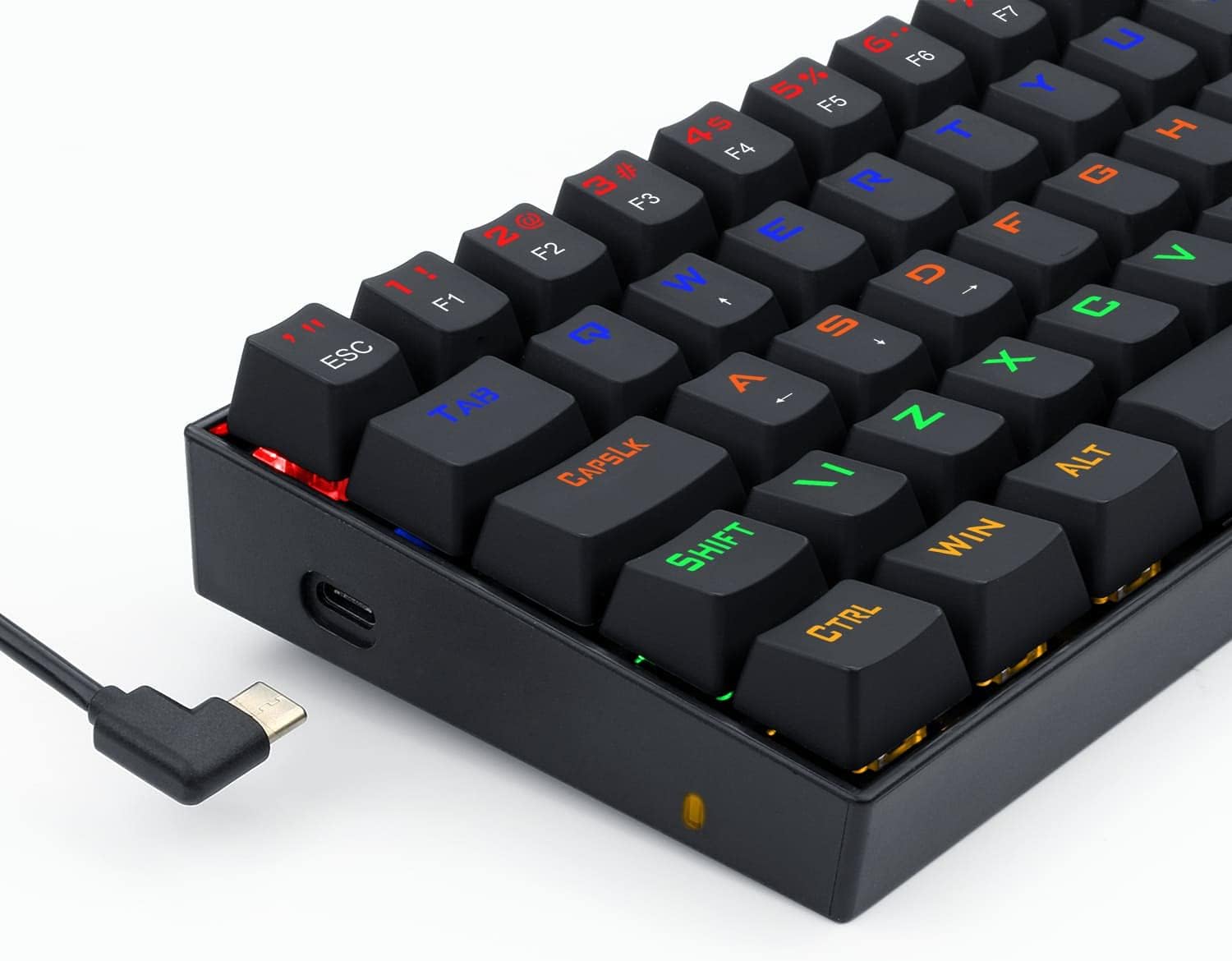
Image 2.1: Close-up view of the Redragon Lakshmi K606R's removable USB-C cable connection, highlighting its portability.
Video 2.1: An overview of the Redragon Lakshmi K606R mechanical keyboard, demonstrating its compact design, removable USB-C cable, and overall portability.
3. Operating Instructions
The Redragon Lakshmi K606R features a 60% layout, which means some functions are accessed via the FN key. Familiarize yourself with these combinations for full functionality.
3.1 Basic Key Functions
- Standard Keys: All alphanumeric and symbol keys function as labeled.
- Caps Lock: Toggles uppercase and lowercase letters.
- Shift: Used for uppercase letters and secondary symbols.
- Ctrl/Alt/Win: Standard modifier keys.
3.2 FN Key Combinations
Press and hold the FN key, then press the corresponding key to activate its secondary function:
| FN Key Combination | Function |
|---|---|
| FN + 1-0, F1-F12 | Accesses F1-F12 keys and other numerical functions. |
| FN + P, [, ], ;, ', ,, ., /, \ | Accesses various symbols and punctuation marks. |
| FN + Arrow Keys (via specific keys) | Activates navigation keys (Up, Down, Left, Right). |
| FN + Win | Locks/unlocks the Windows key. |
| FN + Other labeled keys | Activates multimedia controls or other special functions as indicated by secondary legends on keycaps. |
Note: Specific FN key combinations for multimedia and lighting may vary slightly. Refer to the keycap legends for precise functions.
3.3 RGB Lighting Control
The Lakshmi K606R features customizable RGB lighting. Use the following general FN key combinations to control the lighting effects:
- FN + M: Cycle through different lighting modes.
- FN + < / >: Adjust lighting brightness.
- FN + ; / ': Adjust lighting speed/direction.
- FN + , / .: Adjust lighting color (for static modes).
4. Maintenance
Proper maintenance ensures the longevity and performance of your mechanical keyboard.
4.1 Cleaning the Keyboard
- Disconnect: Always disconnect the keyboard from your computer before cleaning.
- Keycaps: Use the provided keycap puller to carefully remove keycaps. Clean them with a mild soap solution and a soft cloth, then rinse and dry thoroughly before reattaching.
- Keyboard Body: Use a soft, lint-free cloth dampened with a small amount of water or isopropyl alcohol to wipe down the keyboard body. Avoid excessive moisture.
- Between Keys: Use compressed air to remove dust and debris from between the switches. A small brush can also be used.
4.2 Switch Care
The Lakshmi K606R uses blue mechanical switches, known for their tactile and clicky feedback. If a switch becomes faulty or you wish to customize, the keyboard supports hot-swappable switches.
- Removing Switches: Use the provided switch puller tool. Gently grip the switch from the top and bottom clips and pull upwards.
- Installing Switches: Align the pins of the new switch with the holes on the PCB. Press down firmly until the switch clicks into place. Ensure pins are not bent.

Image 4.1: Close-up of the Redragon Lakshmi K606R showing removed keycaps and exposed blue mechanical switches, illustrating the hot-swappable design.
5. Troubleshooting
If you encounter issues with your keyboard, refer to the following common solutions:
- Keyboard Not Responding:
- Ensure the USB-C cable is securely connected to both the keyboard and the computer.
- Try connecting the keyboard to a different USB port on your computer.
- Test the keyboard on another computer to rule out a system-specific issue.
- Specific Keys Not Working:
- Remove the keycap and check for any debris or obstruction around the switch.
- If the keyboard is hot-swappable, carefully remove and re-insert the switch using the switch puller.
- Ensure the keycap is properly seated on the switch stem.
- RGB Lighting Issues:
- Ensure the keyboard is properly connected and receiving power.
- Try cycling through lighting modes and adjusting brightness using the FN key combinations.
- If available, check for updated firmware or software from the Redragon website.
- Accidental Key Presses / Ghosting:
- Ensure no liquid has spilled on the keyboard. If so, disconnect immediately and allow to dry completely.
- Check for bent switch pins if you have recently replaced switches.
6. Specifications
Key technical details for the Redragon Lakshmi K606R Mechanical Keyboard:
| Feature | Detail |
|---|---|
| Model | K606R |
| Layout | 60% ABNT2 |
| Switch Type | Blue Mechanical Switches |
| Backlighting | RGB |
| Connectivity | Wired, Removable USB-C to USB-A Cable |
| Material | Acrylonitrile Butadiene Styrene |
| Dimensions (L x W x H) | 29.1 x 10.1 x 3.6 cm |
| Weight | 900 g |
| Compatible Devices | Laptop, PC |
| Special Features | Mechanic, Portable |
7. Warranty and Support
Redragon products are manufactured to high-quality standards. For specific warranty information, please refer to the warranty card included with your product or visit the official Redragon website. If you require technical assistance or have questions not covered in this manual, please contact Redragon customer support through their official channels.
Please retain your proof of purchase for warranty claims.


