
1. Product Overview
The Dell Latitude 5350 is a high-performance business laptop designed for productivity and reliability. It features a 13.3-inch IPS touchscreen, powered by an Intel Core Ultra 7-165U vPro processor, 32GB of RAM, and a 512GB NVMe SSD. This manual provides essential information for setting up, operating, maintaining, and troubleshooting your device.
Key Features:
- 13.3-inch FHD (1920x1080) IPS Touchscreen with Anti-Glare
- Intel Core Ultra 7 165U vPro Processor
- 32GB LPDDR5x RAM
- 512GB M.2 NVMe SSD
- Integrated Intel ARC Graphics
- Windows 11 Pro Operating System
- Connectivity: 2x Thunderbolt 4, 2x USB-A 3.2 Gen 1, HDMI 2.1, 3.5mm Audio Jack, Wi-Fi 6E, Bluetooth 5.3
- Fingerprint Reader and FHD HDR + IR Camera for enhanced security
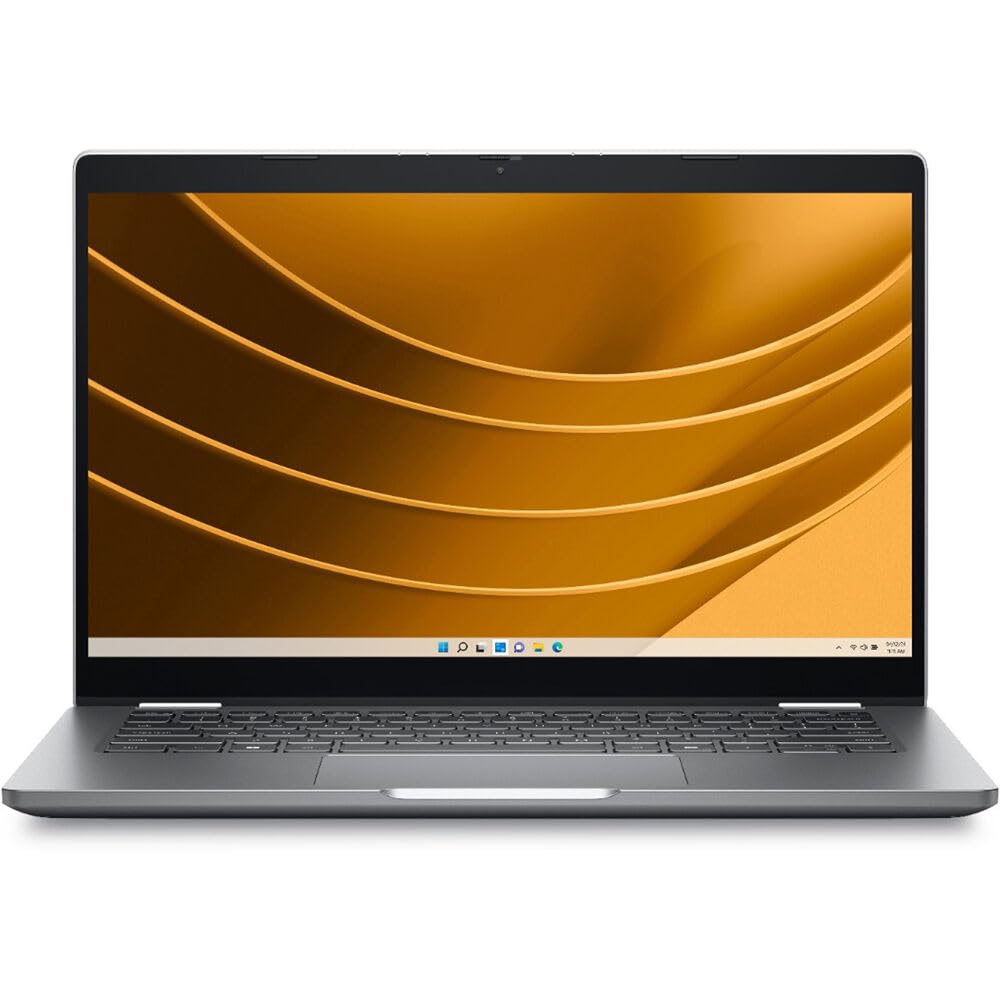
Figure 1: Dell Latitude 5350 Laptop (Overall View)
2. Setup Instructions
2.1 Unboxing and Initial Inspection
Carefully remove all components from the packaging. Ensure the following items are present:
- Dell Latitude 5350 Laptop
- AC Adapter
- Battery (may be pre-installed)
- Documentation (Quick Start Guide, Safety Information)
Inspect the laptop and accessories for any signs of damage. If any components are missing or damaged, contact Dell support immediately.
2.2 Connecting the Power Adapter
- Connect the AC adapter cable to the power port on the laptop.
- Plug the AC adapter into a wall outlet. The battery indicator light will illuminate, indicating that the laptop is charging.
2.3 Initial Power On and Windows Setup
- Open the laptop lid.
- Press the power button, typically located on the top-right of the keyboard deck.
- Follow the on-screen instructions to complete the Windows 11 Pro setup process. This includes selecting your region, language, connecting to a network, and creating a user account.
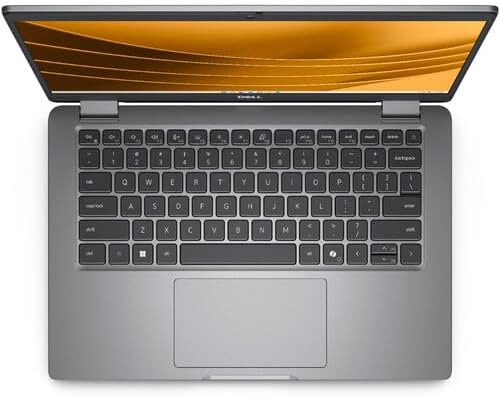
Figure 2: Dell Latitude 5350 Laptop Keyboard and Touchpad
3. Operating Instructions
3.1 Using the Keyboard and Touchpad
- The laptop features a US English backlit keyboard. Use the Fn key in combination with function keys (F1-F12) for special functions like adjusting brightness, volume, or toggling the keyboard backlight.
- The touchpad supports multi-touch gestures for navigation, scrolling, and zooming. Refer to Windows settings for customization.
3.2 Touchscreen Operation
The 13.3-inch IPS touchscreen allows for direct interaction with the operating system and applications. Use gestures such as tapping, swiping, pinching, and stretching for navigation and control.
3.3 Connecting to Networks
- Wi-Fi: Click the Wi-Fi icon in the taskbar, select your desired network, enter the password if prompted, and click Connect. The laptop supports Wi-Fi 6E for fast wireless connectivity.
- Bluetooth: To connect Bluetooth devices, go to Settings > Bluetooth & devices, turn on Bluetooth, and select 'Add device'.
3.4 Using Ports and Connectors
The Dell Latitude 5350 offers various ports for connecting external devices:
- Thunderbolt 4 (x2): For high-speed data transfer, video output, and power delivery.
- USB-A 3.2 Gen 1 (x2): For connecting standard USB devices.
- HDMI 2.1: For connecting to external displays or projectors.
- 3.5mm Audio Jack: For headphones or external speakers.

Figure 3: Dell Latitude 5350 Laptop Side View with Ports
4. Maintenance
4.1 Cleaning the Laptop
- Use a soft, lint-free cloth dampened with water or a screen cleaner to clean the display. Avoid harsh chemicals.
- For the keyboard and chassis, use a soft cloth. A can of compressed air can help remove dust from between keys and vents.
- Ensure the laptop is powered off and unplugged before cleaning.
4.2 Battery Care
- Avoid extreme temperatures, which can degrade battery life.
- For optimal battery longevity, avoid constantly keeping the laptop at 100% charge or letting it fully discharge frequently.
- Dell Power Manager software can help optimize battery settings.
4.3 Software Updates
Regularly update your Windows operating system and Dell drivers. This ensures optimal performance, security, and compatibility. You can check for updates via Windows Update and Dell SupportAssist.
5. Troubleshooting
This section addresses common issues you might encounter with your Dell Latitude 5350 laptop.
5.1 Laptop Not Powering On
- Ensure the AC adapter is securely connected to both the laptop and a working power outlet.
- Check the battery charge level. If the battery is completely drained, it may take a few minutes of charging before the laptop can power on.
- Try holding the power button for 15-20 seconds to perform a hard reset.
5.2 Wi-Fi Connectivity Issues
- Verify that Wi-Fi is enabled in Windows settings.
- Restart your router and modem.
- Run the Windows Network Troubleshooter (Settings > Network & internet > Advanced network settings > Network troubleshooter).
- Ensure your Wi-Fi drivers are up to date.
5.3 Touchscreen Not Responding
- Restart the laptop.
- Check Device Manager for any issues with the touchscreen driver. Update or reinstall the driver if necessary.
- Ensure the screen is clean and free of debris.
For more complex issues, refer to the Dell support website or contact technical support.
6. Specifications
Detailed technical specifications for the Dell Latitude 5350 Laptop.
| Feature | Specification |
|---|---|
| Brand | Dell |
| Model Name | Latitude 5350 |
| Screen Size | 13.3 Inches |
| Display Resolution | 1920 x 1080 (FHD) IPS Touchscreen |
| Refresh Rate | 60 Hz |
| Maximum Brightness | 300 Nit |
| Processor | Intel Core Ultra 7 165U vPro (12 cores, 14 threads, up to 4.9 GHz Turbo) |
| RAM Memory | 32 GB LPDDR5x |
| Storage | 512 GB M.2 NVMe SSD |
| Graphics | Integrated Intel ARC Graphics |
| Operating System | Windows 11 Pro |
| Wireless Connectivity | Wi-Fi 6E (802.11ax), Bluetooth 5.3 |
| Ports | 2x Thunderbolt 4, 2x USB-A 3.2 Gen 1, 1x HDMI 2.1, 1x 3.5mm Audio Jack |
| Security Features | Fingerprint Reader, FHD HDR + IR Camera (Facial Recognition) |
| Keyboard | US English backlit keyboard with Copilot key |
| Dimensions (L x W x Thickness) | 8.27"L x 12"W x 0.59"Th |
| Weight | 2.07 Kilograms |
| Battery Type | Lithium Ion (3 cells, 650 Watt Hours) |
7. Warranty and Support
7.1 Warranty Information
Your Dell Latitude 5350 Laptop includes Dell ProSupport, offering advanced hardware and software support. The product also has a 3-year EU Spare Part Availability duration, indicating long-term support for components.
For specific warranty terms and conditions, please refer to the documentation included with your product or visit the official Dell support website.
7.2 Technical Support
For technical assistance, driver downloads, or further troubleshooting, please visit the official Dell Support website:
You will need your laptop's Service Tag, which can typically be found on a sticker on the bottom of the laptop or accessed through the BIOS/UEFI settings.


