
Introduction
This manual provides comprehensive instructions for the Keychron K8 87-Key Tenkeyless Wireless Bluetooth Mechanical Keyboard. It covers setup, operation, maintenance, and troubleshooting to ensure optimal performance and longevity of your device. The Keychron K8 is designed for both Mac and Windows users, offering versatile connectivity and a comfortable typing experience.
Product Overview
The Keychron K8 is an 87-key tenkeyless mechanical keyboard featuring a durable aluminum frame and Keychron Mechanical Brown Switches. It supports both wireless Bluetooth 5.1 and wired USB Type-C connections, allowing seamless switching between up to three devices.
Key Features
- Tenkeyless Layout (87 Keys): Compact design without the numeric keypad, ideal for saving desk space.
- Wireless & Wired Connectivity: Connect via Bluetooth 5.1 or USB Type-C cable.
- Multi-Device Support: Pair with up to 3 devices and switch between them easily.
- Mac & Windows Compatibility: Includes extra keycaps for both operating systems.
- Keychron Mechanical Brown Switches: Provide a tactile typing experience with a lifespan of up to 50 million keystrokes.
- 4000mAh Battery: Offers extended usage time.
- Two-Level Adjustable Feet: Ergonomic design for comfortable typing angles (6°/9°).
- Double-Shot ABS Keycaps: Durable keycaps for long-lasting legends.
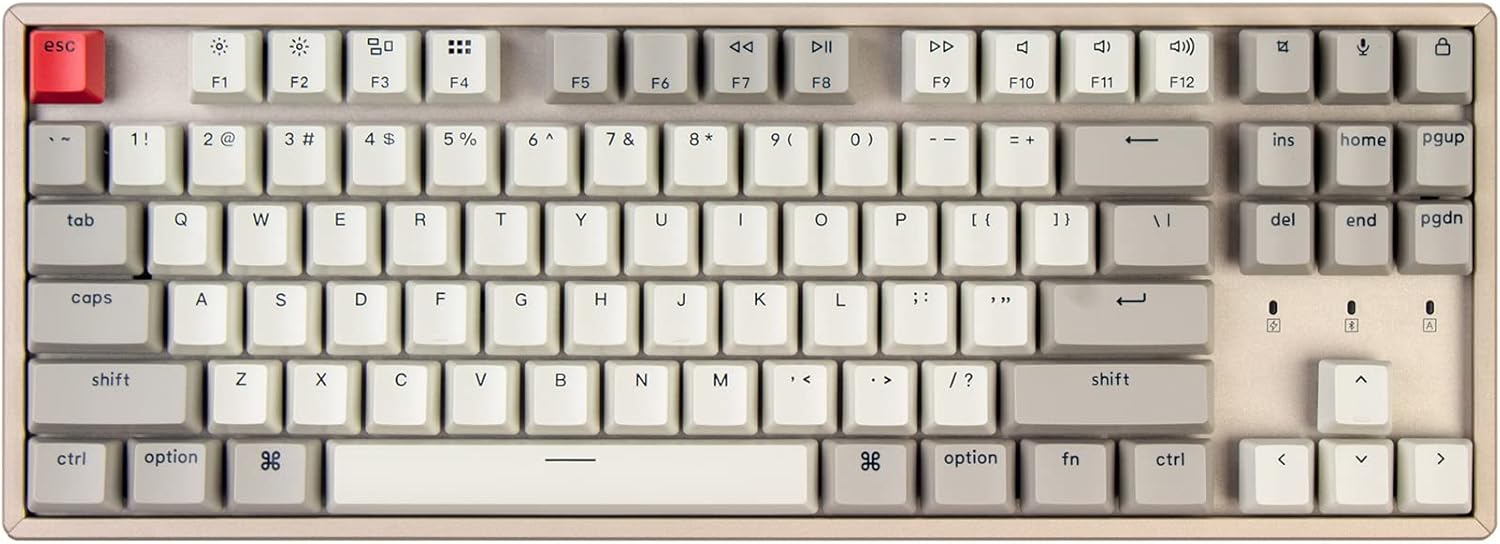
Figure 1: Top-down view of the Keychron K8 keyboard, showcasing its 87-key tenkeyless layout and keycap design.

Figure 2: Detailed view of a Keychron Mechanical Brown Switch, highlighting its tactile behavior and specifications such as operating force, pre-travel, travel distance, sound level, and lifespan.

Figure 3: Illustration demonstrating the Keychron K8's ability to connect to up to three devices across Mac and Windows operating systems.

Figure 4: Side profile of the keyboard, detailing the USB Type-C port, the Win/Android-Mac/iOS toggle switch, and the BT-Off-Cable connection mode switch.

Figure 5: Dimensions of the K8 87-Key Tenkeyless Mechanical Keyboard, showing its length, width, and height.

Figure 6: Visual representation highlighting the 4000mAh battery capacity of the Keychron K8 keyboard.
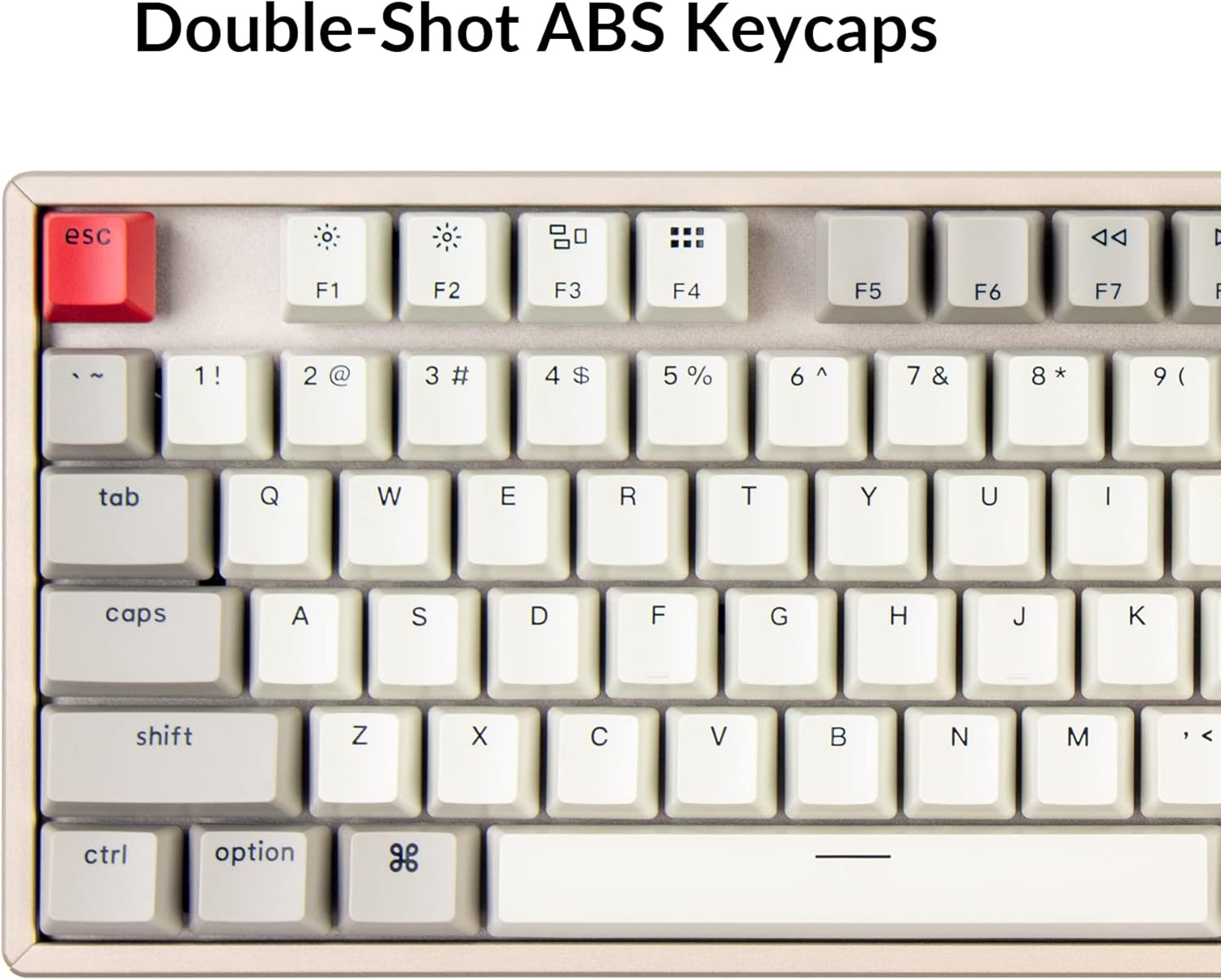
Figure 7: Close-up view of the keyboard's keycaps, indicating they are Double-Shot ABS for enhanced durability and legend clarity.
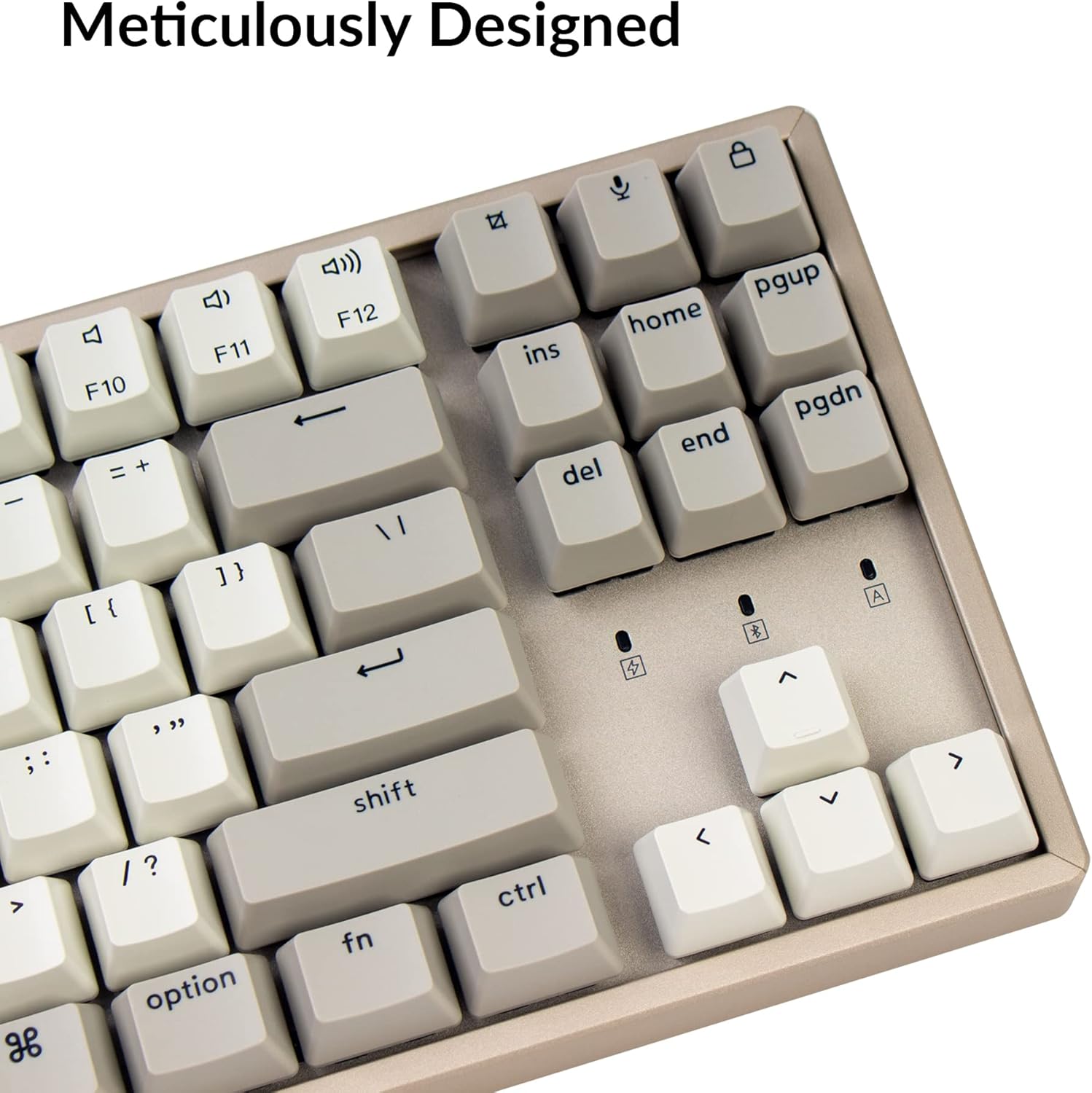
Figure 8: Detailed view of the meticulously designed right side of the keyboard, including the arrow keys and navigation keys (Ins, Home, PgUp, Del, End, PgDn).

Figure 9: Side view illustrating the two-level adjustable feet, allowing users to set the keyboard at 6° or 9° angles for ergonomic comfort.

Figure 10: Overview of Keychron K8 features, including its tenkeyless layout, dual connectivity, multi-OS support, Keychron switches, battery life, multi-device pairing, and USB-C charging.
Setup
1. Operating System Switch
Locate the operating system toggle switch on the side of the keyboard (refer to Figure 4). Slide the switch to the appropriate position for your system: "Win/Android" for Windows or Android devices, and "Mac/iOS" for macOS or iOS devices. This ensures correct key mapping and functionality.
2. Connection Mode Switch
Next to the OS switch, you will find the connection mode switch (refer to Figure 4). Choose your desired connection method:
- "BT" (Bluetooth): For wireless connection.
- "Cable": For wired USB Type-C connection.
- "Off": To turn off the keyboard and conserve battery.
3. Connecting via Bluetooth
- Ensure the OS switch is set correctly for your device.
- Slide the connection mode switch to "BT".
- To enter pairing mode, press and hold the "Fn" + "1" (or "Fn" + "2", "Fn" + "3" for other profiles) keys for 4 seconds until the F1 (or F2, F3) key starts flashing rapidly. This indicates the keyboard is ready to pair.
- On your computer or mobile device, open Bluetooth settings and search for new devices.
- Select "Keychron K8" from the list of available devices.
- Follow any on-screen prompts to complete the pairing process. The F1 (or F2, F3) key will stop flashing once successfully connected.
4. Connecting via Wired (USB Type-C)
- Ensure the OS switch is set correctly for your device.
- Slide the connection mode switch to "Cable".
- Connect the provided USB Type-C cable to the keyboard's port (refer to Figure 4) and the other end to your computer's USB port.
- The keyboard will be automatically recognized and ready for use.
Operating Instructions
Switching Between Devices (Bluetooth)
Once paired with multiple devices (up to 3), you can switch between them by pressing "Fn" + "1", "Fn" + "2", or "Fn" + "3". The corresponding F key will light up briefly to indicate the active device.
Function Keys (F1-F12)
The F1-F12 keys have dual functions. By default, they act as multimedia or system control keys (e.g., brightness, media playback). To access the standard F1-F12 functions, press "Fn" along with the desired F key.
- Fn + F1: Decrease screen brightness
- Fn + F2: Increase screen brightness
- Fn + F3: Mission Control (Mac) / Task View (Windows)
- Fn + F4: Launchpad (Mac) / Action Center (Windows)
- Fn + F5: Keyboard backlight brightness down
- Fn + F6: Keyboard backlight brightness up
- Fn + F7: Previous track
- Fn + F8: Play/Pause
- Fn + F9: Next track
- Fn + F10: Mute
- Fn + F11: Volume down
- Fn + F12: Volume up
Backlight Control
The Keychron K8 features adjustable backlighting. Use the following key combinations to control it:
- Fn + F5: Decrease backlight brightness.
- Fn + F6: Increase backlight brightness.
- Light Bulb Key (top right): Cycle through different backlight effects.
Charging the Keyboard
Connect the USB Type-C cable to the keyboard and a USB power source (e.g., computer USB port, wall adapter). The charging indicator light will show the charging status. A full charge typically takes a few hours.
Maintenance
- Cleaning: Use a soft, lint-free cloth to wipe the keyboard surface. For deeper cleaning, you can use a can of compressed air to remove dust and debris from between the keycaps. For stubborn dirt, a slightly damp cloth with mild soap can be used, ensuring no liquid enters the keyboard.
- Keycap Removal: If you need to clean under the keycaps or replace them, use a keycap puller (often included with the keyboard) to gently remove them. Pull straight up to avoid damaging the switch stem.
- Storage: When not in use for extended periods, store the keyboard in a dry, cool place. Ensure the power switch is set to "Off" to preserve battery life.
- Battery Care: To maximize battery lifespan, avoid fully discharging the battery frequently. Charge the keyboard when the battery indicator is low.
Troubleshooting
| Problem | Possible Solution |
|---|---|
| Keyboard not connecting via Bluetooth. |
|
| Keys are not responding in wired mode. |
|
| Backlight is not working or dim. |
|
| Keyboard frequently disconnects. |
|
Specifications
| Feature | Detail |
|---|---|
| Model | K8L3 |
| Number of Keys | 87 |
| Layout | Tenkeyless |
| Switches | Keychron Mechanical Brown Switch |
| Connectivity | Bluetooth 5.1 & USB Type-C |
| Battery Capacity | 4000mAh |
| Material | Aluminum Frame |
| Product Dimensions | 14.13 x 4.84 x 1.37 inches (35.89 x 12.29 x 3.48 cm) |
| Item Weight | 2.88 pounds (1.31 kg) |
| Compatible Devices | Mac, Windows, iOS, Android, Gaming Console |
Warranty and Support
Keychron products typically come with a limited warranty. For detailed warranty information, terms, and conditions, please refer to the official Keychron website or the warranty card included with your product. For technical support, troubleshooting assistance, or to inquire about replacement parts, please visit the official Keychron support page or contact their customer service directly.
Additional resources:


