
1. Introduction
Thank you for choosing the Pixio PX259 Prime Gaming Monitor. This manual provides essential information for setting up, operating, and maintaining your monitor to ensure optimal performance and longevity. Please read this manual thoroughly before using the product and retain it for future reference.
The Pixio PX259 Prime is a high-performance 24.5-inch gaming monitor featuring a 280Hz refresh rate, 1ms GTG response time, and a Fast Nano IPS panel, designed to deliver a smooth and immersive gaming experience.
2. Package Contents
Verify that all items are present in your package:
- Pixio PX259 Prime Monitor
- Monitor Stand (Base and Neck)
- DisplayPort Cable
- Power AC Adapter
- Power Cable
- User Manual (this document)

Image: The Pixio PX259 Prime monitor showcasing its 24.5-inch screen, 280Hz refresh rate, 1080p FHD resolution, and Fast IPS panel technology.
3. Assembly
Follow these steps to assemble your monitor:
- Carefully remove the monitor and stand components from the packaging.
- Attach the stand neck to the monitor panel. Ensure it clicks securely into place or is fastened with screws if provided.
- Attach the stand base to the stand neck. Tighten the thumb screw or screws from the bottom of the base to secure it.
- Place the assembled monitor on a stable, flat surface.
4. Connectivity
The Pixio PX259 Prime offers versatile connectivity options. Refer to the image below for port locations.

Image: Rear view of the monitor displaying the DC power input, two DisplayPort 1.2 inputs (280Hz), two HDMI 2.0 inputs (240Hz), and an earphone jack.
Connecting to a Device:
- Power: Connect the power cable to the AC adapter, then plug the adapter into the monitor's DC IN port and a power outlet.
- DisplayPort: For optimal performance (280Hz refresh rate), connect your PC's graphics card to one of the monitor's DisplayPort 1.2 inputs using the provided DisplayPort cable.
- HDMI: Connect your device (e.g., gaming console, PC) to one of the monitor's HDMI 2.0 inputs. Note that HDMI 2.0 supports up to 240Hz.
- Audio Output: Connect headphones or external speakers to the earphone jack for audio.
5. Operating Instructions
Power On/Off:
Press the power button located on the monitor to turn it on or off.
On-Screen Display (OSD) Navigation:
The monitor features a joystick-style button for navigating the OSD menu. Push the joystick in to access the main menu, then move it up, down, left, or right to select and adjust settings.
Key Settings:
- Refresh Rate: Ensure your graphics card settings are configured to output at 280Hz (via DisplayPort) or 240Hz (via HDMI) for the smoothest experience.
- Response Time: The 1ms GTG response time is automatically enabled by the Fast IPS panel.
- AMD FreeSync Premium: Enable FreeSync in your monitor's OSD and your graphics card control panel for tear-free gaming.
- Color Settings: Adjust brightness, contrast, and color temperature to your preference. The monitor supports 101.34% sRGB for vibrant colors.
- Gaming Features: Access built-in crosshairs and other game-specific enhancements through the OSD.
- Eye Saver Mode: Activate this mode to reduce blue light emission for comfortable extended viewing.
6. Features Overview
The Pixio PX259 Prime is engineered with features to enhance your gaming and viewing experience:
- 280Hz Refresh Rate: Provides ultra-smooth motion and reduced input lag, crucial for competitive gaming.
- 1ms GTG Response Time: Minimizes motion blur and ghosting, ensuring crisp visuals during fast-paced action.
- Fast Nano IPS Panel: Combines the wide viewing angles and color accuracy of IPS technology with the rapid response times typically found in TN panels.
- AMD FreeSync Premium: Synchronizes the monitor's refresh rate with your GPU's frame rate, eliminating screen tearing and stuttering.
- Vibrant Colors: With 101.34% sRGB coverage, experience rich, accurate, and lifelike colors.
- Dual Speakers: Equipped with integrated speakers for audio output.
- Eye Saver Mode: Reduces blue light to minimize eye strain during prolonged use.
- Gaming Ready: Features like customizable crosshairs are available to assist in gameplay.

Image: Monitor displaying a dynamic game scene, highlighting 280Hz Refresh Rate, 1ms (GTG) Response Time, Fast IPS Panel, and AMD FreeSync Premium.

Image: Visual comparison demonstrating the smoothness of 280Hz refresh rate versus a conventional 60Hz display in a gaming context.

Image: Visual comparison illustrating the difference between 4ms and 1ms GTG response time, showing reduced motion blur with 1ms.
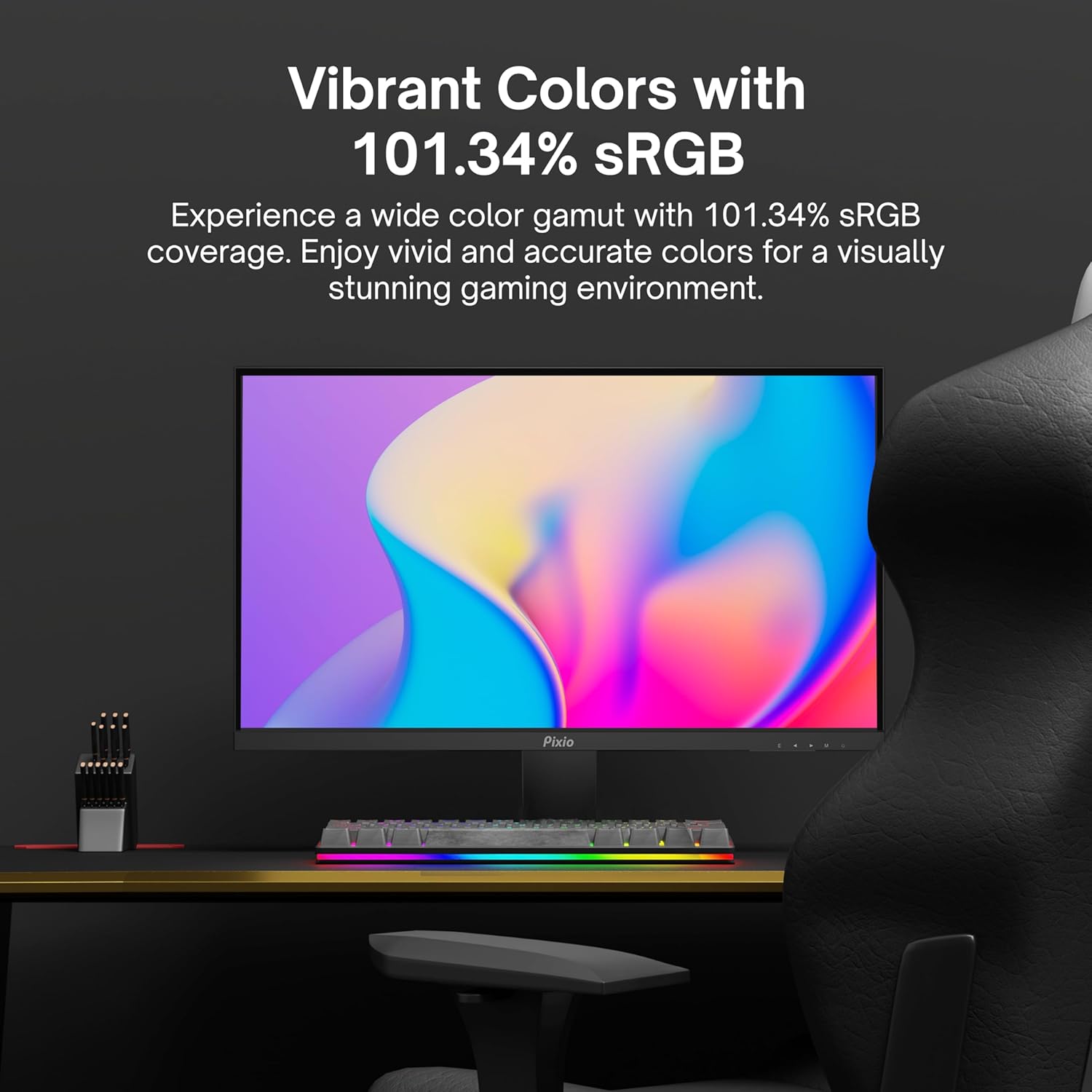
Image: Monitor displaying a colorful game environment, emphasizing the vibrant color reproduction with 101.34% sRGB.
Product Video Overview:
Video: An official product video from Pixio showcasing the PX259 Prime 25-inch 1080p 280Hz Fast IPS 1ms Gaming Monitor, highlighting its features and performance.
7. Maintenance
- Cleaning the Screen: Gently wipe the screen with a soft, lint-free cloth. For stubborn marks, dampen the cloth with a small amount of screen cleaner (non-ammonia based) and wipe carefully.
- Cleaning the Casing: Use a soft, dry cloth to wipe the monitor's casing. Avoid using abrasive cleaners or solvents.
- Ventilation: Ensure the monitor's ventilation openings are not blocked to prevent overheating.
- Storage: If storing the monitor for an extended period, disconnect it from power and store it in a cool, dry place, preferably in its original packaging.
8. Troubleshooting
- No Power:
- Ensure the power cable is securely connected to the monitor and a working power outlet.
- Check if the power adapter is functioning correctly.
- No Signal:
- Verify that the video cable (DisplayPort or HDMI) is securely connected to both the monitor and your device.
- Ensure the correct input source is selected in the monitor's OSD menu.
- Test with a different video cable or port if available.
- Screen Tearing/Stuttering:
- Enable AMD FreeSync Premium in both the monitor's OSD and your graphics card settings.
- Ensure your graphics drivers are up to date.
- Incorrect Refresh Rate:
- Check your operating system's display settings and your graphics card control panel to set the refresh rate to 280Hz (DisplayPort) or 240Hz (HDMI).
- Ensure you are using a DisplayPort cable for 280Hz.
- Poor Picture Quality/Colors:
- Adjust brightness, contrast, and color settings in the OSD menu.
- Ensure the video cable is not damaged.
9. Specifications
Detailed technical specifications for the Pixio PX259 Prime monitor:
| Feature | Specification |
|---|---|
| Model Number | PX259 Prime |
| Screen Size | 24.5 Inches (25 Inches equivalent) |
| Panel Type | Fast Nano IPS |
| Resolution | FHD 1080p (1920 x 1080 Pixels) |
| Refresh Rate | 280Hz (144Hz Supported) |
| Response Time | 1ms GTG |
| Aspect Ratio | 16:9 |
| Image Brightness | 350 Candela |
| Adaptive Sync | AMD FreeSync Premium |
| Connectivity | 2x DisplayPort 1.2, 2x HDMI 2.0, Earphone Jack, DC In |
| Product Dimensions | 7.09 x 21.98 x 16.52 inches |
| Item Weight | 12.42 pounds |
| VESA Compatibility | 75x75mm (VESA Ready) |

Image: Diagram showing the dimensions of the Pixio PX259 Prime monitor, including width (21.98 inches), height (16.52 inches), and depth (7.09 inches).
10. Warranty and Support
Pixio products are designed for reliability and performance. For specific warranty details, please refer to the warranty card included with your product or visit the official Pixio website. For technical support, troubleshooting assistance, or service inquiries, please contact Pixio customer support through their official channels.
Online Resources: For additional information, FAQs, and driver downloads, please visit the Pixio Store on Amazon.