
1. Introduction
Thank you for choosing the KEEPWISE Mini Projector MV-06. This manual provides detailed instructions for setting up, operating, and maintaining your projector to ensure optimal performance and longevity. Please read this manual thoroughly before use and retain it for future reference.
1.1. What's in the Box
- Mini Projector
- Remote Control
- Power Cord
- HDMI Cable
- AV Cable
- User Manual
1.2. Product Overview
The KEEPWISE Mini Projector MV-06 is a compact and versatile projection device designed for various entertainment and presentation needs. It supports 1080P resolution and features 5G WiFi and Bluetooth connectivity for seamless integration with your devices.
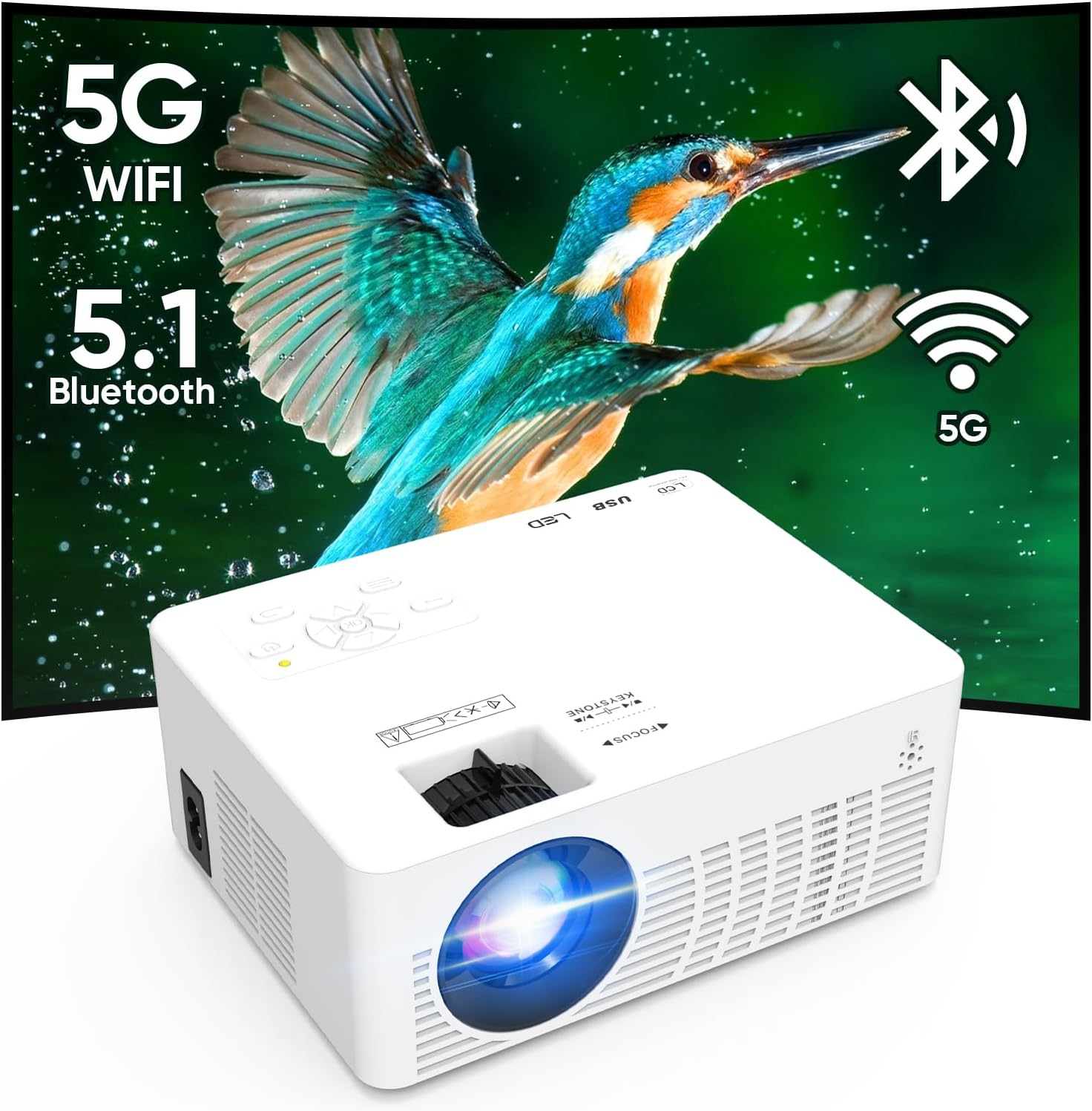
Figure 1: KEEPWISE Mini Projector MV-06. This image shows the compact white projector with a vibrant projection of a bird, highlighting its visual capabilities.
Key features include:
- Compact and Portable Design: Easy to carry for use in various locations.
- High Brightness and 1080P Support: Delivers clear and bright images with native 720P resolution, supporting 1080P input.
- 5G WiFi Connectivity: Enables stable and fast screen mirroring from iOS, Android, and Windows devices.
- Bluetooth Functionality: Allows wireless connection to external Bluetooth speakers or headphones for enhanced audio.
- Multiple Interfaces: Supports HDMI, USB, AV, and TF card inputs for broad compatibility.
- Built-in Speaker: Provides integrated audio output.
2. Safety Information
Please observe the following safety precautions to prevent damage to the projector and ensure user safety:
- Do not block the ventilation openings. Ensure adequate airflow around the projector to prevent overheating.
- Use only the provided power adapter. Using an incorrect adapter may cause damage or fire.
- Avoid direct eye exposure to the projector lens when the lamp is on. The bright light can cause eye strain or damage.
- Keep the projector away from water or other liquids. Do not operate in damp environments.
- Do not attempt to disassemble or repair the projector yourself. Refer all servicing to qualified personnel.
- Place the projector on a stable, level surface to prevent it from falling.
3. Setup
3.1. Placement
Position the projector on a flat, stable surface. For optimal viewing, ensure the projector is perpendicular to the projection surface (wall or screen). The recommended projection distance varies based on desired screen size. Ensure there are no obstructions blocking the lens or ventilation ports.

Figure 2: Portability of the KEEPWISE Mini Projector MV-06. The image shows the projector being easily placed into a bag, demonstrating its compact size for transport.
3.2. Power Connection
Connect the provided power cord to the projector's power input port, then plug the other end into a standard electrical outlet.
3.3. Focus and Keystone Adjustment
After powering on, adjust the focus ring on the projector lens until the image appears clear and sharp. Use the keystone correction dial to adjust the image's vertical distortion if the projector is not perfectly level with the screen. Note that the keystone adjustment primarily affects vertical distortion, and significant off-axis projection may result in some areas of the image being less sharp.
Figure 3: Focus and Keystone Adjustment. The image highlights the physical dials on the projector used for adjusting image clarity and vertical alignment.
4. Operating Instructions
4.1. Powering On/Off
Press the power button on the projector or the remote control to turn the device on or off. Allow a few seconds for the projector to warm up or cool down.
4.2. Basic Navigation
Use the arrow buttons and OK button on the remote control or the projector's control panel to navigate through the on-screen menu. The "Source" button allows you to select the input method.
4.3. Input Source Selection
Press the "Source" button on the remote or projector to cycle through available input options: HDMI, USB, AV, TF Card, and Screen Mirroring (WiFi).
5. Connectivity
5.1. WiFi Connection (Screen Mirroring)
The projector supports 5G and 2.4G WiFi for screen mirroring from compatible devices.
- Select "Screen Mirroring" or "WiFi Display" from the input source menu.
- Connect your mobile device (iOS/Android) or computer (Windows) to the same WiFi network as the projector.
- On your device, activate the screen mirroring feature (e.g., "Screen Mirroring" on iOS, "Smart View" on Android, "Connect" on Windows).
- Select the projector's name from the list of available devices.
- The device screen should now be mirrored on the projector.

Figure 4: 5G WiFi Connectivity. This image illustrates the projector wirelessly connected to iOS, Android, and Windows devices, projecting content onto a screen.
5.2. Bluetooth Connection
Connect the projector to external Bluetooth speakers or headphones for an enhanced audio experience.
- Go to the projector's settings menu and select "Bluetooth".
- Enable Bluetooth on the projector.
- Put your Bluetooth speaker or headphones into pairing mode.
- Select your device from the list of available Bluetooth devices on the projector's screen.
- Once paired, audio will be routed through the external Bluetooth device.

Figure 5: Bluetooth Audio Connection. The projector is shown wirelessly connected to headphones and a smart speaker, indicating its Bluetooth audio capabilities.
5.3. Wired Connections
The projector offers various wired input options:
- HDMI: Connect to laptops, gaming consoles, TV sticks, and other HDMI-enabled devices using the provided HDMI cable.
- USB: Insert a USB flash drive to play media files directly.
- AV: Use the AV cable to connect to older devices with AV output.
- TF Card: Insert a TF (MicroSD) card to play media files.

Figure 6: Multiple Interface Options. This image displays the rear panel of the projector, clearly labeling ports for AUX, TF card, USB, HDMI, VGA, and AV connections.
6. Maintenance
Regular maintenance helps ensure the longevity and performance of your projector.
- Lens Cleaning: Use a soft, lint-free cloth or lens cleaning paper to gently wipe the projector lens. Avoid using abrasive cleaners or excessive force.
- Ventilation Ports: Periodically check and clean the ventilation ports to prevent dust buildup, which can lead to overheating. Use a soft brush or compressed air.
- Storage: When not in use for extended periods, store the projector in a cool, dry, dust-free environment.
7. Troubleshooting
If you encounter issues with your projector, refer to the following common problems and solutions:
| Problem | Possible Cause | Solution |
|---|---|---|
| No Power | Power cord disconnected; Power outlet issue. | Ensure power cord is securely connected. Try a different power outlet. |
| No Image Displayed | Incorrect input source; Cable not connected; Device not outputting signal. | Select the correct input source. Check all cable connections. Ensure the source device is powered on and configured to output video. |
| Blurry Image | Focus not adjusted; Keystone not adjusted; Projector too close/far. | Adjust the focus ring. Use the keystone correction dial. Adjust projection distance. |
| No Sound or Poor Sound Quality | Volume too low; Muted; Incorrect audio output selected; Bluetooth connection issue. | Increase volume. Check if muted. Ensure correct audio output (internal speaker, HDMI audio, Bluetooth). Re-pair Bluetooth device if necessary. |
| WiFi/Bluetooth Connection Issues | Interference; Device compatibility; Network issues. | Ensure devices are within range. Restart projector and source device. Check WiFi network stability. Some Bluetooth connections may experience occasional instability. |
| Loud Fan Noise | Normal operation; Blocked ventilation. | A certain level of fan noise is normal for projectors to dissipate heat. Ensure ventilation ports are clear. |
8. Specifications
| Feature | Detail |
|---|---|
| Brand | KEEPWISE |
| Model Number | MV-06 |
| Item Weight | 2.55 pounds |
| Product Dimensions | 7 x 6 x 8.12 inches |
| Display Resolution | 1280 x 720 (Native), 1080P Supported |
| Connectivity Technology | HDMI, USB, AV, TF Card, 5G WiFi, Bluetooth |
| Special Features | Built-in Speakers, WiFi, Bluetooth |
| Recommended Uses | Indoor/Outdoor |
| Visible Screen Diagonal | 100" / 254 cm |
9. Warranty and Support
KEEPWISE provides a 3-YEAR After-Sales Service Promise for this product. If you encounter any issues or require assistance, please contact our customer support team via email. Refer to the product packaging or the official KEEPWISE website for specific contact details.
For further assistance, please visit the KEEPWISE brand store on Amazon.