1. Introduction
Thank you for choosing the SCTEWELL A9 Mini WiFi Camera. This compact and versatile surveillance device is designed for easy setup and discreet monitoring, offering features such as night vision, motion detection, and remote access via smartphone. Please read this manual carefully before operating the device to ensure proper use and optimal performance.
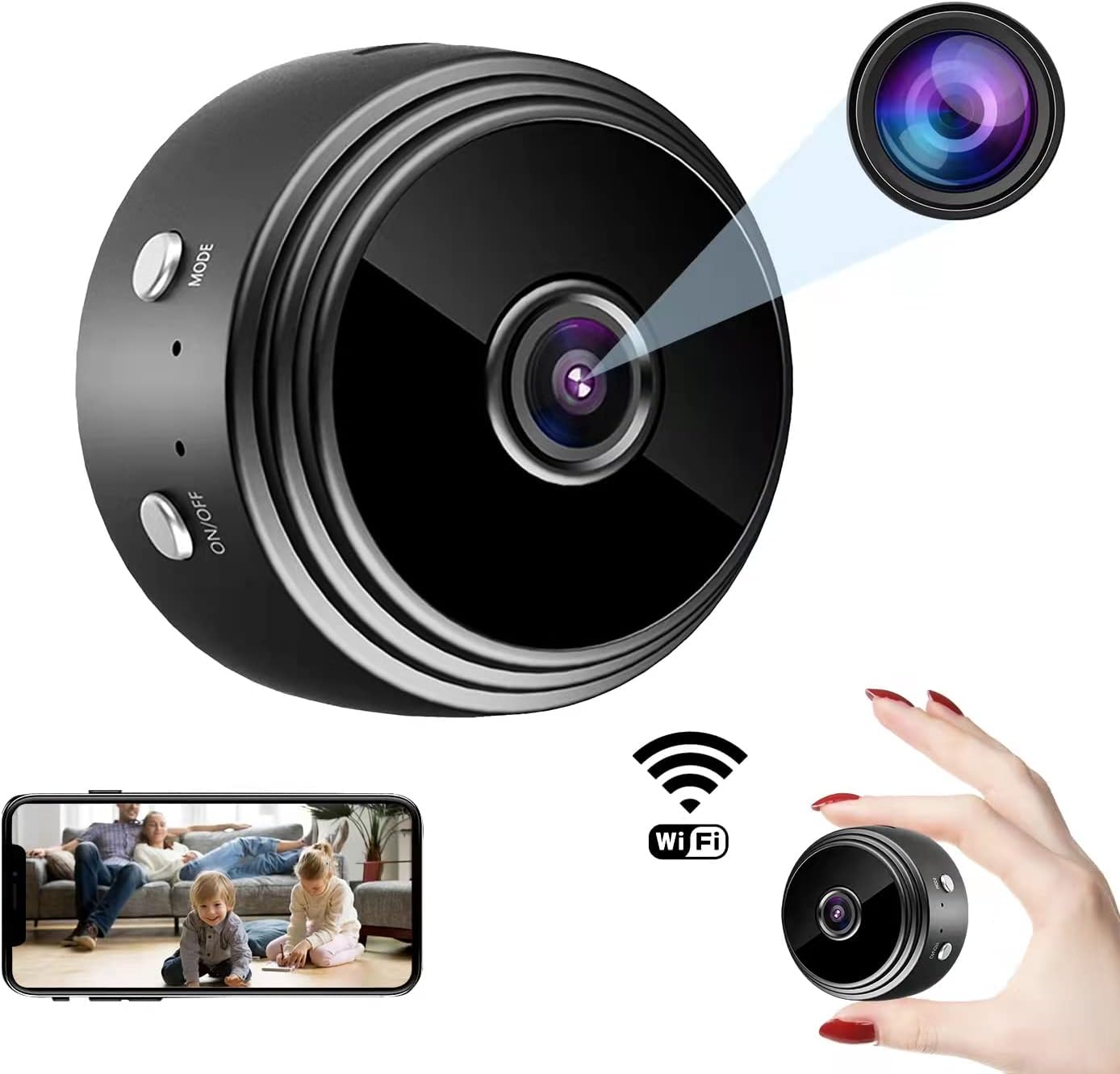
Image 1.1: The SCTEWELL A9 Mini WiFi Camera, demonstrating its small size and remote viewing capability on a smartphone.
2. Package Contents
Please check the package for the following items:
- SCTEWELL A9 Mini WiFi Camera
- 360° Rotating Base
- USB Data Cable
- User Manual (this document)
- Packing Box

Image 2.1: Contents of the SCTEWELL A9 Mini WiFi Camera package.
3. Product Overview
3.1 Key Features
- Video Recording: Capture high-quality video.
- Photo Capture: Take still images.
- WiFi Connectivity: Connect to your home or office Wi-Fi network for remote access.
- Hotspot Mode: Direct connection to the camera without a router for local monitoring.
- Wide Viewing Angle: 150-degree wide-angle lens.
- Night Vision: Equipped with 6 infrared LEDs for clear vision in low light or complete darkness (up to 16 feet).
- 1080P Resolution: Supports high-definition video recording.
- Motion Sensor: Automatic detection and alerts for movement.
- Magnetic Body: Easy to mount on metallic surfaces.
- Compact Size: Approximately 1.57 x 1.57 x 1.97 inches, making it highly portable and discreet.
- Rechargeable Battery: Built-in battery provides approximately 60 minutes of operation.
- Indoor/Outdoor Usage: Suitable for both indoor and outdoor environments (IP65 rated).

Image 3.1: Visual representation of the camera's main functions and features.
3.2 Components
Familiarize yourself with the camera's components:

Image 3.2: Exploded view of the camera, highlighting key internal and external components.
- Lens: Front-facing camera lens.
- On/Off Button: Powers the device on or off.
- Mode Button: Switches between different operating modes.
- Micro USB Port: For charging and data transfer.
- Micro SD Card Slot: For local storage of recordings (card not included).
- Infrared LEDs: For night vision functionality.
- N52 Magnet: Integrated for magnetic mounting.
- Cobalt Lithium Battery: Internal rechargeable battery.
4. Setup Guide
4.1 Charging the Camera
Before first use, fully charge the camera. Connect the provided USB data cable to the camera's Micro USB port and the other end to a USB power adapter (not included) or a power bank. The charging indicator light will show the charging status.

Image 4.1: Two methods for charging the camera: via a mobile power bank or a standard power outlet.
4.2 App Installation and Connection
To utilize the camera's full features, download and install the companion mobile application.
- Download App: Search for "HDMiniCam" in your smartphone's app store (Google Play Store for Android or Apple App Store for iOS) and install it.
- Power On Camera: Press and hold the On/Off button on the camera until the indicator light turns on.
- Connect to Camera's Hotspot: Go to your phone's Wi-Fi settings. Find and connect to the camera's unique Wi-Fi hotspot (usually starts with "HDMiniCam" or similar). No password is required for this direct connection.
- Add Camera to App: Open the HDMiniCam app. The app should automatically detect the camera. If not, follow the in-app instructions to add the device manually.
- Connect to Home Wi-Fi (Optional for Remote Access): Within the app, navigate to the camera settings. Select "Wi-Fi Settings" or "Network Settings" and choose your home Wi-Fi network. Enter the Wi-Fi password. Once connected, the camera will be accessible remotely via the internet.

Image 4.2: Step-by-step guide for connecting the camera to your smartphone and home Wi-Fi network.
5. Operating Instructions
5.1 Live View and Remote Monitoring
Once the camera is connected to your home Wi-Fi network, you can access the live video feed from anywhere using the HDMiniCam app on your smartphone.

Image 5.1: Remote monitoring via smartphone, providing 24-hour surveillance.
5.2 Motion Detection and Alerts
The camera features smart motion detection. When motion is detected, the camera can automatically start recording and send real-time alerts to your smartphone.
- Enable Motion Detection: In the HDMiniCam app settings for your camera, locate and enable the motion detection feature.
- Adjust Sensitivity: You can often adjust the sensitivity of the motion sensor to reduce false alarms.
- Receive Alerts: Ensure your phone's notification settings allow alerts from the HDMiniCam app.

Image 5.2: Motion detection in action, showing real-time alerts on a smartphone when movement is detected.
5.3 Night Vision
The camera automatically switches to night vision mode in low-light conditions, utilizing its 6 infrared LEDs to provide clear black-and-white video without visible light emission.

Image 5.3: Demonstration of the camera's day and night vision capabilities.
5.4 Video Playback
Recorded videos and captured images are stored on the Micro SD card (if inserted) or can be accessed through the app's cloud storage (if subscribed). You can review past footage directly from the app.

Image 5.4: Video playback feature on the smartphone app, allowing users to review recorded footage.
5.5 Mounting and Placement
The camera's magnetic body allows for flexible placement. Use the included 360° rotating base for optimal viewing angles.
- Magnetic Surfaces: Directly attach the camera to any metallic surface.
- Rotating Base: Attach the camera to the magnetic base, then place the base on a flat surface or mount it using adhesive/screws (not included).
- Discreet Placement: Its small size allows for discreet placement in various environments.
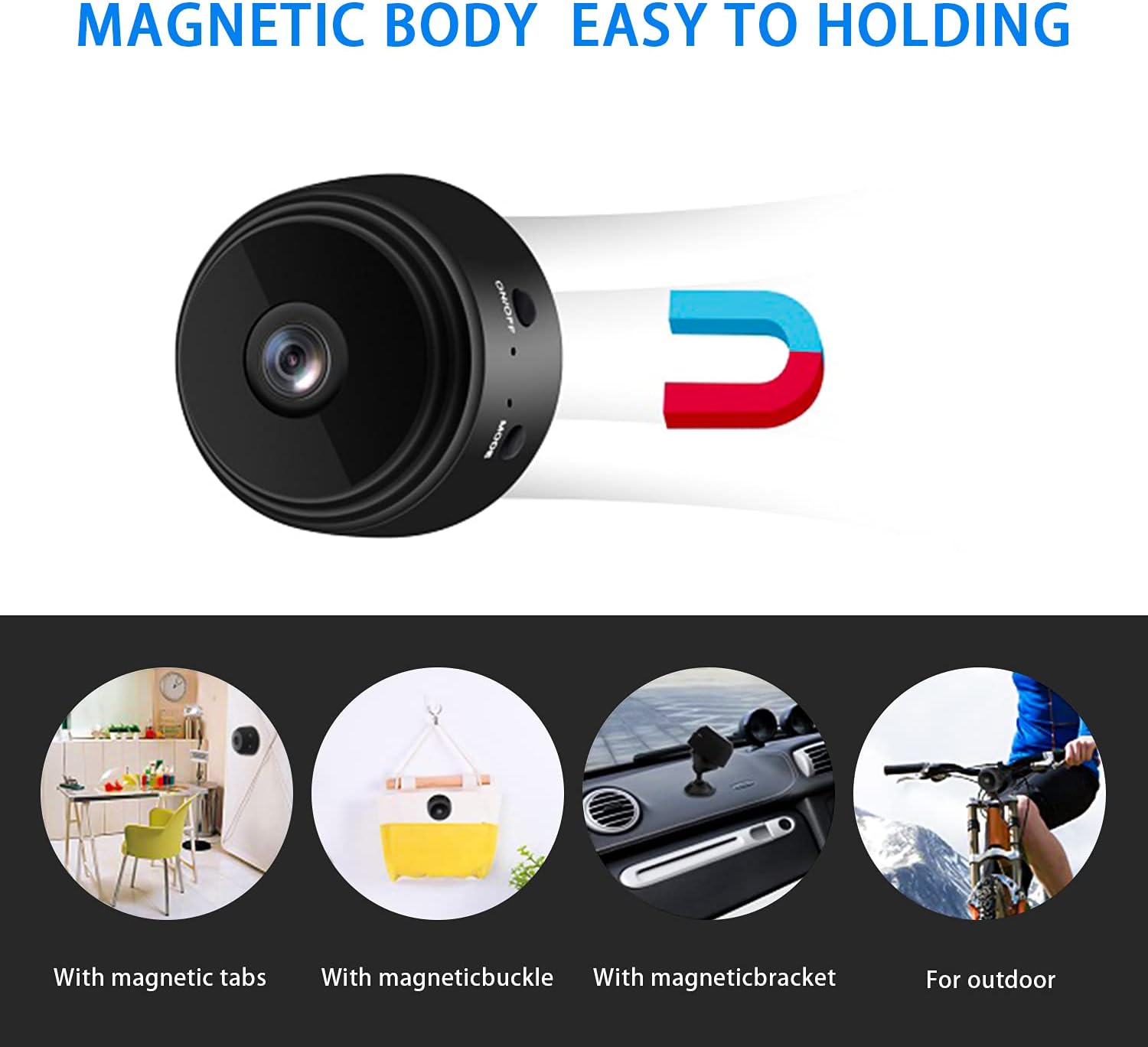
Image 5.5: The camera's magnetic body and versatile mounting options.
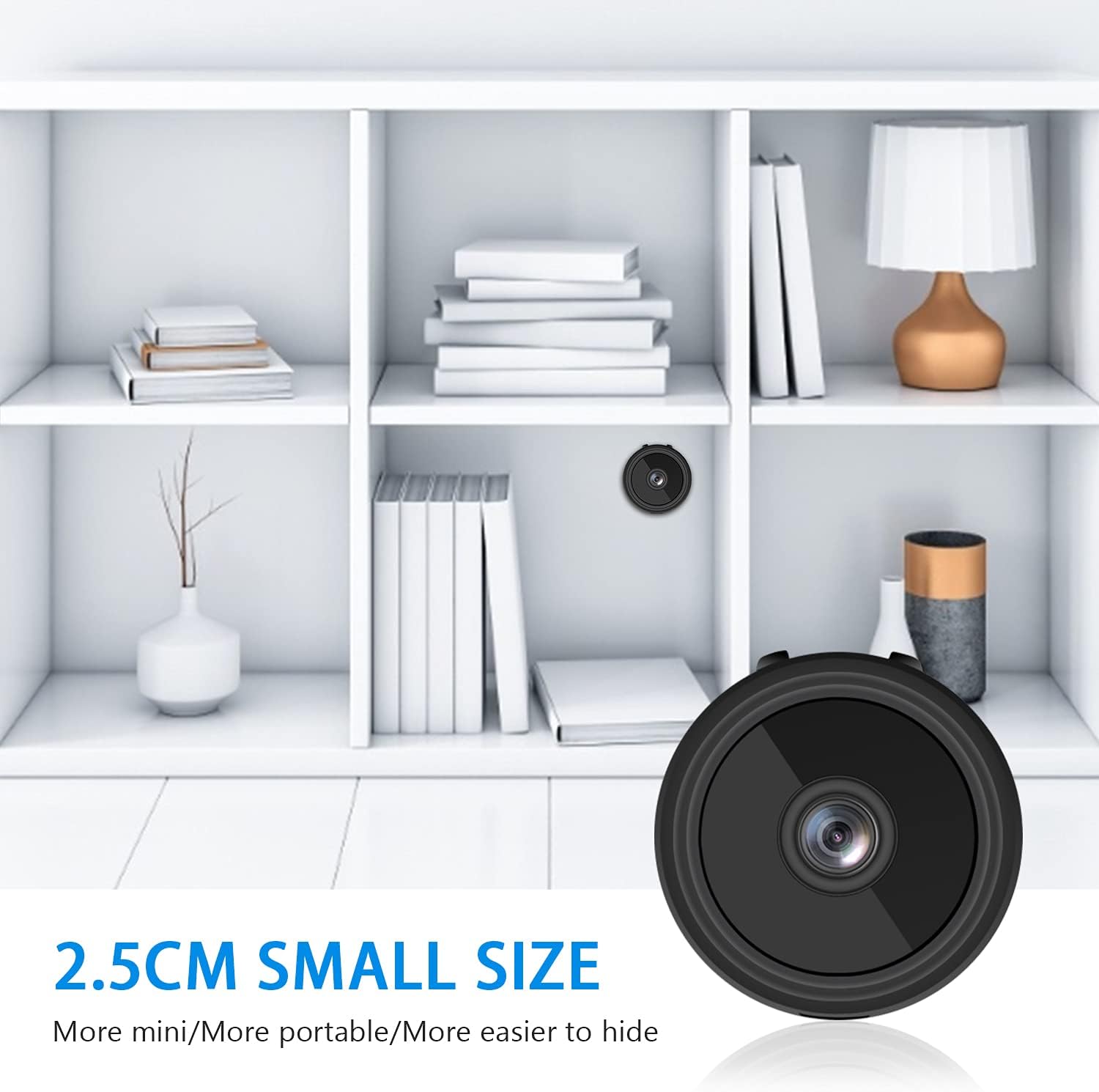
Image 5.6: Example of discreet placement due to the camera's small size.
6. Specifications
| Feature | Detail |
|---|---|
| Model Number | sctewell-2 |
| Brand | SCTEWELL |
| Connectivity | Wi-Fi (2.4GHz) |
| Video Resolution | 1080P (Full HD), 720P |
| Viewing Angle | 150 Degrees |
| Night Vision | 6 Infrared LEDs, up to 16 feet |
| Motion Detection | Yes, with alerts |
| Power Source | Rechargeable Battery (approx. 60 min), USB Powered |
| Storage | Micro SD Card (Max capacity not specified, typically up to 128GB) |
| Dimensions (L x W x H) | 1.57 x 1.57 x 1.97 inches |
| Weight | 7 ounces |
| IP Rating | IP65 |
| Compatible Devices | Smartphone (Android, iOS) |
7. Troubleshooting
- Camera not turning on: Ensure the camera is fully charged. Connect it to a power source and try again.
- Cannot connect to camera's Wi-Fi hotspot:
- Make sure the camera is powered on.
- Restart the camera and your smartphone.
- Ensure you are within close proximity to the camera.
- Camera not connecting to home Wi-Fi:
- Verify your Wi-Fi password is correct.
- Ensure your router is broadcasting a 2.4GHz Wi-Fi signal (5GHz is not supported).
- Move the camera closer to the Wi-Fi router.
- Restart your router.
- No video feed in the app:
- Check your internet connection.
- Ensure the camera is connected to your home Wi-Fi.
- Restart the app.
- Motion detection not working:
- Ensure motion detection is enabled in the app settings.
- Check the sensitivity settings.
- Verify the camera has a clear view of the area.
- Night vision not clear:
- Ensure there are no obstructions in front of the lens or IR LEDs.
- Clean the lens if it's dirty.
8. Maintenance
- Cleaning: Use a soft, dry cloth to clean the camera lens and body. Do not use liquid cleaners or abrasive materials.
- Storage: When not in use for extended periods, store the camera in a cool, dry place. Ensure it is fully charged before storing and recharge it every few months to maintain battery health.
- Firmware Updates: Periodically check the HDMiniCam app for any available firmware updates for the camera to ensure optimal performance and security.
- Operating Temperature: Avoid exposing the camera to extreme temperatures (hot or cold) or high humidity.
9. Warranty and Support
SCTEWELL products come with a standard manufacturer's warranty. For specific warranty terms and conditions, please refer to the product packaging or contact SCTEWELL customer support.
Customer Support:
If you encounter any issues or have questions regarding your SCTEWELL A9 Mini WiFi Camera, please contact our customer support team.
(Specific contact information such as email or phone number is typically provided on the product packaging or manufacturer's website.)
For the latest information and support resources, please visit the official SCTEWELL website.
Visit the SCTEWELL Store on Amazon


