1. Product Overview
The AWESAFE Car Stereo Radio is an advanced Android 11 head unit designed specifically for Nissan Sentra models from 2013 to 2017. It integrates modern features such as GPS navigation, WiFi connectivity, Bluetooth, Apple CarPlay, and Android Auto to enhance your driving experience. This unit features 2GB RAM and a 4-core CPU for smooth operation, along with 32GB of internal storage for applications.

Image 1.1: AWESAFE Car Stereo Radio installed in a Nissan Sentra dashboard, displaying a multimedia interface.
2. What's in the Box
Before beginning installation, please verify that all components are present:
- Head Unit (Car Stereo Radio)
- Wiring Harness
- Dash Kit (for Nissan Sentra 2013-2017)
- USB Cables (multiple)
- Reversing Line
- Microphone
- GPS Module
- RCA Cable
- Screwdriver
- Crowbar (plastic trim removal tool)
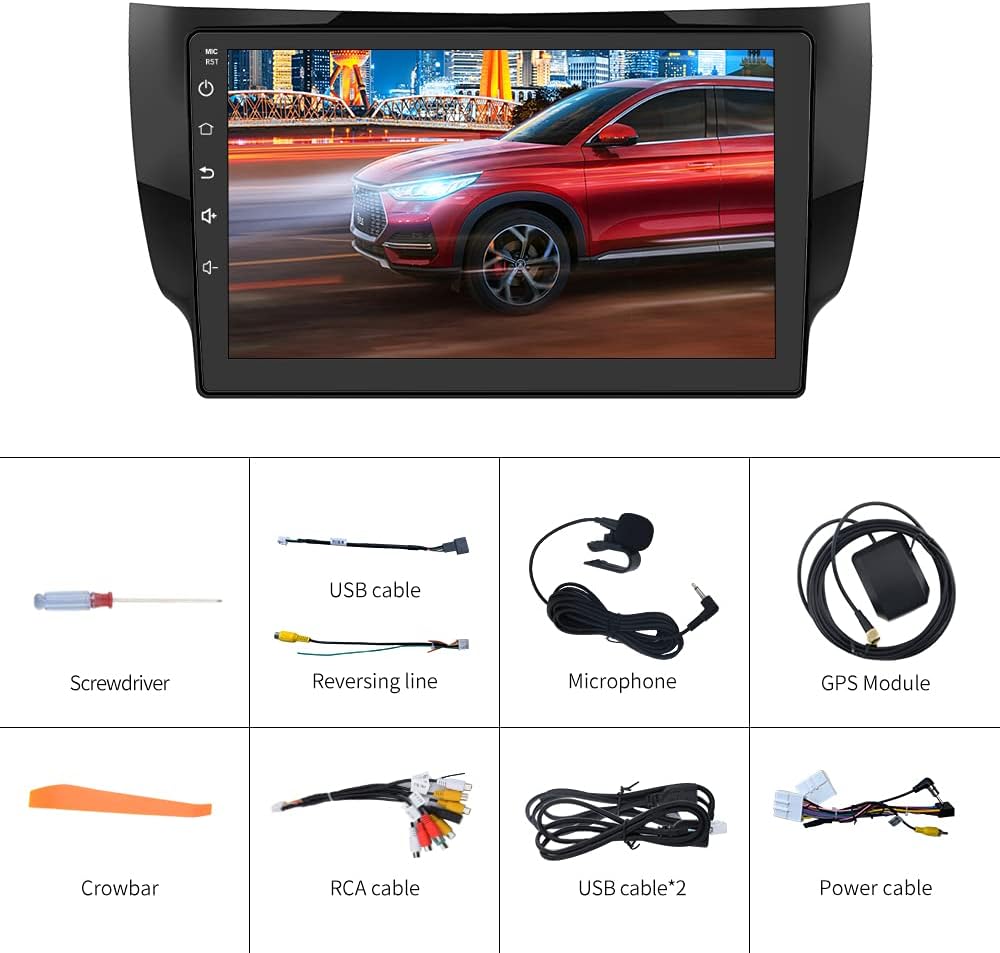
Image 2.1: Included components: head unit, wiring, tools, and accessories.
3. Installation Guide
This section provides a general overview of the installation process. Professional installation is recommended due to the complexity of vehicle wiring and dashboard disassembly.
3.1. Preparation
- Ensure the vehicle's ignition is off and the battery is disconnected to prevent electrical shorts.
- Gather all necessary tools, including the provided screwdriver and crowbar.
- Familiarize yourself with the vehicle's dashboard layout and the location of the existing stereo.
3.2. Removing the Factory Stereo
- Carefully use the crowbar to pry off dashboard trim panels surrounding the factory stereo. Work slowly to avoid damaging clips or plastic.
- Unscrew any retaining screws holding the factory stereo in place.
- Gently pull out the factory stereo. Disconnect all wiring harnesses and the antenna cable from the back of the unit.
3.3. Installing the AWESAFE Car Stereo
- Connect the provided wiring harness to the AWESAFE head unit.
- Connect the vehicle-specific harness to the factory wiring in your Nissan Sentra. Ensure all connections are secure.
- Connect the GPS module and external microphone. Route the microphone cable to a suitable location for optimal voice pickup (e.g., near the rearview mirror or steering column).
- If installing a reversing camera (not included), connect the reversing line and video input to the head unit. Refer to the camera's instructions for specific wiring details.
- Carefully slide the AWESAFE head unit into the dashboard opening. Secure it with screws.
- Reattach the dashboard trim panels, ensuring all clips are properly seated.
- Reconnect the vehicle battery.

Image 3.1: Visual comparison of the dashboard before and after the car stereo installation.
4. Operating Instructions
This section details the primary functions and features of your AWESAFE Car Stereo Radio.
4.1. Initial Power On and Setup
- Turn on the vehicle ignition. The stereo should power on automatically.
- Follow any on-screen prompts for initial setup, such as language selection and time zone.
- Connect to a WiFi network to enable online features and download updates. Go to Settings > Network & Internet > Wi-Fi.
4.2. GPS Navigation
The unit comes with a built-in offline map of North America. Online navigation is also supported when connected to WiFi.
- Tap the 'Navigation' icon on the home screen to launch the GPS application.
- Enter your destination using the on-screen keyboard or voice input (if configured).
- Follow the voice prompts and visual directions for your route.
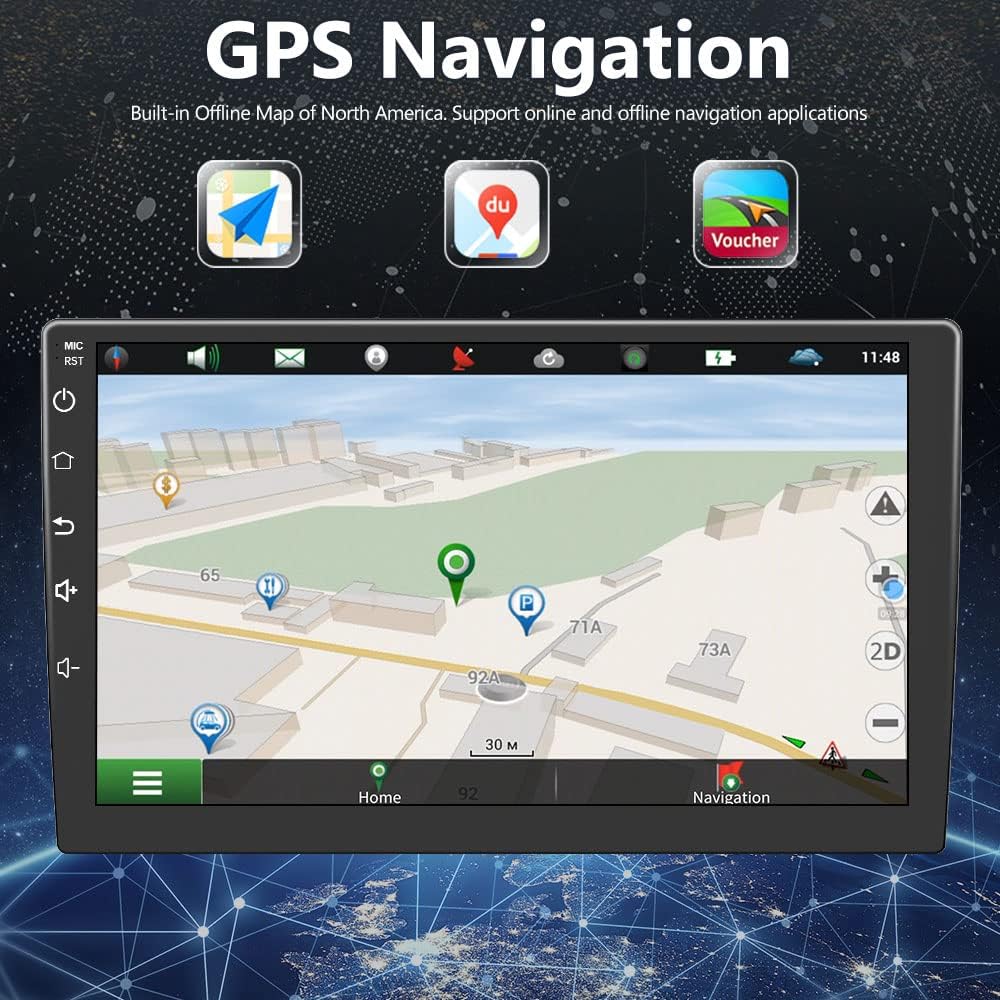
Image 4.1: GPS Navigation interface showing a map and route.
4.3. Bluetooth Connectivity
Connect your smartphone via Bluetooth for hands-free calling and audio streaming.
- Go to Settings > Connected devices > Bluetooth and ensure Bluetooth is enabled.
- On your smartphone, search for available Bluetooth devices and select the AWESAFE unit (e.g., "AWESAFE_BT").
- Confirm the pairing code on both devices.
- Once connected, you can make/receive calls and play music wirelessly through the car stereo.

Image 4.2: Bluetooth interface for hands-free calling.
4.4. Apple CarPlay & Android Auto
The unit supports both Apple CarPlay and Android Auto for seamless smartphone integration.
- Connect your iPhone or Android phone to the stereo via a USB cable.
- The system will automatically detect and launch CarPlay or Android Auto.
- Use the smart voice assistant or touch display to access navigation, make calls, send messages, and enjoy music.

Image 4.3: Apple CarPlay interface on the car stereo display.
4.5. Mirror Link Function
Mirror Link allows you to display your smartphone's screen directly onto the car stereo display.
- Connect your Android phone or iPhone to the stereo via USB or WiFi.
- Launch the 'Mirror Link' application on the car stereo.
- Follow the on-screen instructions to establish the connection.

Image 4.4: Phone Mirror Link displaying content from a smartphone.
4.6. Reversing Camera Display
If a compatible reversing camera is connected, the display will automatically switch to the camera view when the vehicle is put into reverse gear. The system supports 170° viewing angle, IP67 waterproof cameras, and HD night vision capabilities.
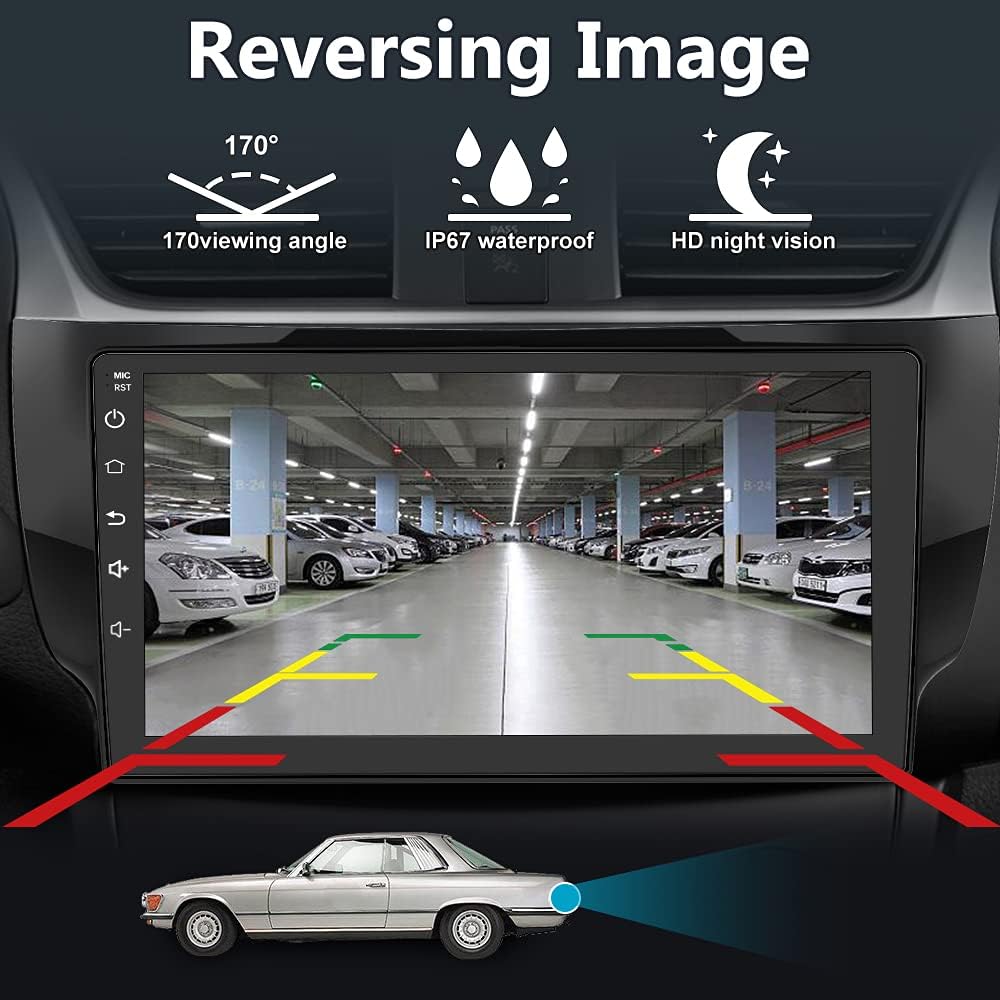
Image 4.5: Reversing camera display with parking guidelines.
4.7. Steering Wheel Control (SWC)
The unit supports integration with your vehicle's existing steering wheel controls. This allows you to manage audio playback, volume, and calls without taking your hands off the wheel. Configuration may be required in the stereo's settings menu under 'Steering Wheel Control' or 'SWC Learning'.
5. Maintenance
Proper maintenance ensures the longevity and optimal performance of your car stereo.
- Cleaning: Use a soft, dry cloth to clean the screen and exterior. Avoid abrasive cleaners or solvents.
- Software Updates: Periodically check for system software updates via the WiFi connection to ensure you have the latest features and bug fixes. Go to Settings > About device > System updates.
- Temperature: Avoid exposing the unit to extreme temperatures for extended periods.
6. Troubleshooting
If you encounter issues with your AWESAFE Car Stereo, refer to the following common problems and solutions:
| Problem | Possible Cause / Solution |
|---|---|
| Unit is slow or unresponsive | Too many applications running in the background. Close unused apps. Perform a system restart. Ensure sufficient storage space. |
| WiFi signal is weak or disconnects frequently | Interference or distance from the access point. Ensure the antenna is properly connected. Consider using a stronger external WiFi antenna if available. |
| Physical buttons do not illuminate | Check illumination settings in the system menu. Ensure all wiring connections are secure. |
| Call quality is poor (tinny sound, echo) | Microphone placement or settings. Try adjusting the microphone's position. Ensure the external microphone is used if provided. Check audio settings for microphone gain or echo cancellation. |
| Random system crashes, especially at high volume | Software issue or power instability. Ensure the unit has a stable power supply. Check for system updates. Avoid excessively high volume levels if the issue persists. |
| Steering Wheel Controls (SWC) not working | Incorrect wiring or unconfigured settings. Verify SWC wiring connections. Go to Settings > Steering Wheel Control and perform the learning function. |
| Bluetooth disconnects randomly | Interference or device compatibility. Ensure no other devices are interfering. Re-pair the Bluetooth device. Update the stereo's software. |
If these solutions do not resolve the issue, please contact AWESAFE customer support for further assistance.
7. Specifications
| Feature | Detail |
|---|---|
| Operating System | Android 11 |
| RAM | 2GB |
| Internal Storage (ROM) | 32GB |
| Display Size | 10 Inches |
| Connectivity | Bluetooth, Wi-Fi |
| Special Features | Bluetooth, Touchscreen, CarPlay, Android Auto, Mirror Link |
| GPS Map Type | North America (Offline) |
| Voice Command | Microphone |
| Item Weight | 3.56 pounds |
| Product Dimensions | 7.87 x 5.51 x 12.6 inches |
| Mounting Type | Panel Mount |
| Vehicle Service Type | Car (Nissan Sentra 2013-2017) |
8. Warranty and Support
For warranty information, technical support, or any questions not covered in this manual, please contact AWESAFE customer service. Refer to your purchase documentation or the AWESAFE official website for contact details.


