
TMEZON MZ-IP-V726TW/MZ-VDP-NE201
TMEZON Wireless Video Intercom System Instruction Manual
Brand: TMEZON
Model: MZ-IP-V726TW/MZ-VDP-NE201
1. Introduction
The TMEZON Wireless Video Intercom System provides enhanced security and convenience for your home or office. This system features a touch screen IP monitor and an outdoor doorbell unit with camera, offering night vision capabilities and support for mobile application control and swipe card unlocking. This manual provides detailed instructions for installation, setup, operation, and maintenance of your intercom system.
2. What's Included

Figure 2.1: Main components of the TMEZON Wireless Video Intercom System.
Upon unboxing, please verify that all components listed below are present and in good condition:
- 7-inch Touch Screen IP Monitor (Indoor Unit)
- Outdoor Doorbell Unit with Camera
- Power Adapter for Monitor
- Mounting Bracket and Screws
- RFID Key Fobs (5 pieces)
- Wiring Cables
- User Manual (this document)
3. Key Features
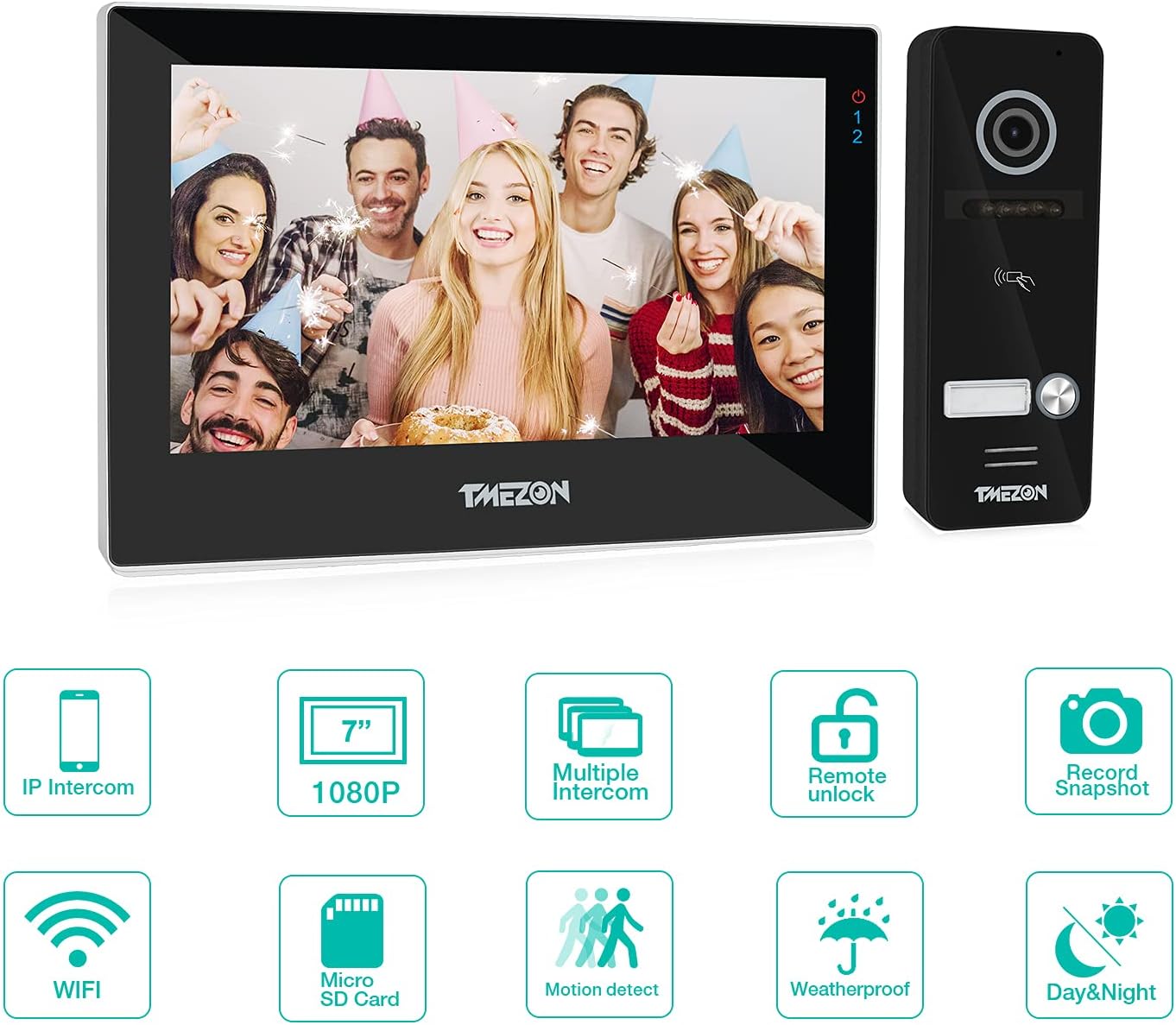
Figure 3.1: Visual representation of the system's main features.
- Wireless IP Intercom: Seamless communication between indoor and outdoor units, and with your smartphone.
- 1080P High Definition Video: Clear and detailed video feed from the outdoor camera.
- Multiple Intercom Support: Connects with multiple indoor monitors for comprehensive coverage.
- Remote Unlock: Grant access remotely via the mobile application or RFID key fobs.
- Record Snapshot & Video: Automatically captures images or records video when the doorbell is pressed or motion is detected.
- Wi-Fi Connectivity: Connects to your home Wi-Fi network for remote access and notifications.
- Micro SD Card Support: Expandable storage for recorded footage.
- Motion Detection: Alerts and records when motion is detected near the doorbell unit.
- Weatherproof Design: Outdoor unit is rated IP67 for protection against dust and water.
- Day & Night Vision: Infrared light source provides clear visibility even in low-light conditions.
- Multi-device Interconnection: Supports connection with up to 3 locks, 2 cameras, 5 IP monitors, and 2 outdoor units.
- Multiple Ringtones: Choose from 10 different ringtones for customization.
4. Specifications

Figure 4.1: Physical dimensions of the monitor and doorbell unit.
| Specification | Value |
|---|---|
| Brand | TMEZON |
| Model Number | MZ-IP-V726TW/MZ-VDP-NE201 |
| Compatible Devices | Smartphone |
| Power Source | Battery Powered (for doorbell, monitor is typically wired) |
| Connectivity Protocol | Wi-Fi |
| Controller Type | Android (and iOS via TuyaSmart app) |
| Mounting Type | Wall Mount |
| Video Capture Resolution | 1080p |
| Number of Channels | 2 |
| Wireless Communication Technology | Wi-Fi |
| Voltage | 12 Volts |
| Battery Power | 200 Milliampere Hour (mAh) |
| Focus Type | Manual Focus |
| Low Light Technology | Night Color |
| Alert Type | Motion Only |
| Light Source Type | Infrared |
| Video Capture Format | MPEG-4 |
| International Protection Rating | IP67 |
| Item Weight | 2.53 pounds |
| Package Dimensions | 9.29 x 8.9 x 2.05 inches |
5. Installation
Proper installation is crucial for optimal performance of your TMEZON intercom system. Follow these general guidelines:
- Choose Location: Select a suitable location for both the indoor monitor and the outdoor doorbell unit. The outdoor unit should be placed at a height that allows for clear viewing of visitors. Ensure the location is within Wi-Fi range.
- Mounting the Outdoor Unit:

Figure 5.1: Outdoor doorbell unit, designed to be weatherproof.
Use the provided mounting bracket as a template to mark drill holes on the wall. Drill the holes, insert wall anchors if necessary, and secure the bracket. Attach the doorbell unit to the bracket. Ensure sufficient space behind the doorbell for wiring connections.
- Mounting the Indoor Monitor:
The indoor monitor is designed for wall mounting. Secure its bracket to a suitable indoor wall using screws. Ensure the monitor is placed in a convenient location for viewing and interaction.
- Wiring Connections: Refer to the "Wiring Diagram" section for detailed electrical connections. Ensure all power is off before making any connections.
6. Wiring Diagram

Figure 6.1: Wiring connections for the TMEZON intercom system.
The diagram illustrates the standard wiring setup for the TMEZON Wireless Video Intercom System. Please follow it carefully to ensure correct functionality and safety.
- Door Phone to IP Monitor: Connect the outdoor doorbell unit to the indoor IP monitor using the provided 4-core and 2-core cables.
- Power Connection: Connect the power adapter to the IP monitor.
- Electronic Lock (Optional): If you are integrating an electronic lock, connect it to the doorbell unit as shown. This allows for remote unlocking.
- Wi-Fi Connection: The IP monitor connects wirelessly to your home Wi-Fi router for internet access and app functionality.
7. Initial Setup and App Pairing
To fully utilize your intercom system's features, including remote access and notifications, you need to pair it with the TuyaSmart mobile application.
- Download TuyaSmart App: Download and install the "TuyaSmart" application from your smartphone's app store (available for Android and iOS).
- Power On Devices: Ensure both the indoor monitor and outdoor doorbell unit are powered on and connected as per the wiring diagram.
- Connect Monitor to Wi-Fi (EZ Mode):
- On the indoor monitor, navigate to the "Network" settings.
- Select "EZ Mode" for easy pairing.
- Ensure the Wi-Fi icon on the monitor indicates it's not yet connected.
- Add Device in TuyaSmart App:
- Open the TuyaSmart app on your smartphone.
- Tap "Add Device" or the "+" icon.
- Select "Security & Video Surveillance" and then "Smart Doorbell".
- Choose "EZ Mode" within the app.
- Enter your 2.4GHz Wi-Fi network password (5GHz networks are not supported).
- Proceed with the pairing process. The app will search for and connect to your intercom system. This may take up to a minute.
- Once "Device added successfully" appears, you can rename your device (e.g., "My Home Monitor") and save.
Video 7.1: Demonstrates the process of connecting the TMEZON IP Wireless Intercom with the TuyaSmart application.
8. Operation
8.1. Answering Calls and Two-Way Communication

Figure 8.1: Seamless communication between outdoor visitor and indoor resident.
When a visitor presses the doorbell, the indoor monitor will ring, and a notification will be sent to your paired smartphone. You can then:
- Answer on Monitor: Tap the answer icon on the monitor to begin two-way audio communication and view the live video feed.
- Answer on Smartphone: Tap the notification on your phone to open the TuyaSmart app and view the live feed. You can then speak to the visitor using the microphone icon.
8.2. Remote Unlocking
If an electronic lock is connected, you can unlock the door remotely:
- Via App: During a live view or call, tap the unlock icon in the TuyaSmart app.
- Via RFID Key Fob: Present a registered RFID key fob to the outdoor doorbell unit to unlock the door.
8.3. Live Monitoring and Recording

Figure 8.2: Indoor monitor's main menu for system control.
You can view the live feed from the outdoor unit or connected cameras at any time:
- On Monitor: Access the "Devices" or "Camera" section on the monitor's main menu to view live feeds.
- On Smartphone: Open the TuyaSmart app and select your intercom device to view the live stream.
- Snapshots & Video Recording: During live view, you can manually take snapshots or record video directly from the monitor or the app. These recordings are stored on the inserted Micro SD card or in the app's album.
- Playback: If an SD card is installed, you can play back recorded videos from the monitor or the app.
8.4. Settings and Customization

Figure 8.3: Customizing ringtones on the indoor monitor.
The monitor's settings menu allows for various customizations:
- Language: Adjust the display language.
- Ringtones: Select from a variety of pre-installed ringtones.
- Time & Date: Set the correct time and date. Note: Time may reset after a power loss if not connected to the internet.
- Network Settings: Manage Wi-Fi connections and pairing modes.
- Software Update: Check for and install firmware updates.
9. System Expansion

Figure 9.1: The system supports connection with multiple devices for enhanced security.
The TMEZON intercom system is designed for expandability, allowing you to integrate additional security components:
- Additional Monitors: Connect up to 5 IP monitors for coverage across different rooms or floors.
- Extra Outdoor Units: Add up to 2 outdoor doorbell units for multiple entry points.
- Security Cameras: Integrate up to 2 additional security cameras for broader surveillance.
- Electronic Locks: Connect up to 3 electronic locks for comprehensive access control.
Refer to the specific installation guides for each additional component for detailed connection instructions.
10. Maintenance
Regular maintenance helps ensure the longevity and optimal performance of your intercom system:
- Cleaning: Use a soft, dry cloth to clean the monitor screen and doorbell unit. Avoid abrasive cleaners or solvents.
- Firmware Updates: Periodically check for and install available firmware updates through the monitor's settings or the TuyaSmart app. Updates often include performance improvements and security enhancements.
- Outdoor Unit Inspection: Regularly inspect the outdoor unit for any debris, spiderwebs, or obstructions that might block the camera lens or microphone.
- Power Supply: Ensure the power supply to the monitor is stable. In case of power outages, the system's time setting may need to be manually reset if not connected to the internet.
11. Troubleshooting
If you encounter issues with your TMEZON intercom system, refer to the following common problems and solutions:
- No Wi-Fi Connection:
- Ensure your Wi-Fi network is 2.4GHz. The system does not support 5GHz Wi-Fi.
- Verify the Wi-Fi password entered during setup is correct.
- Check the distance between the monitor and your Wi-Fi router. Move them closer if the signal is weak.
- Restart your Wi-Fi router and the intercom monitor.
- No Video or Audio:
- Check all wiring connections between the outdoor unit and the indoor monitor. Ensure they are secure.
- Verify the power supply to the monitor.
- Ensure the camera lens on the outdoor unit is clean and unobstructed.
- Doorbell Not Ringing / App Not Receiving Notifications:
- Confirm the doorbell button on the outdoor unit is functioning correctly (e.g., lights up when pressed).
- Check the monitor's ringtone settings to ensure it's not muted or set to a very low volume.
- For app notifications, ensure the TuyaSmart app has notification permissions enabled on your smartphone.
- Verify the monitor is connected to Wi-Fi and has internet access.
- Remote Unlock Not Working:
- Ensure the electronic lock is correctly wired to the outdoor doorbell unit.
- Verify the lock itself is functional and receiving power. The intercom system provides a trigger signal, not direct power to the lock.
- Check the lock settings within the monitor or app.
- Screen Sensor Not Responding:
- Restart the indoor monitor by disconnecting and reconnecting its power.
- Ensure the screen is clean and free of moisture or debris.
12. Warranty and Support
TMEZON products come with a standard manufacturer's warranty. For detailed warranty information, product support, or technical assistance, please refer to the warranty card included with your product or visit the official TMEZON website. You may also contact customer service through the platform where you purchased the product.
Contact Information: Please refer to your product packaging or the official TMEZON website for the most current contact details.
Related documentsMZ-IP-V726TW/MZ-VDP-NE201


Ask a question about this manual
Ask about setup, troubleshooting, compatibility, parts, safety, or missing instructions. Manuals+ will review the question and use this page’s manual context to help answer it.