
1. Overview
The Anker Thunderbolt 4 Certified USB C to USB C Cable (Model A8859) is designed for high-performance connectivity, offering versatile capabilities for charging, data transfer, and video output. This cable ensures reliable and efficient operation across a wide range of compatible devices.
- Exceptional Rapid Charging: Delivers up to 100W of power when paired with a compatible charger.
- Superior Data Transfer Speeds: Achieves 40 Gbps data transfer, allowing for quick transfer of large files.
- Stunning Display Quality: Supports 8K video output to a single monitor or 4K to dual monitors (requires two cables for dual monitor setup).
- Wide Compatibility: Works with all USB-C devices that support Thunderbolt 3, Thunderbolt 4, USB4, or DisplayPort Alt Mode.

Figure 1.1: Anker Thunderbolt 4 Certified USB C to USB C Cable.
2. Setup
Connecting your Anker Thunderbolt 4 cable is a straightforward process. Ensure both devices you intend to connect have compatible USB-C ports that support the required protocols (Thunderbolt 3, Thunderbolt 4, USB4, or DisplayPort Alt Mode).
- Identify the USB-C ports on your source device (e.g., laptop, tablet, phone) and target device (e.g., monitor, external SSD, charger).
- Gently insert one end of the Anker Thunderbolt 4 cable into the USB-C port of your source device.
- Insert the other end of the cable into the USB-C port of your target device.
- Ensure both connections are secure. The cable is reversible, so either orientation works.

Figure 2.1: Close-up view of the USB-C connectors on the Anker Thunderbolt 4 cable.
3. Operating Instructions
3.1 Charging
The Anker Thunderbolt 4 cable supports Power Delivery (PD) up to 100W, enabling fast charging for a variety of devices, including laptops, tablets, and smartphones. For optimal charging speeds, use a power adapter that supports 100W PD or higher.
- Connect one end of the cable to your device's USB-C charging port.
- Connect the other end to a compatible USB-C power adapter.
- Ensure the power adapter is plugged into a functional power outlet.

Figure 3.1: Illustrates a laptop charging at 100W via the Anker Thunderbolt 4 cable.
3.2 Data Transfer
Benefit from ultra-fast data transfer speeds of up to 40 Gbps, ideal for moving large files such as videos, photos, and documents between compatible devices quickly.
- Connect the cable between two devices with Thunderbolt 4, Thunderbolt 3, or USB4 compatible USB-C ports.
- Initiate data transfer through your device's operating system or file management software.
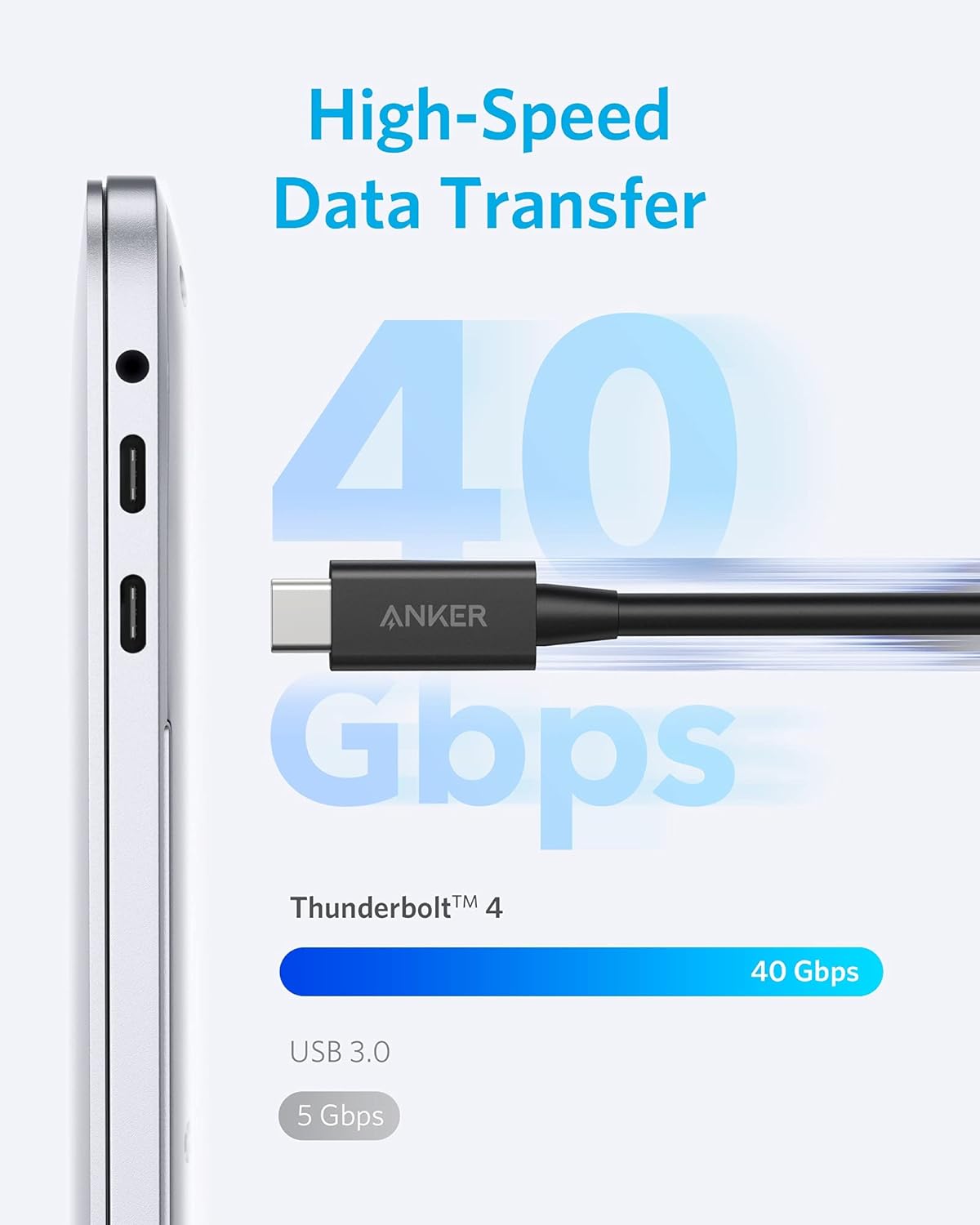
Figure 3.2: Visual representation of 40 Gbps data transfer speed with Thunderbolt 4.
3.3 Display Output
This cable supports high-resolution video output, allowing you to connect your device to an external display.
- Single Monitor: Supports up to 8K resolution. Connect one end of the cable to your device and the other to an 8K-compatible monitor.
- Dual Monitors: Supports up to dual 4K resolution. This setup requires two Anker Thunderbolt 4 cables, with each cable connecting your device to a separate 4K monitor.
- Ensure your device's USB-C port supports DisplayPort Alt Mode or Thunderbolt protocols for screen projection.

Figure 3.3: Display configurations for single 8K and dual 4K monitors using the cable.
4. Compatibility
The Anker Thunderbolt 4 cable is designed for broad compatibility with USB-C devices. It is essential that the USB-C ports on your devices support DisplayPort Alt Mode or Thunderbolt 3, 4, or 5 protocols for full functionality, especially for screen projection.
Compatible Devices Include:
- USB-C Laptops: MacBook Air (2018-2024), MacBook Pro (2017-2023), HP Spectre14 x360 / 850 G8, Dell Vostro 5320 / 16" 5630 / XPS 15 9520, Lenovo Yoga 14s ITL (2021) / ThinkPad X1 Yoga Gen 6 / T14 Gen 2.
- USB-C Tablets: iPad Pro (2018-2024), iPad Air (4th, 5th, 6th Gen), Galaxy Tab S8/S9/S10 Series.
- USB-C Phones: iPhone 15/16 Series, Samsung Galaxy Z Fold3 / S10+/S10/S20/S21/S23/S24, Google Pixel 6/7/8/9, LG V40 / G8.

Figure 4.1: Examples of compatible USB-C devices.
5. Specifications
| Feature | Detail |
|---|---|
| Model Name | A8859 |
| Connector Type | USB Type C (Male-to-Male) |
| Cable Type | USB (Thunderbolt 4 Certified) |
| Data Transfer Rate | 40 Gbps |
| Power Delivery | Up to 100W (20V/5A) |
| Video Output | 8K (single monitor), 4K (dual monitors) |
| Length | 2.3 FT (0.7 meters) |
| Color | Black |
| Item Weight | 1.12 ounces |
| Certification | Thunderbolt 4 Certified, USB-IF |

Figure 5.1: Thunderbolt technology certification ensures safety and performance.
6. Maintenance
Proper care and maintenance will extend the lifespan of your Anker Thunderbolt 4 cable.
- Storage: When not in use, coil the cable loosely. Avoid sharp bends or kinks, especially near the connectors.
- Cleaning: Use a soft, dry cloth to wipe the cable and connectors. Do not use harsh chemicals or abrasive materials.
- Handling: Always grasp the connector head when plugging or unplugging the cable. Avoid pulling directly on the cable itself, as this can damage internal wires.
- Environment: Keep the cable away from extreme temperatures, direct sunlight, and moisture.
7. Troubleshooting
If you encounter issues with your Anker Thunderbolt 4 cable, consider the following troubleshooting steps:
- No Power/Slow Charging:
- Ensure both ends of the cable are securely connected.
- Verify that your power adapter supports the required wattage (e.g., 100W for fast charging).
- Test the cable with a different power adapter or device to isolate the issue.
- No Data Transfer:
- Confirm that both connected devices have USB-C ports that support Thunderbolt 4, Thunderbolt 3, or USB4 data transfer.
- Check device settings to ensure data transfer is enabled.
- Try restarting both devices.
- No Display Output/Low Resolution:
- Ensure your device's USB-C port supports DisplayPort Alt Mode or Thunderbolt protocols.
- Verify that your monitor and device are configured for the desired resolution and refresh rate.
- If using dual monitors, confirm you are using two separate Thunderbolt 4 cables.
- Update graphics drivers on your computer.
- Intermittent Connection:
- Inspect the cable and connectors for any visible damage.
- Ensure ports on devices are clean and free of debris.
- Avoid bending or stressing the cable during use.
If issues persist after attempting these steps, please contact Anker Customer Service for further assistance.
8. Warranty and Support
Anker provides a worry-free 18-month warranty for this product. This warranty covers manufacturing defects and ensures your product functions as intended under normal use.
For warranty claims, technical support, or any product-related inquiries, please contact Anker Customer Service through the following channels:
- Website: Visit the official Anker support website for FAQs, troubleshooting guides, and contact information.
- Email: Refer to your product packaging or the Anker website for the appropriate customer service email address.
- Phone: Contact numbers for regional support may be available on the Anker website.
Please have your product model number (A8859) and proof of purchase ready when contacting support.


