
1. Introduction
Thank you for purchasing the LogiLink SP0057 Bluetooth 5.0 Compact Speaker. This portable speaker is designed to provide high-quality audio playback from various sources, including Bluetooth-enabled devices, microSD cards, USB-A drives, and AUX input. It also features an integrated FM radio and hands-free calling functionality. This manual provides essential information for the safe and efficient operation of your device.
2. Safety Instructions
- Read all instructions carefully before using the product.
- Do not expose the speaker to extreme temperatures, direct sunlight, or high humidity.
- Avoid dropping or subjecting the speaker to strong impacts.
- Do not disassemble, repair, or modify the speaker. This may void the warranty and pose safety risks.
- Keep the speaker away from water and other liquids. While it is rated as waterproof, prolonged submersion or exposure to strong jets of water should be avoided.
- Use only the provided charging cable or a certified equivalent.
- Clean the speaker with a soft, dry cloth. Do not use abrasive cleaners or solvents.
3. Package Contents
Please check the package for the following items:
- 1 x LogiLink SP0057 Bluetooth Speaker
- 1 x Micro USB Charging Cable
- 1 x User Manual

Image: The LogiLink SP0057 Bluetooth Speaker shown with its retail packaging, indicating the included components.
4. Product Overview
Familiarize yourself with the speaker's physical features, buttons, and ports.

Image: A general view of the LogiLink SP0057 Bluetooth speaker, showcasing its compact, rectangular design and black finish.
Control Buttons

Image: Close-up of the LogiLink SP0057 speaker's side, showing the control buttons: Previous Track/Volume Down, Play/Pause/Mode, Next Track/Volume Up, and Power/Call button.
- M (Mode) / Play/Pause: Short press to switch between modes (Bluetooth, FM, MicroSD, USB, AUX). Long press for Play/Pause.
- - / Previous Track / Volume Down: Short press for previous track. Long press to decrease volume.
- + / Next Track / Volume Up: Short press for next track. Long press to increase volume.
- Power / Call: Long press to power on/off. Short press to answer/end calls in Bluetooth mode.
Ports and Slots
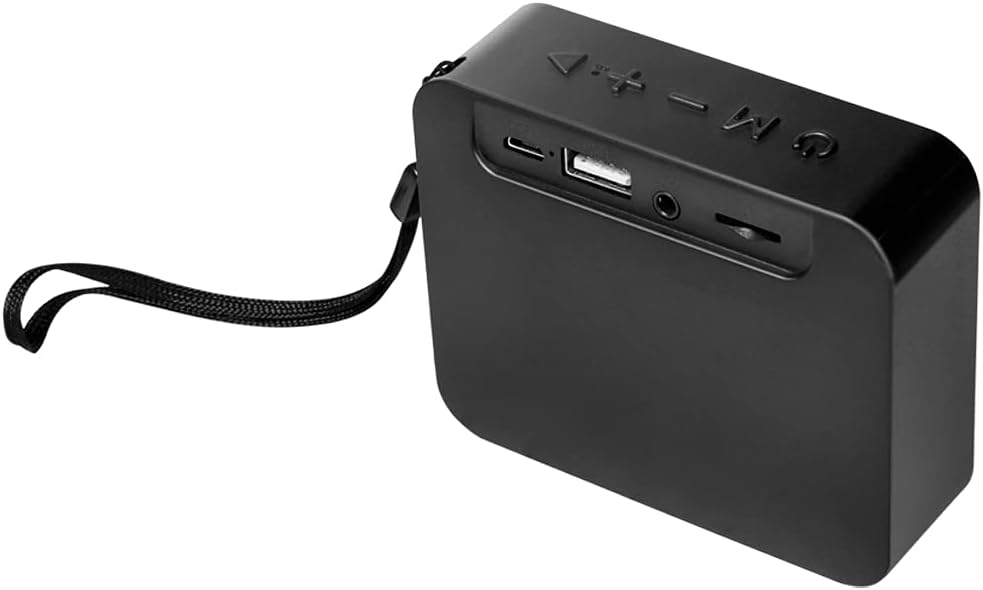
Image: Rear view of the LogiLink SP0057 Bluetooth speaker, clearly showing the DC5V charging port, USB-A port, AUX input, and TF (microSD) card slot.
- DC5V (Micro USB): Charging port for the speaker.
- USB: USB-A port for playing music from a USB flash drive.
- AUX: 3.5mm audio input for connecting external devices via an AUX cable.
- TF (MicroSD): MicroSD card slot for playing music from a microSD card (up to 64GB).
5. Setup
5.1. Charging the Speaker
- Connect the Micro USB charging cable to the DC5V port on the speaker.
- Connect the other end of the cable to a USB power adapter (not included) or a computer's USB port.
- The charging indicator light will illuminate during charging.
- Charging typically takes approximately 2.5 hours for a full charge. The indicator light will change or turn off once fully charged.
A full charge provides up to 7 hours of continuous music playback.
5.2. Powering On/Off
- To Power On: Long press the Power button until you hear an audible prompt or see an indicator light.
- To Power Off: Long press the Power button again until you hear an audible prompt or the indicator light turns off.
6. Operating Modes
6.1. Bluetooth Mode
- Power on the speaker. It will automatically enter Bluetooth pairing mode, indicated by a flashing LED light and an audible prompt.
- On your smartphone, tablet, or other Bluetooth-enabled device, enable Bluetooth and search for available devices.
- Select "SP0057" from the list of devices.
- Once paired, the speaker will emit an audible confirmation, and the LED light will stop flashing.
- You can now play audio from your device through the speaker.
6.2. FM Radio Mode
- Power on the speaker.
- Short press the 'M' (Mode) button repeatedly until you hear the FM radio prompt.
- For better reception, connect the Micro USB charging cable to the DC5V port; it acts as an external antenna.
- Long press the 'M' (Mode) button to automatically scan and save available FM stations.
- Use the '-' and '+' buttons to switch between saved stations.
6.3. MicroSD Card Playback
- Insert a MicroSD card (up to 64GB, formatted with supported audio files) into the TF slot on the speaker.
- The speaker will automatically switch to MicroSD mode and begin playing music. If not, short press the 'M' (Mode) button to select MicroSD mode.
- Use the '-', '+', and 'M' buttons for track navigation and play/pause.
6.4. USB-A Playback
- Insert a USB flash drive (with supported audio files) into the USB-A port on the speaker.
- The speaker will automatically switch to USB mode and begin playing music. If not, short press the 'M' (Mode) button to select USB mode.
- Use the '-', '+', and 'M' buttons for track navigation and play/pause.
6.5. AUX Input Mode
- Connect one end of a 3.5mm audio cable (not included) to the AUX port on the speaker.
- Connect the other end of the cable to the audio output jack of your external device (e.g., MP3 player, laptop).
- The speaker will automatically switch to AUX mode. If not, short press the 'M' (Mode) button to select AUX mode.
- Control playback and volume directly from your connected device.
6.6. Hands-Free Calling
When the speaker is connected to your phone via Bluetooth:
- Answer a Call: Short press the Power/Call button.
- End a Call: Short press the Power/Call button during a call.
- Reject a Call: Long press the Power/Call button when an incoming call rings.
7. Maintenance
- Keep the speaker clean by wiping it with a soft, dry cloth.
- Avoid using harsh chemicals, cleaning solvents, or strong detergents.
- Store the speaker in a cool, dry place when not in use.
- If the speaker will not be used for an extended period, charge it periodically to maintain battery health.
8. Troubleshooting
| Problem | Solution |
|---|---|
| Speaker does not power on. | Ensure the battery is charged. Connect the speaker to a power source using the Micro USB cable. |
| No sound. | Check the volume level on both the speaker and the connected device. Ensure the correct mode is selected (Bluetooth, AUX, etc.). |
| Cannot pair via Bluetooth. | Ensure the speaker is in Bluetooth pairing mode (flashing LED). Turn off and on Bluetooth on your device. Move the speaker closer to your device. Clear previous Bluetooth connections on your device. |
| FM radio reception is poor. | Connect the Micro USB charging cable to the DC5V port; it functions as an antenna to improve signal. Try repositioning the speaker. |
| MicroSD/USB playback not working. | Ensure the MicroSD card or USB drive is inserted correctly and contains supported audio files. Check that the speaker is in the correct playback mode. |
9. Technical Specifications
| Feature | Specification |
|---|---|
| Model Name | SP0057 |
| Brand | LogiLink |
| Connectivity Technology | Bluetooth, USB |
| Wireless Communication Technology | Bluetooth |
| Bluetooth Version | 5.0 |
| Speaker Type | Multimedia |
| Audio Output Mode | Stereo |
| Maximum Speaker Output Power | 10 Watts |
| Frequency Response | 1000 GHz (Note: This value seems unusually high and may be a typo in the source data. Typically, frequency response is in Hz-kHz range.) |
| Compatible Devices | Laptop, Smartphone, Tablet |
| Special Features | Bluetooth, Integrated Microphone, Portable |
| Control Method | Touch |
| Power Source | Cable Electric (Rechargeable Battery) |
| Battery Type | 1 Lithium-polymer (included) |
| Battery Life | Up to 7 hours |
| Charging Time | Approx. 2.5 hours |
| Product Dimensions (L x W x H) | 9.3 x 7 x 6.3 cm |
| Item Weight | 178 Grams |
| Waterproof | Yes |
| FM Radio Frequency | 87.5-108 MHz |
| MicroSD Card Support | Up to 64 GB |
| Manufacturer | 2direct GmbH |
| Country of Origin | China |
10. Warranty and Support
For warranty information and technical support, please refer to the documentation provided with your purchase or contact LogiLink customer service directly. Keep your proof of purchase for warranty claims.


