
1. Introduction
Thank you for choosing the Ledwood Capella Wireless Bluetooth 5.2 Stereo Earphones. This manual provides essential information for the proper setup, operation, and maintenance of your new earphones. Please read it carefully before use and retain it for future reference.
Package Contents:
- 1 x CAPELLA In-Ear Headphones
- 1 x Charging Case
- 1 x USB-C Cable
- 2 x Pairs of Silicone Earbuds

Image: Ledwood Capella earphones and charging case. The white earphones are shown next to their matching white charging case, which has a USB-C port visible.
2. Setup
2.1 Charging the Earphones and Case
Before first use, ensure both the charging case and earphones are fully charged.
- Place the earphones into the charging case. Ensure they are correctly seated to make contact with the charging pins.
- Connect the provided USB-C cable to the charging port on the case and the other end to a USB power source (e.g., wall adapter, computer USB port).
- The LED indicator on the case will show the charging status. Once fully charged, the indicator will change or turn off.
- A full charge typically takes approximately 1 hour. The case provides up to 9 hours of total battery life (3 charges of 3 hours each for the earphones).
2.2 Pairing with a Bluetooth Device
To connect your Ledwood Capella earphones to your smartphone or other Bluetooth-enabled device:
- Ensure the earphones are charged.
- Open the charging case. The earphones will automatically enter pairing mode, indicated by a flashing LED on the earphones.
- On your device, go to the Bluetooth settings and enable Bluetooth.
- Search for available devices. You should see "Ledwood Capella" or a similar name appear in the list.
- Select "Ledwood Capella" to connect. Once connected, the LED indicator on the earphones will stop flashing.
- The earphones will automatically reconnect to the last paired device when taken out of the case, if Bluetooth is enabled on the device.
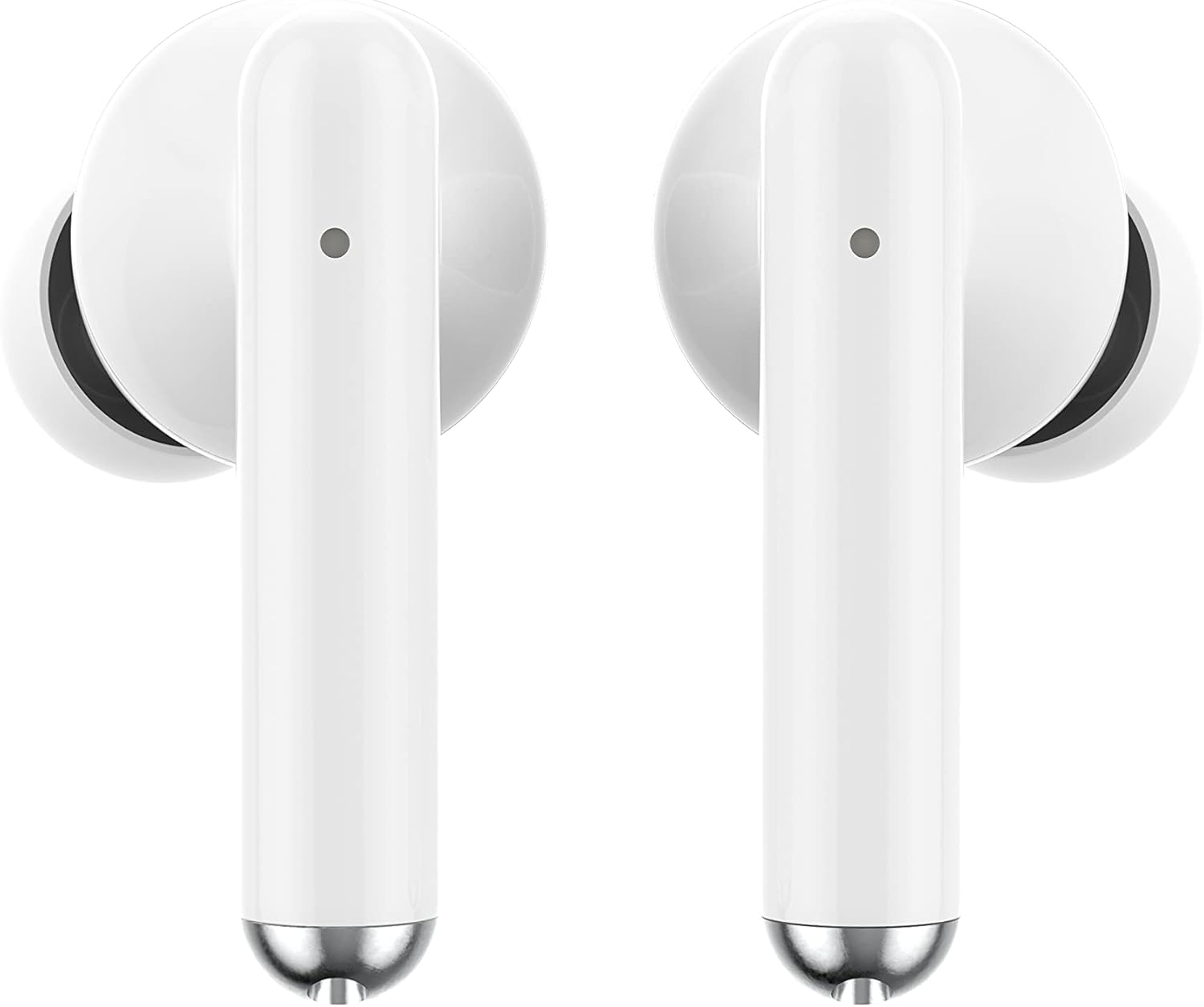
Image: Close-up view of the Ledwood Capella earphones. The white earbuds feature a sleek design with a small microphone hole visible on the stem.
3. Operating the Earphones
The Ledwood Capella earphones feature sensitive touch controls for easy management of your audio and calls.
3.1 Touch Controls
The touch-sensitive area is located on the outer surface of each earphone stem. Refer to the diagram below for typical touch control functions:
- Single Tap: Play/Pause music, Answer/End call.
- Double Tap (Left Earphone): Previous track.
- Double Tap (Right Earphone): Next track.
- Triple Tap (Left Earphone): Decrease volume.
- Triple Tap (Right Earphone): Increase volume.
- Long Press (2 seconds): Activate Voice Assistant, Reject call.
3.2 Voice Assistant
The Capella earphones are compatible with major voice assistants (e.g., Siri, Google Assistant). To activate your device's voice assistant, perform a long press (2 seconds) on either earphone's touch control area. You can then issue commands through the earphone's microphone.
3.3 Super Bass Technology
The earphones are equipped with Super Bass technology, utilizing highly flexible polymer membranes to reproduce deep and rich bass sounds for an enhanced audio experience.
4. Maintenance
4.1 Cleaning
To maintain optimal performance and hygiene:
- Regularly clean the earphones and charging case with a soft, dry, lint-free cloth.
- Do not use abrasive cleaners, alcohol, or chemical solvents.
- Gently remove any earwax or debris from the ear tips and speaker mesh using a small, soft brush or cotton swab.
- Ensure the charging contacts on both the earphones and case are clean and dry.
4.2 Storage
When not in use, store the earphones in their charging case to protect them from dust, damage, and to keep them charged.
5. Troubleshooting
If you encounter issues with your Ledwood Capella earphones, try the following solutions:
- Earphones not pairing:
- Ensure both earphones are charged.
- Turn off and on your device's Bluetooth.
- Forget "Ledwood Capella" from your device's Bluetooth list and attempt to pair again.
- Place earphones back in the case, close it, wait a few seconds, then open it again to re-enter pairing mode.
- No sound or low volume:
- Check the volume level on both your device and the earphones.
- Ensure earphones are properly seated in your ears.
- Clean any debris from the earphone speaker mesh.
- Charging issues:
- Verify the USB-C cable is securely connected to both the case and the power source.
- Try a different USB-C cable or power adapter.
- Ensure charging contacts on earphones and case are clean.
- Earphones disconnecting frequently:
- Ensure you are within the 10-meter Bluetooth range of your device.
- Avoid obstacles between the earphones and your device that might interfere with the signal.
- Ensure there are no other strong wireless signals nearby causing interference.
6. Specifications
| Feature | Specification |
|---|---|
| Model Name | Capella |
| Model Number | LD-T06 |
| Wireless Communication | Bluetooth 5.2 |
| Range | Up to 10 meters |
| Battery Life (Earphones) | Approx. 3 hours per charge |
| Battery Life (with Charging Case) | Up to 9 hours (3 x 3 hours) |
| Charging Time | Approx. 1 hour |
| Charging Type | USB-C |
| Voice Control | Yes |
| Sensitive Touch | Yes |
| Material | Silicone (ear tips) |
7. Warranty and Support
7.1 Warranty Information
Your Ledwood Capella earphones are covered by a manufacturer's warranty against defects in materials and workmanship. Please refer to the warranty card included in your package or contact your retailer for specific warranty terms and conditions.
7.2 Customer Support
For further assistance, technical support, or inquiries regarding your Ledwood Capella earphones, please contact the retailer where you purchased the product or visit the official Ledwood website for support contact information.


