
1. Introduction
This manual provides essential information for setting up, operating, maintaining, and troubleshooting your Samsung Galaxy A51 unlocked smartphone. Please read through these instructions to ensure optimal use and longevity of your device.
The Samsung Galaxy A51 is a versatile smartphone featuring a 6.5-inch Super AMOLED display, a powerful camera system, and a long-lasting battery, designed for everyday use, photography, and entertainment.

Image: Samsung Galaxy A51 smartphone on a wooden desk.
2. Physical Features and Overview
Familiarize yourself with the key physical components of your Samsung Galaxy A51.
2.1 Front View
The front of the device features a 6.5-inch Super AMOLED display with a punch-hole camera at the top center.

Image: Front view of the Samsung Galaxy A51 display.
2.2 Rear View
The back of the phone features a quad-camera setup and the Samsung logo. The casing has a smooth, reflective finish.

Image: Rear view of the Samsung Galaxy A51.
2.3 Side and Bottom Views
The sides of the device house the power and volume buttons, while the bottom includes the USB Type-C charging port, speaker grille, and a 3.5mm headphone jack.

Image: Side view of the Samsung Galaxy A51.

Image: Bottom view of the Samsung Galaxy A51.
2.4 Video Overview of Physical Features and UI
Video: A quick review of the Samsung Galaxy A51, demonstrating its physical features, screen clarity, and basic user interface navigation.
3. Setup
3.1 What's in the Box
Your Samsung Galaxy A51 package typically includes:
- Samsung Galaxy A51 Smartphone
- Charger
3.2 SIM Card Installation
To install your Nano SIM card(s) and/or microSD card:
- Locate the SIM tray on the side of the device.
- Insert the SIM ejection tool into the small hole next to the tray to open it.
- Place your Nano SIM card(s) and/or microSD card into the designated slots on the tray.
- Carefully reinsert the tray into the device.

Image: Close-up of the SIM card tray slot on the Samsung Galaxy A51.
3.3 Initial Power On and Setup
To power on your device for the first time:
- Press and hold the Power button located on the side of the phone until the Samsung logo appears.
- Follow the on-screen prompts to complete the initial setup, including language selection, Wi-Fi connection, Google account login, and security settings.
4. Operating Instructions
4.1 Basic Navigation
The Samsung Galaxy A51 uses an intuitive Android interface. Swipe up, down, left, or right on the screen to navigate through apps, menus, and notifications. Tap icons to open applications.
4.2 Volume Control
Adjust the device volume using the dedicated volume buttons on the side of the phone. Press the upper part to increase volume and the lower part to decrease it.

Image: Close-up of the power and volume buttons on the Samsung Galaxy A51.
4.3 Camera Features
The Galaxy A51 features a versatile camera with multiple modes for photography and videography. Access the camera app from your home screen or app drawer.
- Photo Mode: Tap the shutter button to capture still images.
- Video Mode: Tap the record button to start and stop video recording.
- Portrait Mode: Creates a depth effect, blurring the background for professional-looking portraits.
- More Modes: Explore additional modes like Pro, Single Take, Night, Food, Panorama, Macro, Super Slow-Mo, Slow Motion, and Hyperlapse for various creative effects.
4.4 Video Demonstration of Camera Features
Video: A demonstration of the Samsung Galaxy A51's camera features, including various modes like Portrait, Photo, Video, and other advanced options.
5. Maintenance
5.1 Battery Management
The Galaxy A51 is equipped with a 4000 mAh Lithium-Ion battery. To maximize battery life:
- Avoid extreme temperatures.
- Use the provided charger for optimal charging.
- Manage background app usage and screen brightness.
5.2 Screen Protection
The 6.5-inch Super AMOLED display is durable, but using a screen protector and a protective case is recommended to prevent scratches and damage.
5.3 Software Updates
Regularly check for and install software updates to ensure your device has the latest features, security patches, and performance improvements. Navigate to Settings > Software update to check for updates.
6. Troubleshooting
If you encounter issues with your Samsung Galaxy A51, consider the following common solutions:
- Performance Issues: Close unused apps, clear cache, or restart the device.
- Battery Drain: Check battery usage in settings to identify power-hungry apps. Reduce screen brightness and disable unnecessary features like GPS or Bluetooth when not in use.
- Connectivity Problems (Wi-Fi/4G): Toggle Wi-Fi or mobile data off and on. Restart your device or reset network settings.
- Screen Freezing/Unresponsive: Force restart the device by holding the Power and Volume Down buttons simultaneously for about 10 seconds.
7. Specifications
| Feature | Specification |
|---|---|
| Brand | Samsung |
| Model Name | Galaxy A51 |
| Operating System | Android 10.0 |
| Screen Size | 6.5 Inches |
| Display Type | AMOLED |
| Resolution | 1080 x 2340 (FHD+) |
| Memory Storage Capacity | 128 GB |
| RAM Memory Installed Size | 6 GB |
| CPU Model | Snapdragon |
| CPU Speed | 2.3 GHz |
| Rear Facing Camera Photo Sensor Resolution | 48 MP |
| Front Photo Sensor Resolution | 32 MP |
| Battery Capacity | 4000 Milliamp Hours |
| Wireless Carrier | Unlocked |
| Cellular Technology | 4G |
| Connector Type | USB Type C |
| Biometric Security Feature | Fingerprint Recognition |
| Item Dimensions | 6.2 x 0.3 x 2.9 inches |
| Item Weight | 0.14 Ounces |
8. Warranty and Support
This renewed product comes with a 90-day limited warranty. Additionally, it is covered by the Amazon Renewed Guarantee, which ensures that if you are not satisfied with your purchase, renewed products are eligible for replacement or refund.
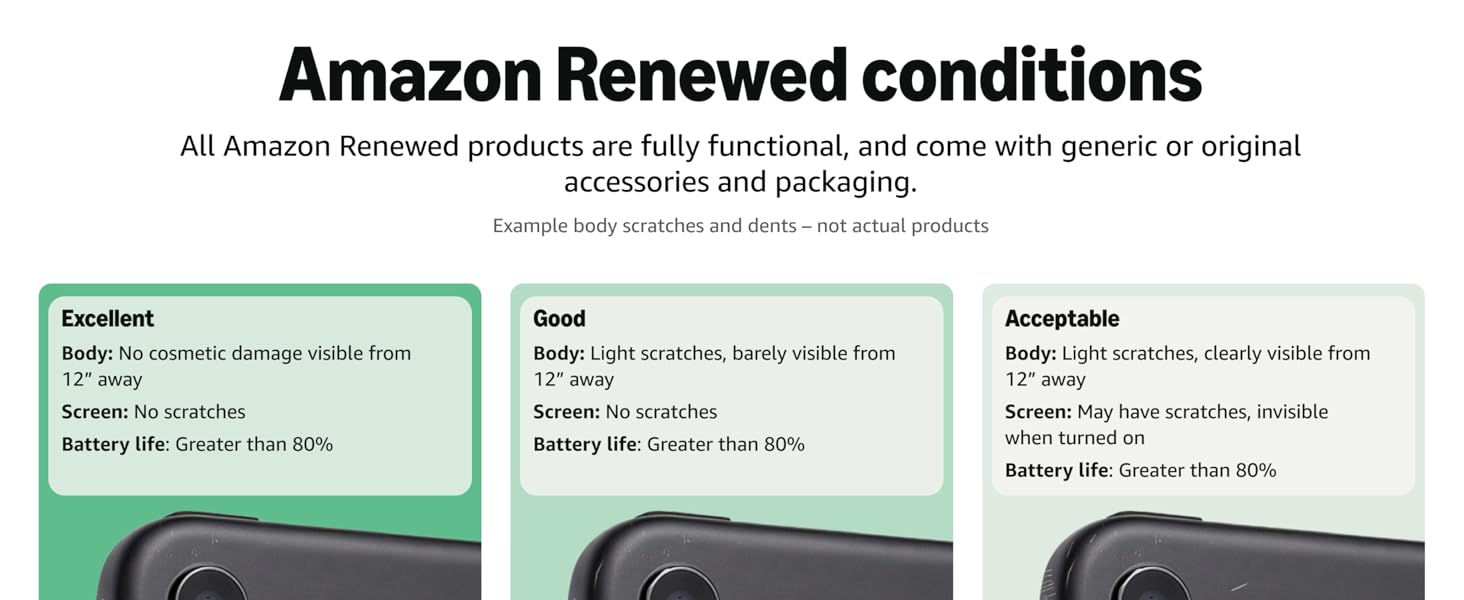
Image: Amazon Renewed conditions for product quality.
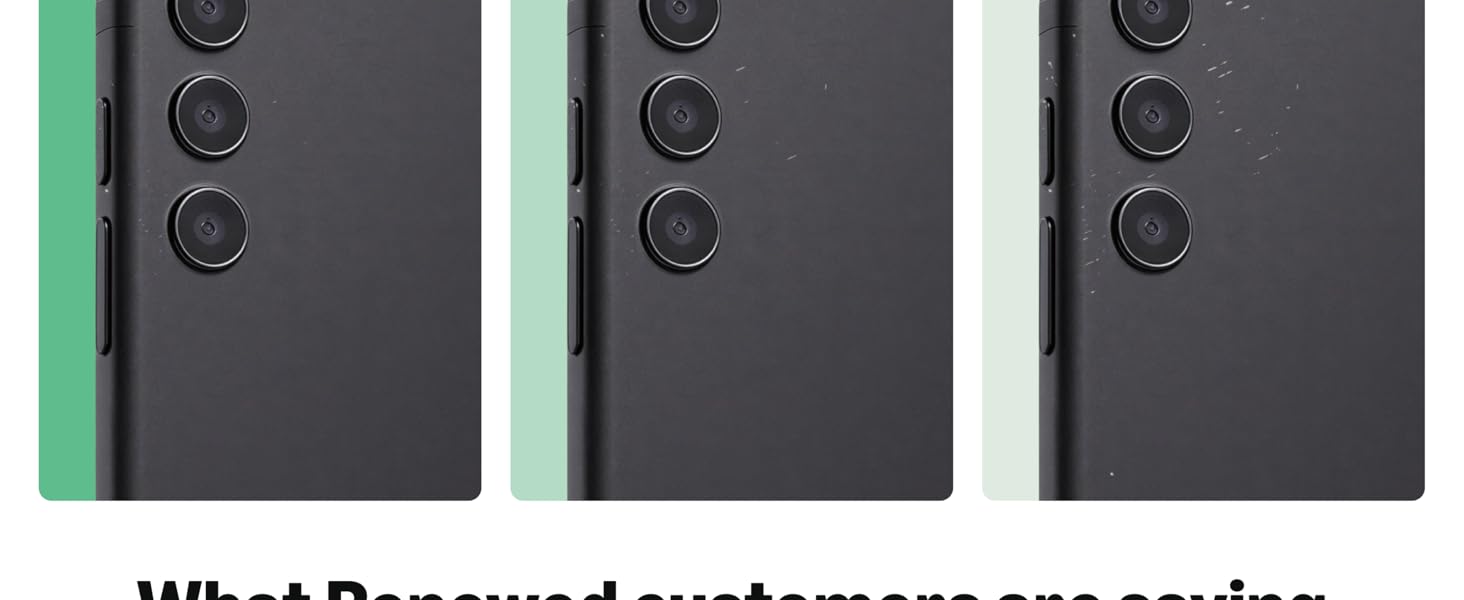
Image: Amazon Renewed conditions for product quality.
8.1 Additional Product Information
Video: A detailed look at the Samsung Galaxy A51, highlighting its display, camera, and overall performance as a mid-range smartphone.


