
1. Introduction
The Avision AV332U is a high-performance duplex sheetfed scanner designed for efficient document processing in business environments. It offers fast scanning speeds of 32 pages per minute (ppm) and 64 images per minute (ipm), making it suitable for various scanning needs.
This scanner is capable of handling a wide range of media, including standard documents, plastic ID cards, business cards, and other heavy card stock up to 1.25 mm thick. Its straight paper path design ensures smooth feeding for paper weights from 27 to 413 g/m² (7 to 110 lb) and sizes up to 8.5” x 14” (legal).
Equipped with ultrasonic multi-feed detection, the AV332U prevents missing pages by accurately identifying and alerting users to instances where multiple sheets are fed simultaneously. With an optical resolution of 600 dpi and advanced image processing technology, the scanner ensures high-quality digital conversions of your documents. The built-in CIS (Contact Image Sensor) module eliminates warm-up time, allowing for immediate operation.
The AV332U features a compact and stylish design with foldable input and output paper trays, which not only save desk space when not in use but also protect the unit from dust. It comes bundled with powerful software applications, including Avision Button Manager, AVScan, and PaperPort, to enhance scanning and document management workflows.
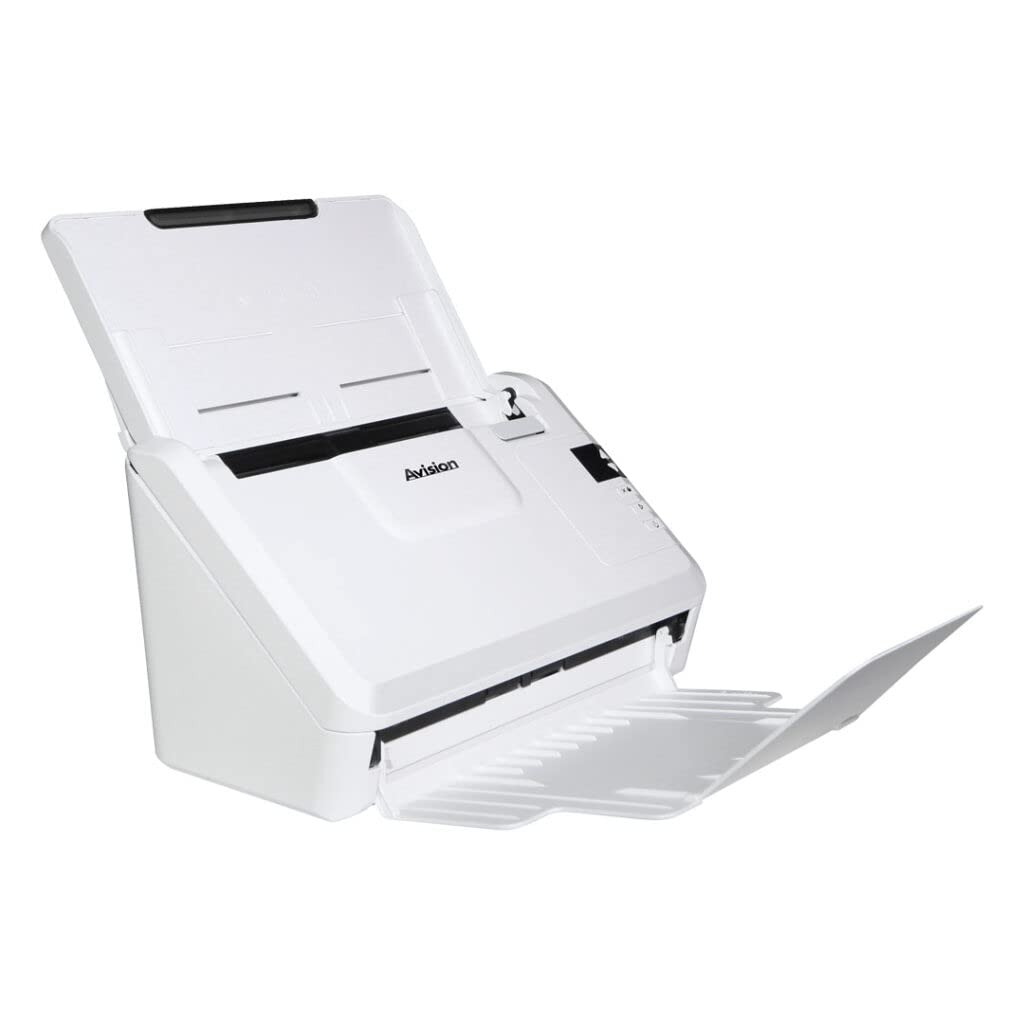
Figure 1.1: Avision AV332U Document Scanner (Trays Closed)
2. Setup Instructions
2.1 Unpacking the Scanner
- Carefully remove the scanner and all accessories from the packaging.
- Verify that all components are present: scanner unit, power adapter, USB cable, and software installation disc (if included).
- Remove any protective films or packing materials from the scanner.
2.2 Connecting the Scanner
- Place the scanner on a stable, flat surface. Ensure adequate space for the input and output trays to extend.
- Connect the power adapter to the scanner's power input port and then plug it into an electrical outlet.
- Connect one end of the USB cable to the scanner's USB port and the other end to an available USB port on your computer.
2.3 Software Installation
The Avision AV332U requires driver and software installation for full functionality. The scanner supports TWAIN and ISIS drivers.
- Insert the provided software installation disc into your computer's optical drive, or download the latest drivers and software from the official Avision support website.
- Follow the on-screen instructions to install the scanner drivers and bundled applications (Avision Button Manager, AVScan, PaperPort).
- Restart your computer after the installation is complete, if prompted.

Figure 2.1: Avision AV332U Document Scanner with Trays Extended
3. Operating Instructions
3.1 Loading Documents
- Extend the input and output paper trays.
- Adjust the paper guides to match the width of your documents.
- Place the documents face down in the input tray, ensuring they are aligned properly. For plastic ID cards or business cards, insert them into the designated slot or follow specific instructions in the software.
- Ensure the stack of documents does not exceed the maximum capacity indicated by the scanner.
3.2 Using the Control Panel
The scanner features a control panel with buttons for quick access to common scanning functions.
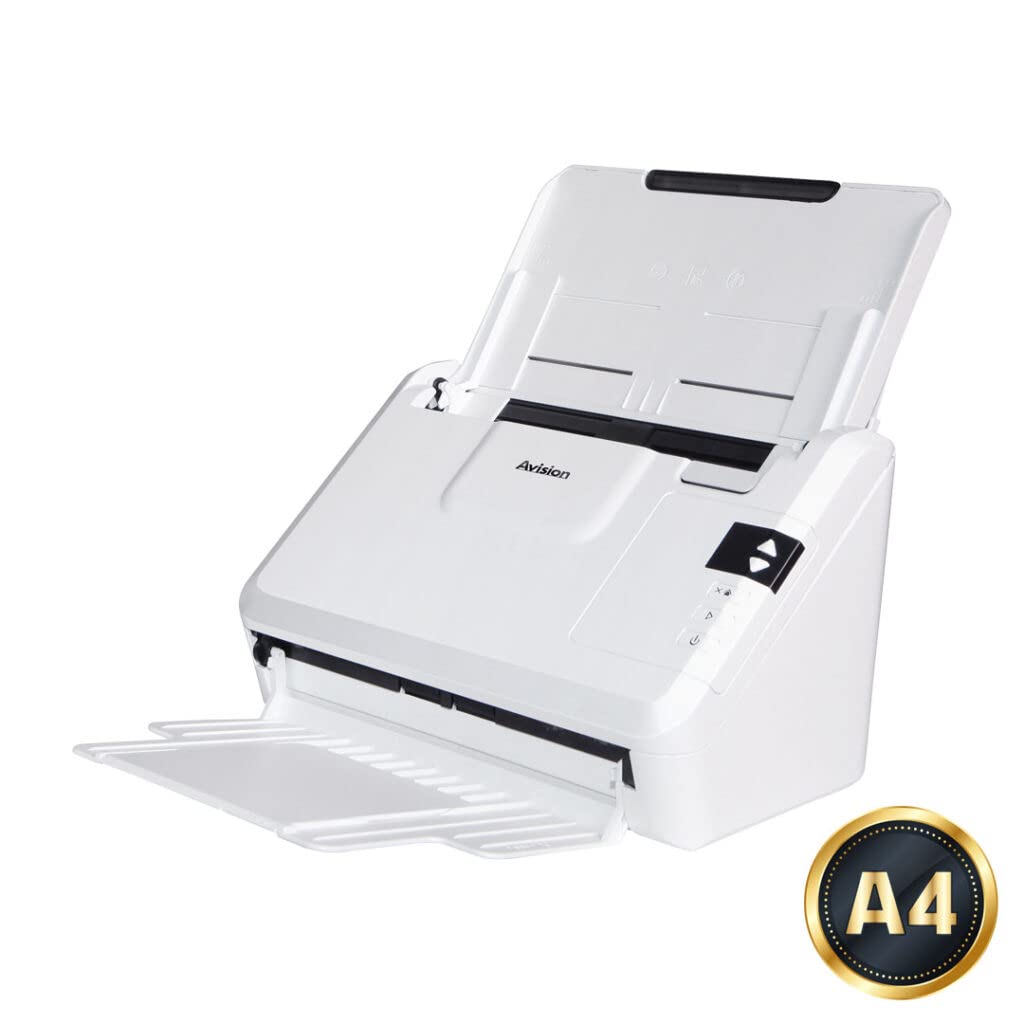
Figure 3.1: Avision AV332U Control Panel
- Power Button: Turns the scanner on or off.
- Scan Button: Initiates a scan using the default or pre-configured settings.
- Function Buttons (e.g., Up/Down arrows, Mode): Used to select different scanning profiles or destinations configured in the Button Manager software.
3.3 Scanning with Button Manager
Avision Button Manager allows you to create custom scanning profiles and assign them to the scanner's function buttons. This enables one-touch scanning to various destinations.
- Open the Avision Button Manager software on your computer.
- Configure a new scan profile or select an existing one. You can set parameters such as scan mode (color, grayscale, black & white), resolution, file format (PDF, JPEG, TIFF), and destination (email, printer, local folder, cloud services like Google Drive or Evernote).
- Assign the profile to a specific function button on the scanner's control panel.
- Load your documents into the scanner.
- Press the assigned function button on the scanner to initiate the scan. The documents will be processed according to the selected profile.
3.4 Using AVScan and PaperPort
AVScan and PaperPort are powerful applications for image processing and document management:
- AVScan: Provides advanced image enhancement features, such as de-skew, auto-crop, blank page removal, and color detection, to optimize scanned images.
- PaperPort: A document management system that helps organize, view, edit, and share scanned documents and other digital files. It includes features for creating searchable PDFs and integrating with various applications.
Refer to the respective software's help documentation for detailed instructions on using these applications.
4. Maintenance
Regular maintenance ensures optimal performance and extends the lifespan of your Avision AV332U scanner.
4.1 Cleaning the Scanner
Dust and paper residue can accumulate inside the scanner, affecting scan quality. Clean the scanner regularly.
- Power Off: Always turn off the scanner and unplug the power adapter before cleaning.
- Exterior Cleaning: Wipe the exterior of the scanner with a soft, lint-free cloth dampened with a mild, non-abrasive cleaner. Avoid using harsh chemicals or solvents.
- Interior Cleaning (CIS and Rollers):
- Open the scanner cover to access the interior.
- Gently wipe the glass surface of the CIS (Contact Image Sensor) module with a clean, soft cloth or a specialized lens cleaning wipe.
- Clean the paper feed rollers with a cloth lightly dampened with isopropyl alcohol. Rotate the rollers manually to clean the entire surface.
- Allow all cleaned parts to dry completely before closing the scanner cover and powering it on.
- Dust Protection: When not in use, fold the input and output paper trays to protect the scanner's internal components from dust accumulation.
4.2 Consumables Replacement
Over time, certain parts like feed rollers may wear out. Refer to the scanner's detailed service manual or contact Avision support for information on replacing consumables.
5. Troubleshooting
This section provides solutions to common issues you might encounter with your Avision AV332U scanner.
| Problem | Possible Cause | Solution |
|---|---|---|
| Scanner does not power on. | Power cable not connected properly; power outlet issue. | Ensure the power adapter is securely connected to the scanner and a working electrical outlet. Try a different outlet. |
| Scanner not detected by computer. | USB cable loose or faulty; drivers not installed or corrupted. | Check USB cable connections. Try a different USB port or cable. Reinstall scanner drivers from the Avision website. |
| Paper jam occurs frequently. | Documents not loaded correctly; worn-out rollers; foreign objects in paper path. | Ensure documents are aligned and within specifications. Clean the paper feed rollers. Remove any debris from the paper path. |
| Poor scan quality (streaks, blurry images). | Dirty CIS glass or rollers; incorrect scan settings. | Clean the CIS glass and paper feed rollers as described in the Maintenance section. Adjust scan resolution and image settings in the software. |
| Multi-feed detection errors. | Dust on ultrasonic sensor; documents stuck together. | Clean the ultrasonic sensor (refer to service manual). Ensure documents are separated before loading. |
If you encounter an issue not listed here or if the suggested solutions do not resolve the problem, please contact Avision customer support for further assistance.
6. Specifications
Below are the technical specifications for the Avision AV332U Document Scanner:
| Feature | Specification |
|---|---|
| Scanner Type | Sheetfed |
| Brand | Avision |
| Model Name | AV332U |
| Connectivity Technology | USB |
| Optical Resolution | 600 dpi |
| Optical Sensor Technology | CIS (Contact Image Sensor) |
| Light Source Type | LED |
| Paper Size Support | Legal (up to 8.5" x 14") |
| Standard Sheet Capacity | 413 g/m² (max paper weight) |
| Item Weight | 2.2 Kilograms |
| Minimum System Requirements | Windows 7 |
| Country of Origin | China |
| Manufacturer | Avision |
7. Warranty and Support
7.1 Warranty Information
For specific warranty terms and conditions applicable to your Avision AV332U scanner, please refer to the warranty card included with your product or the purchase documentation provided by your retailer. Warranty periods and coverage may vary by region and point of purchase.
7.2 Technical Support
If you require technical assistance, have questions about your scanner's operation, or need to report a defect, please contact Avision customer support. You can typically find contact information (phone numbers, email addresses, or support portals) on the official Avision website or in your product's packaging.
When contacting support, please have your scanner's model number (AV332U) and serial number readily available to expedite the service process.


