
Peteme qe-12
Peteme 1080P HD USB Webcam User Manual
Model: qe-12
Introduction
This manual provides comprehensive instructions for the setup, operation, maintenance, and troubleshooting of your Peteme 1080P HD USB Webcam. Please read this manual thoroughly before using the product to ensure optimal performance and longevity.

Image: The Peteme 1080P HD USB Webcam, featuring its sleek black design, integrated microphone, and adjustable mounting clip.
Package Contents
Upon unboxing, please verify that all components are present:
- Peteme 1080P HD USB Webcam
- Mounting Buckle
- USB Cable (integrated)
Setup
Connecting the Webcam
- Unfold the universal mounting clip at the base of the webcam.
- Position the webcam on top of your monitor, laptop screen, or a flat surface. Ensure the clip securely grips the device without obstructing the screen.
- Insert the integrated USB cable into an available USB 2.0 port on your computer.
- The webcam is designed for plug-and-play operation and does not require additional driver installation for most operating systems (Windows, Windows 10, Mac OS, Android).

Image: Illustration showing the USB cable being plugged into a laptop, demonstrating the plug-and-play setup of the webcam.
Initial System Recognition
After connecting, your operating system should automatically detect and install the necessary generic drivers. A notification may appear indicating that the device is ready for use. You can verify the installation in your computer's Device Manager (Windows) or System Information (Mac OS).
Operating Instructions
Using the Webcam with Applications
The Peteme webcam is compatible with a wide range of video conferencing, streaming, and recording applications, including but not limited to Skype, Zoom, YouTube, and other instant messaging applications. To use the webcam:
- Open your preferred video application (e.g., Zoom, Skype).
- Navigate to the application's settings or preferences.
- Locate the "Video" or "Camera" settings.
- Select "Peteme Webcam" (or similar name) as your primary video device.
- For audio, navigate to the "Audio" or "Microphone" settings and select "Peteme Webcam Microphone" (or similar name) as your input device.

Image: A collage demonstrating various uses of the webcam, including recording, conferencing, live streaming, and distance learning.
Key Features
- Full HD 1080P Video: Delivers clear and crystal video at 30 frames per second with a 2-million high-definition image sensor. Features auto-focus and automatic light correction for optimal image quality in various lighting conditions.
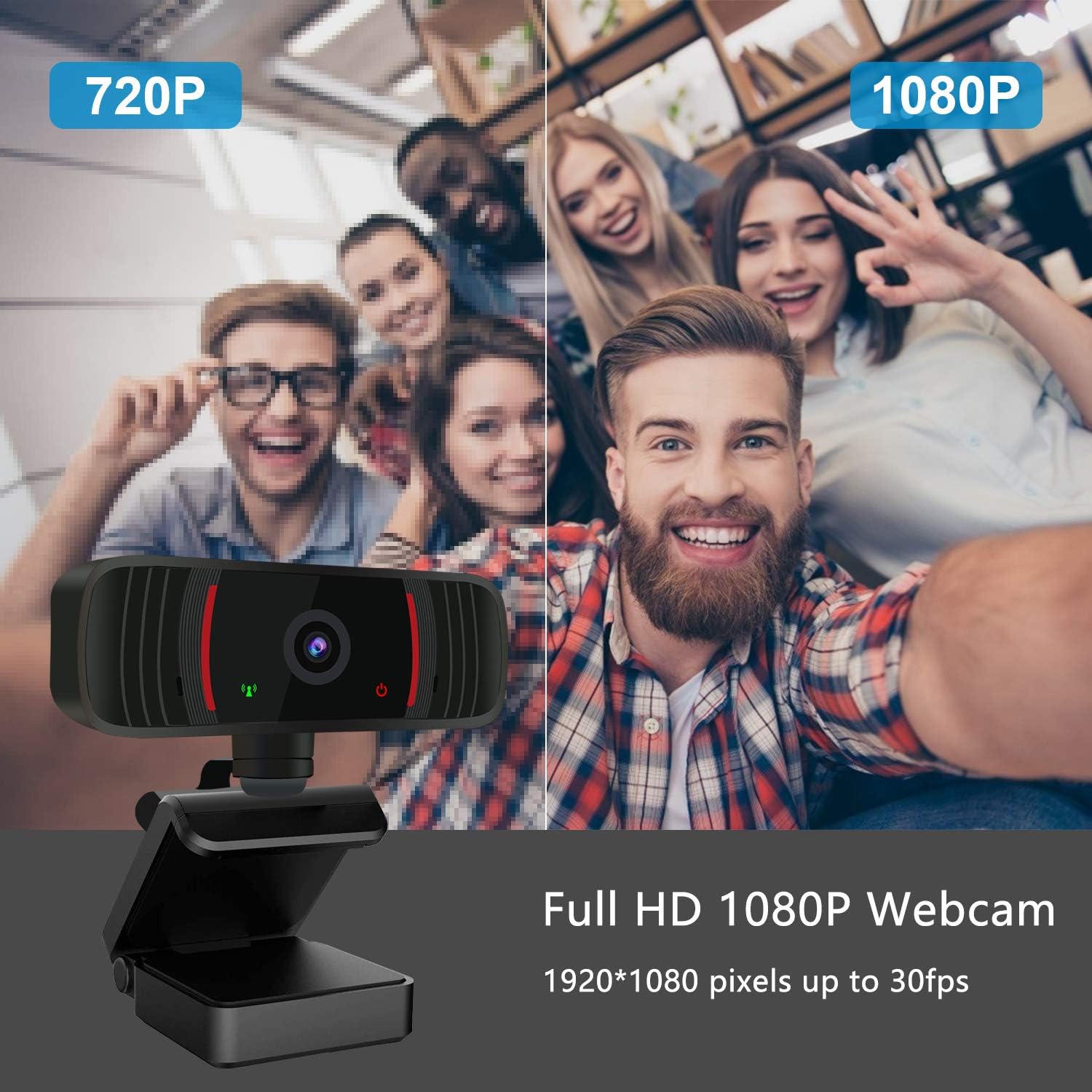
Image: A visual comparison illustrating the superior clarity of 1080P video output from the webcam compared to 720P.
- Built-in Dual Noise-Reducing Microphones: Provides superior stereo audio with automatic noise reduction, ensuring clear and natural sound recording even in noisy environments.

Image: Diagram showing sound waves indicating the built-in stereo microphones and their noise reduction capabilities.
- 110° Wide-Angle Lens: Offers an ultra-wide field of view, ideal for group video calls, presentations, or capturing more of your surroundings.

Image: A meeting room scenario demonstrating the 110-degree wide field of view of the webcam, capturing multiple participants.
- 360° Rotation: The webcam can be rotated 360 degrees on its base, allowing for flexible positioning and angle adjustments.
Maintenance
Proper maintenance ensures the longevity and optimal performance of your Peteme webcam.
- Cleaning the Lens: Gently wipe the webcam lens with a soft, lint-free cloth. For stubborn smudges, use a lens cleaning solution specifically designed for optical surfaces. Avoid abrasive materials or harsh chemicals.
- Cleaning the Body: Use a dry or slightly damp cloth to clean the body of the webcam. Do not immerse the webcam in water or any cleaning liquid.
- Storage: When not in use for extended periods, store the webcam in a cool, dry place away from direct sunlight and extreme temperatures.
- Cable Care: Avoid bending or twisting the USB cable excessively to prevent internal damage.
Troubleshooting
| Problem | Possible Cause | Solution |
|---|---|---|
| Webcam not detected by computer. | Loose USB connection, faulty USB port, driver issue. | Ensure USB cable is firmly connected. Try a different USB port. Restart your computer. Check Device Manager for driver status. |
| No video output in application. | Incorrect camera selection in application settings, privacy settings. | Verify "Peteme Webcam" is selected as the video device in your application's settings. Check operating system privacy settings to ensure camera access is granted to the application. |
| Poor image quality (blurry, dark). | Dirty lens, insufficient lighting, application settings. | Clean the webcam lens. Ensure adequate lighting in your environment. Check application video settings for brightness/contrast adjustments. |
| Microphone not picking up sound. | Incorrect microphone selection, muted microphone, volume settings. | Verify "Peteme Webcam Microphone" is selected as the audio input device in your application and system sound settings. Ensure the microphone is not muted. Adjust input volume levels. |
Specifications
| Feature | Detail |
|---|---|
| Model Number | qe-12 |
| Video Capture Resolution | 1080p (Full HD) |
| Photo Sensor Technology | MOS |
| Maximum Aperture | f/2.0 |
| Connectivity Technology | USB 2.0 |
| Built-in Microphone | Dual Noise-Reducing Stereo Microphones |
| Field of View | 110° Wide Angle |
| Special Feature | Automatic Low Light Correction, Auto-focus |
| Color | Black |
| Product Dimensions | 4.53 x 4.25 x 1.61 inches |
| Item Weight | 3.7 ounces |
| Compatibility | Windows, Windows 10, Mac OS, Android |
Warranty and Support
For warranty information and technical support, please refer to the official Peteme website or contact their customer service directly. Contact details are typically provided on the product packaging or on the manufacturer's official online presence.
Manufacturer: Peteme
Website: Visit the Peteme Store on Amazon
Important Safety Information
- Do not attempt to disassemble or modify the webcam. This may void the warranty and could cause damage.
- Keep the webcam away from water, moisture, and extreme temperatures.
- Avoid dropping or subjecting the webcam to strong impacts.
- Use only the provided USB cable for connection.
Official Product Videos
No official product videos from the seller were found for this model in the provided data. Please check the manufacturer's official website or product page for any available video resources.
Ask a question about this manual
Ask about setup, troubleshooting, compatibility, parts, safety, or missing instructions. Manuals+ will review the question and use this page’s manual context to help answer it.