
1. Introduction
Thank you for choosing the MEDION X64060 Party Speaker. This manual provides essential information for the safe and efficient use of your device. Please read it thoroughly before operating the speaker and keep it for future reference.
The MEDION X64060 is a versatile party speaker designed for various entertainment needs, featuring powerful audio output, integrated DJ and karaoke functions, and dynamic light effects.
2. Safety Instructions
- Read all instructions carefully before use.
- Keep the speaker away from water, moisture, and extreme temperatures.
- Do not block ventilation openings.
- Use only the power cord supplied with the device.
- Do not attempt to repair the device yourself. Refer all servicing to qualified personnel.
- Ensure the speaker is placed on a stable, level surface to prevent tipping.
- Avoid prolonged exposure to high volume levels to prevent hearing damage.
3. Package Contents
Please check the package for the following items:
- MEDION X64060 Party Speaker
- 1 x Microphone
- Power Cord
- User Manual (this document)
4. Product Overview
Familiarize yourself with the main components and controls of your MEDION X64060 Party Speaker.

Image: Control Panel Overview
This image displays a close-up of the speaker's top control panel, showing various knobs and buttons for audio adjustments, DJ functions, and input selections.

Image: Speaker Dimensions and Connections
This image illustrates the overall dimensions of the speaker (980mm height, 350mm width, 340mm depth) and highlights the available connection ports: 1x USB, 2x Microphone (6.3 mm), 1x Guitar (6.3 mm), 1x Audio Input (3.5 mm), and 1x Audio Input (RCA).
4.1 Front Panel
- Speakers: Two main speakers with integrated LED lighting.
- Light Effects: Dynamic LED lights that synchronize with music.
4.2 Top Control Panel
- Power Button: To turn the speaker on/off.
- Volume Controls: Main volume, microphone volume (MIC1 VOL, MIC2 VOL), guitar volume (GUITAR VOL), and echo volume (ECHO VOL).
- Equalizer (EQ): 5-band equalizer for sound adjustment.
- Input Selectors: Buttons for Bluetooth, USB, AUX.
- DJ Functions: Cross-fader, scratch wheel, drum pads (HI-HAT, SNARE, BASS DRUM, CYMBAL, TOM1, TOM2), and record function.
- USB Port: For USB playback.
- Microphone Inputs: Two 6.3 mm jack inputs.
- Guitar Input: One 6.3 mm jack input.
- AUX Input: 3.5 mm jack input.
4.3 Rear Panel
- Power Input: For connecting the power cord.
- RCA Audio Input: Additional audio input.
4.4 Mobility Features

Image: Integrated Wheels for Portability
This image shows the back of the speaker, highlighting the integrated wheels at the bottom, designed for easy transport.
- Integrated Wheels: For easy transportation of the speaker.
- Handles: Ergonomic handles for lifting and moving.
5. Setup
5.1 Initial Placement
Place the speaker on a stable, flat surface. Ensure there is adequate ventilation around the unit. Avoid placing it near heat sources or in direct sunlight.
5.2 Power Connection
- Connect the supplied power cord to the power input on the rear of the speaker.
- Plug the other end of the power cord into a suitable wall outlet.
- Press the power button on the top control panel to turn on the speaker. The LED lights will illuminate.
5.3 Connecting a Microphone or Guitar
For karaoke or live instrument performance:
- Plug your microphone(s) into the MIC1 or MIC2 6.3 mm jack inputs on the top panel.
- Plug your guitar into the GUITAR 6.3 mm jack input on the top panel.
- Adjust the respective volume knobs (MIC1 VOL, MIC2 VOL, GUITAR VOL) and ECHO VOL to your preference.
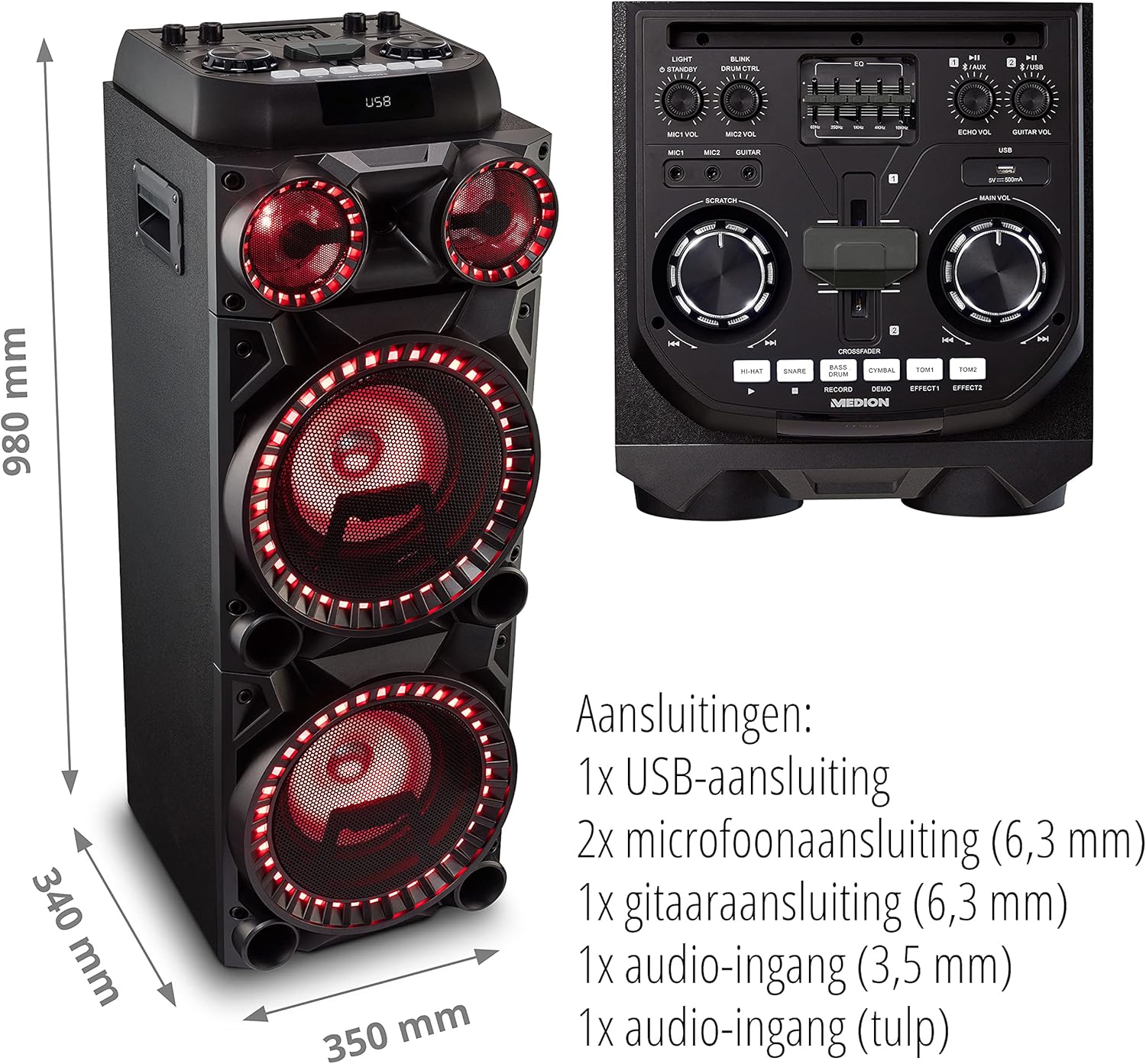
Image: Microphone and Guitar Connection for Karaoke
This image shows individuals enjoying karaoke, demonstrating the use of a microphone connected to the speaker for singing.
6. Operating Instructions
6.1 Bluetooth Connection
- Press the Bluetooth button on the control panel. The Bluetooth indicator will blink.
- Enable Bluetooth on your smartphone, tablet, or other audio device.
- Search for "MEDION X64060" in your device's Bluetooth settings and select it to pair.
- Once connected, the Bluetooth indicator will stop blinking and remain solid. You can now play music wirelessly.

Image: Bluetooth Music Playback
This image shows a smartphone displaying a music application, indicating a wireless Bluetooth connection to the speaker for audio streaming.
6.2 USB Playback
- Insert a USB flash drive containing audio files into the USB port on the top panel.
- Press the USB button to select USB mode.
- The speaker will automatically detect and begin playing audio files from the USB drive. Use the playback controls (play/pause, skip track) on the control panel.
6.3 AUX Input
- Connect an external audio device (e.g., MP3 player, laptop) to the 3.5 mm AUX input or the RCA audio input on the rear panel using an appropriate audio cable (not included).
- Press the AUX button to select AUX mode.
- Play audio from your connected device. The speaker will output the sound.
6.4 DJ Functions
The MEDION X64060 includes various DJ features for creative sound mixing.

Image: DJ Function Controls
This image provides a detailed view of the DJ control section, including the cross-fader, scratch wheel, and various drum pads.
- Cross-fader: Use the cross-fader to smoothly transition between different audio sources or effects.
- Scratch Wheel: Manipulate the scratch wheel for classic DJ scratch effects.
- Drum Pads: Press the HI-HAT, SNARE, BASS DRUM, CYMBAL, TOM1, and TOM2 pads to add drum sound effects to your music.
- Record Function: Use the RECORD button to record your drum pad sequences.
6.5 Karaoke Function
Connect a microphone as described in section 5.3. Play your chosen karaoke track via Bluetooth, USB, or AUX. Adjust the microphone and echo volumes for the desired effect.
6.6 Light Effects
The speaker features dynamic LED light effects that respond to the music. These lights automatically activate when the speaker is on. There may be a dedicated button (e.g., "LIGHT" or "BLINK") to control or cycle through different light modes, refer to the control panel for specific options.

Image: Dynamic Blue Light Effects
This image showcases the speaker with its blue LED lights illuminated, demonstrating the atmospheric light effects.

Image: Dynamic Red Light Effects
This image shows the speaker with its red LED lights illuminated, highlighting another color option for the atmospheric light effects.
7. Maintenance
7.1 Cleaning
- Always unplug the speaker from the power outlet before cleaning.
- Use a soft, dry cloth to wipe the exterior surfaces.
- Do not use liquid cleaners, aerosols, or abrasive materials, as these can damage the finish or internal components.
7.2 Storage
When not in use for extended periods, store the speaker in a cool, dry place, away from direct sunlight and extreme temperatures. Cover the unit to protect it from dust.
8. Troubleshooting
| Problem | Possible Cause | Solution |
|---|---|---|
| No power | Power cord not connected properly; Power outlet not working. | Ensure the power cord is securely plugged into both the speaker and a working wall outlet. Test the outlet with another device. |
| No sound | Volume too low; Incorrect input selected; Device not paired (Bluetooth); Cable not connected (AUX/Guitar/Mic). | Increase the main volume and individual input volumes. Select the correct input source (Bluetooth, USB, AUX). Re-pair Bluetooth device. Check all cable connections. |
| Bluetooth connection fails | Speaker not in pairing mode; Device too far; Interference. | Ensure the speaker is in Bluetooth pairing mode (blinking indicator). Move your device closer to the speaker. Avoid obstacles and other wireless devices. |
| Microphone/Guitar not working | Volume too low; Cable faulty; Incorrect input. | Increase MIC/GUITAR VOL. Check microphone/guitar cable. Ensure the instrument is properly connected. |
9. Specifications
| Brand | MEDION |
| Model Number | X64060 | MD44060 |
| Output Power | 2 x 100 W RMS (2 x 1000 W max. music output power) |
| Connectivity Technology | Bluetooth 5.0, USB, AUX (3.5mm, RCA) |
| Audio Inputs | 2 x Microphone (6.3 mm), 1 x Guitar (6.3 mm), 1 x AUX (3.5 mm), 1 x RCA |
| Equalizer | 5-band |
| Color | Black |
| Material | Plastic |
| Product Dimensions (L x W x H) | 38.8 x 35 x 101 cm |
| Item Weight | 15 kg |
| Mounting Type | Floor Standing |
| Power Source | Corded Electric |
| Compatible Devices | Laptop, Smartphone |
10. Warranty and Support
For warranty information and technical support, please refer to the warranty card included with your product or visit the official MEDION website. Keep your proof of purchase for any warranty claims.
MEDION Customer Service: For assistance, please contact MEDION customer support through their official channels. Contact details can typically be found on the MEDION website or in the product packaging.


