
NOVOO NVHUB1R7PDNS-USEU
NOVOO USB C Hub Multiport Adapter User Manual
Model: NVHUB1R7PDNS-USEU
1. Introduction
Thank you for choosing the NOVOO 7-in-1 USB C Hub Multiport Adapter. This device is designed to expand the connectivity of your USB-C enabled laptop, tablet, or smartphone, providing essential ports for various peripherals and external displays. This manual provides detailed instructions for setup, operation, and maintenance to ensure optimal performance and longevity of your adapter.

Image: The NOVOO 7-in-1 USB C Hub, showcasing its compact design and multiple ports, surrounded by various compatible devices like USB drives, an HDMI cable, and an Ethernet cable.
2. Product Overview
The NOVOO 7-in-1 USB C Hub is a versatile accessory that transforms a single USB-C port into seven essential connections. It features a durable aluminum alloy casing for efficient heat dissipation and portability.
Key Features:
- 4K HDMI Output: Connect to external monitors, projectors, or HDTVs for stunning 4K@60Hz video.
- Gigabit Ethernet: Enjoy stable and high-speed wired internet connections up to 1000Mbps.
- 100W Power Delivery (PD) Charging: Power your laptop while using the hub, supporting up to 100W pass-through charging.
- USB 3.0 Ports (x3): Transfer data at speeds up to 5Gbps, ideal for external hard drives, flash drives, and other USB peripherals.
- USB 2.0 Port (x1): Suitable for connecting devices like keyboards, mice, or other low-bandwidth peripherals.

Image: A detailed diagram illustrating the NOVOO 7-in-1 USB C Hub, highlighting each port (HDMI, Ethernet, USB 3.0, USB 2.0, PD 100W) and its respective speed or function.
3. Setup Instructions
The NOVOO USB C Hub is designed for plug-and-play functionality, requiring no driver installation for most operating systems. Follow these steps for initial setup:
- Verify USB-C Port Compatibility: Ensure your host device's USB-C port supports Power Delivery, DisplayPort Alternate Mode (Alt Mode), and data transfer. Not all USB-C ports are full-function.
- Connect the Hub: Plug the USB-C connector of the NOVOO hub firmly into an available USB-C port on your laptop, tablet, or smartphone.
- Connect Peripherals:
- HDMI Display: Connect an HDMI cable from your monitor/TV to the hub's HDMI port.
- Ethernet Cable: Plug an Ethernet cable from your router/modem into the hub's RJ45 Ethernet port.
- USB Devices: Connect your USB-A peripherals (e.g., flash drives, external hard drives, mouse, keyboard) to the USB 3.0 or USB 2.0 ports.
- Power Delivery: If your device requires charging, connect your original USB-C power adapter to the hub's USB-C PD port.
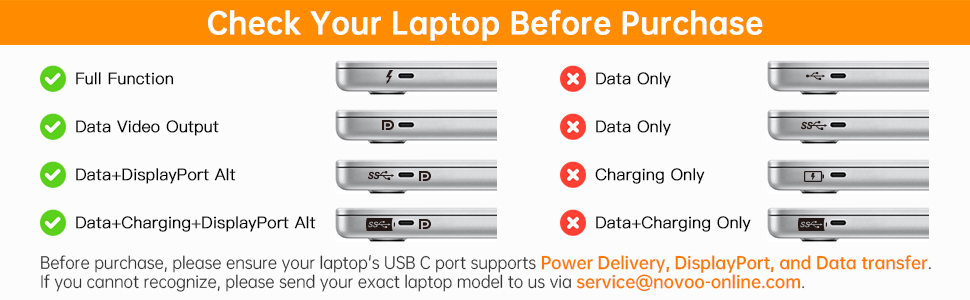
Image: A NOVOO 7-in-1 USB C Hub connected to a laptop, demonstrating simultaneous connections to an external monitor, an Ethernet cable, and various USB devices, maximizing the laptop's potential.
4. Operating Instructions
4.1 HDMI Display Output
The HDMI port supports resolutions up to 4K (3840x2160) at 60Hz, provided your host device's USB-C port supports DisplayPort 1.4. For optimal performance, ensure your display and HDMI cable also support 4K@60Hz.
- Mirror Mode: Duplicate your laptop's screen onto the external display.
- Extend Mode: Extend your desktop across multiple screens for increased workspace.

Image: Two individuals viewing a large, vibrant display showing high-resolution content, connected to a laptop via the NOVOO USB C Hub, illustrating 4K@60Hz clarity.
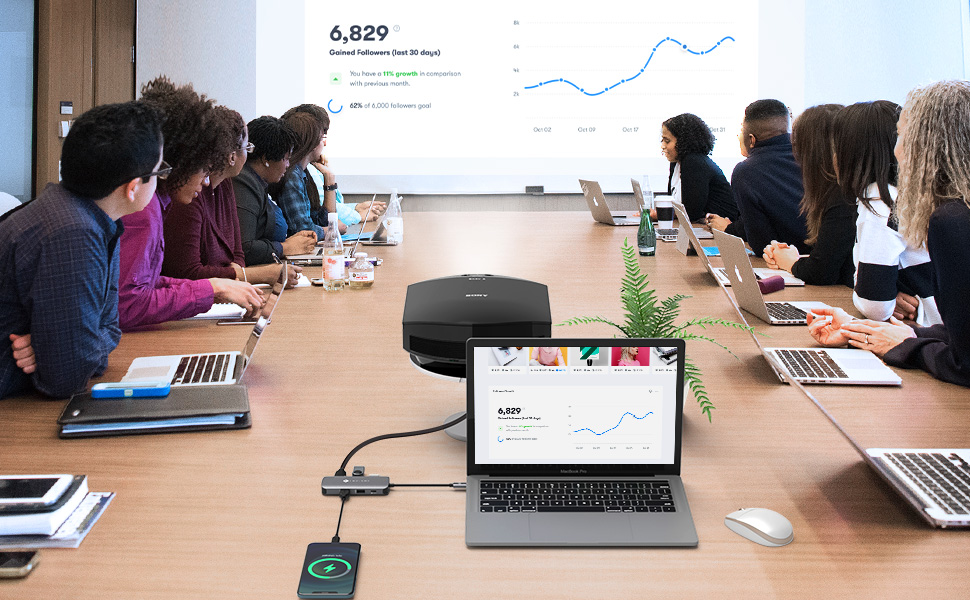
Image: A laptop connected to an external monitor, displaying different content on each screen, demonstrating the 'Extend Mode' functionality of the hub.
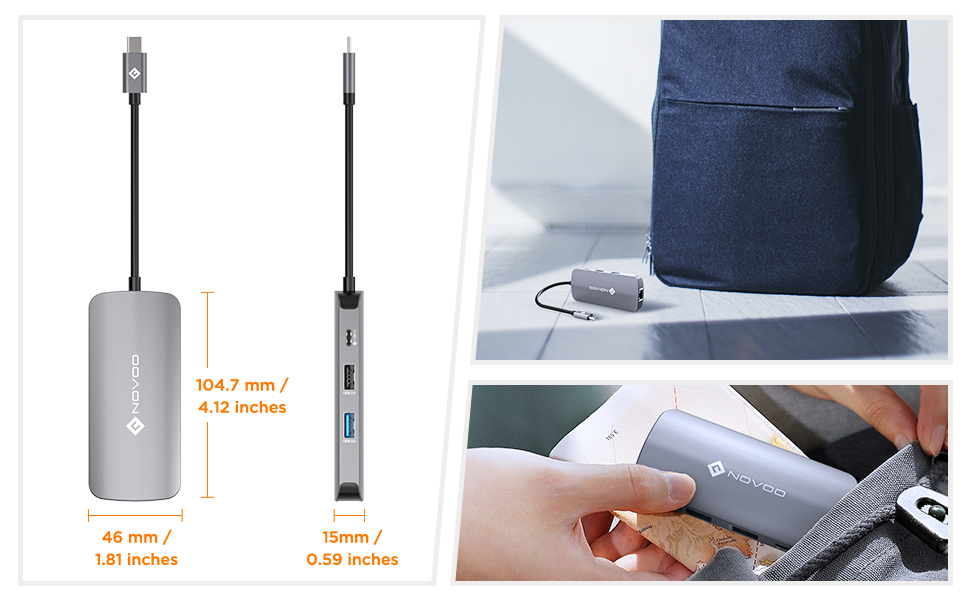
Image: A laptop connected to an external monitor, displaying the same content on both screens, demonstrating the 'Mirror Mode' functionality of the hub.
4.2 Gigabit Ethernet Connection
The RJ45 Ethernet port provides a stable and fast wired network connection, supporting speeds of 10/100/1000Mbps. This is ideal for situations where Wi-Fi is unreliable or slower.

Image: The NOVOO USB C Hub connected to a laptop, with an Ethernet cable plugged into its RJ45 port, illustrating high-speed wired internet connectivity.
4.3 USB Data Transfer
The hub includes three USB 3.0 ports and one USB 2.0 port. USB 3.0 ports offer data transfer speeds up to 5Gbps, significantly faster than USB 2.0 (480Mbps), making them suitable for large file transfers and high-bandwidth devices.

Image: The NOVOO USB C Hub connected to a laptop, with various USB devices such as flash drives and external storage connected, simplifying device connections.
4.4 Power Delivery (PD) Charging
The USB-C PD port allows you to charge your host device while using the hub. Connect your original power adapter to this port. The hub supports up to 100W pass-through charging, ensuring sufficient power for your laptop and connected peripherals.

Image: The NOVOO USB C Hub connected to a laptop, with a power adapter plugged into the hub's PD port, demonstrating 100W power delivery for charging the laptop.
5. Maintenance
To ensure the longevity and optimal performance of your NOVOO USB C Hub, follow these maintenance guidelines:
- Cleaning: Use a soft, dry cloth to clean the hub. Avoid liquid cleaners or abrasive materials.
- Storage: Store the hub in a cool, dry place away from direct sunlight and extreme temperatures.
- Handling: Avoid dropping the hub or subjecting it to strong impacts. Do not bend the integrated USB-C cable excessively.
- Disconnection: Always grasp the plug, not the cable, when disconnecting the hub or any connected peripherals.
6. Troubleshooting
If you encounter issues with your NOVOO USB C Hub, please refer to the following common problems and solutions:
| Problem | Possible Cause | Solution |
|---|---|---|
| No display output via HDMI. | Host USB-C port does not support DisplayPort Alt Mode; incorrect display settings; faulty cable. | Ensure your laptop's USB-C port supports video output. Check display settings on your computer (e.g., Extend/Mirror). Try a different HDMI cable. Ensure the external display is on and set to the correct input. |
| Ethernet connection is unstable or not working. | Loose cable connection; network driver issue; router problem. | Ensure the Ethernet cable is securely connected to both the hub and your router/modem. Restart your router. Check your computer's network settings and drivers. |
| USB devices are not recognized. | Insufficient power; driver issue; faulty device. | If connecting power-hungry devices, ensure the hub is connected to a power source via the PD port. Try connecting the USB device directly to your computer to verify functionality. Update USB drivers on your computer. |
| Laptop is not charging via PD port. | Host USB-C port does not support Power Delivery; power adapter issue; insufficient wattage. | Verify your laptop's USB-C port supports Power Delivery. Ensure your power adapter is connected to the hub's PD port and is functioning correctly. Use a power adapter with sufficient wattage for your laptop (e.g., 65W or 100W). |
| Hub feels warm during use. | Normal operation, especially under heavy load. | The aluminum casing is designed to dissipate heat. This is normal. If it becomes excessively hot to touch, disconnect it and contact support. |
7. Specifications
| Feature | Detail |
|---|---|
| Model Number | NVHUB1R7PDNS-USEU |
| Ports | 1x HDMI (4K@60Hz), 1x Gigabit Ethernet (RJ45), 3x USB 3.0, 1x USB 2.0, 1x USB-C PD (100W) |
| HDMI Resolution | Up to 4K (3840x2160) @ 60Hz (requires DP1.4 support from host) |
| Ethernet Speed | 10/100/1000Mbps |
| USB 3.0 Data Transfer | Up to 5Gbps |
| USB 2.0 Data Transfer | Up to 480Mbps |
| Power Delivery | Up to 100W (pass-through) |
| Material | Aluminum Alloy |
| Dimensions (LxWxH) | 4.13 x 1.81 x 0.59 inches (104.7 x 46 x 15 mm) |
| Weight | 2.4 ounces (68g) |
| Compatible Operating Systems | macOS 10.15 Catalina and above, Linux, Windows XP/7/10/11 |
| Compatible Devices | M1/M2 MacBook Pro/Air, Dell, HP, Lenovo, ASUS, Surface, iPad Pro, iMac, Galaxy, HUAWEI Mate 10/P20, and other USB-C enabled devices with full-function ports. |

Image: A visual representation of the NOVOO USB C Hub's wide compatibility, showing various devices like MacBook Pro, MacBook Air, iPad Pro, XPS, iMac, and Galaxy phones, along with compatible external displays like projectors, monitors, and HDTVs.
8. Warranty and Support
NOVOO products are backed by a standard manufacturer's warranty. For specific warranty terms and conditions, please refer to the warranty card included with your product or visit the official NOVOO website.
Customer Support:
If you have any questions, require technical assistance, or need to report an issue, please contact NOVOO customer support:
- Email: service@novoo-online.com
- Website: NOVOO Official Store on Amazon
Please have your product model number (NVHUB1R7PDNS-USEU) and purchase information ready when contacting support.
Related documentsNVHUB1R7PDNS-USEU


Ask a question about this manual
Ask about setup, troubleshooting, compatibility, parts, safety, or missing instructions. Manuals+ will review the question and use this page’s manual context to help answer it.