
Seenda WJK70BT4
Seenda Bluetooth Keyboard User Manual
Model: WJK70BT4
Introduction
Thank you for choosing the Seenda Bluetooth Keyboard. This manual provides detailed instructions for setting up, operating, and maintaining your keyboard to ensure optimal performance and longevity. Please read this manual thoroughly before using the product.

Image: The Seenda Bluetooth Keyboard, showcasing its full UK layout and vibrant green LED backlighting.
Package Contents
- Seenda Bluetooth Keyboard (Model WJK70BT4)
- USB-A to USB-C Charging Cable
- User Manual
Setup
1. Charging the Keyboard
Before first use, fully charge the keyboard. Connect the provided USB-A to USB-C charging cable to the keyboard's USB-C port and the other end to a USB power source (e.g., computer USB port, power bank, or standard USB charger).
- A full charge takes approximately 3 hours.
- The battery indicator light will change to indicate charging status (refer to LED indicator section for details).
- A full charge provides up to 10 days of use with backlighting on, or 30 days with backlighting off.
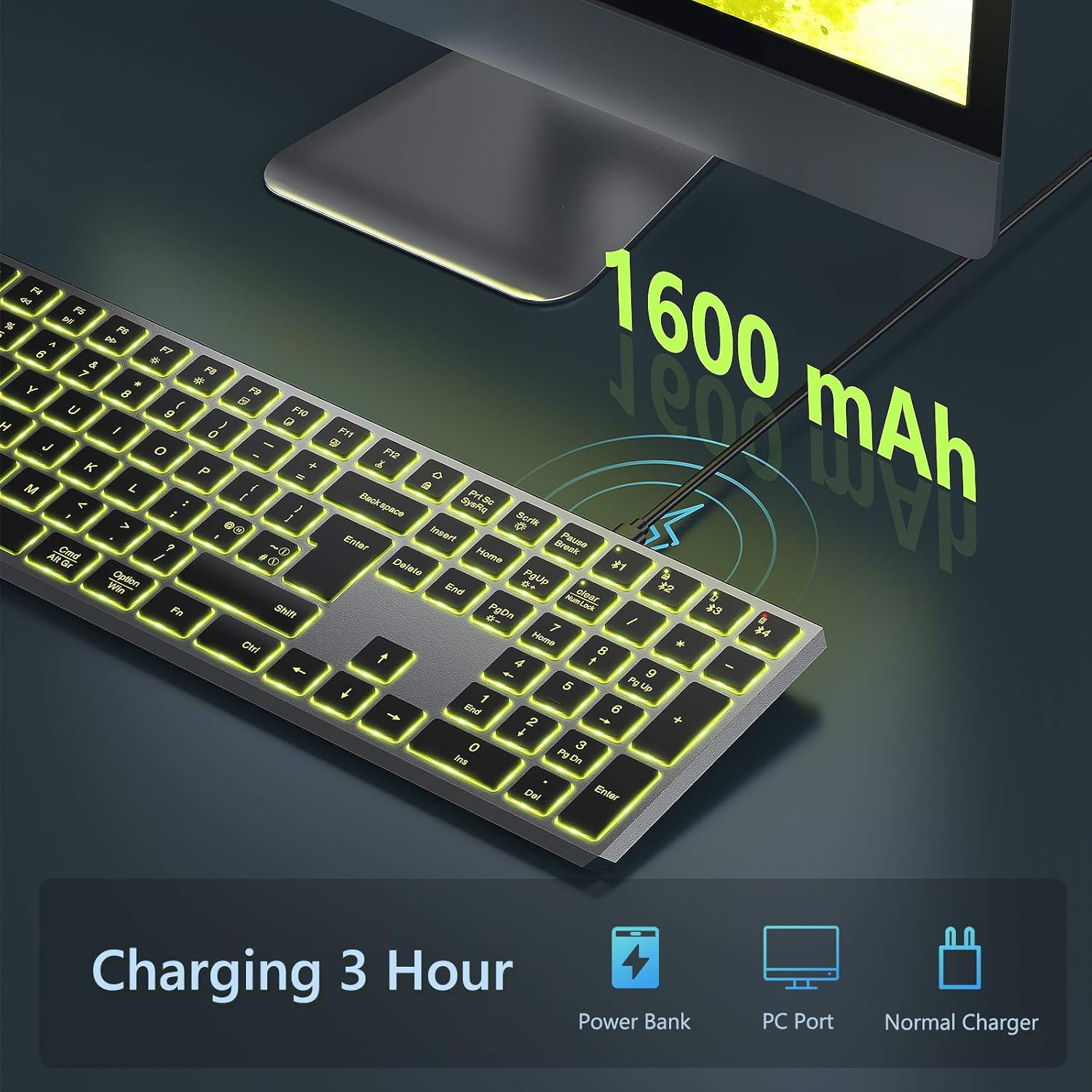
Image: The keyboard being charged via its USB-C port, highlighting its 1600mAh battery capacity and various charging methods.
2. Pairing with Devices (Bluetooth 5.1)
The Seenda keyboard supports connection to up to four different devices simultaneously via Bluetooth. You can switch between connected devices easily.
- Ensure the keyboard is charged and powered on.
- Press and hold the Fn key along with one of the Bluetooth channel keys (BT1, BT2, BT3, or BT4) for 3-5 seconds until the corresponding indicator light flashes rapidly. This indicates the keyboard is in pairing mode.
- On your device (e.g., computer, tablet, smartphone), enable Bluetooth and search for new devices.
- Select "Seenda Keyboard" or a similar name from the list of available devices.
- Follow any on-screen prompts to complete the pairing process. The indicator light on the keyboard will stop flashing and remain solid for a few seconds, then turn off, indicating successful connection.
To switch between paired devices, simply press the Fn key along with the desired Bluetooth channel key (BT1, BT2, BT3, or BT4) once. The keyboard will automatically connect to the previously paired device on that channel.

Image: A close-up view of the numeric keypad, showing the dedicated Bluetooth channel keys (BT1, BT2, BT3, BT4) for multi-device pairing.
Operating Instructions
1. Power On/Off
Locate the power switch on the keyboard (usually on the side or back). Slide it to the "ON" position to power on and "OFF" to power off.
2. Backlight Control
The keyboard features 7-color LED backlighting with adjustable brightness levels.
- To change backlight color: Press Fn + Scrlk. Repeat to cycle through the 7 available colors.
- To adjust brightness: Press Fn + PgUp to increase brightness (3 levels). Press Fn + PgDn to decrease brightness or turn off the backlight.

Image: Illustration of the keyboard's 7-color backlight feature and the key combinations (Fn + Scrlk, Fn + PgUp/PgDn) used to switch colors and adjust brightness.
3. Function Keys (F-Keys)
The top row of keys (F1-F12) provides multimedia and system control functions when used in combination with the Fn key.
| Key Combination | Function |
|---|---|
| Fn + F1 | Mute Audio |
| Fn + F2 | Volume Down |
| Fn + F3 | Volume Up |
| Fn + F4 | Previous Track |
| Fn + F5 | Play/Pause |
| Fn + F6 | Next Track |
| Fn + F7 | Brightness Down |
| Fn + F8 | Brightness Up |
| Fn + F9 | Select All |
| Fn + F10 | Copy |
| Fn + F11 | Paste |
| Fn + F12 | Cut |

Image: A visual guide to the keyboard's function keys (F1-F12) and their corresponding actions, along with the dual Windows/Mac layout for Command/Option keys.
4. Operating System Compatibility
The keyboard is designed for broad compatibility across various operating systems. It supports Windows, macOS, Chrome OS, and Android devices.
- For Windows/Android: The Cmd/Alt Gr key functions as Alt, and the Option/Win key functions as Windows key.
- For Mac/iPad: The Cmd/Alt Gr key functions as Option, and the Option/Win key functions as Command.
The keyboard features a standard UK QWERTY layout with a numeric keypad for efficient data entry.
Maintenance
- Cleaning: Use a soft, dry cloth to wipe the keyboard surface. For stubborn dirt, slightly dampen the cloth with water or a mild cleaning solution. Avoid excessive moisture. Do not spray cleaners directly onto the keyboard.
- Storage: Store the keyboard in a cool, dry place away from direct sunlight and extreme temperatures.
- Battery Care: To prolong battery life, avoid fully discharging the keyboard frequently. Charge it when the low battery indicator appears. If storing for a long period, charge the battery to about 50% every few months.
- Handling: Avoid dropping the keyboard or subjecting it to strong impacts. Do not attempt to disassemble the keyboard, as this will void the warranty.
Troubleshooting
| Problem | Possible Cause | Solution |
|---|---|---|
| Keyboard not connecting/pairing. | Low battery; Bluetooth off on device; Keyboard not in pairing mode; Interference; Previously paired device conflict. | Charge the keyboard. Ensure Bluetooth is enabled on your device. Put keyboard into pairing mode (Fn + BT1/2/3/4 for 3-5s). Move closer to the device. Remove previous keyboard pairings from your device's Bluetooth settings and try again. |
| Keys not responding or delayed input. | Low battery; Bluetooth connection unstable; Keyboard in sleep mode. | Charge the keyboard. Re-establish Bluetooth connection. Press any key to wake the keyboard from sleep mode. Ensure no physical obstructions under keys. |
| Backlight not working or dim. | Backlight turned off; Low battery. | Press Fn + PgUp to increase brightness. Charge the keyboard. |
| Cannot switch between devices. | Device not paired to selected channel; Incorrect key combination. | Ensure the desired device is paired to the specific BT channel (BT1-BT4). Press Fn + BT1/2/3/4 once to switch. |
Specifications
| Feature | Detail |
|---|---|
| Model Number | WJK70BT4 |
| Connectivity | Bluetooth 5.1 |
| Layout | UK QWERTY, Full Size with Numeric Keypad |
| Backlight | 7-Color LED, 3 Brightness Levels |
| Battery Capacity | 1600mAh Lithium Polymer |
| Charging Port | USB-C |
| Dimensions (L x W x H) | 42 x 12 x 1.7 cm (approx. 430mm x 125mm x 15mm) |
| Weight | 500 g |
| Compatible OS | Windows, macOS, Chrome OS, Android |
| Key Type | Scissor-Switch |

Image: The keyboard with overlaid measurements, illustrating its full size UK layout and slim profile (430mm length, 125mm width, 15mm height).
Warranty and Support
Seenda provides reliable warranty service for this product. For specific warranty terms and conditions, please refer to the documentation included with your purchase or contact Seenda customer support directly.
If you encounter any issues or have questions regarding your Seenda Bluetooth Keyboard, please contact our customer support team for assistance. Contact information can typically be found on the Seenda official website or on the product packaging.
Related documentsWJK70BT4


Ask a question about this manual
Ask about setup, troubleshooting, compatibility, parts, safety, or missing instructions. Manuals+ will review the question and use this page’s manual context to help answer it.