
1. Setup
1.1 Unpacking and Initial Inspection
Carefully remove all components from the packaging. Ensure all items listed in the 'What's in the Box' section are present and undamaged. If any items are missing or damaged, contact Dell support.
What's in the Box:
- Latitude 3520 Laptop
- AC Adapter
- E4 US Power Cord
- Documentation/Disks: Safety/Environment and Regulatory Guide (English/French Multi-language)
- Quick Start Guide for 3520
1.2 Connecting the Power Adapter
Connect the AC adapter to the power connector on your laptop and then plug the power cord into an electrical outlet. The battery will begin charging automatically.

Image: Right side of the Dell Latitude 3520, illustrating the power input port and other connectivity options.
1.3 Initial Power On
Open the laptop lid and press the power button located on the top-right of the keyboard. The laptop will boot up and guide you through the initial Windows 10 Pro setup process. Follow the on-screen instructions to configure your operating system, network connection, and user accounts.
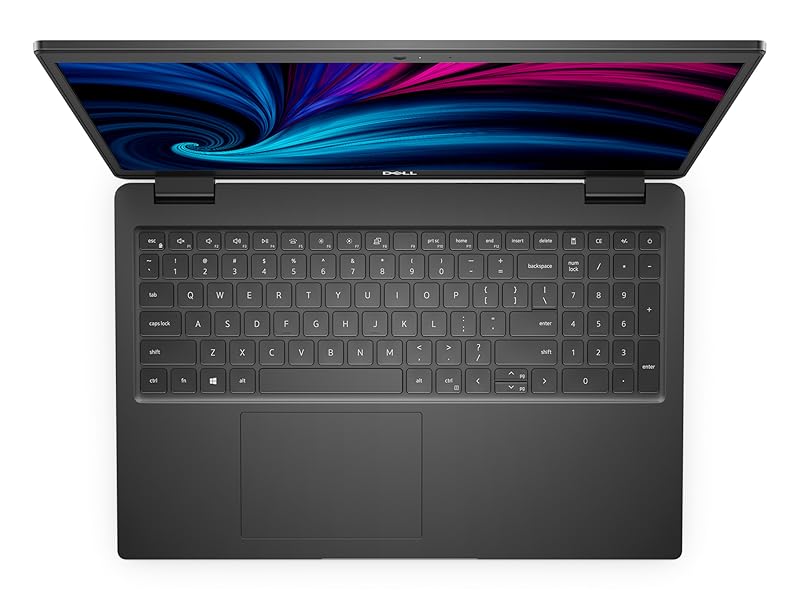
Image: Dell Latitude 3520 keyboard layout, including the power button.
2. Operating Instructions
2.1 Using the Keyboard and Touchpad
The Dell Latitude 3520 features a full-size multimedia keyboard and a precision touchpad. Use the touchpad for navigation and gestures. Refer to the Windows operating system documentation for specific touchpad gesture controls.
2.2 Connecting External Devices
Your laptop supports various external devices including displays, mice, keyboards, storage devices, and printers. Utilize the available ports for connectivity.
Available Ports:
- USB Ports (Total 4)
- HDMI Port
- Ethernet Port
- SD Card Reader
- Audio Jack
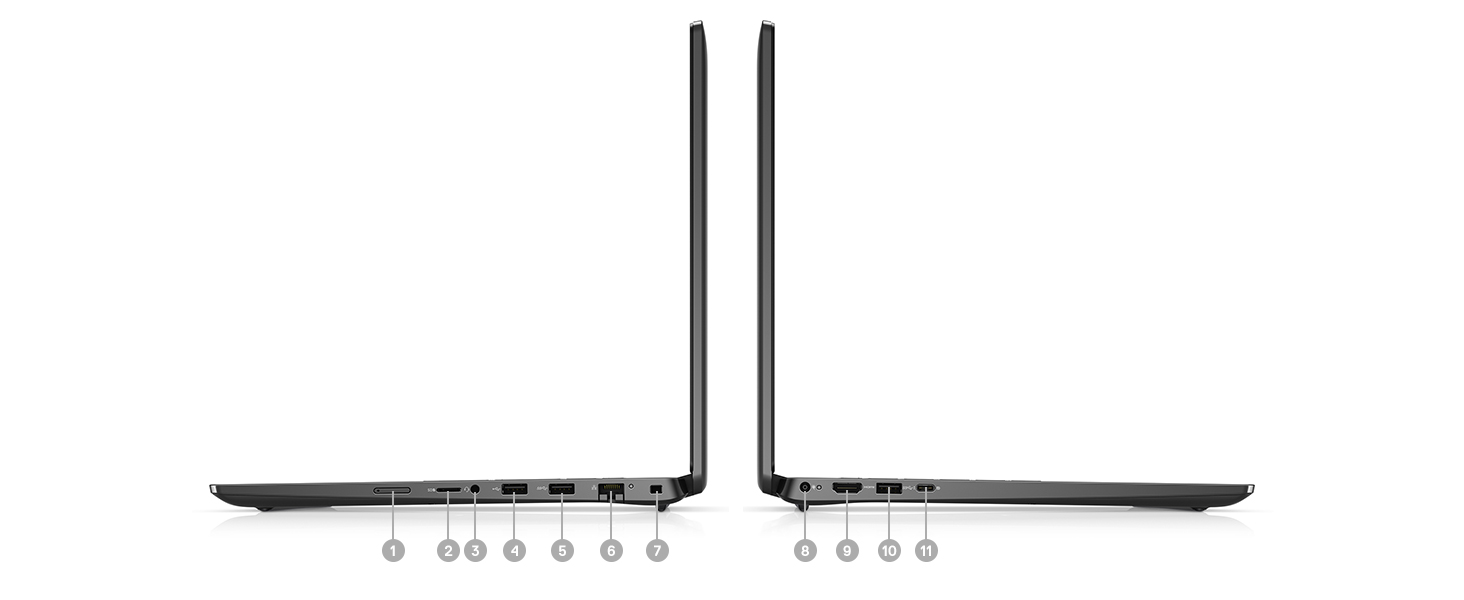
Image: Detailed diagram of the Dell Latitude 3520's ports and slots for connecting peripherals.
2.3 Wireless Connectivity
The laptop supports Wi-Fi 6 (802.11ax) and Bluetooth for wireless connections. To connect to a Wi-Fi network, click the network icon in the taskbar and select your desired network. For Bluetooth devices, enable Bluetooth in Windows settings and pair your device.
2.4 Display Features
The 15.6-inch Full HD (1920 x 1080) display features an anti-glare coating to reduce reflections and improve viewing comfort, especially in brightly lit environments.
3. Maintenance
3.1 Cleaning Your Laptop
- Screen: Use a soft, lint-free cloth lightly dampened with water or a screen cleaner. Do not spray liquid directly onto the screen.
- Keyboard and Chassis: Use a soft cloth. For stubborn dirt, a slightly damp cloth with mild soap solution can be used, ensuring no liquid enters openings.
- Vents: Periodically clean the air vents to prevent dust buildup, which can affect cooling performance. Use compressed air to gently clear dust.

Image: Underside of the Dell Latitude 3520, highlighting the ventilation grilles for proper airflow.
3.2 Battery Care
The laptop is equipped with a Lithium Ion battery. To maximize battery lifespan:
- Avoid extreme temperatures.
- Do not fully discharge the battery frequently.
- If storing the laptop for an extended period, ensure the battery is charged to approximately 50%.
4. Troubleshooting
This section provides solutions to common issues you might encounter.
4.1 Power Issues
- Laptop does not turn on: Ensure the AC adapter is securely connected to both the laptop and a working power outlet. Check the power indicator light. If the battery is completely drained, it may take a few minutes of charging before the laptop can power on.
- Laptop shuts down unexpectedly: Check for overheating. Ensure vents are clear and the laptop is on a hard, flat surface. Update drivers and BIOS.
4.2 Display Issues
- No display on screen: Connect an external monitor to verify if the issue is with the laptop's internal display. Try adjusting screen brightness.
- Flickering or distorted display: Update graphics drivers. Check display cable connections if using an external monitor.
4.3 Performance Issues
- Laptop is slow or unresponsive: Close unnecessary applications. Check Task Manager for processes consuming high CPU or RAM. Ensure sufficient free space on the SSD. Run a system scan for malware.
- Bluetooth audio stuttering: Ensure all drivers, especially Bluetooth and audio drivers, are up to date. Reduce interference by keeping the laptop close to the Bluetooth device.
5. Specifications
| Feature | Specification |
|---|---|
| Brand | Dell |
| Model Name | Latitude 3000 (3520) |
| Processor | Intel Core i5-1135G7 Quad-core (4 Core) 2.40 GHz (11th Gen) |
| RAM | 8 GB DDR4 SDRAM (3200 MHz) |
| Storage | 256 GB SSD (Solid State Drive) |
| Display | 15.6 Inches Full HD (1920 x 1080) LCD, Anti Glare Coating |
| Graphics | Intel Iris Xe Graphics |
| Operating System | Windows 10 Pro |
| Connectivity | Wi-Fi 6 (802.11ax), Bluetooth, Ethernet |
| Ports | 4x USB, 1x HDMI, Audio Jack, SD Card Reader |
| Webcam | Yes (Front) |
| Battery | Lithium Ion, 54 Watt Hours, up to 10 Hours Life |
| Dimensions (L x W x Thickness) | 9.5"L x 14.2"W x 0.71"Th |
| Weight | 3.95 Pounds |
6. Warranty Information
The Dell Latitude 3520 laptop comes with a 1 Year Limited Hardware Warranty. This warranty covers defects in materials and workmanship under normal use. For full terms and conditions, please refer to the warranty documentation included with your product or visit the official Dell support website.
7. Support
For further assistance, technical support, or to download the latest drivers and software updates, please visit the official Dell Support website. You will need your product's Service Tag, which can typically be found on a label on the bottom of your laptop or within the system BIOS.
Dell Support Website: www.dell.com/support


