
1. Introduction
This manual provides instructions for the installation, operation, and maintenance of the Luxul SW-100-08P 8-Port Unmanaged PoE+ Switch. This device is designed to expand your network capacity and provide Power over Ethernet (PoE+) to compatible devices such as IP cameras, VoIP phones, and wireless access points, simplifying network deployment by eliminating the need for separate power cables for these devices.
2. Package Contents
Carefully unpack the box and verify that all items are present and in good condition. If any item is missing or damaged, please contact your vendor.
- Luxul SW-100-08P 8-Port Unmanaged PoE+ Switch
- Power adapter (92W)
- Quick Installation Guide (not included in this digital manual)
3. Product Overview
The Luxul SW-100-08P is an unmanaged switch featuring 8 Gigabit Ethernet ports, all of which support PoE+. It also includes an uplink port for connecting to your main network.
3.1 Front Panel
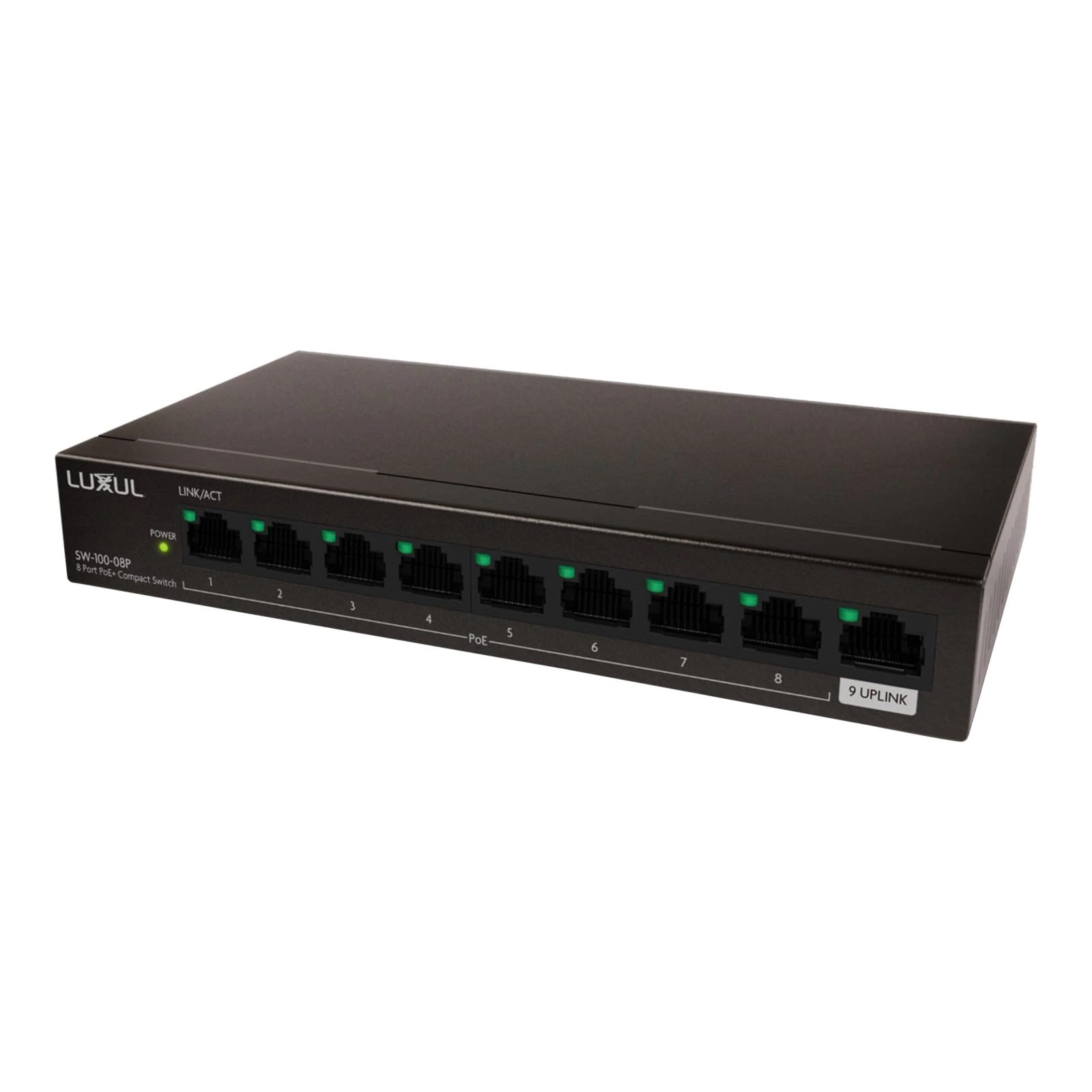
Figure 1: Front view of the Luxul SW-100-08P 8-Port Unmanaged PoE+ Switch. This image displays the compact black chassis with the Luxul logo, and the front panel where the 8 PoE+ ports and the uplink port are located, along with their corresponding LED indicators.
The front panel of the switch typically features:
- PoE+ Ports (1-8): Eight 10/100/1000 Mbps RJ45 ports supporting Power over Ethernet Plus (PoE+). These ports can provide both data and power to compatible devices.
- Uplink Port: A dedicated Gigabit Ethernet port for connecting the switch to your router or main network.
- LED Indicators:
- Power LED: Indicates the power status of the switch.
- Link/Act LEDs (per port): Indicates a network connection (Link) and data activity (Act) on each port.
- PoE Status LEDs (per PoE+ port): Indicates PoE power delivery status for each PoE+ port.
3.2 Rear Panel
The rear panel of the switch typically includes:
- Power Input: Connector for the included 92W power adapter.
- Grounding Screw (optional): For connecting a grounding wire to protect against electrical surges.
4. Setup
Follow these steps to set up your Luxul SW-100-08P switch:
- Placement: Place the switch on a flat, stable surface or mount it in a rack (if applicable, mounting hardware not included). Ensure adequate ventilation around the switch to prevent overheating.
- Connect to Power: Connect the included 92W power adapter to the power input on the rear panel of the switch, then plug the adapter into a standard AC power outlet. The Power LED on the front panel should illuminate.
- Connect to Network (Uplink): Connect an Ethernet cable from your router, modem, or main network switch to the Uplink port on the Luxul switch. The Link/Act LED for the Uplink port should illuminate.
- Connect PoE+ Devices: Connect your PoE+ compatible devices (e.g., IP cameras, VoIP phones, wireless access points) to any of the PoE+ ports (1-8) using standard Ethernet cables. The Link/Act and PoE Status LEDs for the connected ports should illuminate, indicating a successful connection and power delivery.
- Connect Non-PoE Devices (Optional): You can also connect non-PoE network devices to any of the ports. These devices will receive data but not power.
Note: This is an unmanaged switch, meaning it requires no configuration. Simply connect your devices, and it will automatically detect and provide network connectivity and power (for PoE+ devices).
5. Operating Instructions
The Luxul SW-100-08P is an unmanaged switch, designed for plug-and-play operation. Once properly set up, it operates automatically.
- Automatic Negotiation: Each port automatically detects the network speed (10/100/1000 Mbps) and duplex mode (half/full) of the connected device.
- PoE+ Power Delivery: The switch automatically detects PoE+ compatible devices and supplies power up to 30W per port, with a total power budget of 92W for all PoE+ ports combined.
- LED Indicators: Monitor the LED indicators on the front panel to verify network activity and PoE status.
- Solid Green Link/Act LED: Indicates a stable network connection.
- Flashing Green Link/Act LED: Indicates data activity.
- Solid Green PoE Status LED: Indicates PoE power is being supplied to the device.
6. Maintenance
To ensure optimal performance and longevity of your Luxul SW-100-08P switch, follow these simple maintenance guidelines:
- Keep Clean: Regularly clean the exterior of the switch with a soft, dry cloth. Avoid using liquid or aerosol cleaners.
- Ventilation: Ensure that the ventilation openings are not blocked. Proper airflow is crucial to prevent overheating.
- Power Cycle: If the switch or connected devices are experiencing issues, try power cycling the switch by disconnecting and reconnecting the power adapter.
- Firmware: As an unmanaged switch, firmware updates are typically not required or available.
7. Troubleshooting
If you encounter issues with your Luxul SW-100-08P switch, refer to the following common troubleshooting steps:
- No Power:
- Ensure the power adapter is securely connected to both the switch and a working power outlet.
- Verify the power outlet is functional by plugging in another device.
- No Link/Activity on a Port:
- Check the Ethernet cable connection at both ends (switch and device). Try a different cable.
- Ensure the connected device is powered on and functioning correctly.
- Try connecting the device to a different port on the switch.
- PoE Device Not Receiving Power:
- Verify that the connected device is PoE+ (802.3at) or PoE (802.3af) compatible.
- Check the PoE Status LED for the port. If it's off, the switch may not be detecting a PoE device or the device is drawing too much power.
- Ensure the total power consumption of all connected PoE devices does not exceed the switch's 92W power budget.
- Try connecting the PoE device to a different PoE+ port.
- Slow Network Speed:
- Ensure you are using Cat5e or Cat6 Ethernet cables for Gigabit speeds.
- Check for network congestion or issues with the connected devices or upstream network.
8. Specifications
| Feature | Description |
|---|---|
| Brand | Luxul |
| Model Number | SW-100-08P |
| Number of Ports | 8 (all PoE+) |
| Switch Type | Unmanaged |
| Interface | PoE+ (802.3at/af) |
| PoE Power Budget | 92W (with included power adapter) |
| Included Components | Power adapter (92W) |
| Color | Black |
| Compatible Devices | Desktop, PoE+ enabled devices (IP cameras, VoIP phones, WAPs) |
| Upper Temperature Rating | 40 Degrees Celsius |
| Manufacturer | luxul legrand av inc |
| UPC | 655003921670 |
| ASIN | B094YXS67G |
9. Warranty and Support
For specific warranty information and technical support, please refer to the documentation included with your product or visit the official Luxul website. Luxul provides resources to assist with product registration, troubleshooting, and service requests.
Online Resources: For the latest support information, FAQs, and product documentation, please visit the Luxul support portal.
Contact Support: If you require further assistance, please contact Luxul customer support through their official channels.


