
Bose 863350-1100
Bose Smart Soundbar 900
User Manual
Introduction
The Bose Smart Soundbar 900 is designed to deliver an immersive audio experience for your home entertainment system. Featuring Dolby Atmos and proprietary Bose TrueSpace spatial processing, this soundbar creates a multi-dimensional soundscape, making audio appear to come from all directions, including overhead.
This manual provides detailed instructions for setting up, operating, maintaining, and troubleshooting your Bose Smart Soundbar 900. Please read it thoroughly to ensure proper use and to maximize your listening experience.

Image: The Bose Smart Soundbar 900, showcasing its elegant black design suitable for any home theater setup.
Setup
What's in the Box
Before you begin, ensure all components are present:
- Bose Smart Soundbar 900
- Remote control with 2 AAA batteries pre-installed
- Cleaning cloth
- ADAPTiQ headset
- Optical cable
- HDMI cable
- Power cord
- Quick start guide

Image: All items included in the Bose Smart Soundbar 900 packaging.
Connecting the Soundbar to Your TV
The Bose Smart Soundbar 900 connects to your TV using either an HDMI eARC connection or an optical audio connection. HDMI eARC is recommended for optimal performance, especially for Dolby Atmos content.
- HDMI eARC Connection: Connect one end of the provided HDMI cable to the HDMI eARC port on your soundbar and the other end to the HDMI eARC port on your TV.
- Optical Audio Connection: If your TV does not have an HDMI eARC port, connect the provided optical cable from the OPTICAL OUT port on your TV to the OPTICAL IN port on your soundbar.
- Connect the power cord to the soundbar and then to a power outlet.

Image: Connection ports on the back of the soundbar, highlighting HDMI eARC and optical inputs.
Bose Music App Setup
The Bose Music app is essential for completing the setup, configuring settings, and accessing smart features.
- Download the Bose Music app from your mobile device's app store (available for iOS and Android).
- Open the app and follow the on-screen instructions to create an account or log in.
- The app will guide you through connecting the soundbar to your Wi-Fi network and integrating voice assistants like Alexa or Google Assistant.
ADAPTiQ Audio Calibration
For optimal sound performance tailored to your room's acoustics, perform the ADAPTiQ audio calibration using the included headset. The Bose Music app will guide you through this process.
- Plug the ADAPTiQ headset into the port on the back of the soundbar.
- Wear the headset and follow the voice prompts from the soundbar and instructions in the Bose Music app to calibrate the sound for up to five listening positions.
Operating Your Soundbar
Basic Controls
The soundbar can be controlled using the included remote control or the Bose Music app.
- Power Button: Turns the soundbar on or off.
- Volume Up/Down: Adjusts the audio volume.
- Mute Button: Mutes or unmutes the sound.
- Source Button: Switches between connected audio sources (e.g., TV, Bluetooth).
- Voice Assistant Button: Activates the built-in voice assistant.

Image: User operating the soundbar with the remote control.
Voice Assistants (Alexa & Google Assistant)
The Bose Smart Soundbar 900 has built-in Amazon Alexa and Google Assistant. Noise-rejecting microphones ensure your commands are heard even during loud playback.
- To activate, simply say "Alexa" or "Hey Google" followed by your command.
- Use voice commands to control playback, adjust volume, get information, control smart home devices, and more.
- For privacy, you can disable the microphones using the dedicated mic-off button on the soundbar.

Image: Controlling the soundbar and its features via the Bose Music app on a smartphone.
Wireless Streaming
The soundbar supports various wireless streaming options:
- Wi-Fi: Connect to your home Wi-Fi network via the Bose Music app for access to integrated music services and multi-room audio with other Bose smart speakers.
- Bluetooth: Pair your mobile device directly to the soundbar for audio streaming.
- Apple AirPlay 2: Stream audio from Apple devices.
- Spotify Connect: Play Spotify content directly through the soundbar.
Dolby Atmos and TrueSpace Technology
The Bose Smart Soundbar 900 utilizes advanced audio technologies to create an immersive listening experience:
- Dolby Atmos: Provides a three-dimensional sound experience, including overhead effects, for compatible content.
- Bose TrueSpace Spatial Processing: For non-Dolby Atmos content (like stereo or 5.1), TrueSpace analyzes and upmixes the audio to create a 7-channel experience with a sense of height, enhancing immersion without requiring additional speakers.

Image: Diagram illustrating the spatial audio projection from the soundbar, creating an immersive sound field.
Bose SimpleSync
SimpleSync allows you to pair your Bose Smart Soundbar 900 with compatible Bose headphones or Bluetooth speakers for synchronized audio playback. This is useful for private listening or extending audio to other rooms.
- Initiate SimpleSync pairing through the Bose Music app or by pressing and holding the Bluetooth button on both devices.
Maintenance
Cleaning Your Soundbar
To maintain the appearance and performance of your Bose Smart Soundbar 900:
- Always unplug the soundbar from the power outlet before cleaning.
- Use the provided cleaning cloth or a soft, dry cloth to wipe the surfaces of the soundbar.
- Do not use any sprays near the soundbar or allow liquids to spill into any openings.
- Avoid using solvents, chemicals, or cleaning solutions containing alcohol, ammonia, or abrasives.
Troubleshooting
If you encounter issues with your Bose Smart Soundbar 900, try the following solutions:
No Sound or Intermittent Audio
- Check Connections: Ensure the HDMI or optical cable is securely connected to both the soundbar and the TV. Verify that the correct input source is selected on your TV and soundbar.
- Power Cycle: Unplug the soundbar's power cord from the outlet, wait 30 seconds, then plug it back in. Do the same for your TV.
- TV Audio Settings: Access your TV's audio settings and ensure the audio output is set to external speakers or the correct HDMI/optical port. Disable internal TV speakers if necessary.
- HDMI Cable: If using HDMI, try a different HDMI cable, especially a high-speed HDMI cable, as some users have reported issues with faulty cables.
- Bose Music App: Use the Bose Music app to check the soundbar's status and run diagnostics.
Voice Assistant Not Responding
- Microphone Status: Ensure the microphone is not muted (check the mic-off button on the soundbar).
- Internet Connection: Verify that the soundbar is connected to Wi-Fi and has an active internet connection.
- App Configuration: Re-check the voice assistant settings within the Bose Music app to ensure it's properly linked to your Amazon or Google account.
Bluetooth Pairing Issues
- Pairing Mode: Ensure the soundbar is in Bluetooth pairing mode (usually indicated by a blinking light).
- Device Proximity: Keep your Bluetooth device within 10 meters (33 feet) of the soundbar.
- Forget Device: On your mobile device, "forget" or "unpair" the soundbar from your Bluetooth settings, then attempt to pair again.
Factory Reset
If issues persist, a factory reset can resolve many software-related problems. Refer to the Bose Music app or Bose support website for specific instructions on performing a factory reset for your model.
Specifications
| Feature | Detail |
|---|---|
| Model Name | Soundbar 900 |
| Model Number | 863350-1100 |
| Dimensions (D x W x H) | 4.21" x 41.14" x 2.29" (10.7 cm x 104.5 cm x 5.82 cm) |
| Item Weight | 17 pounds (7.7 kg) |
| Speaker Type | Soundbar |
| Surround Sound Channel Configuration | 5.1.2 |
| Connectivity Technology | Bluetooth, Wi-Fi, Optical, HDMI (eARC) |
| Wireless Communication Technology | Spotify Connect, Bluetooth, Wi-Fi, Apple AirPlay 2 |
| Voice Assistants | Amazon Alexa, Google Assistant |
| Included Components | Soundbar 900, Remote, ADAPTiQ headset, HDMI cable, Optical cable, Power cord, Cleaning cloth |
| Color | Black |
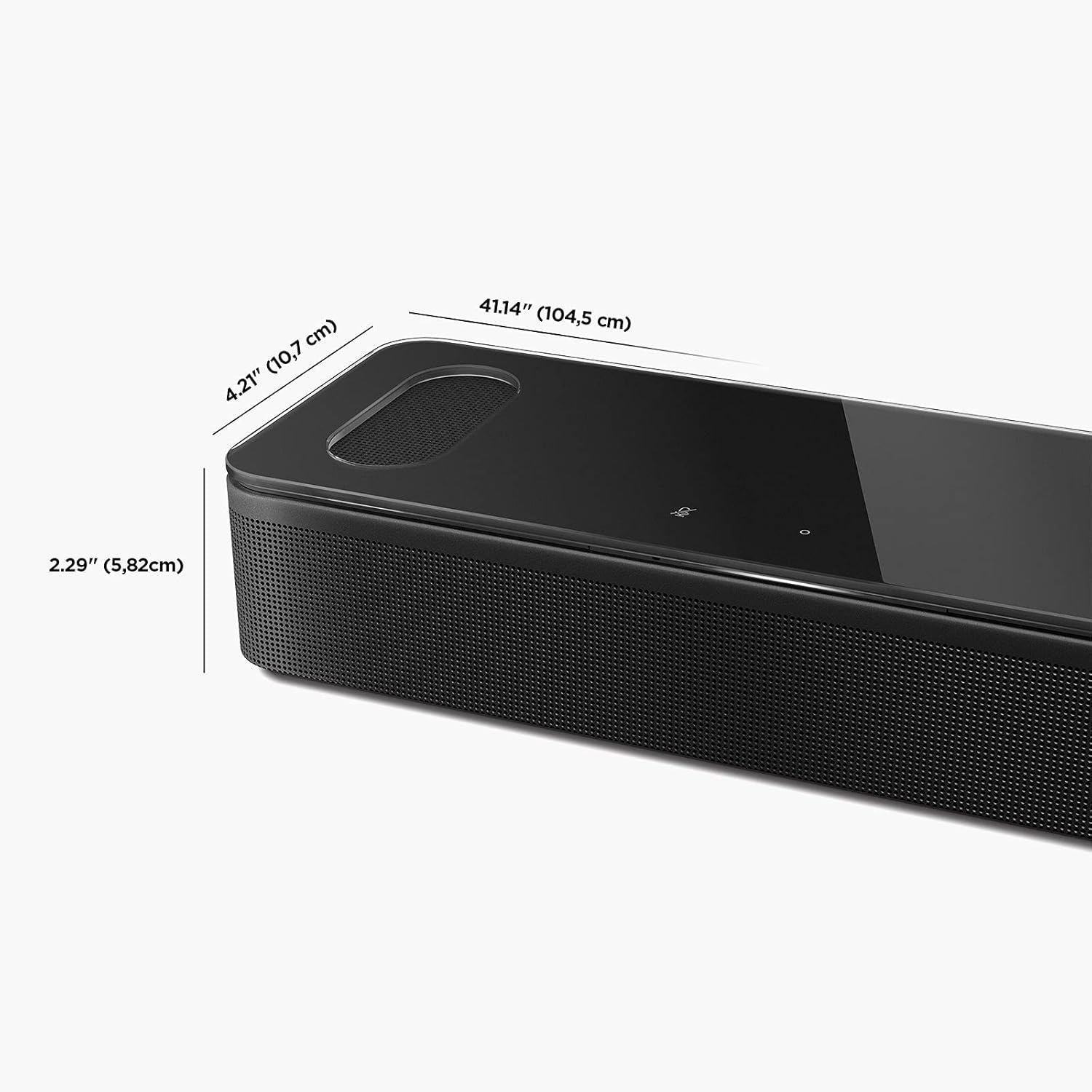
Image: Detailed dimensions of the Bose Smart Soundbar 900.
Warranty and Support
Warranty Information
The Bose Smart Soundbar 900 comes with a Limited Warranty. Please refer to the warranty card included with your product or visit the official Bose website for detailed terms and conditions regarding warranty coverage, duration, and claims.
Customer Support
For further assistance, technical support, or service inquiries, please contact Bose customer support through the following channels:
- Bose Support Website: Visit www.bose.com/support for FAQs, troubleshooting guides, and software updates.
- Bose Music App: The app provides in-app support, tutorials, and direct access to customer service.
- User Guide (PDF): A comprehensive user guide is available for download at this link.
Related documents863350-1100


Ask a question about this manual
Ask about setup, troubleshooting, compatibility, parts, safety, or missing instructions. Manuals+ will review the question and use this page’s manual context to help answer it.