
1. Introduction
This manual provides detailed instructions for the installation, operation, and maintenance of your Alptop AT-200DW Outdoor PTZ WiFi IP Security Camera. This 1080P HD camera offers pan/tilt functionality, two-way audio, motion detection, and color night vision, designed to enhance your home surveillance.

Figure 1: Alptop AT-200DW Outdoor PTZ WiFi IP Security Camera.
Key Features:
- Full 1080P HD Video Resolution (1920x1080P)
- Pan/Tilt Functionality: 320° horizontal, 90° vertical rotation
- Intelligent Full-color Night Vision (up to 100FT) and IR Night Vision (up to 150FT)
- Motion Detection Alerts with push notifications, email, or FTP upload
- Clear Two-Way Audio with built-in microphone and speaker
- Reliable 2.4G WiFi Connection (5Ghz not supported)
- IP66 Weatherproof Design
- Supports max 128GB Micro SD Card for local storage
- Multi-platform viewing via CamHi/CamHiPro App (iOS/Android) and PC Software (Windows/Mac)
2. Setup Guide
2.1 Package Contents
Before installation, please ensure all components are present:
- Alptop AT-200DW Camera Unit
- Power Adapter (12V 2A)
- Mounting Screws and Wall Plugs
- User Manual (this document)
2.2 Physical Installation
The camera supports multiple installation options including vertical, wall, and ceiling mount. Choose a location that provides optimal viewing coverage and stable Wi-Fi signal.
- Mark the drilling points using the mounting bracket as a template.
- Drill holes and insert wall plugs if mounting on masonry.
- Secure the mounting bracket to the desired surface using the provided screws.
- Attach the camera unit to the mounted bracket.
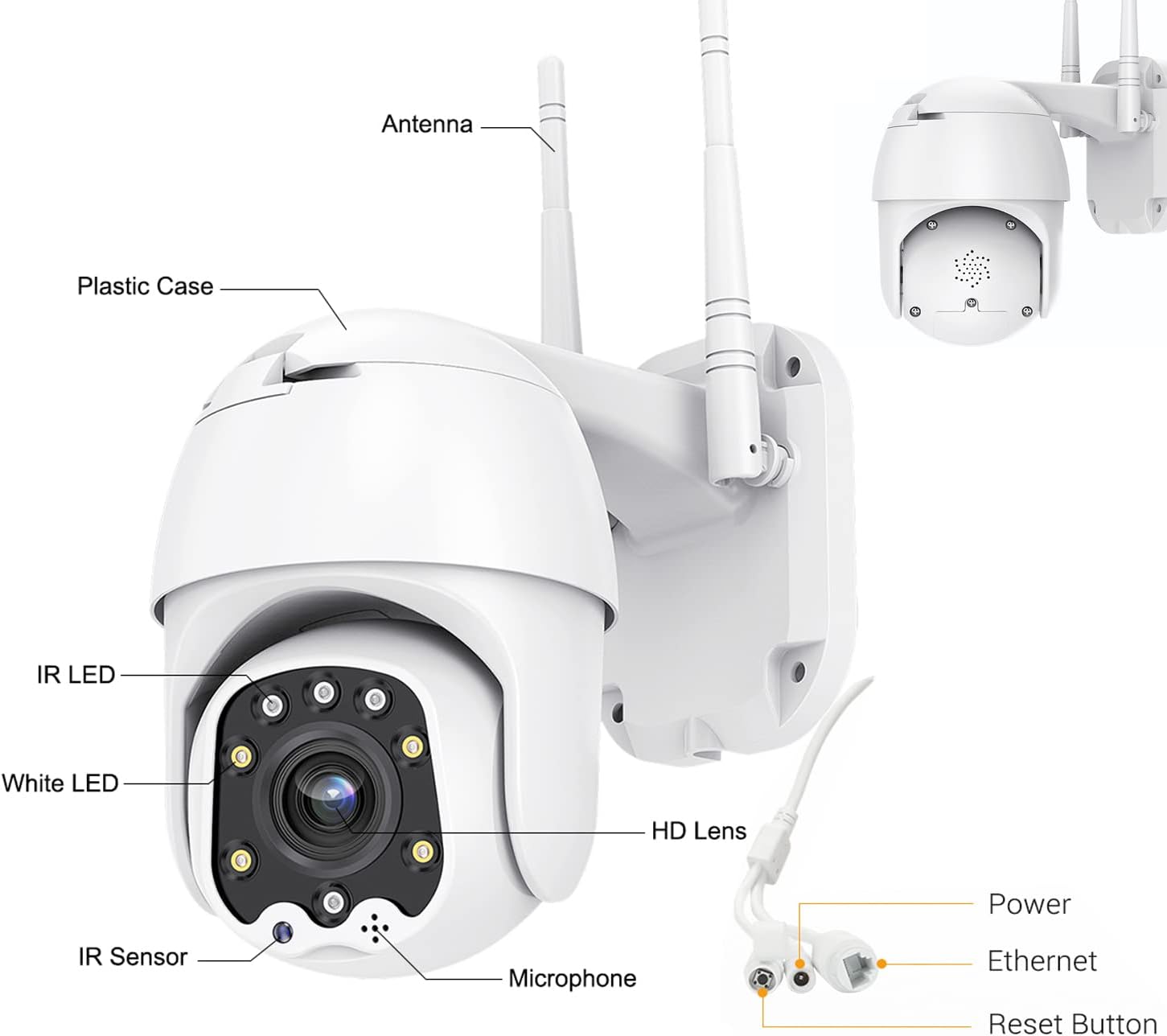
Figure 2: Camera Components and Connections.
2.3 SD Card Installation (Optional)
The camera supports a Micro SD card up to 128GB for local video storage (card not included).
- Open the cover on the camera body.
- Carefully insert the Micro SD card into the slot until it clicks into place.
- Close the cover securely.
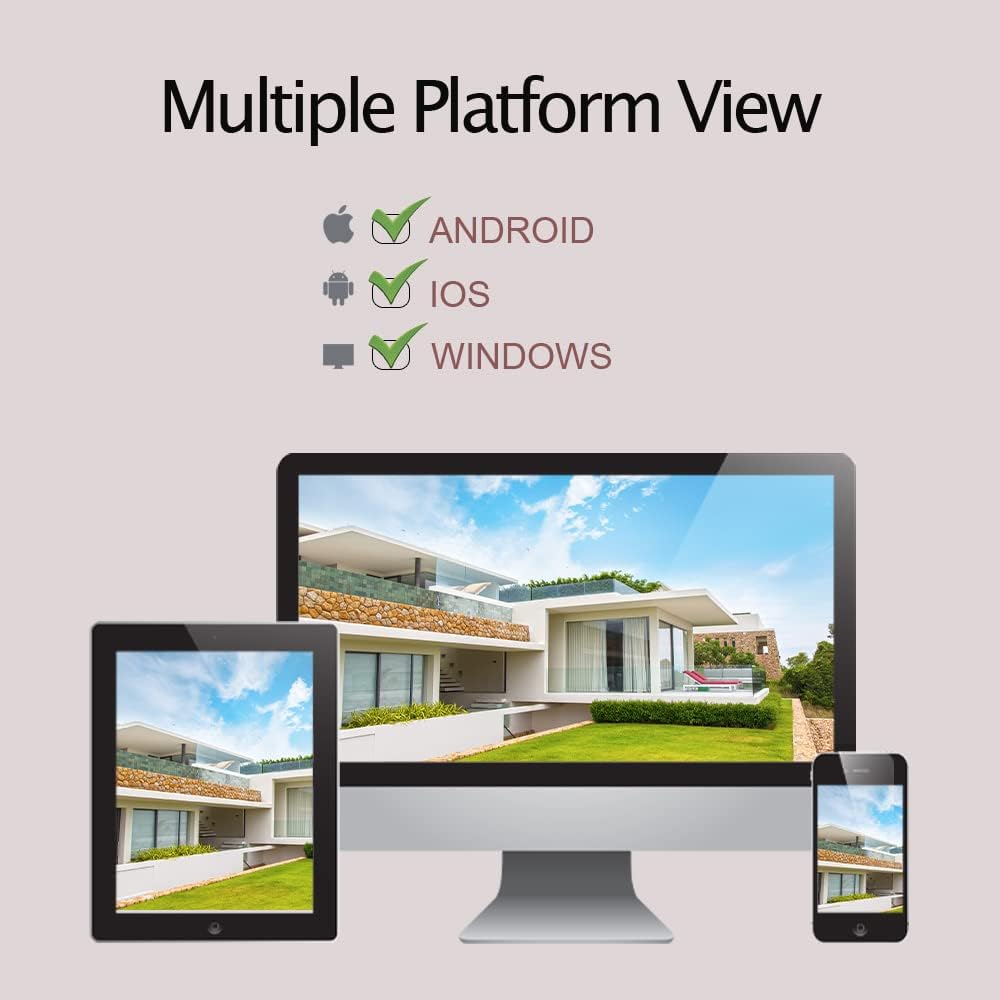
Figure 3: SD Card Installation Steps.
2.4 Network Connection and App Setup
The camera connects via 2.4GHz Wi-Fi. Ensure your Wi-Fi password does not contain special symbols.
- Download the "CamHiPro" app from the App Store (iOS) or Google Play Store (Android).
- Register an account and log in.
- Power on the camera.
- In the app, follow the on-screen instructions to add a new device. Select "Add Camera" and choose the Wi-Fi setup method.
- Enter your 2.4GHz Wi-Fi network details when prompted.
- The camera will connect to your Wi-Fi network. Once connected, you can view the live stream.
3. Operating the Camera
3.1 Live View and PTZ Control
Once connected, you can access the live video feed through the CamHiPro app or PC software.
- Pan/Tilt: Use the directional controls within the app to rotate the camera horizontally (320°) and vertically (90°) to adjust the viewing angle.
- Digital Zoom: Pinch to zoom on the live view to digitally magnify the image.
3.2 Two-Way Audio
The camera features a built-in microphone and speaker for two-way communication.
- Tap the microphone icon in the app to speak through the camera's speaker.
- The camera's microphone will pick up audio from its surroundings.

Figure 4: Two-Way Audio Functionality.
3.3 Motion Detection and Alerts
The camera can detect motion and send alerts to your device.
- Configure motion detection sensitivity and detection areas within the app settings.
- When motion is detected, the camera can send push notifications to your phone, send an email with a photo, or upload photos/videos to an FTP server.
- The camera also supports recording alarm video to the local Micro SD card.
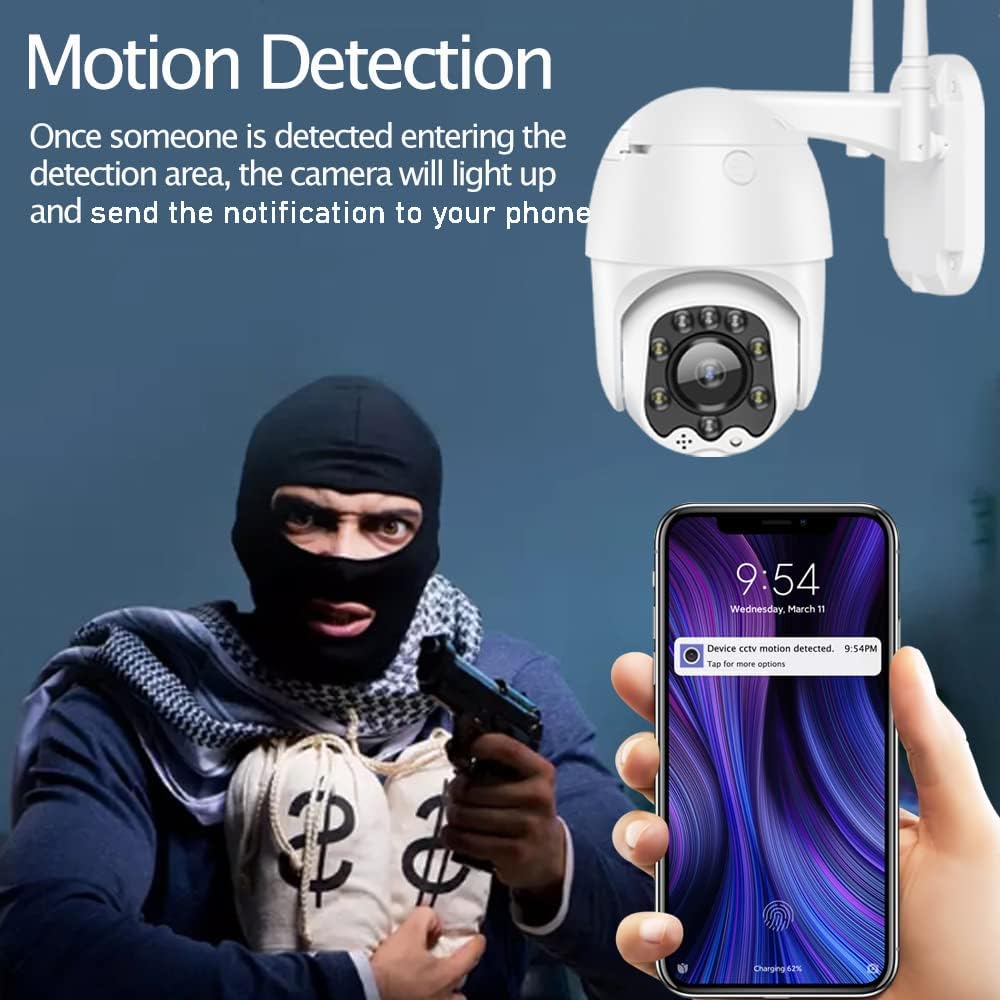
Figure 5: Motion Detection Alerts.
3.4 Night Vision Modes
The AT-200DW offers intelligent full-color night vision and infrared night vision.
- Smart Night Vision: The camera automatically switches between IR and full-color mode based on light conditions and detected motion.
- Infrared Night Vision: Provides black and white video in low light using IR LEDs.
- Full-color Night Vision: Utilizes white LEDs to provide color video even in very low light conditions. This can also act as a deterrent.

Figure 6: Full-Color Night Vision for Deterrence.
3.5 Multi-Platform Viewing
Access your camera feed from various devices.
- Mobile App: CamHi/CamHiPro for iOS and Android smartphones.
- PC Software: Available for Windows and Mac operating systems.
- Web Browser: Supports IE, Firefox, Safari, Chrome.
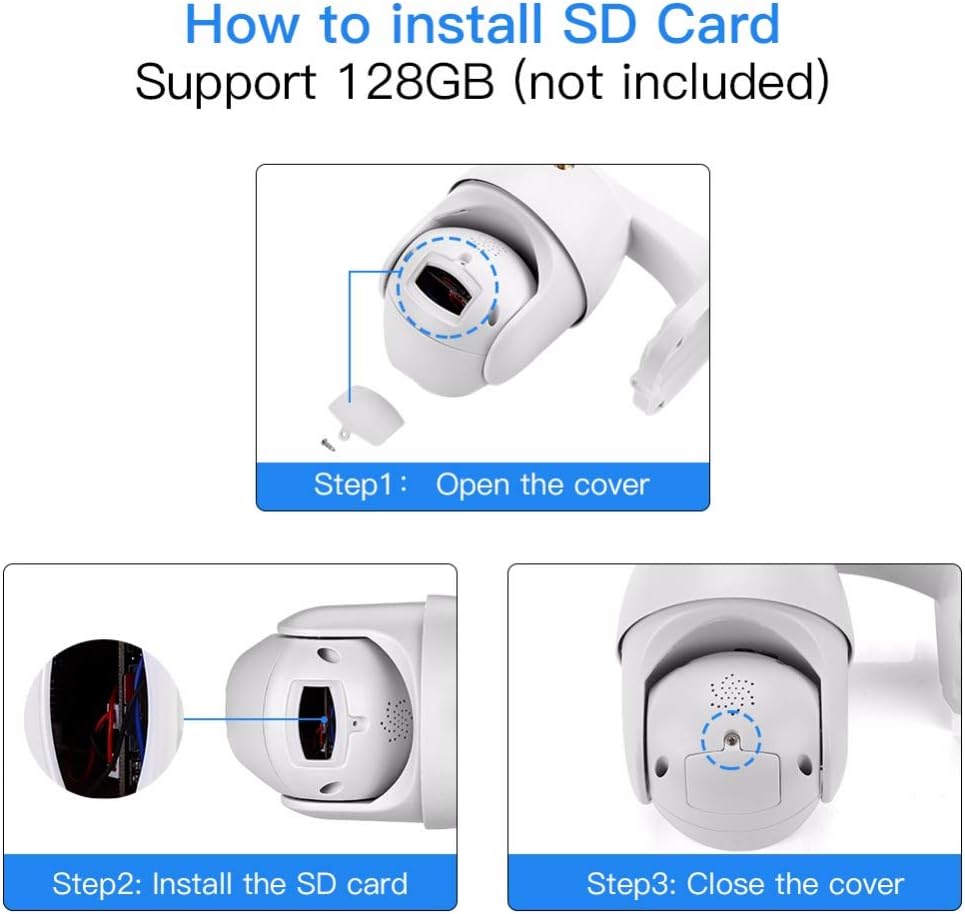
Figure 7: Multiple Platform Viewing Options.
4. Maintenance
Regular maintenance ensures optimal performance and longevity of your camera.
- Cleaning: Periodically wipe the camera lens and body with a soft, damp cloth to remove dust and dirt. Do not use harsh chemicals or abrasive cleaners.
- Firmware Updates: Check the CamHiPro app or Alptop's official website for any available firmware updates. Keeping the firmware updated can improve performance and add new features.
- SD Card Management: If using an SD card for continuous recording, consider formatting it periodically (e.g., monthly) through the app to maintain performance and prevent data corruption.
- Connection Check: Occasionally verify the camera's Wi-Fi connection stability, especially after power outages or network changes.

Figure 8: IP66 Weatherproof Design.
5. Troubleshooting
If you encounter issues with your camera, refer to the following common problems and solutions:
| Problem | Possible Cause | Solution |
|---|---|---|
| Camera fails to connect to Wi-Fi. | Incorrect Wi-Fi band (5GHz), wrong password, special characters in password, weak signal. | Ensure you are connecting to a 2.4GHz Wi-Fi network. Verify Wi-Fi password (no special symbols). Move camera closer to router or use a Wi-Fi extender. |
| No video feed or intermittent connection. | Network congestion, poor Wi-Fi signal, router channel interference. | Check network stability. Try changing your router's 2.4GHz Wi-Fi channel to a less congested one (e.g., 1, 6, or 11). Ensure your smartphone is not on the 2.4GHz band if possible. |
| Motion detection not working or too sensitive. | Incorrect settings, environmental factors. | Adjust motion detection sensitivity and detection areas in the app. Ensure there are no moving objects (trees, flags) in the detection zone causing false alarms. |
| Two-way audio is unclear or has echo. | Environmental noise, microphone/speaker obstruction. | Ensure no obstructions near microphone or speaker. Reduce background noise if possible. |
| SD card not recording or recognized. | Card not inserted correctly, incompatible card, card full/corrupted. | Re-insert the SD card. Ensure it is a Class 10 or higher, up to 128GB. Format the SD card via the app. |
6. Specifications
| Feature | Detail |
|---|---|
| Model Number | AT-200DW |
| Video Resolution | 1080P HD (1920x1080) |
| Pan/Tilt Range | Horizontal 320°, Vertical 90° |
| Night Vision Range | IR: 150FT, Full-color: 100FT |
| Connectivity | 2.4GHz Wi-Fi (IEEE802.11b/g/n), Ethernet |
| Storage | Supports max 128GB Micro SD card |
| Audio | Two-way audio (built-in 38dB microphone & speaker) |
| Power Supply | 12V 2A (AC/DC) |
| Operating Temperature | Not specified, but designed for outdoor use (IP66) |
| IP Rating | IP66 (Weatherproof) |
| Dimensions | 8.19 x 8.15 x 5.43 inches |
| Weight | 1.76 pounds |
7. Warranty and Support
For warranty information and technical support, please refer to the documentation included with your product or contact Alptop customer service directly. You can also visit the official Alptop website for the latest support resources, FAQs, and contact details.
The primary application for managing your camera is the CamHiPro app, available for iOS and Android devices. PC software is also available for Windows and Mac users.


