
Introduction
Thank you for choosing the GENBOLT GB217K 2K Wireless Solar PTZ Security Camera. This manual provides essential information for the safe and efficient use of your new security camera. Please read these instructions carefully before installation and operation, and retain them for future reference.
Product Overview
Key Features
- 100% Wireless & IP66 Weatherproof: Designed for easy outdoor or indoor installation without power cables or Ethernet. Withstands various weather conditions.
- 24/7 Solar Charging: Equipped with a 7W solar panel and 15600mAh rechargeable batteries for continuous operation and extended standby time (up to 180 days).
- Enhanced Smart PIR Alarm: Features a PIR sensor and humanoid detection to reduce false alarms from pets. Includes a spotlight function to deter intruders.
- 2K Color Night Vision: Delivers 3MP (2304x1296px @ 15fps) high-resolution images with a 2.8mm lens offering a 120° super wide-angle view.
- PTZ Functionality: Offers 355° horizontal pan and 90° vertical tilt for comprehensive area coverage.
- Two-Way Audio: Communicate directly through the camera.
- Multi-User Access: Share camera access with multiple users.
- Local Storage: Supports Micro SD card recording, even if WiFi is unavailable.
Components
The GENBOLT GB217K camera system includes the following main components:

Figure 1: Detailed view of the GENBOLT GB217K camera components, including the solar panel, antennas, various sensors, and ports.
- 7W Solar Panel (with 6pcs 18650 Li-ion batteries)
- Dual 5dBi Antenna
- Power ON/OFF Switch & Charging Port (USB 5V)
- PIR Sensor
- 6pcs White LED (for illumination)
- Photosensitive Sensor
- HD Lens
- Microphone
- Reset Button & Micro SD Card Slot
- Speaker
- User Manual
- Allen Wrench
- Mounting Screws
Setup
1. Initial Charging
Before first use, fully charge the camera's internal batteries using the provided USB cable. Connect the USB cable to the charging port (USB 5V) on the camera and a standard USB power adapter (not included).
2. App Installation and Pairing
- Download the GENBOLT PRO app from your smartphone's app store (iOS or Android).
- Register an account and log in.
- Follow the in-app instructions to add your new camera. This typically involves scanning a QR code on the camera or manually entering its ID. Ensure your phone is connected to a 2.4GHz Wi-Fi network during setup.
3. Solar Panel Installation
The 7W solar panel is designed to keep your camera continuously charged. For optimal performance, consider the following:
- Direct Sunlight: Mount the solar panel in a location that receives maximum direct sunlight throughout the day. Avoid shaded areas.
- Orientation: Orient the solar panel towards the south (in the Northern Hemisphere) for best charging efficiency. Adjust the angle to capture sunlight effectively.

Figure 2: Solar panel installation tips for maximizing charging efficiency.
- Flexible Installation: Use the included 3-meter extension cord to install the solar panel separately from the camera if a better sunlit location is available.

Figure 3: Example of split installation for the solar panel and camera.
4. Camera Mounting
The camera is designed for wall mounting. Use the provided screws and Allen wrench for secure installation. Ensure the mounting location provides a clear view of the area you wish to monitor and is within range of your 2.4GHz Wi-Fi network.
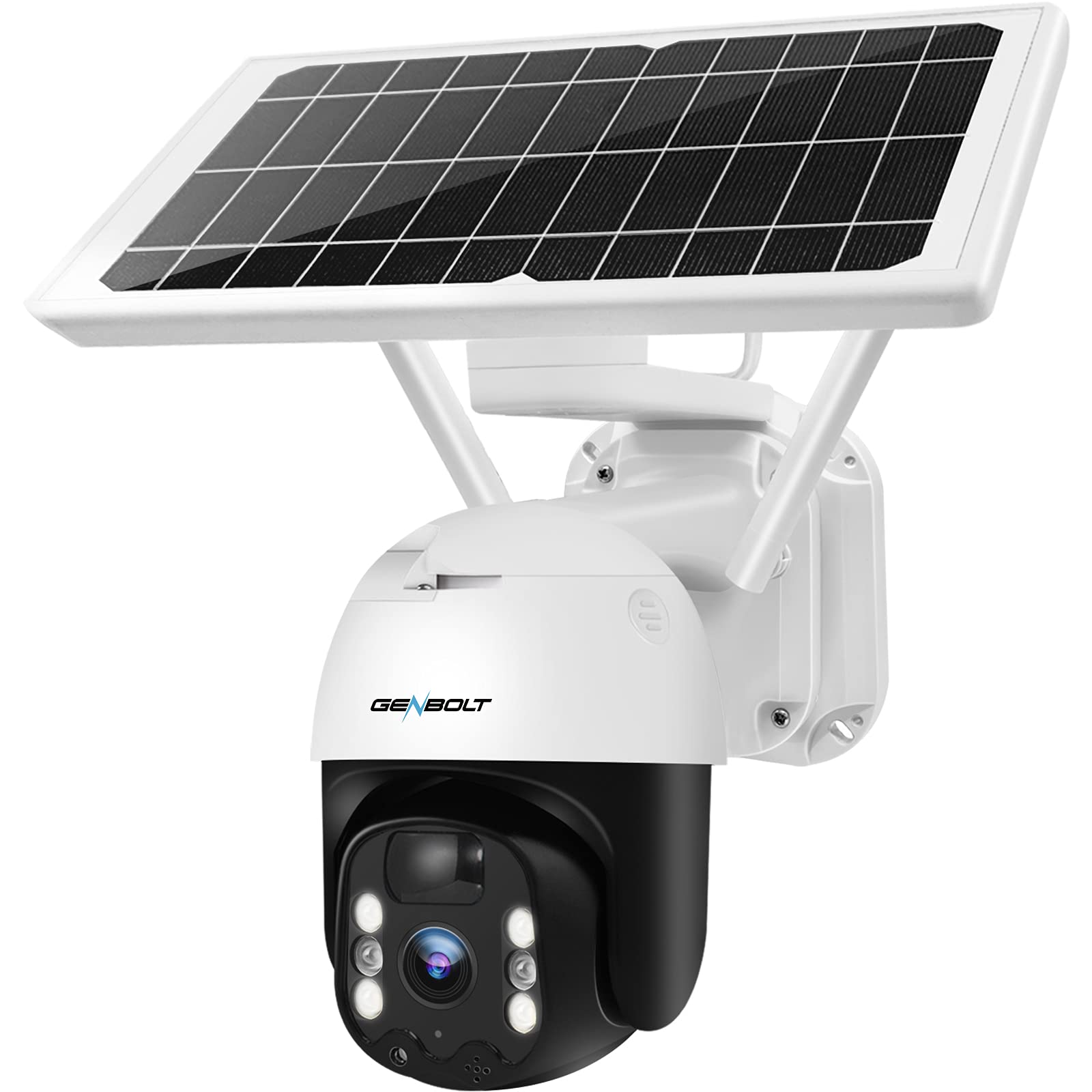
Figure 4: GENBOLT GB217K camera with solar panel mounted.
Operating Instructions
1. Live View and PTZ Control
Open the GENBOLT PRO app on your smartphone. Select your camera to access the live view. Use the on-screen controls to pan (355° horizontally) and tilt (90° vertically) the camera lens to adjust the viewing angle. The camera provides a 120° wide-angle view.

Figure 5: Live view and PTZ control via the GENBOLT PRO app.
2. Motion Detection and Alerts
The camera features an enhanced PIR sensor with humanoid detection. This system is designed to detect human movement and reduce false alarms from other sources. When motion is detected, the camera can:
- Send instant notifications to your smartphone.
- Activate the built-in spotlight to deter intruders.
- Begin recording video footage.
Adjust sensitivity settings within the GENBOLT PRO app to optimize detection for your environment.

Figure 6: Enhanced PIR detection with humanoid recognition.
3. Night Vision
The camera supports 2K color night vision, providing clear, full-color images even in low-light conditions. It also has traditional IR night vision for situations where color is not needed or desired.
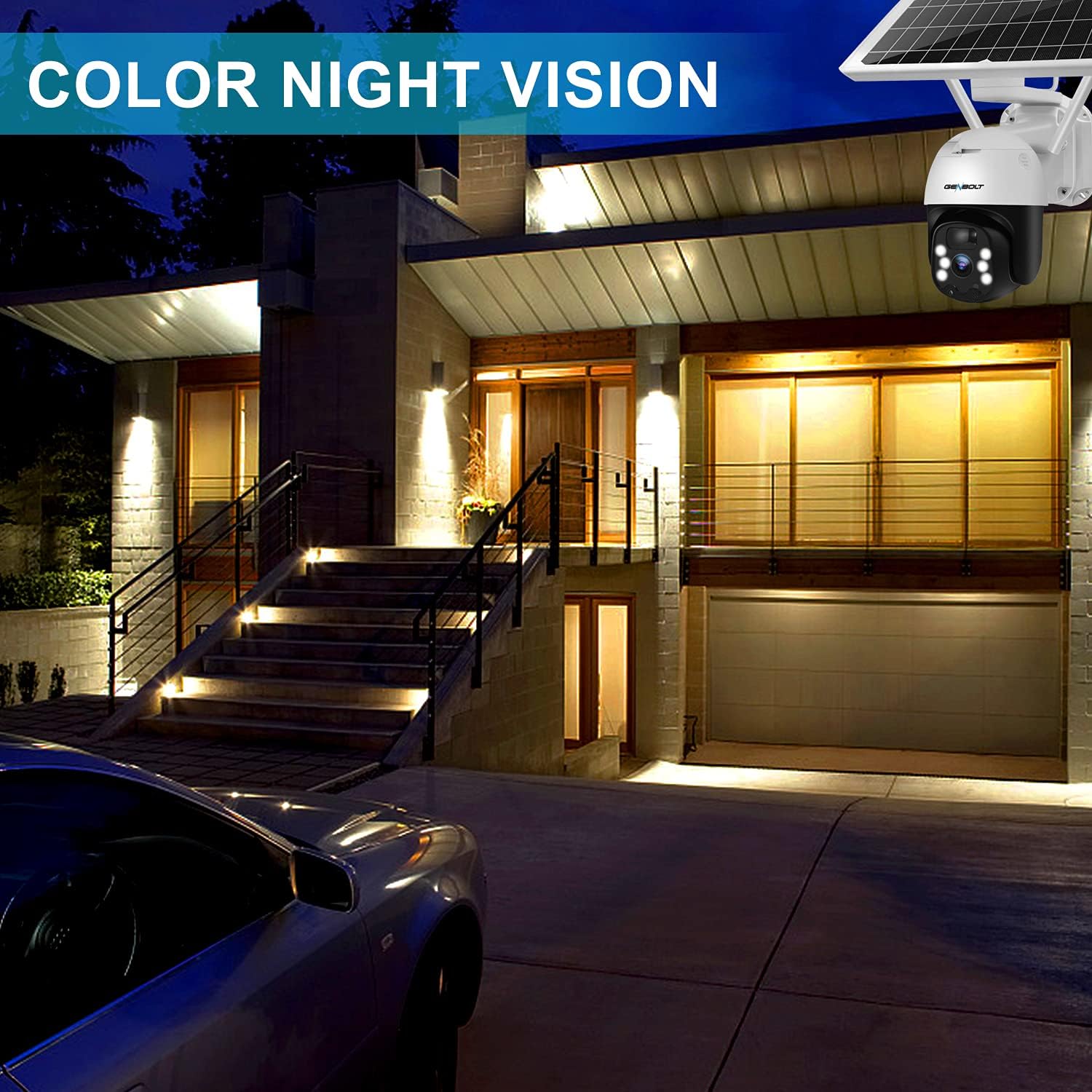
Figure 7: Example of 2K color night vision.
4. Two-Way Audio
Utilize the two-way audio feature to communicate with visitors or deter unwanted guests. Tap the microphone icon in the app's live view to speak, and listen through the camera's built-in speaker.

Figure 8: Two-way audio communication.
5. Recording and Storage
The camera supports local storage via a Micro SD card (not included). Insert a Micro SD card into the designated slot (refer to Figure 1 for location). The camera will continue to record even if your Wi-Fi connection is temporarily unavailable.

Figure 9: Camera continues recording to Micro SD card even without WiFi.
Maintenance
- Lens Cleaning: Periodically clean the camera lens with a soft, dry cloth to ensure clear image quality. Avoid abrasive cleaners.
- Solar Panel Cleaning: Keep the solar panel free of dust, dirt, and debris to maintain optimal charging efficiency. Wipe it gently with a damp cloth as needed.
- Battery Health: The camera uses 15600mAh Lithium-ion batteries. While solar charging keeps them topped up, ensure the camera receives sufficient sunlight. If the camera is installed in a consistently shaded area, occasional manual charging via USB may be required.
- Firmware Updates: Check the GENBOLT PRO app regularly for available firmware updates to ensure your camera has the latest features and security enhancements.
Troubleshooting
| Problem | Possible Cause | Solution |
|---|---|---|
| Camera not powering on. | Low battery; Power switch off. | Ensure the power switch is ON. Charge the camera fully using the USB cable. Verify the solar panel is receiving adequate sunlight. |
| Cannot connect to Wi-Fi. | Incorrect Wi-Fi password; Camera too far from router; Only 5GHz Wi-Fi network available; Network issues. | Ensure correct 2.4GHz Wi-Fi password. Move camera closer to the router. Confirm your router supports 2.4GHz Wi-Fi. Restart your router and camera. If issues persist, try resetting the camera (refer to Figure 1 for reset button location) and re-pairing. |
| Micro SD card not recognized or recording stops. | SD card corrupted; Incorrect format; Card not inserted properly. | Remove and reinsert the Micro SD card. If the issue persists, remove the card and format it on a computer (FAT32 format recommended), then reinsert. Ensure the card is Class 10 or higher. |
| Frequent false alarms. | High PIR sensitivity; Environmental factors (e.g., moving branches, strong sunlight). | Adjust the PIR sensitivity settings in the GENBOLT PRO app. Utilize the humanoid detection feature. Ensure the camera is not pointed at areas with constant movement or direct sunlight that could trigger the sensor. |
| Poor image quality. | Dirty lens; Low network bandwidth. | Clean the camera lens. Ensure a stable and strong Wi-Fi connection. |
Specifications
| Feature | Detail |
|---|---|
| Model Number | GB217K |
| Video Resolution | 3 MP (2304 x 1296 px @ 15 fps) |
| Viewing Angle | 120 degrees |
| Pan/Tilt Range | Pan 355°, Tilt 90° |
| Wireless Connectivity | Wi-Fi (2.4 GHz) |
| Power Source | Solar Powered (7W Solar Panel) |
| Battery Capacity | 15600 mAh (2 Lithium-ion batteries included) |
| Weather Resistance | IP66 |
| Night Vision | Color Night Vision, Infrared Night Vision |
| Special Features | PIR Humanoid Detection, Two-Way Audio, Spotlight Alarm |
| Material | Plastic |
| Dimensions (L x W x H) | 15 x 15 x 25 cm (approx. 5.9 x 5.9 x 9.8 inches) |
| Weight | 2.05 kg (approx. 4.5 lbs) |
Warranty and Support
GENBOLT offers the following support for your product:
- 30-Day Exchange: For product exchanges within 30 days of purchase.
- 1-Year Warranty: Covers manufacturing defects for one year from the purchase date.
- Free Technical Support: Available for all product-related inquiries.
Contact Information:
- Email: uk@genbolt.com
- Local Support (Canada): +1 (778) 807-9710 (Monday - Friday, 5:30 AM to 10:30 AM PST)


