
Introduction
This manual provides essential information for the installation, operation, and maintenance of your NBS WF-803FT MoCA 2.5 to Ethernet Bridge. The WF-803FT is designed to extend network connectivity within your home by utilizing existing coaxial cable infrastructure. MoCA (Multimedia over Coax Alliance) technology transforms your home's coaxial TV cables into a high-speed network for internet access, Wi-Fi backhaul, and entertainment.
Please read this manual thoroughly before setting up your device to ensure proper functionality and to maximize your network performance.
Product Overview
The NBS WF-803FT MoCA 2.5 to Ethernet Bridge offers a robust solution for extending your home network. Key features include:
- High Bandwidth: Supports MoCA 2.5, providing up to 2.5 Gbps shared bandwidth, suitable for streaming 4K/8K videos, online gaming, and large data transfers simultaneously.
- Utilizes Existing Coaxial Cables: Extends your internet network using your home's existing coaxial TV cables, eliminating the need for new wiring.
- Low Latency: Achieves a low latency of approximately 3ms, enhancing online gaming and real-time applications.
- Interference Minimization: Coaxial cable is a shielded medium, which helps minimize external interference compared to Wi-Fi.
- Scalability: Supports up to 16 devices within a single MoCA home network.
- WAN/Full/LAN Selector: A three-position switch allows selection of the appropriate MoCA band for different network configurations.
- Plug and Play: Designed for straightforward installation.

Image: The NBS WF-803FT MoCA 2.5 to Ethernet Bridge device.
Package Contents
Upon unpacking, please verify that all items listed below are present and in good condition:
- NBS WF-803FT MoCA 2.5 to Ethernet Bridge
- Power Adapter
- Ethernet Cable
- Quick Start Guide (User Manual)

Image: The WF-803FT device, power adapter, and Ethernet cable included in the package.
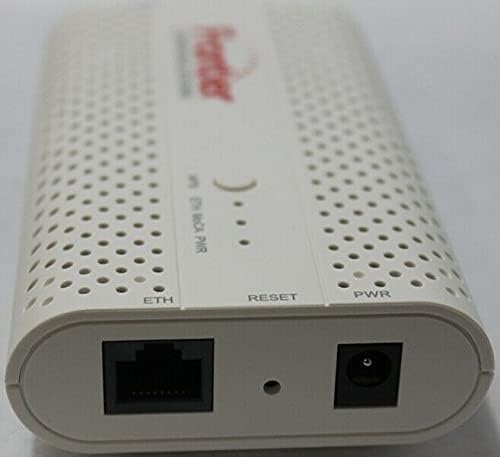
Image: The WF-803FT MoCA 2.5 Ethernet adapter packaged in its box, alongside the Quick Start Guide.
Setup Instructions
Follow these steps to set up your NBS WF-803FT MoCA 2.5 to Ethernet Bridge:
1. Identify Ports and Indicators
Familiarize yourself with the ports and LED indicators on the device:
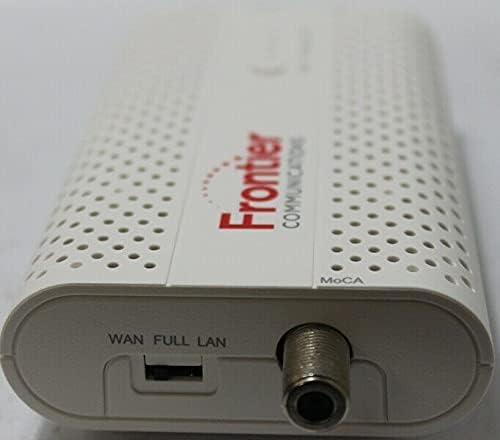
Image: Close-up of the WF-803FT showing the Ethernet (ETH), Reset, and Power (PWR) ports and corresponding LED indicators.

Image: Close-up of the WF-803FT showing the WAN/Full/LAN selector switch and the coaxial cable F-connector.
2. Select MoCA Band
The WF-803FT features a WAN/Full/LAN selector switch. Choose the appropriate setting for your network configuration:
- FULL Band: For general home network applications where there is no need to distinguish between WAN and LAN traffic. This is the recommended setting for most users.
- WAN Band: Select this if the WF-803FT is transmitting and receiving traffic from an Optical Network Terminal (ONT) or a gateway's WAN port.
- LAN Band: Select this if the WF-803FT is forwarding traffic to a gateway's LAN port, a set-top box, a Wi-Fi extender, or another terminal using MoCA for backhaul.
3. Connect Cables and Power On
Refer to the connection diagram below for proper wiring:
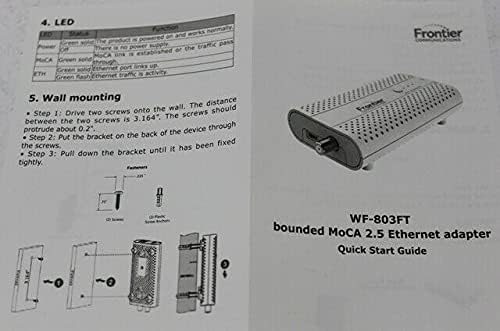
Image: Pages from the WF-803FT Quick Start Guide, illustrating the connection diagram, band selection, LED indicators, and wall mounting instructions.
- Ensure the MoCA band selector switch is set to the desired position (FULL, WAN, or LAN).
- Connect a coaxial cable from your wall's coaxial outlet to the MoCA F-connector port on the WF-803FT.
- Connect an Ethernet cable from the WF-803FT's Ethernet port to your network device (e.g., router, computer, set-top box, Wi-Fi extender).
- Connect the power adapter to the WF-803FT's power port and then plug it into an electrical outlet.
4. Verify LED Status
After connecting all cables and powering on the device, observe the LED indicators:
- PWR LED: Should be solid green, indicating the product is powered on and operating normally.
- ETH LED: Should be solid green if the Ethernet port links up, and will flash green when Ethernet traffic is active.
- MoCA LED: Should be solid green once the MoCA interface links up and a MoCA connection is established.
Operating Instructions
Once the WF-803FT is successfully set up and all LEDs indicate proper operation, your MoCA network is active. The device operates automatically to extend your network.
Band Selection Considerations
The WAN/Full/LAN selector determines the frequency band used by the MoCA adapter. While 'FULL' is suitable for most home setups, specific scenarios might benefit from 'WAN' or 'LAN' to optimize performance or avoid conflicts with other MoCA devices or services on your coaxial network. If you experience issues or have a complex network, consult your network administrator or internet service provider for guidance on the optimal band setting.
Wall Mounting
The WF-803FT can be wall-mounted for convenience. To do so:
- Drive two screws into the wall, ensuring the distance between them is approximately 3.164 inches (80.37 mm). The screws should protrude about 0.2 inches (5 mm) from the wall.
- Align the mounting holes on the back of the device with the protruding screws.
- Slide the device downwards until it is securely fixed in place.
Maintenance
To ensure the longevity and optimal performance of your NBS WF-803FT MoCA 2.5 to Ethernet Bridge, consider the following maintenance guidelines:
- Cleaning: Gently wipe the device with a soft, dry cloth. Avoid using liquid cleaners or aerosols, which can damage the device.
- Ventilation: Ensure the device is placed in a well-ventilated area. Do not block the ventilation holes.
- Environment: Keep the device away from excessive heat, direct sunlight, moisture, and extreme temperatures.
- Cable Management: Ensure all cables are securely connected and not under strain. Avoid sharp bends in coaxial or Ethernet cables.
Troubleshooting
If you encounter issues with your WF-803FT, refer to the following common problems and solutions:
- No Power (PWR LED Off):
- Check if the power adapter is securely connected to the device and a working electrical outlet.
- Try a different power outlet. - No MoCA Link (MoCA LED Off):
- Ensure both MoCA adapters (you need at least two for a MoCA network) are powered on and connected to the coaxial network.
- Verify that the coaxial cables are securely connected to both devices and the wall outlets.
- Check for any splitters or attenuators on the coaxial line that might be degrading the signal. MoCA compatible splitters are recommended.
- Confirm the MoCA band selector switch is set correctly on all devices (e.g., all to FULL).
- Ensure there is no MoCA filter blocking the signal if you have an internet service provider's MoCA network. - No Ethernet Connection (ETH LED Off/Not Flashing):
- Verify the Ethernet cable is securely connected between the WF-803FT and your network device.
- Try a different Ethernet cable.
- Ensure the connected network device is powered on and functioning correctly. - Slow Network Speed:
- Check the quality of your coaxial cabling. Older or damaged cables can degrade performance.
- Ensure the MoCA band selector is set optimally for your network configuration.
- Minimize the number of splitters on the coaxial line, or use MoCA-rated splitters.
- Ensure no other devices are causing interference on the coaxial network. - Interference with other MoCA devices:
- If you are using other MoCA adapters, ensure they are compatible with MoCA 2.5 standards. Some older MoCA versions might not interoperate at full speed.
If problems persist after attempting these troubleshooting steps, please contact customer support.
Specifications
| Feature | Specification |
|---|---|
| Model Number | WF-803FT |
| Brand | NBS |
| Hardware Interface | Ethernet |
| Data Link Protocol | Ethernet |
| Data Transfer Rate | 2.5 Gigabytes Per Second (2.5 Gbps) |
| MoCA Standard | MoCA 2.5 |
| MoCA Bands | WAN (1475-1675MHz), LAN (1025-1350MHz), FULL (1125-1675MHz) |
| Coaxial Connector | F-connector |
| Ethernet Port | 1x GE RJ45 |
| Item Weight | 8 ounces |
| Package Dimensions | 6.38 x 5.47 x 2.32 inches |
| Color | White |
| Compatible Devices | Television (for coaxial network), Routers, Computers, Set-top boxes, Wi-Fi Extenders |
| UPC | 040003911736 |
Warranty Information
NBS products are designed for reliability and performance. This product comes with a standard manufacturer's warranty against defects in materials and workmanship under normal use. The specific terms and duration of the warranty may vary by region and retailer. Please retain your proof of purchase for warranty claims.
The warranty does not cover damage caused by accident, misuse, abuse, neglect, improper installation, unauthorized repair or modification, or external causes such as power surges or lightning strikes.
For detailed warranty terms and conditions, please refer to the documentation provided with your purchase or contact NBS customer support.
Customer Support
If you require further assistance, have questions about your product, or need to report a technical issue, please contact NBS customer support through the following channels:
- Website: Visit the official NBS website for FAQs, support resources, and contact forms.
- Email: Refer to your product packaging or the official website for the customer support email address.
- Phone: Refer to your product packaging or the official website for customer support phone numbers.
When contacting support, please have your product model number (WF-803FT) and proof of purchase readily available.