
1. Product Overview
The Biostar Racing B550M-Silver is a micro-ATX motherboard designed for AMD AM4 socket processors, including AMD 3rd Gen Ryzen (Matisse) and future Ryzen 4th Gen series. It features the AMD B550 chipset, offering support for PCIe 4.0, DDR4 memory, and high-speed M.2 storage. This motherboard is built for reliable performance in various computing applications.

Image 1.1: Top-down view of the Biostar Racing B550M-Silver motherboard, showing the CPU socket, RAM slots, PCIe slots, and heatsinks.
Key Features:
- Supports AMD 3rd Gen Ryzen (Matisse) and future Ryzen 4th Gen series processors.
- Micro ATX Form Factor for compact builds.
- Supports 4-DIMM DDR4 memory up to 128GB maximum capacity, with speeds up to 4933+(OC) MHz.
- Features PCIe M.2 4.0 (64Gb/s) for high-speed NVMe SSDs.
- Includes USB 3.2 Gen2 ports for fast data transfer.
- Equipped with HDMI 2.1 supporting 4K resolution.
- Built with 2.5Guard for enhanced network protection.
2. Safety Precautions
Observe the following safety guidelines during installation and operation to prevent damage to the motherboard or injury to yourself.
- Electrostatic Discharge (ESD) Protection: Always wear an anti-static wrist strap or frequently touch a grounded metal object before handling the motherboard and its components.
- Power Disconnection: Ensure the power supply is unplugged from the wall outlet before installing or removing any components.
- Component Compatibility: Verify that all components (CPU, RAM, GPU, PSU) are compatible with the Biostar Racing B550M-Silver motherboard. Refer to the specifications section.
- Proper Handling: Hold the motherboard by its edges. Avoid touching sensitive components or circuits.
- Ventilation: Ensure adequate airflow within the computer case to prevent overheating.
- Tool Usage: Use appropriate tools and avoid excessive force when installing components.
3. Package Contents
Verify that all items are present in the package before proceeding with installation. If any item is missing or damaged, contact your retailer.
- Biostar Racing B550M-Silver Motherboard
- I/O Shield
- SATA Data Cables
- M.2 Screw Package
- Driver CD/USB (may vary by region)
- Quick Installation Guide
4. Motherboard Layout
Familiarize yourself with the various components and connectors on the motherboard before installation.
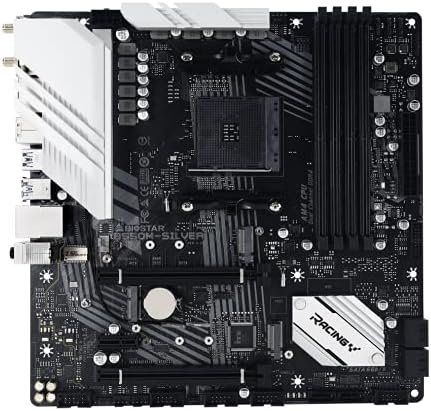
Image 4.1: Angled view of the Biostar Racing B550M-Silver motherboard, highlighting the CPU socket, DIMM slots, and various headers.
Key Components:
- CPU Socket (AM4): Located centrally, designed for AMD Ryzen processors.
- DIMM Slots (DDR4): Four slots for installing DDR4 memory modules.
- PCIe Slots: Includes PCIe 4.0 x16 slot for graphics cards and additional PCIe x1 slots for expansion cards.
- M.2 Slots: High-speed slots for NVMe SSDs.
- SATA 6Gb/s Ports: Connectors for traditional SATA storage devices.
- Front Panel Headers: Connectors for case buttons, LEDs, and front USB/audio ports.
- Power Connectors: 24-pin ATX power connector and 8-pin CPU power connector.
Rear I/O Panel:

Image 4.2: Rear I/O panel of the Biostar Racing B550M-Silver motherboard, showing various connectivity ports.
- USB Ports: Various USB 2.0, USB 3.2 Gen1, and USB 3.2 Gen2 ports.
- Video Outputs: HDMI 2.1 for display connectivity (requires compatible APU).
- LAN Port: Ethernet port for network connection.
- Audio Jacks: For speakers, headphones, and microphones.
- PS/2 Port: For legacy keyboard or mouse.
- Wi-Fi Antenna Connectors: For optional Wi-Fi module.
5. Hardware Installation
Follow these steps carefully to install your components onto the motherboard.
5.1. CPU Installation
- Open the CPU socket lever.
- Align the triangular mark on the CPU with the mark on the socket.
- Gently place the CPU into the socket without forcing it.
- Close the socket lever to secure the CPU.
5.2. CPU Cooler Installation
Install your CPU cooler according to its manufacturer's instructions. Ensure proper thermal paste application and secure mounting.
5.3. Memory (RAM) Installation
- Open the clips on both ends of the DIMM slot.
- Align the notch on the DDR4 memory module with the key in the DIMM slot.
- Press down firmly on both ends of the memory module until the clips snap into place.
- For dual-channel configuration, refer to the motherboard manual for recommended slot pairing.
5.4. Storage Device Installation
M.2 SSD Installation:
- Locate the M.2 slot and remove the standoff screw.
- Insert the M.2 SSD into the slot at a 30-degree angle.
- Push the SSD down and secure it with the standoff screw.
SATA Drive Installation:
- Connect one end of the SATA data cable to a SATA port on the motherboard.
- Connect the other end to your SATA hard drive or SSD.
- Connect a SATA power cable from your power supply to the drive.
5.5. Expansion Card Installation (PCIe)
- Align your graphics card or other PCIe expansion card with the appropriate PCIe slot.
- Press down firmly until the card is fully seated in the slot.
- Secure the card with a screw to the computer case.
- Connect any required PCIe power cables from the power supply to the graphics card.
5.6. Power Supply Connection
- Connect the 24-pin ATX power cable from the power supply to the main power connector on the motherboard.
- Connect the 8-pin CPU power cable (EPS 12V) from the power supply to the CPU power connector near the CPU socket.
5.7. Case Mounting and Front Panel Connections
- Install the I/O shield into the rear opening of your computer case.
- Carefully place the motherboard into the case, aligning the screw holes with the standoffs.
- Secure the motherboard with screws.
- Connect the front panel cables (Power SW, Reset SW, HDD LED, Power LED) to their respective headers on the motherboard. Refer to the motherboard manual for exact pin assignments.
- Connect front USB and audio cables to their corresponding headers.
6. Initial System Setup and BIOS
After hardware installation, proceed with the initial system setup.
6.1. First Boot
Connect a monitor, keyboard, and mouse. Power on the system. The system should display the BIOS/UEFI splash screen.
6.2. Accessing BIOS/UEFI
During the boot process, repeatedly press the DEL key (or sometimes F2) to enter the BIOS/UEFI setup utility.
6.3. BIOS/UEFI Navigation
Use the keyboard (arrow keys, Enter, Esc) or mouse to navigate the BIOS/UEFI interface. Important settings to check include boot order, date/time, and fan controls.
6.4. Driver Installation
After installing your operating system, install the necessary drivers for the motherboard chipset, LAN, audio, and any other integrated components. These can typically be found on the included driver CD/USB or downloaded from the Biostar official website.
7. Operating System Installation
To install an operating system (e.g., Windows, Linux), you will need an installation medium (USB drive or DVD) and a valid product key.
- Insert the OS installation medium.
- Access the BIOS/UEFI and set the boot order to prioritize the installation medium.
- Save changes and exit BIOS/UEFI. The system will boot from the installation medium.
- Follow the on-screen prompts to complete the operating system installation.
8. Maintenance
Regular maintenance helps ensure the longevity and stable operation of your motherboard.
8.1. Cleaning
- Periodically clean dust from inside the computer case, especially around fans, heatsinks, and vents.
- Use compressed air to remove dust. Avoid using a vacuum cleaner as it can generate static electricity.
- Ensure the system is powered off and unplugged before cleaning.
8.2. BIOS/UEFI Updates
BIOS/UEFI updates can provide improved compatibility, stability, and new features. Only update the BIOS/UEFI if necessary and follow the instructions provided by Biostar precisely. Incorrect updates can render the motherboard inoperable.
9. Troubleshooting Common Issues
This section provides solutions for common problems you might encounter.
- No Power:
- Check if the power supply is connected to the wall outlet and switched on.
- Verify that the 24-pin ATX and 8-pin CPU power cables are securely connected to the motherboard.
- Ensure the front panel power switch cable is correctly connected to the motherboard header.
- No Display:
- Confirm the monitor is connected to the correct video output (graphics card or motherboard if using an APU).
- Reseat the graphics card and memory modules.
- If using an APU, ensure your CPU supports integrated graphics.
- System Not Booting / POST Errors:
- Listen for beep codes (if a speaker is connected) or check the Debug LED on the motherboard for error codes. Refer to the motherboard manual for code meanings.
- Reseat all installed components (CPU, RAM, GPU, M.2 SSDs).
- Try booting with only essential components (CPU, one RAM stick, GPU if no APU).
- Clear CMOS by removing the CMOS battery for a few minutes or using the CLR_CMOS jumper.
- Operating System Not Loading:
- Check the boot order in BIOS/UEFI to ensure the correct drive is selected.
- Verify that the storage drive containing the OS is properly connected and detected.
10. Technical Specifications
Below are the detailed technical specifications for the Biostar Racing B550M-Silver motherboard.
| Feature | Specification |
|---|---|
| Brand | Biostar |
| Model Number | B550M-Silver |
| CPU Socket | Socket AM4 |
| Chipset Type | AMD B550 |
| Compatible Processors | AMD 3rd Generation Ryzen, future Ryzen 4th Gen series |
| RAM Memory Technology | DDR4 |
| Memory Slots Available | 4 |
| RAM Memory Maximum Size | 128 GB |
| Memory Clock Speed | Up to 4933+(OC) MHz |
| Graphics Card Interface | PCI Express 4.0 |
| Total PCIe Ports | 3 (1x PCIe 4.0 x16, 2x PCIe 3.0 x1) |
| M.2 Slots | PCIe M.2 4.0 (64Gb/s) |
| Total SATA Ports | 6 |
| Total USB Ports | 8 (various USB 2.0, 3.2 Gen1, 3.2 Gen2) |
| Total Number of HDMI Ports | 1 (HDMI 2.1) |
| Number of Ethernet Ports | 1 |
| Form Factor | Micro ATX |
11. Warranty and Support
11.1. Warranty Information
The Biostar Racing B550M-Silver motherboard comes with a 4-year BIOSTAR VIP Care Warranty. This warranty covers defects in materials and workmanship under normal use during the specified period. Please retain your proof of purchase for warranty claims.
11.2. Contact Support
For technical assistance, driver downloads, or warranty inquiries, please visit the official Biostar website or contact their customer support directly. Provide your product model number (B550M-Silver) and a detailed description of your issue when seeking support.
Official Biostar Website: www.biostar.com.tw


