
AULA F3068
AULA F3068 Bluetooth Mechanical Keyboard User Manual
Model: F3068 | Brand: AULA
1. Introduction
This manual provides comprehensive instructions for the AULA F3068 Bluetooth Mechanical Keyboard. The F3068 is a versatile 65% layout keyboard featuring dual-mode connectivity (Bluetooth and wired USB-C), RGB backlighting, and hot-swappable mechanical switches. It is designed for use with PC, Mac, laptops, desktops, tablets, and smartphones.
Please read this manual thoroughly before using your keyboard to ensure proper operation and to maximize its features.
2. Package Contents
Upon unpacking, please verify that all items listed below are present and in good condition:
- AULA F3068 Mechanical Keyboard x 1
- USB Type-C Connecting Cable x 1
- User Manual x 1
3. Product Features
- Dual-Mode Connectivity: Supports both Bluetooth (3.0/4.0/5.0) and wired USB Type-C connections. Easily switch between up to 3 Bluetooth devices (FN+Q/W/E).
- Compact 68-Key Layout: A 65% layout that saves desk space while retaining essential keys.
- RGB Backlighting: Features 18 RGB backlight modes, 8 monochrome modes, and 1 full-color backlight. Customizable brightness and speed.
- Hot-Swappable Switches: Equipped with mechanical Brown switches, allowing for easy replacement of 3-pin switches without soldering.
- Full-Keys Anti-Ghosting: Ensures all key presses are registered accurately, even during rapid input.
- Ergonomic Design: Stepped keycap design and adjustable foot support for comfortable typing and reduced fatigue.
- Durable Construction: Made with high-quality wear-resistant PBT keycaps.
- Long Battery Life: Built-in 1850 mAh battery provides up to 10 hours of continuous use in Bluetooth mode.

Image: Overview of the AULA F3068 Mechanical Keyboard, showcasing its Bluetooth/Wired Dual Mode, Full-Key Hot-Swap Switch, Customized Switch capability, and Colorful Lighting.

Image: Diagram illustrating the various features of the AULA F3068 keyboard, including detachable Type-C cable, rugged body, dynamic RGB, hot-swap switches, Bluetooth 5.0, and free switch capability.
4. Setup
4.1 Wired Connection
- Locate the USB Type-C port on the keyboard.
- Connect one end of the provided USB Type-C cable to the keyboard.
- Connect the other end of the USB cable to an available USB port on your computer or device.
- The keyboard will automatically be recognized and ready for use.
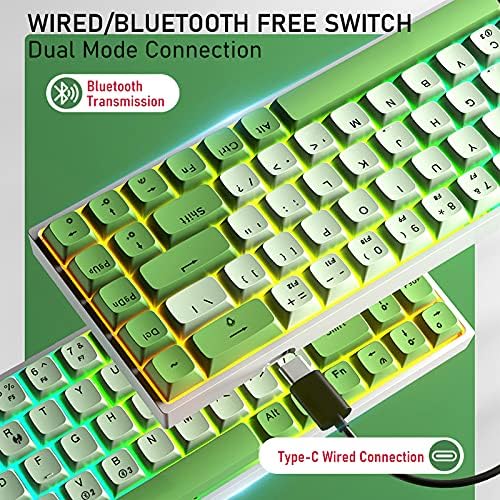
Image: The AULA F3068 keyboard demonstrating its dual-mode connection capability, showing both Bluetooth transmission and Type-C wired connection options.
4.2 Bluetooth Connection
- Ensure the keyboard is charged or connected via USB-C for initial setup.
- Turn on the keyboard's Bluetooth mode (refer to the switch on the back or side of the keyboard, if present, or use FN key combinations).
- To pair with a device, press and hold FN + Q, FN + W, or FN + E for a few seconds until the indicator light flashes, indicating pairing mode. Each combination corresponds to a different Bluetooth profile, allowing connection to up to three devices.
- On your device (PC, Mac, tablet, smartphone), enable Bluetooth and search for new devices.
- Select "AULA F3068" from the list of available devices.
- Follow any on-screen prompts to complete the pairing process. The indicator light on the keyboard will become solid once connected.
To switch between paired Bluetooth devices, simply press FN + Q, FN + W, or FN + E corresponding to the desired device.
4.3 Charging the Keyboard
The keyboard features a built-in 1850 mAh rechargeable battery. To charge, connect the USB Type-C cable to the keyboard and the other end to a USB power source (e.g., computer USB port, USB wall adapter). The charging indicator light will show the charging status and turn off when fully charged.
5. Operating Instructions
5.1 Backlight Control
The AULA F3068 keyboard offers extensive RGB backlight customization:
- Change Backlight Mode: Use FN + \ | to cycle through 18 RGB backlight modes, 8 monochrome modes, and 1 full-color backlight mode.
- Adjust Brightness: Use FN + ↑ (increase) and FN + ↓ (decrease) to adjust backlight brightness.
- Adjust Speed: Use FN + ← (slow down) and FN + → (speed up) to adjust the speed of dynamic backlight effects.
5.2 Hot-Swappable Switches
The F3068 keyboard supports hot-swappable 3-pin mechanical switches, allowing you to customize your typing experience without soldering.
- To remove a switch, use a switch puller tool (not included) to gently grip the switch and pull it straight up.
- To install a new switch, align the pins of the new 3-pin switch with the holes on the PCB. Gently push the switch down until it clicks into place. Ensure the pins are straight to avoid bending.

Image: The AULA F3068 keyboard demonstrating its hot-swappable feature, showing switches being easily changed for a richer mechanical experience.

Image: A close-up view of the AULA F3068 keyboard's PCB, showing the sockets for hot-swappable 3-pin switches, allowing users to customize their keyboard.
5.3 Anti-Ghosting
The AULA F3068 features full-keys anti-ghosting, meaning that every key press is registered accurately, even when multiple keys are pressed simultaneously. This is particularly beneficial for fast typing and gaming.

Image: Illustration of the AULA F3068 keyboard's full-keys anti-ghosting capability, showing multiple simultaneous key presses being registered.
5.4 Ergonomics and Keycap Design
The keyboard is designed with ergonomics in mind, featuring a stepped keycap profile and adjustable feet to provide a comfortable typing angle. The PBT keycaps have a special spherical design and thickened inner walls (1.65mm) for a unique tactile feel and sound.

Image: Details of the AULA F3068 keycaps, highlighting special spherical design, thickened inner wall (1.65mm), delicate touch feeling, and inclined design for improved ergonomics.
6. Maintenance
- Cleaning: Use a soft, dry cloth to wipe the keyboard surface. For deeper cleaning, you may use a slightly damp cloth with mild soap, ensuring no liquid enters the keyboard.
- Keycap Cleaning: Keycaps can be removed for thorough cleaning. Use a keycap puller (not included) to gently remove them. Clean with water and mild soap, then ensure they are completely dry before reattaching.
- Storage: Store the keyboard in a cool, dry place away from direct sunlight and extreme temperatures.
- Battery Care: To prolong battery life, avoid fully discharging the keyboard frequently. Charge it regularly, especially if not used for extended periods.
7. Troubleshooting
| Problem | Possible Cause | Solution |
|---|---|---|
| Keyboard not responding in wired mode. | Loose cable connection; faulty USB port; driver issue. | Ensure USB-C cable is securely connected. Try a different USB port or cable. Restart your computer. |
| Cannot connect via Bluetooth. | Keyboard not in pairing mode; Bluetooth disabled on device; interference. | Ensure keyboard is in Bluetooth pairing mode (FN+Q/W/E, flashing light). Check if Bluetooth is enabled on your device. Move closer to the device. Remove other Bluetooth devices. |
| Backlight is off or dim. | Power saving mode; brightness set too low; low battery. | Press any key to wake up from power saving mode. Use FN+↑ to increase brightness. Charge the keyboard. |
| Keys not registering or double-typing. | Dust/debris under keycap; faulty switch. | Remove keycap and clean. If issue persists, consider replacing the switch (hot-swappable feature). |
| Keyboard randomly disconnects. | Low battery; Bluetooth interference; power management settings. | Charge the keyboard. Reduce interference. Check device power management settings to prevent Bluetooth device disconnection. |
8. Specifications
| Feature | Detail |
|---|---|
| Product Name | Wired/Bluetooth Mechanical Gaming Keyboard |
| Model | F3068 |
| Connection Method | Bluetooth (3.0/4.0/5.0) / Wired (USB Type-C) |
| Number of Keys | 68 keys |
| Keyboard Layout | QWERTY US layout |
| Keys Technology | Anti-ghosting, Programmable, Hot-swappable (3-pin) |
| Switch Type | Mechanical Brown Switch |
| Button Life | 50 million times |
| Backlight Effect | RGB cool backlight (18 modes, 8 monochrome, 1 full color) |
| Battery Capacity | Built-in 1850 mAh |
| Rated Voltage | DC 5±0.25V |
| Rated Current | 200mA±10%Max |
| Keyboard Size | 310×100×40mm |
| Product Weight | 1000g (approx. 989g) |
| System Support | Windows XP/2000/7/8/10, Mac OS, Linux, Symbian, Chrome OS, iOS, Android |
| Compatible Devices | PC, Mac, Laptop, Desktop, Tablet, Smartphone |
9. Warranty and Support
AULA products are designed for reliability and performance. For warranty information, please refer to the specific warranty card included with your product or contact your point of purchase. Keep your proof of purchase for any warranty claims.
For technical support, troubleshooting assistance, or general inquiries, please visit the official AULA website or contact their customer service department. Contact details can typically be found on the product packaging or the official brand website.
Always ensure you are using official AULA accessories and following the instructions in this manual to maintain product integrity and warranty validity.
Related documentsF3068


Ask a question about this manual
Ask about setup, troubleshooting, compatibility, parts, safety, or missing instructions. Manuals+ will review the question and use this page’s manual context to help answer it.