
Audvoi SR190A
Audvoi SR190A Sound Bar User Manual
Model: SR190A
1. Introduction
Thank you for choosing the Audvoi SR190A Sound Bar. This 16-inch mini soundbar is designed to enhance your audio experience for TV, gaming, and music. Featuring 60W output power, built-in DSP, Bluetooth 5.0, and multiple connectivity options, it delivers impressive stereo sound with deep bass and clear vocals.
This manual provides detailed instructions for setting up, operating, and maintaining your sound bar to ensure optimal performance and longevity.

Figure 1.1: Audvoi SR190A Sound Bar with included remote control.
2. What's in the Box
Please check the contents of your package to ensure all items are present:
- Soundbar
- Optical Cable
- RCA Cable
- Remote Control
- Power Adapter
- User Manual
- Rawl Plugs and Screws (for wall mounting)

Figure 2.1: All components included in the Audvoi SR190A Sound Bar package.
3. Setup
3.1 Placement Options
The Audvoi SR190A Sound Bar offers versatile placement options to suit your home theater setup. It can be placed flat on a table or mounted on a wall.
- Desktop Placement: Position the sound bar directly in front of your TV on a flat surface. Its ultra-slim design ensures it will not block the TV remote sensor for most TVs (recommended for TVs under 43 inches, especially 32" and 24" TVs).
- Wall Mounting: Use the included rawl plugs and screws to securely mount the sound bar on a wall below your TV.

Figure 3.1: Examples of desktop and wall mounting placements.

Figure 3.2: Product dimensions for optimal placement consideration.
3.2 Connecting Your Sound Bar
The sound bar supports various audio input methods to connect with your devices.

Figure 3.3: Available input ports on the sound bar.
- HDMI ARC Connection:
Connect one end of an HDMI cable (not included) to the HDMI ARC port on your sound bar and the other end to the HDMI ARC port on your TV. This allows for high-quality audio transmission and control via your TV remote (if supported by your TV).
- Optical Connection:
Connect the included Optical cable from the OPTICAL port on the sound bar to the Optical Digital Audio Out port on your TV or other audio source. Ensure your TV's audio output is set to 'PCM' if you experience no sound.
- Line In (AUX) Connection:
Use the included RCA cable to connect the LINE IN port on the sound bar to the audio output (RCA L/R or 3.5mm headphone jack with adapter) of your TV, PC, or other device.
- USB Connection:
Insert a USB drive (FAT32 format) into the USB port to play audio files directly from the drive.
- Bluetooth 5.0 Connection:
For wireless audio streaming, pair your mobile phone, tablet, or laptop with the sound bar via Bluetooth. See Section 4.3 for detailed pairing instructions.

Figure 3.4: Bluetooth connectivity for wireless devices.
After connecting your preferred audio source, connect the power adapter to the DC IN port on the sound bar and then plug it into a power outlet.
4. Operating Your Sound Bar
4.1 Power On/Off and Input Selection
- Power On: Press the Power button on the remote control or the sound bar's control panel.
- Power Off: Press the Power button again to turn off the sound bar.
- Input Selection: Press the 'Input' button on the remote or the 'M' button on the sound bar to cycle through available input modes (HDMI ARC, Optical, Line In, USB, Bluetooth). The LED indicator on the sound bar will show the current mode.
4.2 Adjusting Sound Modes (EQ)
The Audvoi SR190A Sound Bar features 5 Equalizer (EQ) modes to optimize your listening experience for different content types. Use the remote control to select your desired mode:
- News Mode: Enhances vocal clarity for news broadcasts and dialogue-heavy content.
- Movie Mode: Provides a dynamic and immersive soundstage for films, emphasizing effects and surround sound.
- Music Mode: Optimizes audio for music playback, delivering balanced highs, mids, and lows.
- Game Mode: Designed for gaming, offering enhanced sound effects and positional audio.
- 3D Mode: Activates virtual 3D surround sound for a more expansive audio experience.
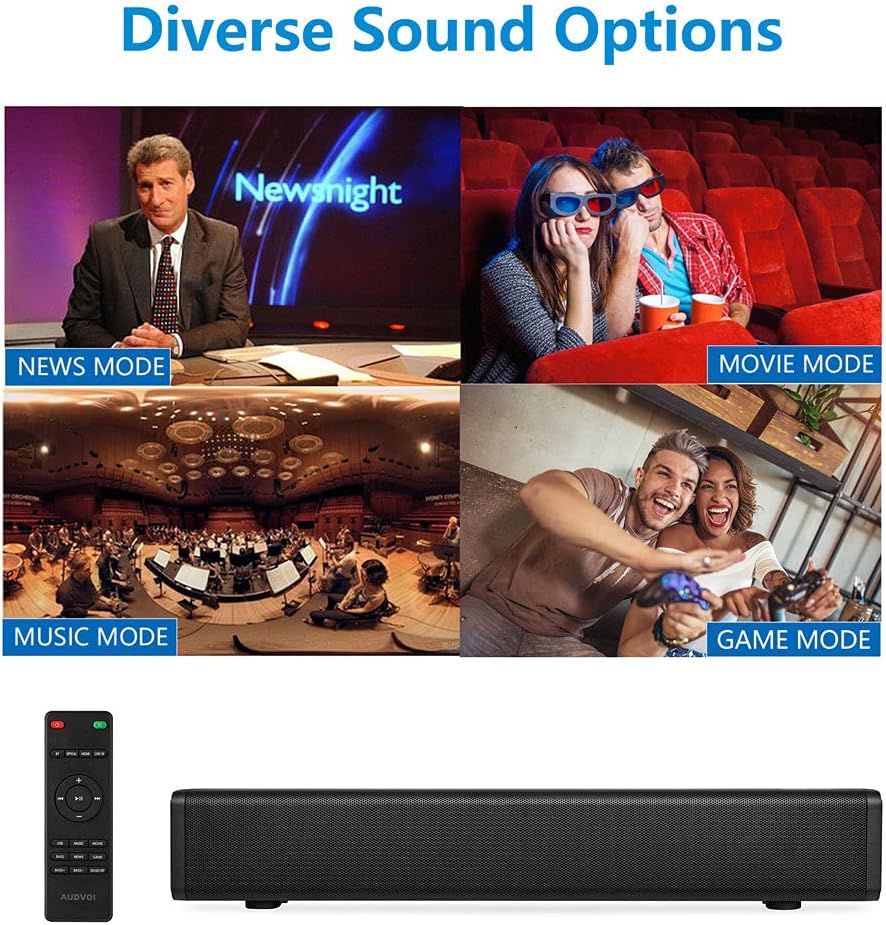
Figure 4.1: Visual representation of different sound modes.
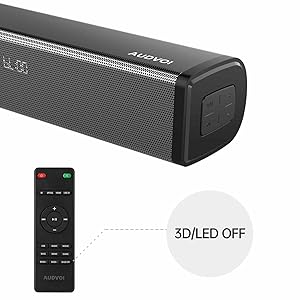
Figure 4.2: Remote control for selecting EQ modes and other functions.
4.3 Bluetooth Pairing
- Turn on the sound bar and switch to Bluetooth mode (the LED indicator will flash blue).
- Enable Bluetooth on your mobile device (phone, tablet, etc.).
- Search for available devices and select "Audvoi SR190A" from the list.
- Once paired, the LED indicator on the sound bar will turn solid blue, and you can now play audio wirelessly.
4.4 Remote Control Functions
The included remote control provides full functionality for your sound bar:
- Power Button: Turns the sound bar on or off.
- Input Button: Cycles through input modes (HDMI ARC, Optical, Line In, USB, Bluetooth).
- Volume +/-: Adjusts the master volume level.
- Mute Button: Mutes or unmutes the sound.
- EQ Mode Buttons: Dedicated buttons for News, Movie, Music, Game, and 3D modes.
- Play/Pause, Next/Previous Track: (For USB/Bluetooth mode) Controls media playback.
- 3D/LED OFF: Toggles 3D surround sound and can turn off the LED display.
5. Maintenance
To ensure the longevity and optimal performance of your Audvoi SR190A Sound Bar, follow these maintenance guidelines:
- Cleaning: Use a soft, dry cloth to wipe the surface of the sound bar. Do not use liquid cleaners, abrasive cleaners, or sprays, as they may damage the finish or internal components.
- Ventilation: Ensure the sound bar has adequate ventilation. Do not block any ventilation openings.
- Storage: If storing the sound bar for an extended period, disconnect it from power and store it in a cool, dry place, away from direct sunlight and extreme temperatures.
- Handling: Avoid dropping or subjecting the sound bar to strong impacts, which can damage internal circuitry.
6. Troubleshooting
If you encounter any issues with your sound bar, please refer to the following common problems and solutions:
| Problem | Possible Cause | Solution |
|---|---|---|
| No power | Power adapter not connected or faulty outlet. | Ensure the power adapter is securely connected to the sound bar and a working power outlet. Try a different outlet. |
| No sound | Incorrect input mode, volume too low, or incorrect TV audio settings. | Check that the sound bar is on the correct input mode. Increase the volume. For Optical/HDMI ARC, ensure your TV's audio output is set to 'PCM' or 'External Speaker'. |
| Bluetooth pairing failed | Sound bar not in pairing mode, device too far, or interference. | Ensure the sound bar is in Bluetooth pairing mode (flashing blue LED). Move your device closer to the sound bar. Turn off other Bluetooth devices nearby. |
| Remote control not working | Dead batteries, obstruction, or remote not pointed correctly. | Replace batteries. Ensure no obstructions between the remote and the sound bar's sensor. Point the remote directly at the sound bar. |
If the problem persists after trying these solutions, please contact Audvoi customer support for further assistance.
7. Specifications
| Feature | Detail |
|---|---|
| Brand | Audvoi |
| Model Name | SR190A |
| Speaker Type | Soundbar |
| Connectivity Technology | Bluetooth, Optical, HDMI ARC, USB, Line In |
| Wireless Communication Technology | Bluetooth 5.0 |
| Speaker Maximum Output Power | 80 Watts (Peak) |
| Product Dimensions | 16.14"D x 2.6"W x 3.23"H |
| Item Weight | 3.16 pounds |
| Input Voltage | 240 Volts |
| Impedance | 4 Ohm |
| Frequency Response | 160 Hz - 16 kHz |
| Controller Type | Remote Control |
| Mounting Type | Wall Mount/Desktop Mount |
| Compatible Devices | Laptop, Phones, Projector, Tablet, Television |
| Included Components | Soundbar, Optical Cable, RCA Cable, Remote Control, Power Adapter, User Manual, Rawl Plugs and Screws |
8. Warranty and Support
8.1 Warranty Information
The Audvoi SR190A Sound Bar comes with a Limited Warranty. Please refer to the warranty card included in your package for specific terms and conditions, including coverage period and limitations.
8.2 Customer Support
For technical assistance, troubleshooting beyond this manual, or warranty claims, please contact Audvoi customer support. Contact information can typically be found on the product packaging, the official Audvoi website, or the warranty card.
Please have your product model number (SR190A) and purchase details ready when contacting support.
9. Product Videos
No official product videos from the seller were found to be embedded in this manual.
Related documentsSR190A

Ask a question about this manual
Ask about setup, troubleshooting, compatibility, parts, safety, or missing instructions. Manuals+ will review the question and use this page’s manual context to help answer it.