
1. Introduction and Overview
The Tascam TM-250U is a USB condenser microphone designed for high-quality audio capture in various applications, including podcasting, online conferencing, computer recording, and live streaming. This microphone offers direct-to-computer connectivity without the need for additional drivers, ensuring a simple plug-and-play experience. It features a headphone output for direct monitoring and built-in controls for convenient operation.

Image 1.1: The Tascam TM-250U USB Condenser Microphone shown on its included desktop stand, ready for use.
2. Package Contents
Verify that all the following items are included in your package:
- Tascam TM-250U USB Condenser Microphone
- USB C-A cable (2 meters)
- Microphone holder (with 5/8 inch screw diameter)
- Desktop tripod stand
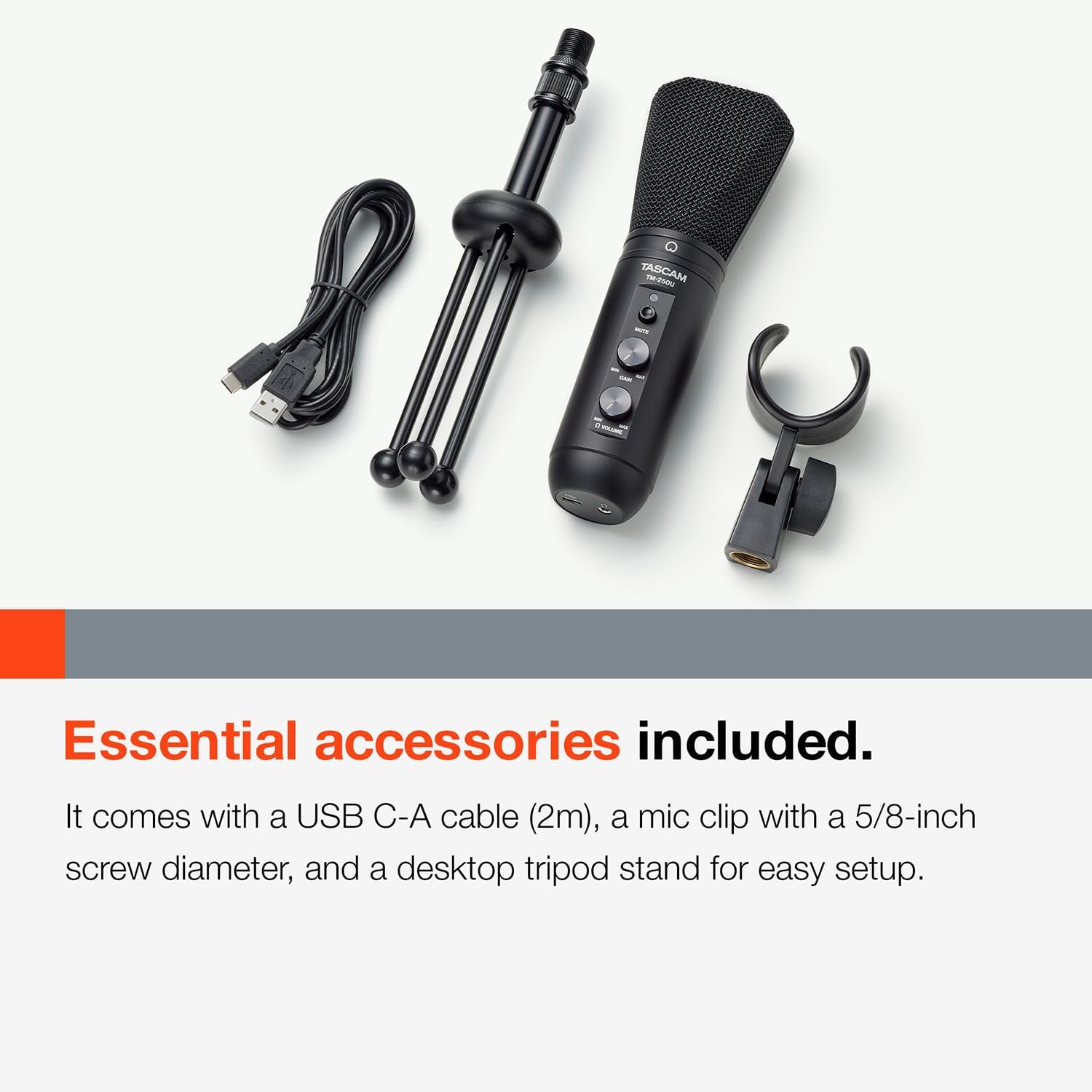
Image 2.1: The Tascam TM-250U microphone, USB C-A cable, mic holder, and desktop stand are shown together.
3. Setup Instructions
Follow these steps to set up your Tascam TM-250U microphone:
- Attach the Microphone to the Stand: Screw the included microphone holder onto the desktop tripod stand. Then, securely attach the TM-250U microphone to the holder.
- Connect to Your Computer: Use the provided USB C-A cable. Insert the USB-C end into the microphone's USB-C port and the USB-A end into an available USB-A port on your computer. The microphone is USB class compliant, meaning no special drivers are required for Windows, macOS, iOS, Android, or Chrome OS.
- Connect Headphones (Optional): For direct monitoring, plug your headphones into the 3.5mm headphone jack located on the microphone.
- Select as Audio Device: Once connected, your computer should automatically recognize the TM-250U. Navigate to your operating system's sound settings (e.g., System Preferences > Sound on Mac, Sound Settings > Input/Output on Windows) and select the Tascam TM-250U as both your input (microphone) and output (headphone) device.

Image 3.1: The microphone's universal compatibility is illustrated, showing connections to Windows, macOS, iOS, and Android devices.
4. Operating Instructions
The Tascam TM-250U features intuitive controls for managing your audio:
- Gain Control: Use the GAIN knob on the microphone to adjust the input sensitivity. Turn it clockwise to increase microphone gain and counter-clockwise to decrease it. Adjust this to achieve a strong signal without clipping (distortion).
- Headphone Volume Control: The VOLUME knob controls the output level of the headphone jack. Adjust this to a comfortable listening level for direct monitoring.
- Mute Button: Press the MUTE button to instantly mute or unmute the microphone's input. An indicator light will typically show the mute status.
- Direct Monitoring: The microphone supports low-latency direct monitoring, allowing you to hear your voice through headphones without delay. This is crucial for recording and live streaming. Ensure your headphones are connected to the microphone's 3.5mm jack.
The microphone supports 16-bit/48kHz audio resolution, providing clear and detailed sound for your recordings and broadcasts.

Image 4.1: A detailed view of the gain, volume, and mute controls on the Tascam TM-250U microphone.
5. Maintenance
Proper care will ensure the longevity and optimal performance of your Tascam TM-250U microphone:
- Cleaning: Gently wipe the microphone's exterior with a soft, dry cloth. Avoid using liquid cleaners, solvents, or abrasive materials, as these can damage the finish or internal components.
- Storage: When not in use, store the microphone in a clean, dry place, away from direct sunlight, extreme temperatures, and high humidity. The original packaging or a protective case is recommended to prevent dust accumulation and physical damage.
- Handling: Avoid dropping the microphone or subjecting it to strong impacts, as this can affect its internal components and sound quality.
6. Troubleshooting
If you encounter issues with your Tascam TM-250U microphone, refer to the following common solutions:
- Microphone Not Recognized by Computer:
- Ensure the USB C-A cable is securely connected to both the microphone and your computer's USB-A port.
- Try connecting to a different USB-A port on your computer.
- Verify that the microphone is selected as the input device in your computer's sound settings.
- Important Note: The TM-250U is designed to work with a USB-C to USB-A cable. It may not function correctly with a USB-C to USB-C cable, even if your computer has USB-C ports. If you only have USB-C ports, use the provided USB-C to USB-A cable with a suitable USB-C to USB-A adapter or hub.
- No Sound or Low Volume from Microphone:
- Check the GAIN knob on the microphone and ensure it is turned up sufficiently.
- Confirm the microphone is not muted (check the MUTE button and its indicator light).
- Adjust the input level settings in your computer's sound preferences or recording software.
- No Sound or Low Volume from Headphones (Direct Monitoring):
- Ensure your headphones are fully plugged into the microphone's 3.5mm jack.
- Adjust the VOLUME knob on the microphone.
- If using a Mac, direct monitoring setup can be complex. Refer to the Tascam website for detailed instructions on configuring Audio MIDI Setup for optimal direct monitoring. Note that direct monitoring volume may be softer than software monitoring.
- Distorted Sound:
- Reduce the GAIN knob on the microphone.
- Ensure you are not speaking too closely or too loudly into the microphone. Maintain an appropriate distance.
7. Specifications
| Feature | Specification |
|---|---|
| Model Name | TM-250U USB Condenser Microphone |
| Brand | Tascam |
| Microphone Form Factor | Boundary |
| Polar Pattern | Super Cardioid |
| Connectivity Technology | USB |
| Connector Type | USB-C (on mic), USB-A (on cable) |
| Power Source | USB Microphone |
| Hardware Platform | PC (Compatible with Windows, macOS, iOS, Android, Chrome OS) |
| Number of Channels | 1 |
| Signal-to-Noise Ratio | 78 dB |
| Material | Plastic |
| Color | Black |
| Item Weight | 16 ounces (1 pound) |
| Product Dimensions (L x W x H) | 10 x 3.15 x 8.74 inches |
| Special Feature | Stand, Headphone Output for Direct Monitoring |
| Recommended Uses | Singing, Gaming, Streaming, Voice Recording, Video Recording, Karaoke, Speech, Video Conference |
| Date First Available | April 1, 2021 |
8. Safety Information
Please observe the following safety guidelines to ensure safe operation and prevent damage to the device:
- Do not expose the microphone to water, moisture, or extreme temperatures.
- Avoid placing the microphone near heat sources or in direct sunlight.
- Do not attempt to disassemble or modify the microphone. Refer all servicing to qualified personnel.
- Keep the microphone away from strong magnetic fields.
- Use only the provided USB cable or a compatible replacement.
9. Warranty and Support
For warranty information, technical support, or further assistance, please visit the official Tascam website or contact Tascam customer service. Keep your purchase receipt as proof of purchase for warranty claims.
Official Tascam Website: www.tascam.com


