
1. Product Overview
The ONN MICROSDHC Card is a high-capacity, high-speed memory solution designed for expanding storage in compatible electronic devices. This card offers reliable performance for storing photos, videos, music, and other data. It features a Class 10 speed rating, ensuring efficient data transfer and recording, and is designed to be waterproof for enhanced durability.
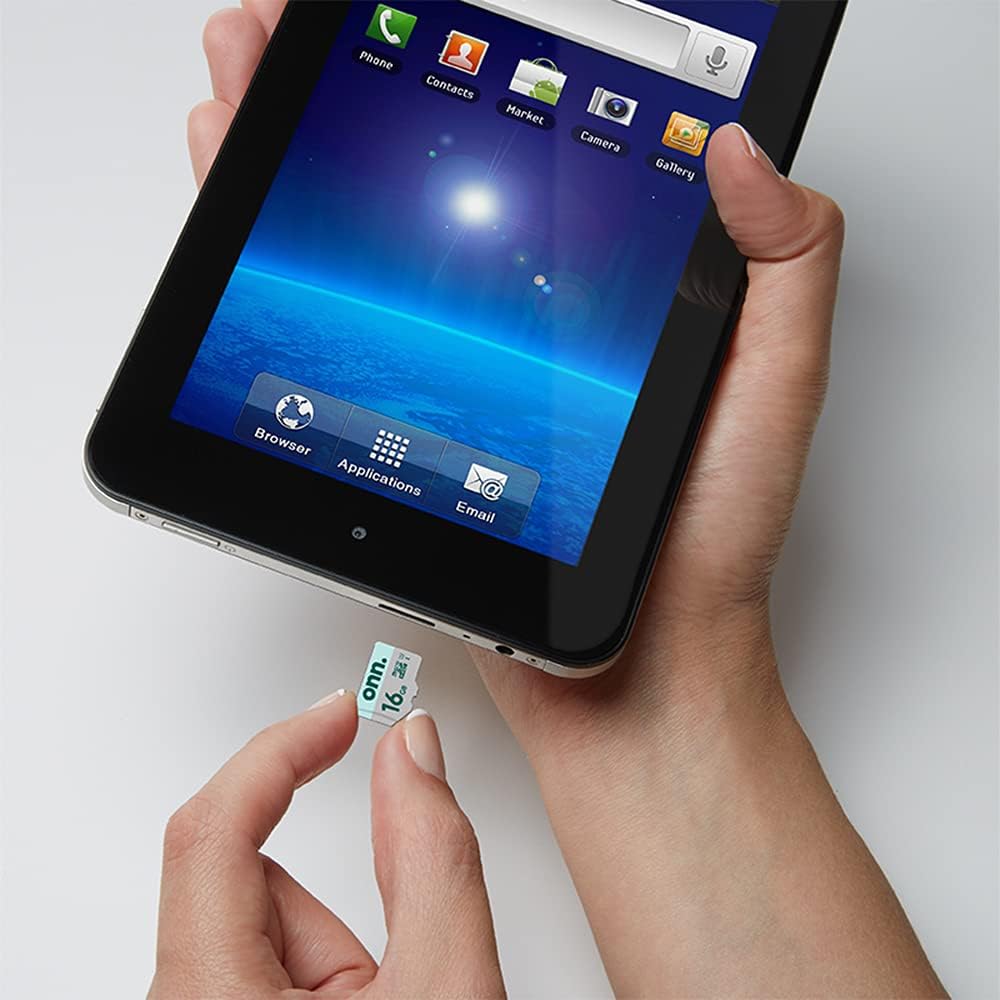
Image 1.1: Front view of the ONN 16GB MicroSDHC Card, showing the brand logo, capacity, and speed class markings.
2. Package Contents
- 1 x ONN MICROSDHC Card (16 GB)
3. Setup and Installation
To begin using your ONN MICROSDHC Card, follow these steps to properly insert it into your compatible device.
3.1 Inserting into a Smartphone
- Power off your smartphone before attempting to insert or remove the memory card.
- Locate the microSD card slot on your device. This is often found under the battery cover, near the SIM card slot, or in a side tray that requires a tool to open.
- Orient the ONN MICROSDHC Card correctly, ensuring the gold contacts face the device and the notched corner aligns with the slot.
- Gently push the card into the slot until it clicks into place. Do not force the card.
- Replace the battery cover or close the tray.
- Power on your smartphone. The device should detect the new storage.
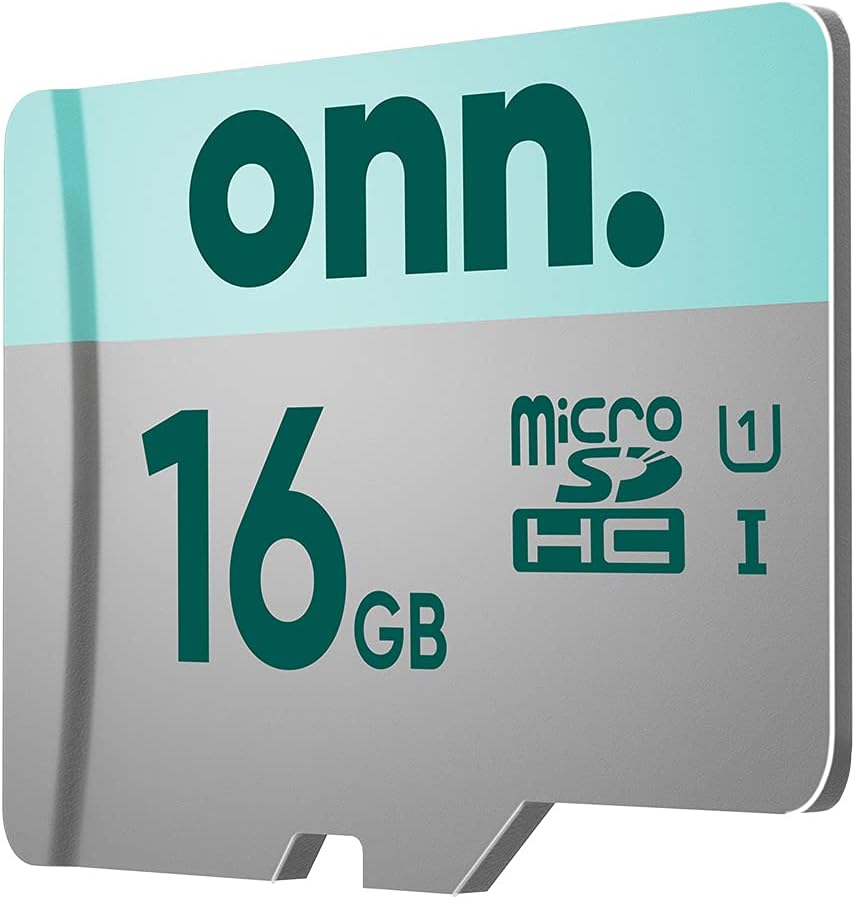
Image 3.1: A user inserting the ONN MicroSDHC card into the designated slot of a smartphone, with the phone's back cover removed.
3.2 Inserting into a Tablet or Camcorder
- Ensure the device is powered off.
- Locate the microSD card slot. This may be on the side of the tablet or camcorder, often protected by a small cover.
- Align the ONN MICROSDHC Card with the slot, matching the orientation shown in your device's manual.
- Insert the card firmly but gently until it is fully seated. Some slots are spring-loaded and require a slight push to lock.
- Close any covers or trays.
- Power on the device.

Image 3.2: A user inserting the ONN MicroSDHC card into the side slot of a tablet device.
4. Operating Instructions
Once the ONN MICROSDHC Card is installed, your device should automatically recognize it as additional storage. You can then use it to store various types of data.
4.1 Storing Data
- Photos and Videos: Many devices can be configured to save new photos and videos directly to the microSD card. Check your device's camera settings.
- Applications: Some Android devices allow you to move applications or parts of applications to the microSD card to free up internal storage. Refer to your device's app management settings.
- Documents and Media Files: You can manually transfer files like music, documents, and downloaded content to the card using a file manager application on your device or by connecting your device to a computer.
4.2 Data Transfer
To transfer data between the card and a computer, you can:
- Connect your device: Connect your smartphone, tablet, or camcorder to your computer using a USB cable. Your device should appear as a removable drive, allowing you to access the card's contents.
- Use a card reader: Remove the MICROSDHC card from your device and insert it into a compatible microSD card reader (not included). Connect the card reader to your computer's USB port.
5. Maintenance and Care
To ensure the longevity and optimal performance of your ONN MICROSDHC Card, consider the following:
- Proper Removal: Always safely eject the card from your device or computer before physically removing it to prevent data corruption.
- Physical Handling: Avoid touching the gold contacts on the card. Handle the card by its edges.
- Storage: Store the card in a protective case when not in use to prevent damage from dust, static, or physical impact.
- Waterproof Feature: While the card is waterproof, avoid prolonged submersion or exposure to extreme conditions to maintain its integrity.
- Formatting: If the card experiences issues or you wish to erase all data, you can format it using your device's settings or a computer. Be aware that formatting will delete all data on the card.
6. Troubleshooting
If you encounter issues with your ONN MICROSDHC Card, try the following solutions:
6.1 Card Not Recognized
- Reinsert the card: Remove the card and reinsert it carefully, ensuring it is properly seated in the slot.
- Restart device: Power off and restart your device.
- Test in another device: Try the card in a different compatible device or a card reader to determine if the issue is with the card or the original device.
- Check for updates: Ensure your device's operating system or firmware is up to date.
6.2 Slow Performance
- Free up space: If the card is nearly full, performance may degrade. Delete unnecessary files or transfer them to another storage location.
- Format the card: If performance remains slow, formatting the card might help. (Warning: This will erase all data.)
- Check device compatibility: Ensure your device supports Class 10 microSDHC cards for optimal speed.
6.3 Data Corruption
- Safely eject: Always ensure the card is safely ejected before removal.
- Scan for errors: Use a computer to scan the card for file system errors.
- Backup data: Regularly back up important data to prevent loss.
7. Specifications
| Feature | Detail |
|---|---|
| Brand | ONN |
| Model Number | 0681131279949 |
| Flash Memory Type | Micro SDHC |
| Memory Storage Capacity | 16 GB |
| Hardware Interface | microSDHC |
| Secure Digital Association Speed Class | Class 10 |
| Special Feature | Water Proof |
| Compatible Devices | Camcorder, Smartphones, Tablets |
| Color | Black |
| Item Weight | 0.739 ounces |
| UPC | 681131279949 |
8. Warranty and Support
For warranty information or technical support, please refer to the documentation provided with your purchase or visit the official ONN website. Keep your proof of purchase for warranty claims.