
1. Introduction
This manual provides detailed instructions for the installation, operation, and maintenance of your IMOU IPC-F22AP 1080P Full HD Outdoor PoE Security Camera. This camera is designed for outdoor surveillance, featuring 1080P resolution, IP67 weatherproofing, night vision, human detection, and Power over Ethernet (PoE) connectivity. Please read this manual thoroughly before using the product to ensure correct setup and optimal performance.
2. Package Contents
Verify that all items are present in your package:
- IMOU IPC-F22AP Camera
- Waterproof Connector
- Quick Start Guide (QSG)
- Installation Position Map
- Screw Package (for mounting)
- Power Adapter (Note: This camera primarily uses Power over Ethernet (PoE). The included power adapter may be for initial setup or specific non-PoE configurations, if supported. Refer to the Setup section for details.)
3. Product Overview
The IMOU IPC-F22AP camera offers robust features for reliable outdoor security monitoring.
3.1 Key Features
- 1080P Full HD Resolution: Captures clear and detailed video footage.
- H.265 Video Compression: Reduces bandwidth and storage requirements by 50% compared to H.264, without compromising video quality.
- IP67 Weatherproof: Designed to withstand various outdoor conditions, including rain, snow, and extreme temperatures.
- Night Vision: Provides clear surveillance up to 30 meters (98 feet) in low-light or complete darkness.
- Power over Ethernet (PoE): Simplifies installation by delivering both power and data through a single Ethernet cable.
- Human Detection: Advanced algorithms detect human shapes, reducing false alarms from pets or inanimate objects.
- Audio Recording: Built-in microphone captures audio within the camera's vicinity.
- Multiple Storage Options: Supports Network Video Recorder (NVR) and Cloud Storage for video recording.
- Customized Alarm Zone: Allows users to define specific areas for motion detection and alerts.
3.2 Camera Components

Image 3.2.1: Front view of the IMOU IPC-F22AP camera, showing the lens and status indicator light.

Image 3.2.2: Overview of key features including 1080P Full HD, H.265, 30m/98ft Night Vision, IP67 Weatherproof, Power over Ethernet, NVR & Cloud Storage, Human Detection, Alarm Zone, and Audio Recording.
4. Setup and Installation
Follow these steps to set up and install your IMOU IPC-F22AP camera.
4.1 Powering the Camera (PoE)
The IPC-F22AP camera is designed to be powered via Power over Ethernet (PoE). This means both power and data are transmitted through a single Ethernet cable.
- Connect Ethernet Cable: Connect one end of an Ethernet cable to the camera's Ethernet port.
- Connect to PoE Device: Connect the other end of the Ethernet cable to a PoE-enabled switch, NVR with PoE ports, or a PoE injector. Ensure the PoE device provides sufficient power (e.g., IEEE 802.3af/at compliant).
- Verify Power: Once connected, the camera's status indicator light should illuminate, indicating it is receiving power.

Image 4.1.1: Illustration of Power over Ethernet (PoE) connection, showing an Ethernet cable providing both data and power to the camera.
Important Note on Power Adapter: While a "Power Adapter" is listed in the package contents, customer feedback indicates this model primarily functions with PoE. If you intend to use a non-PoE power source, ensure it is a 12V DC adapter with adequate amperage (e.g., 1A or higher) and compatible with the camera's power input. However, PoE is the recommended and most reliable power method for this camera.
4.2 Physical Installation
The camera is designed for wall mounting. Use the provided Installation Position Map and Screw Package.
- Choose Location: Select a suitable outdoor location that provides the desired viewing angle and is within reach of your Ethernet cable. Ensure the surface is sturdy enough to support the camera.
- Mark Drilling Points: Use the Installation Position Map to mark the drilling points on the wall.
- Drill Holes: Drill pilot holes at the marked positions. Insert wall anchors if necessary.
- Mount Camera: Secure the camera's mounting base to the wall using the provided screws.
- Adjust Angle: Loosen the adjustment screws on the camera's bracket to set the desired viewing angle, then tighten them to secure the camera in place.
- Waterproof Connector: For outdoor installations, use the waterproof connector for the Ethernet cable to protect against moisture ingress.
4.3 Initial Configuration (via Imou Life App)
The IMOU IPC-F22AP camera is controlled via the Imou Life app, available for Android and iOS devices.
- Download App: Download and install the "Imou Life" app from your device's app store.
- Create Account: Open the app and create an Imou account or log in if you already have one.
- Add Device: Tap the "+" icon in the app to add a new device. Scan the QR code located on the camera or its packaging.
- Follow On-Screen Prompts: The app will guide you through the remaining steps to connect the camera to your network and complete the initial setup.
5. Operating Instructions
Once configured, you can access and manage your camera using the Imou Life app.
5.1 Live View and Playback
- Live View: Open the Imou Life app and select your camera to view the live feed.
- Playback: Access recorded footage from your NVR or Cloud Storage through the app's playback function.

Image 5.1.1: Visual comparison demonstrating the clarity of 1080P Full HD resolution compared to 720P HD.

Image 5.1.2: Depiction of the camera's 24/7 protection, showing clear day vision and effective night vision up to 30 meters (98 feet).
5.2 Motion Detection and Alerts
- Enable Human Detection: In the app settings, enable human detection to receive alerts only when a human figure is detected.
- Customize Alarm Zone: Define specific areas within the camera's view where you want motion detection to be active. This helps to ignore irrelevant movements outside critical zones.
- Instant Alerts: Receive push notifications on your smartphone when motion is detected in the defined alarm zones.
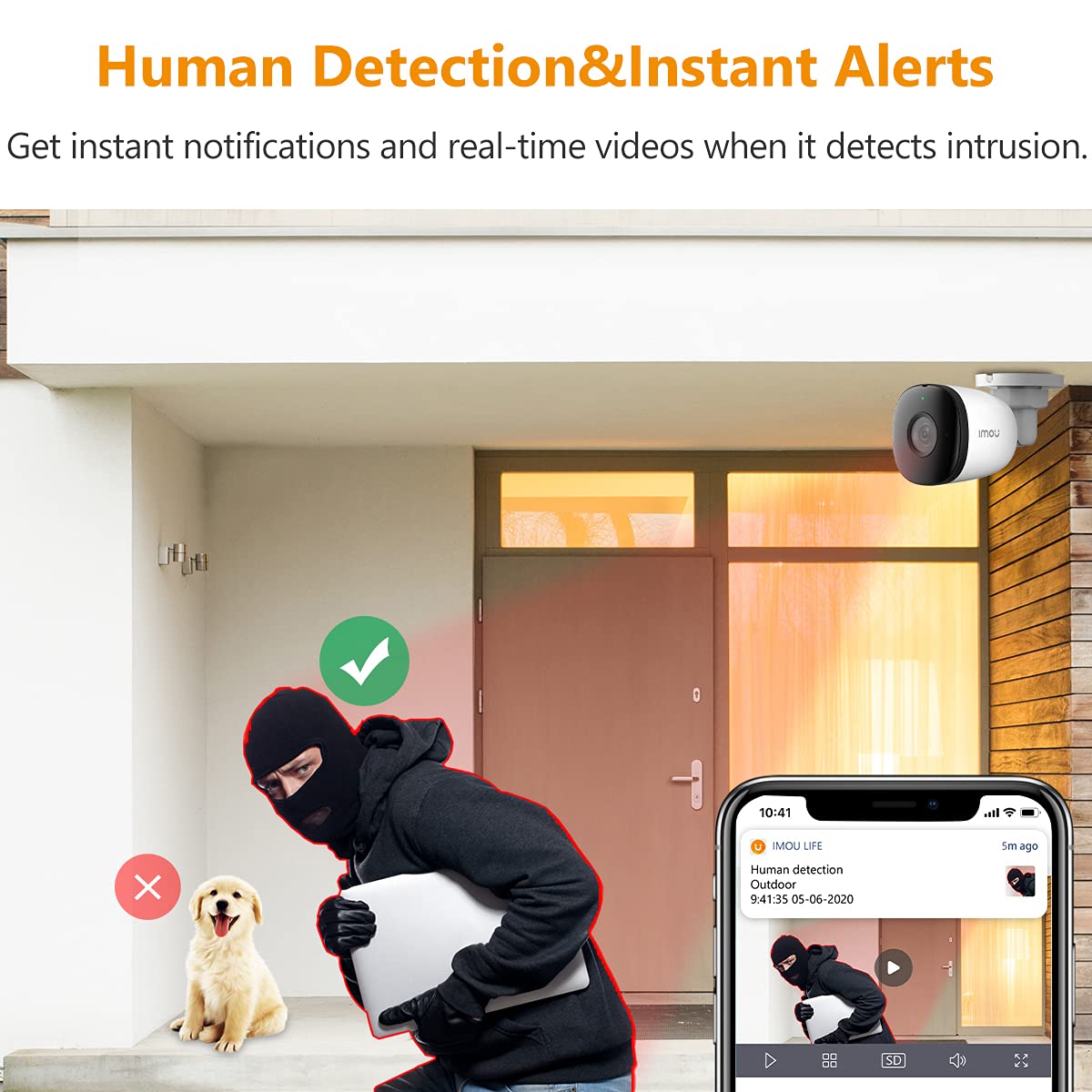
Image 5.2.1: Example of human detection triggering an instant alert on a smartphone, distinguishing humans from other objects like pets.

Image 5.2.2: Visual representation of customizing an alarm zone, highlighting a specific area for motion detection to prevent unwanted alerts.
5.3 Audio Recording
The camera's built-in microphone allows for audio recording. This feature can be enabled or disabled through the Imou Life app settings.

Image 5.3.1: Depiction of the camera's audio recording capability, showing sound waves being picked up by the microphone.
5.4 Storage Management
- NVR Storage: If connected to a compatible Network Video Recorder (NVR), recordings will be stored on the NVR's hard drive.
- Cloud Storage: Imou offers optional cloud storage services for secure off-site video backup. Refer to the Imou Life app for subscription details.

Image 5.4.1: Icons representing the available cloud and NVR storage options for recorded video footage.
6. Maintenance
Regular maintenance ensures the longevity and optimal performance of your camera.
- Cleaning the Lens: Gently wipe the camera lens with a soft, clean cloth to remove dust or smudges. Avoid abrasive materials or harsh chemicals.
- Check Connections: Periodically inspect the Ethernet cable and waterproof connector for any signs of wear or damage, especially in harsh weather conditions.
- Firmware Updates: Check the Imou Life app regularly for available firmware updates. Keeping the firmware updated ensures access to the latest features and security enhancements.
- Environmental Protection: While the camera is IP67 weatherproof, ensure it is not submerged in water or exposed to extreme physical impact.

Image 6.1.1: The IMOU IPC-F22AP camera demonstrating its IP67 weatherproof rating, shown functioning in stormy, snowy, and sunny conditions.
7. Troubleshooting
If you encounter issues with your camera, refer to the following common problems and solutions.
| Problem | Possible Cause | Solution |
|---|---|---|
| Camera not powering on. |
|
|
| Cannot connect camera to the Imou Life app. |
|
|
| Poor video quality or intermittent connection. |
|
|
| False motion detection alerts. |
|
|
8. Specifications
| Feature | Detail |
|---|---|
| Model | IPC-F22AP |
| Video Capture Resolution | 1080p Full HD |
| Effective Video Resolution | 1080 Pixels |
| Video Compression | H.265 |
| Night Vision Range | 30 meters (98 Feet) |
| International Protection Rating | IP67 Weatherproof |
| Connectivity Technology | Wired (Ethernet, PoE) |
| Power Source | Power over Ethernet (PoE), 12 Volts DC (if non-PoE adapter used) |
| Wattage | 5.5 Watts |
| Special Features | Local Recording, Motion Sensor, Night Vision, Human Detection, Audio Recording |
| Storage Options | NVR, Cloud Storage |
| Control Method | App (Imou Life - Android, iOS) |
| Mounting Type | Wall Mount |
| Dimensions (L x W x H) | 14.7 x 7.4 x 7.4 Centimeters |
| Item Weight | 210 Grams |
| Operating System Compatibility | Android, iOS |
| Manufacturer | Dahua Technology |
9. Warranty and Support
For warranty information and technical support, please refer to the official Imou website or contact their customer service. Keep your purchase receipt for warranty claims.
- Manufacturer: Dahua Technology
- Brand: Imou
- Online Support: Visit the official Imou website for FAQs, troubleshooting guides, and contact information.
- Extended Warranty: Information regarding extended warranty options, such as those offered by Onsitego, can be found at the point of purchase or through relevant service providers.


