
Vonets VAP11AC
Vonets VAP11AC Dual-Band WiFi Bridge User Manual
Model: VAP11AC
1. Product Overview
The Vonets VAP11AC is a versatile mini dual-band AC1200 WiFi Bridge, Wireless Repeater, and WiFi to Ethernet Converter. It is designed to enable wired devices to connect to a wireless network or to extend the range of an existing WiFi network. This device supports both 2.4GHz and 5GHz bands, offering high-speed data transmission and stable connectivity for various applications.

Figure 1: Vonets VAP11AC Dual-Band WiFi Bridge with included USB and Ethernet cables.
Key functionalities include:
- WiFi Bridge: Allows wired devices (e.g., IP cameras, DVRs, smart TVs, desktop computers) to connect to the internet wirelessly via an Ethernet port.
- Wireless Repeater: Extends the coverage and signal strength of an existing WiFi network, eliminating dead zones.
- WiFi AP Hotspot: Can function as an Access Point, suitable for creating a wireless network in environments like hotel rooms.

Figure 2: The VAP11AC supports a combined transmission rate of 1200Mbps, with 300Mbps on the 2.4GHz band and 900Mbps on the 5GHz band, ensuring faster and more stable wireless connections.
2. Package Contents
Please ensure all items are present in your package:
- Vonets VAP11AC Dual-Band WiFi Bridge
- USB/DC Power Cable
- Ethernet Cable (RJ45, 30cm)
- User Manual (this document)
3. Hardware Description
Familiarize yourself with the ports and indicators on your VAP11AC device:

Figure 3: Overview of VAP11AC ports and LED indicators.
- LAN Port: 10/100Mbps adaptive Ethernet port for wired connections.
- USB Port: Used for power supply (typical 5V/2A).
- DC Port: Alternative power supply input (DC5V-15V).
- Reset Button: Used to restore factory settings.
- LED Indicators:
- Green Light: 5G WiFi connection status.
- Blue Light: 2.4G WiFi connection status.
- Yellow Light: Ethernet cable connection status.
The VAP11AC features a built-in cooling fan for efficient heat dissipation, ensuring stable operation even under high load. The fan automatically starts and stops after 5-10 minutes of normal operation.
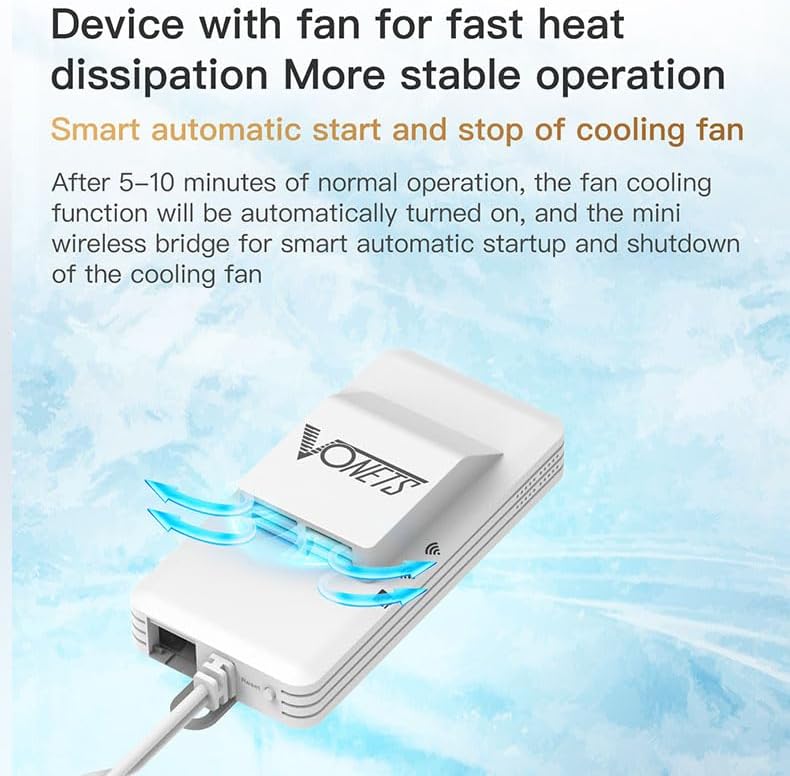
Figure 4: The VAP11AC includes a smart cooling fan for enhanced stability and heat management.
4. Setup and Configuration
Follow these steps to set up your Vonets VAP11AC:
- Power On: Connect the VAP11AC to a power source using the provided USB/DC power cable. You can use a USB port (e.g., from a computer or USB power adapter) or a DC5V-15V power supply. Ensure the power supply meets the specifications (e.g., 5V/2A for USB).
- Initial Connection for Configuration:
- Connect your computer directly to the VAP11AC's LAN port using the Ethernet cable.
- Temporarily disable DHCP on your computer's network adapter settings.
- Manually set your computer's IP address to an address in the same subnet as the VAP11AC, for example,
192.168.254.2. The VAP11AC's default IP address is192.168.254.254. - Open a web browser and navigate to
http://192.168.254.254. - Log in using the default credentials (usually admin for username and admin for password).
- Select Operating Mode: Once logged in, you can choose between Repeater/Bridge mode or AP mode based on your needs.
- Configure Wireless Settings:
- For Repeater/Bridge Mode: Scan for available WiFi networks and select the one you wish to extend or connect to. Enter the WiFi password if required. Ensure that any hotspot functions are disabled if you are using it purely as a client bridge to avoid IP conflicts.
- For AP Mode: Configure the SSID (network name) and password for the new wireless network that the VAP11AC will broadcast.
- Save Settings and Reboot: After configuring, save your settings and reboot the device for changes to take effect. Remember to revert your computer's network settings to DHCP or its original configuration after the VAP11AC is set up.
5. Operating Modes
5.1. Repeater/Bridge Application
In this mode, the VAP11AC expands your existing WiFi network or allows wired devices to connect to it wirelessly. It acts as a client to an existing WiFi network and provides an Ethernet connection for devices that lack wireless capabilities.

Figure 5: Repeater/Bridge Application setup, showing the VAP11AC extending WiFi or connecting wired devices.
Common uses include connecting desktop computers, printers, surveillance cameras, DVRs, or other IP devices to your wireless network without needing long Ethernet cables.
5.2. AP Application
In Access Point (AP) mode, the VAP11AC converts a wired internet connection into a wireless hotspot. This is ideal for situations where you have an Ethernet connection but need to provide WiFi access to multiple devices.

Figure 6: AP Application setup, showing the VAP11AC creating a WiFi hotspot from a wired connection.
This mode is particularly useful in hotel rooms or offices where only wired internet is available, allowing you to connect smartphones, tablets, and laptops wirelessly.
6. Maintenance
To ensure optimal performance and longevity of your VAP11AC:
- Keep the device in a well-ventilated area to allow for proper heat dissipation.
- Avoid exposing the device to extreme temperatures, humidity, or direct sunlight.
- Clean the device periodically with a soft, dry cloth. Do not use liquid cleaners.
- The internal cooling fan operates automatically. Ensure its vents are not obstructed.
- Regularly check for firmware updates on the manufacturer's website to benefit from performance improvements and bug fixes.
7. Troubleshooting
If you encounter issues with your VAP11AC, refer to the following common problems and solutions:
| Problem | Possible Cause / Solution |
|---|---|
| Device not powering on. | Ensure the power cable is securely connected and the power source (USB port or DC adapter) is functional and provides sufficient power (5V/2A for USB). |
| Cannot access configuration page (192.168.254.254). |
|
| No internet connection after setup. |
|
| Intermittent signal loss or unstable connection. |
|
| Forgot login password or configuration issues. | Press and hold the Reset button for approximately 5-10 seconds until the lights flash. This will restore the device to factory default settings. You will then need to reconfigure it. |
If you continue to experience issues, please contact customer support at htxeu2021@163.com.
8. Specifications
| Feature | Description |
|---|---|
| Model Number | VAP11AC |
| Brand | Vonets |
| Wireless Standard | 802.11a/b/g/n/ac |
| Frequency Band | Dual-band (2.4GHz & 5GHz) |
| Data Transfer Rate | Up to 1200 Mbps (300Mbps 2.4GHz + 900Mbps 5GHz) |
| Network Ports | 1 x RJ45 Ethernet (10/100Mbps adaptive) |
| Power Supply | USB (5V/2A recommended) or DC (5V-15V) |
| Special Features | LED Indicator, Built-in Cooling Fan, Automatic Overvoltage Protection |
| Dimensions | (Information not explicitly provided, but implied compact size) |
| Weight | 72 Grams |
9. Warranty and Support
For technical support, troubleshooting assistance, or any inquiries regarding your Vonets VAP11AC, please contact our support team:
- Email: htxeu2021@163.com
Please refer to your purchase documentation for specific warranty terms and conditions. Keep your proof of purchase for warranty claims.
Related documentsVAP11AC


Ask a question about this manual
Ask about setup, troubleshooting, compatibility, parts, safety, or missing instructions. Manuals+ will review the question and use this page’s manual context to help answer it.