
msi CLUTCH GM41 LIGHTWEIGHT WIRELESS
MSI Clutch GM41 Lightweight Wireless Gaming Mouse and Charging Dock User Manual
Comprehensive instructions for setup, operation, and maintenance.
1. Introduction
The MSI Clutch GM41 Lightweight Wireless Gaming Mouse is engineered for high-performance gaming, offering an ultra-lightweight design, precise tracking, and long-lasting battery life. This manual will guide you through its features and functionalities.

Image: The MSI Clutch GM41 Lightweight Wireless Gaming Mouse, showcasing its sleek black design and illuminated dragon logo.

Image: The MSI Clutch GM41 mouse positioned on its dedicated charging dock, highlighting the complete wireless setup.
2. What's in the Box
Verify that all items are present in the packaging:
- MSI Clutch GM41 Lightweight Wireless Gaming Mouse
- Charging Dock
- USB Cable
- Micro USB Connector
3. Setup Guide
3.1 Connecting the Mouse
- Connect the USB cable to your computer's USB port.
- Attach the Micro USB connector to the USB cable.
- Insert the Micro USB connector into the charging dock.
- Turn on the mouse using the switch located on its underside.
- The mouse will automatically connect to your computer.
3.2 Using the Charging Dock
The included charging dock provides a convenient way to charge your mouse and store the wireless receiver.
- Place the mouse onto the charging dock, ensuring the contact points align.
- The mouse will begin charging. A full charge provides up to 80 hours of usage.
- A 10-minute charge can provide up to 9 hours of battery life.

Image: The underside of the MSI Clutch GM41 mouse, showing the power switch and charging contact points.
3.3 Software Installation (MSI Dragon Center)
For full customization of DPI, button assignments, and RGB lighting, install the MSI Dragon Center software from the official MSI website.
- Visit the official MSI support website.
- Locate and download the latest version of MSI Dragon Center for your operating system (PC/Mac).
- Follow the on-screen instructions to complete the installation.
- Launch Dragon Center to access mouse settings.
4. Operating the Mouse
4.1 Buttons and Functions
The MSI Clutch GM41 features 6 programmable buttons:
- Left Click Button: Primary action.
- Right Click Button: Secondary action.
- Scroll Wheel: Scrolls content; also functions as a clickable button.
- DPI Cycle Button: Located behind the scroll wheel, cycles through preset DPI levels.
- Side Buttons (2): Customizable for various in-game commands or macros via Dragon Center.
4.2 DPI Adjustment
The mouse is equipped with a Pixart PAW-3370 sensor, offering up to 20,000 DPI for precise tracking.
- Use the dedicated DPI cycle button to switch between different sensitivity settings.
- Customize DPI stages and values within the MSI Dragon Center software.

Image: Graphic illustrating the 20,000 DPI precision of the MSI Clutch GM41 mouse.
4.3 RGB Mystic Light Customization
Personalize the mouse's appearance with customizable RGB lighting.
- Open MSI Dragon Center.
- Navigate to the Mystic Light section to select colors, effects, and synchronize lighting with other MSI devices.

Image: Two MSI Clutch GM41 mice displaying different RGB lighting colors, highlighting the Mystic Light feature.
5. Maintenance
5.1 Cleaning
- Use a soft, dry cloth to wipe the surface of the mouse and charging dock.
- For stubborn dirt, slightly dampen the cloth with water or a mild cleaning solution. Avoid harsh chemicals.
- Clean the optical sensor area with a cotton swab to ensure optimal tracking performance.
5.2 Battery Care
- To maximize battery lifespan, avoid fully discharging the mouse frequently.
- Store the mouse in a cool, dry place when not in use for extended periods.
6. Troubleshooting
6.1 Mouse Not Responding
- Ensure the mouse is powered on.
- Check if the USB receiver is securely plugged into your computer.
- Verify the mouse battery has sufficient charge. Place it on the charging dock.
- Try plugging the USB receiver into a different USB port.
6.2 Connectivity Issues
- Ensure the mouse is within range of the USB receiver (typically up to 10 meters).
- Minimize interference from other wireless devices by moving them away from the mouse and receiver.
- Re-pair the mouse with the receiver if necessary (refer to MSI Dragon Center for pairing instructions).
6.3 RGB Lighting Not Working
- Ensure MSI Dragon Center software is installed and running.
- Check the Mystic Light settings within Dragon Center to confirm lighting effects are enabled.
- Update the mouse firmware via Dragon Center if an update is available.
7. Specifications
| Feature | Detail |
|---|---|
| Brand | MSI |
| Model Number | CLUTCH GM41 LIGHTWEIGHT WIRELESS |
| Connectivity | 2.4G RF Wireless (1ms latency) |
| Sensor | Pixart PAW-3370 Optical |
| Max DPI | 20,000 |
| Switches | OMRON (60+ Million Clicks) |
| Buttons | 6 Programmable Buttons |
| Weight | 74 grams |
| Battery Life | Up to 80 hours (44.5 hours average) |
| Charging Time | 90 minutes for full charge; 10 minutes for 9 hours usage |
| Dimensions (LxWxH) | 7.5 x 5.5 x 2.5 inches |
| Operating System | Windows, Mac |
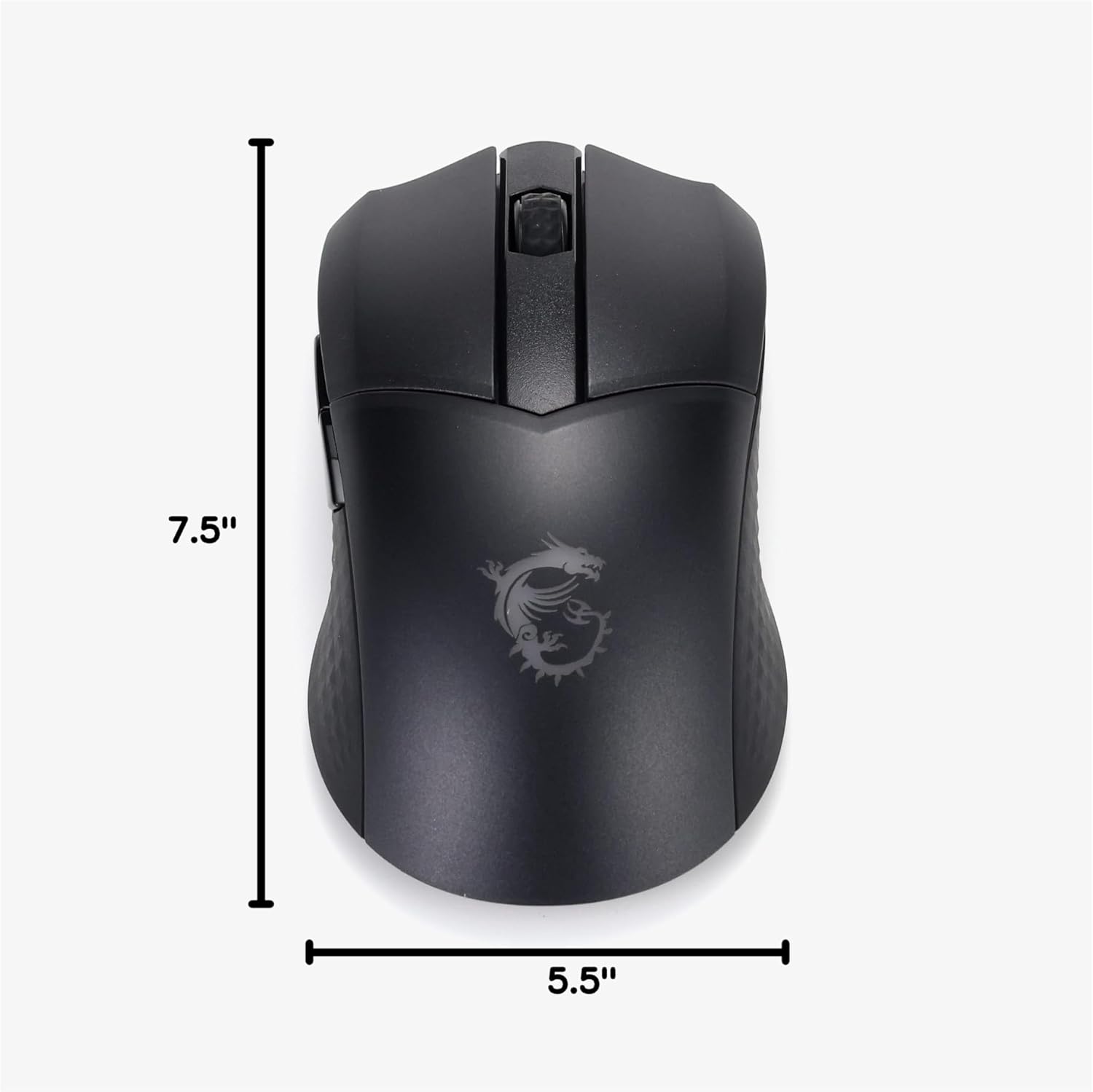
Image: Diagram showing the dimensions of the MSI Clutch GM41 mouse.
8. Warranty and Support
MSI products come with a limited warranty. For detailed warranty information, please refer to the warranty card included with your product or visit the official MSI website.
For technical support, driver downloads, and FAQs, please visit the MSI Support Page.
You may also consider purchasing extended protection plans for your device:
- 3-Year Protection Plan
- 4-Year Protection Plan
- Complete Protect: One plan covers all eligible past and future purchases
Related documentsCLUTCH GM41 LIGHTWEIGHT WIRELESS


Ask a question about this manual
Ask about setup, troubleshooting, compatibility, parts, safety, or missing instructions. Manuals+ will review the question and use this page’s manual context to help answer it.