
Obeamiu O-RGB-Light-1Pack
Obeamiu RGB LED Video Light Stick Wand User Manual
Model: O-RGB-Light-1Pack
Introduction
Thank you for choosing the Obeamiu RGB LED Video Light Stick Wand. This portable studio photography lighting tool is designed to provide versatile and high-quality illumination for various applications, including YouTube content creation, painting, vlogging, live streaming, and self-broadcasting.

Figure 1: Obeamiu RGB LED Video Light Stick Wand and included accessories.
Product Features
- Versatile & Dimmable RGB Lighting: Features a color temperature range from 2600K (warm) to 9600K (cold) with CRI≥97 and TLCI≥97. Brightness is adjustable from 0-100%. Includes 3 normal lighting modes (Yellow Warm, Warm White, White), 9 RGB lighting modes (Red, Green, Blue, Cyan, Magenta, Yellow, Pink, Violet, Orange), and 6 common lighting scene effects (RGB Cycle, Police Car, Ambulance, Fire Truck, Lightning, Candle, etc.).
- Durable & Safe Design: Constructed from aviation aluminum and hard PC for natural heat dissipation. Features an OLED display screen and weighs 360g. Dimensions are 403*48*44mm.
- Rechargeable Battery: Equipped with a built-in 10W 4000mAh lithium battery and USB Type-C charging port, providing approximately 100 minutes of operation at 100% power. Can be used while charging. Includes overheating protection.
- Flexible Mounting Options: Features a handle grip made of anti-skid material for comfortable holding. Both ends have 1/4 standard nut holes for mounting on tripods or light stands. Integrated 360° rotatable magnets allow attachment to most metal surfaces.
- Convenient Control: Includes a wireless remote control for adjusting settings from up to 40 feet away. The light has a power-off memory function, retaining the last settings upon reboot.
Package Contents
Please verify that all items are present in your package:
- 1 x C10 RGB Light Stick
- 1 x Wireless Remote Control
- 1 x Tripod Ball Head
- 1 x Handle Grip
- 1 x Carrying Bag
- 1 x USB Type-C Cable
- 1 x User Manual (this document)
Setup
1. Initial Charging
Before first use, fully charge the RGB Light Stick. Connect the provided USB Type-C cable to the charging port on the light stick and plug the other end into a compatible USB power adapter (not included).
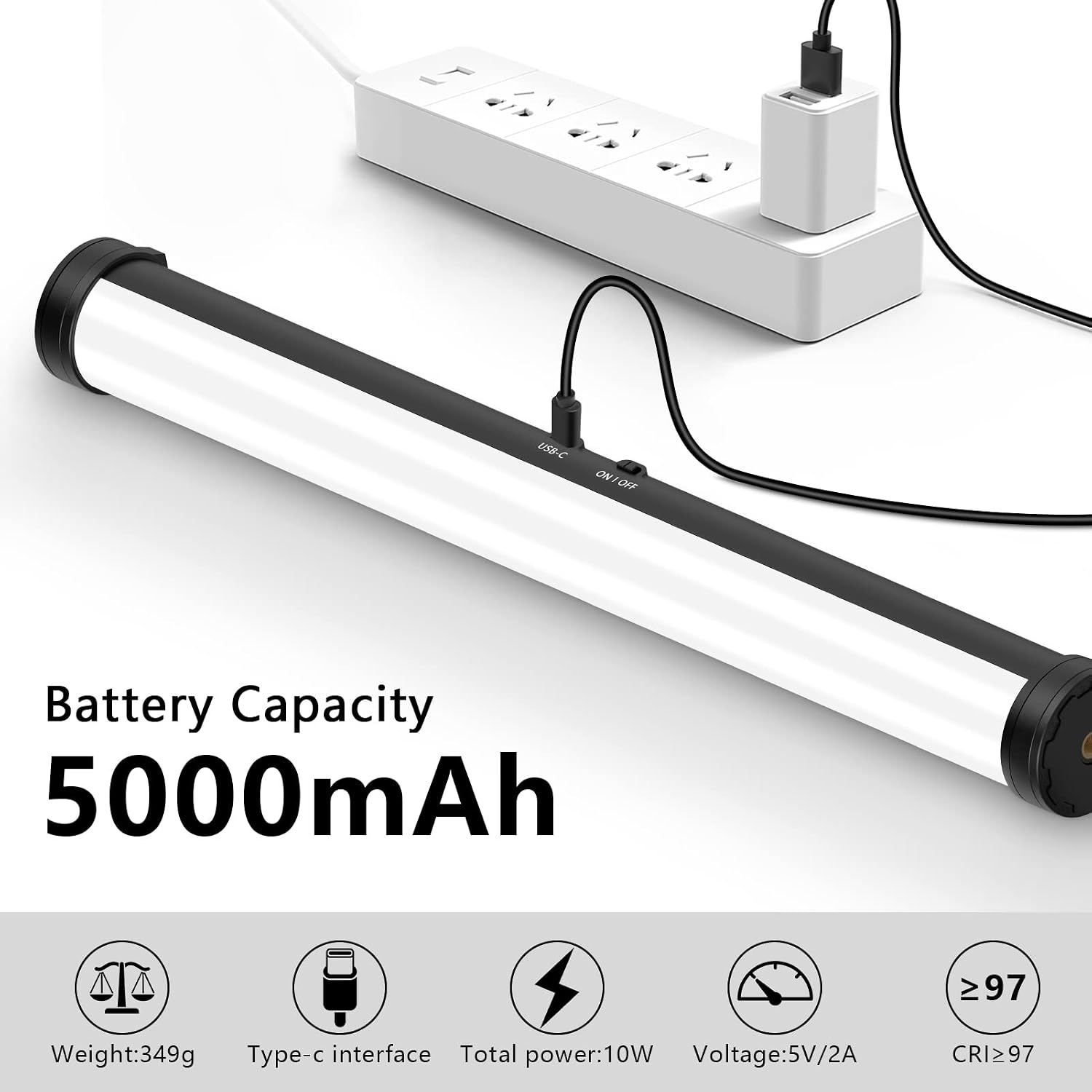
Figure 2: Charging the RGB Light Stick using the USB Type-C cable.
The OLED display will indicate charging status. A full charge provides approximately 100 minutes of operation at maximum brightness.
2. Attaching the Handle Grip
Screw the handle grip onto either of the 1/4" screw holes located at the ends of the light stick. Ensure it is securely fastened for comfortable handheld use.
3. Mounting Options
The light stick offers several mounting options:
- Tripod/Light Stand: Use the 1/4" screw holes at both ends to attach the light stick to a tripod or light stand. The included tripod ball head can be used for flexible positioning.
- Magnetic Attachment: The light stick features 360° rotatable magnets on both ends, allowing it to be securely attached to most metal surfaces.
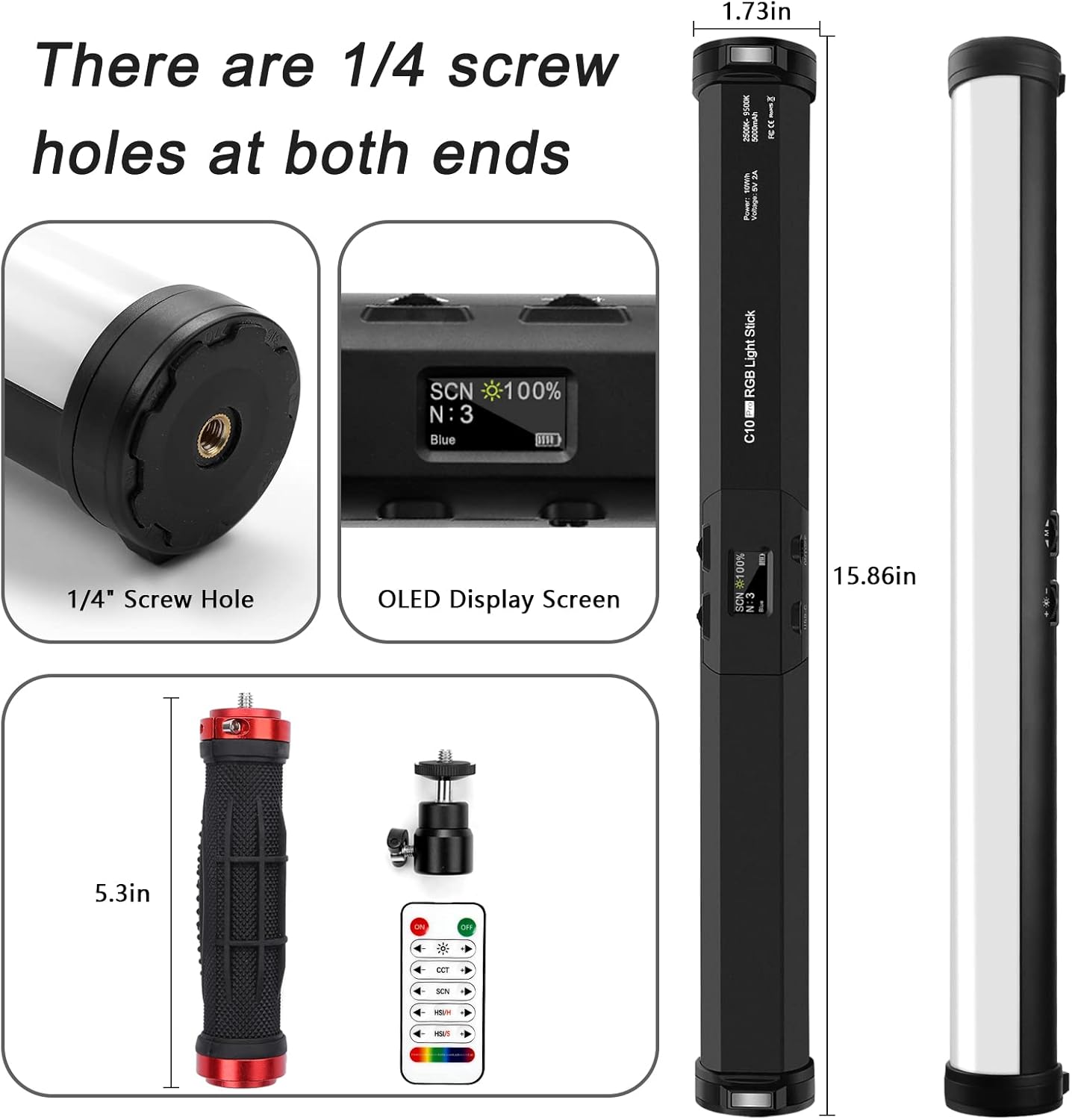
Figure 3: Details of the light stick's ends, showing the 1/4" screw hole and OLED display.

Figure 4: Magnetic and 1/4" screw hole mounting options.
Operating Instructions
1. Power On/Off
Locate the power button on the side of the light stick. Press and hold to turn the device on or off. The OLED display will illuminate upon power-on.
2. Understanding the OLED Display
The OLED display provides real-time information about the current lighting mode, brightness level, color temperature, and battery status.
3. Adjusting Settings (On-Device Controls)
The light stick features two control dials that also function as buttons. These allow for intuitive adjustment of settings:
- Mode Selection: Rotate one dial to cycle through different lighting modes (CCT, HSI, SCN). Press the dial to confirm selection or enter sub-menus.
- Parameter Adjustment: Rotate the other dial to adjust parameters within the selected mode (e.g., brightness, color temperature, hue, saturation). Press the dial to cycle through preset brightness levels (0%, 25%, 50%, 75%, 100%).
4. Using the Wireless Remote Control
The included wireless remote control allows for convenient adjustment of all light settings from a distance of up to 40 feet. Ensure the remote has fresh batteries (not included, typically CR2025 coin cell). Point the remote towards the light stick for optimal response.
- Power Button: Turns the light on/off.
- Brightness Buttons: Increase or decrease brightness.
- Mode Buttons: Cycle through CCT, HSI, and SCN modes.
- Color/Effect Buttons: Adjust color temperature, hue, saturation, or select specific scene effects.
5. Lighting Modes Explained

Figure 5: Overview of HSI, CCT, and SCN lighting modes.
- CCT Mode (Correlated Color Temperature):
Adjusts the white light from warm (2600K) to cold (9600K). Use this mode for standard white light illumination. Brightness is fully adjustable.
- HSI Mode (Hue, Saturation, Intensity):
Allows for precise control over the color of the light. Adjust Hue (the color itself, e.g., red, green, blue), Saturation (the intensity or purity of the color), and Intensity (brightness).
- SCN Mode (Scene Effects):
Provides 21 pre-programmed special effects to simulate various scenarios. These include:
- RGB Cycle (slow, medium, quick)
- Police Car
- Ambulance
- Fire Truck
- Lightning (slow, medium, quick)
- Camera Flash
- Candle
- TV Screen
- Breathe Light
- Broken Bulb
- Laser Light
- Fireworks (slow, medium, quick)
- Fire (slow, medium, quick)

Figure 6: Visual representation of the 21 different light effect modes.
6. Brightness Adjustment
Brightness can be adjusted from 0% to 100% in all modes using the control dial or the remote control. The OLED display will show the current brightness percentage.
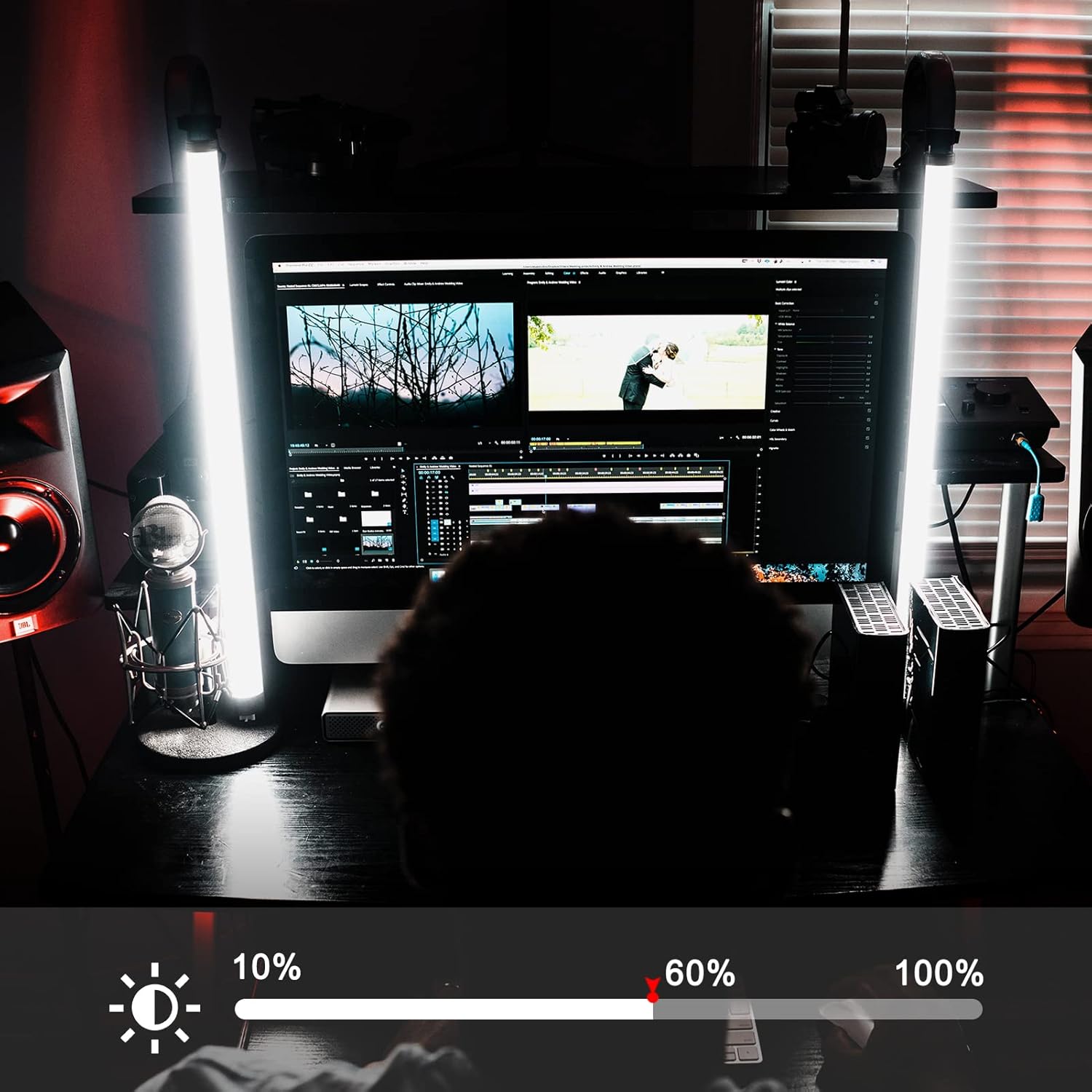
Figure 7: Adjusting brightness levels for optimal illumination.

Figure 8: Brightness control interface.
7. 360-Degree Rotation
The light stick features a 360° rotatable base on both ends, allowing for flexible light direction when mounted or placed on a surface.

Figure 9: 360-degree rotation feature.
Maintenance
- Cleaning: Use a soft, dry cloth to wipe the surface of the light stick. Do not use abrasive cleaners or solvents, as they may damage the finish or internal components.
- Storage: When not in use, store the light stick in the provided carrying bag in a cool, dry place away from direct sunlight and extreme temperatures.
- Battery Care: To prolong battery life, avoid fully discharging the battery frequently. If storing for an extended period, charge the battery to approximately 50% every few months.
- Avoid Impact: While durable, avoid dropping or subjecting the light stick to strong impacts, which could damage the internal electronics or LED array.
Troubleshooting
| Problem | Possible Cause | Solution |
|---|---|---|
| Light does not turn on. | Battery is depleted. Power button not pressed correctly. | Charge the light stick fully using the USB Type-C cable. Press and hold the power button firmly for a few seconds. |
| Remote control not working. | Remote battery is dead. Obstruction between remote and light. Remote not paired (though typically not required for this model). | Replace the remote control battery (CR2025). Ensure a clear line of sight. Try using the on-device controls. |
| Light flickers or behaves erratically. | Low battery. Overheating. Firmware issue. | Recharge the light stick. Allow the light to cool down. Ensure proper ventilation. Turn the light off and on again. If the issue persists, contact customer support. |
| Light does not hold a charge. | Battery degradation. Faulty charging cable/adapter. | Ensure you are using the provided USB Type-C cable and a working power adapter. If the issue persists, the battery may need replacement; contact customer support. |
Specifications
| Feature | Detail |
|---|---|
| Model Number | O-RGB-Light-1Pack |
| Color Temperature Range | 2600K-9600K |
| CRI / TLCI | ≥97 / ≥97 |
| Illuminance | Up to 1100 Lux (0.5M) |
| Battery Capacity | 4000mAh (Lithium Battery) |
| Battery Life (100% power) | Approx. 100 minutes |
| Charging Port | USB Type-C |
| Power | 10W |
| Dimensions | 403 x 48 x 44 mm (15.86 x 1.73 x 1.73 inches) |
| Weight | 360g (1.54 pounds) |
| Mounting | 1/4" screw holes (both ends), Magnetic attachment |
| Remote Control Range | Up to 40 feet |
Warranty and Support
Obeamiu stands behind the quality of its products. If you encounter any issues or are not satisfied with your RGB LED Video Light Stick Wand for any reason, please contact our customer support team immediately.
We are committed to providing a prompt resolution and will respond to your inquiries within 24 hours. Please refer to your purchase documentation for specific warranty terms and contact information.
For support, please visit the official Obeamiu website or contact the seller directly through your purchase platform.
Ask a question about this manual
Ask about setup, troubleshooting, compatibility, parts, safety, or missing instructions. Manuals+ will review the question and use this page’s manual context to help answer it.