
Introduction
Thank you for choosing the Renkforce RF-SBS-500 2D Wired Barcode Scanner. This device is designed for efficient and reliable scanning of both 1D and 2D barcodes from various surfaces, including paper and smartphone screens. Its omnidirectional scanning capability and hands-free operation make it suitable for a wide range of applications. This manual provides essential information for the proper setup, operation, and maintenance of your scanner.
Safety Instructions
- Do not expose the scanner to extreme temperatures, humidity, or direct sunlight.
- Avoid dropping the scanner or subjecting it to strong impacts.
- Do not attempt to disassemble or modify the scanner. This will void the warranty.
- Keep the scanning window clean to ensure optimal performance. Use a soft, dry cloth.
- Ensure the USB cable is connected securely to prevent accidental disconnection.
Package Contents
- Renkforce RF-SBS-500 2D Wired Barcode Scanner
- Integrated USB-A Cable
- User Manual (this document)
Setup
Follow these steps to set up your Renkforce RF-SBS-500 barcode scanner:
- Unpack the Scanner: Carefully remove the scanner from its packaging.
- Connect to a Computer: Plug the integrated USB-A cable from the scanner into an available USB port on your desktop or laptop computer.
- Driver Installation: The scanner is typically plug-and-play. Your operating system (Windows, macOS, Linux) should automatically detect and install the necessary drivers. Wait for the installation to complete.
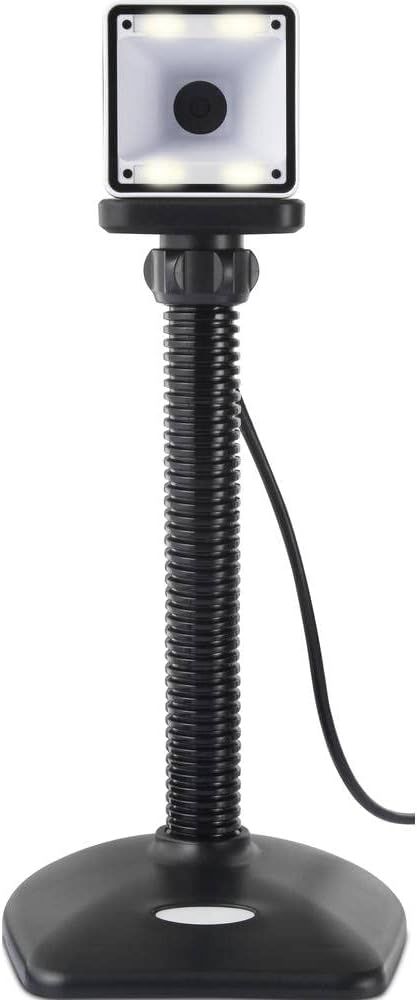
- Placement: Place the scanner on a stable, flat surface. The flexible neck allows for adjustment of the scanning head angle for optimal positioning.

Operating the Scanner
The Renkforce RF-SBS-500 is designed for ease of use with its omnidirectional and hands-free capabilities.
- Power On: Once connected via USB, the scanner will power on automatically. The LED indicators on the scanner head may illuminate briefly.
- Scanning a Barcode: Position the barcode within the scanning area of the scanner head. The scanner will automatically detect and read the barcode.
- Visual and Audible Feedback: Upon successful scanning, the integrated buzzer will emit a short beep, and the LED display on the scanner will flash or change color, indicating a successful read.
- Omnidirectional Reading: The scanner can read barcodes regardless of their orientation, eliminating the need to align the barcode precisely.
- Hands-Free Mode (Presentation Mode): The scanner operates continuously in a presentation mode, allowing you to simply pass items with barcodes in front of the scanning window without pressing any buttons. This saves time and improves workflow efficiency.
- Supported Barcodes: The scanner supports both 1D (e.g., EAN, UPC, Code 39) and 2D (e.g., QR Code, Data Matrix, PDF417) barcode types.
Maintenance
Proper maintenance ensures the longevity and optimal performance of your scanner.
- Cleaning the Scanning Window: Regularly clean the scanning window with a soft, lint-free cloth. For stubborn dirt, slightly dampen the cloth with water or a mild, non-abrasive cleaner. Do not spray cleaner directly onto the scanner.
- General Cleaning: Wipe the exterior of the scanner with a dry or slightly damp cloth. Avoid using harsh chemicals or abrasive materials.
- Storage: When not in use, store the scanner in a clean, dry environment away from direct sunlight and extreme temperatures.
Troubleshooting
If you encounter issues with your scanner, refer to the following common problems and solutions:
| Problem | Possible Cause | Solution |
|---|---|---|
| Scanner does not power on. | USB cable not connected properly or faulty USB port. | Ensure the USB cable is firmly connected to both the scanner and the computer. Try a different USB port. |
| Scanner does not read barcodes. | Barcode damaged, scanning window dirty, or incorrect barcode type. | Check the barcode for damage. Clean the scanning window. Ensure the barcode type is supported (1D/2D). Adjust the distance and angle of the barcode to the scanner. |
| No beep or LED feedback after scanning. | Barcode not read successfully. | Refer to the "Scanner does not read barcodes" solution. If the issue persists, contact support. |
| Scanned data appears incorrectly. | Keyboard layout mismatch or software issue. | Ensure your computer's keyboard layout matches the expected output. Test with a simple text editor. |
If the problem persists after trying these solutions, please contact Renkforce customer support.
Specifications
| Feature | Specification |
|---|---|
| Model Number | RF-4679568 |
| Scanning Capability | 1D and 2D Barcodes |
| Connectivity Technology | USB-A (Wired) |
| Scan Rate | 60 images per second |
| Scanning Mode | Omnidirectional, Hands-free (Presentation Mode) |
| Feedback | Integrated Buzzer, LED Display |
| Compatible Devices | Desktop Computer, Laptop, Smartphone (via appropriate adapter if needed) |
| Dimensions (L x W x H) | 150 x 5.2 x 5.2 cm |
| Item Weight | 102 Grams |
| Power Source | USB Powered |
| Country of Origin | Germany |
Warranty and Support
Renkforce products are manufactured to high-quality standards and come with a standard warranty. Please refer to your purchase documentation or the Renkforce official website for specific warranty terms and conditions applicable to your region.
For technical support, troubleshooting assistance, or warranty claims, please contact Renkforce customer service. Contact details can typically be found on the Renkforce website or on your product packaging.